Parental Controls on Android: How to Move from Restrictions to Real Growth


Getting a kid to put down their phone can feel like a non-stop argument that wears you out by the end of the day. Figuring out how to use parental controls on Android is no longer simply keeping things quiet for an hour or locking down a screen. It is about steering children toward a healthy balance and routine. When young kids spend hours on end glued to a smartphone, basic blocking tools simply are not enough to protect their daily growth.
Key Takeaways
- Tech-savvy kids easily outsmart the basic locks in smartphones; these simple blocking tools become more ineffective as time goes on.
- Constant manual blocking usually ends in daily arguments; lasting balance happens when you shift to an automated system focused on positive habits.
- Kids360 changes screen time from a constant power struggle into an incentive-based system for finishing chores and learning.
- Software guardrails work best as a team effort, meaning technical limits should support honest family communication rather than act as a hidden spy tool.
Contents
What Are Parental Controls on Android?
Parental controls on Android are essentially digital boundaries or limits that are set on devices. These options include built-in system parameters, specific settings in search engines, and external monitoring apps designed to manage what a child can view online.
Instead of letting a child roam the web completely unsupervised, these software tools let parents track daily habits. They establish the necessary ground rules to filter mature content, block inappropriate sites, and regulate the time kids spend staring at screens.
What Android Parental Controls Help Parents Manage
When configured properly, a central parental dashboard allows families to keep an eye on the main areas of a child’s digital life:
- Screen time: Setting a firm daily allowance for total hours spent on a specific device.
- App supervision: Restricting access to individual apps or shutting down gaming platforms entirely.
- Web safety: Enforcing content filters in browsers like Google Chrome to block adult content.
- Download oversight: Approving or stopping new software downloads from the Google Play Store.
What Parental Controls Cannot Fully Replace
While software filters can give you a good start for baseline safety features, technical locks cannot replace active, hands-on parenting. A system block can stop a web page from loading, but it won’t teach a child true digital empathy or how to act responsibly online.
Relying on an app that wasn’t there, and is now determining their screen time, will result in resentment and secrecy. Software tools are incredibly useful shields, but they work best alongside real conversations that help kids build their own internal discipline.
Kids360: The Simplest and Most Complete Android Parental Control Solution
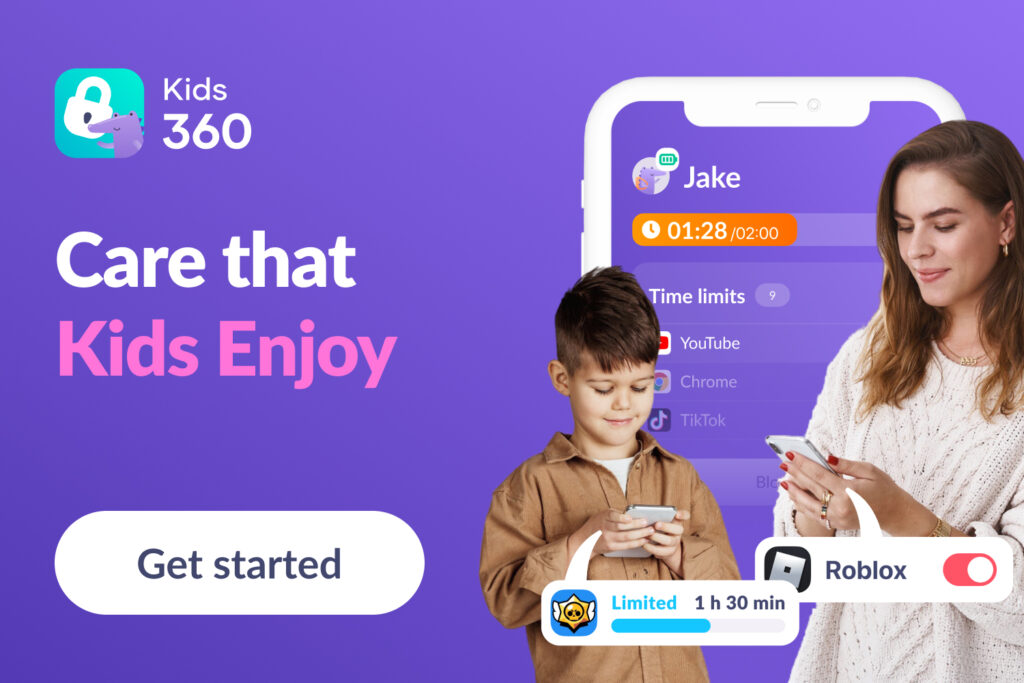
Most parents don’t want to manage dozens of Android settings manually; they want a solution that simply works every day. Constantly digging through deep system menus, adjusting their own account details/settings, and trying to reset a child’s password they have forgotten across multiple profiles turns device management into a tiring chore.
That’s why many families choose dedicated parental control systems like Kids360 instead of relying only on built-in Android tools. By pulling app timers, location tracking, and content filtering into a single, easy-to-understand screen, it completely removes the complications that come along with managing an Android device.
Limits of Google Family Link and Built-In Android Parental Control
For most homes, downloading the free Google Family Link is often the first step parents try when setting up digital boundaries for a child’s device. It provides a useful starting point for managing screen time and app access, especially for families who are new to parental controls.
Some families also notice that, depending on how the device is configured, children may look for workarounds, such as using alternative apps or browsers if they are not individually restricted. These situations vary by device and settings, and often require ongoing adjustments from parents.
It is also important to note that Family Link is primarily designed for Android ecosystems. When parents use a different platform, such as iOS, functionality becomes more limited, and cross-platform control options are more restricted compared to managing two Android devices within the same system.
Standard Android settings are also very rigid when managing individual apps. While you can set screen time limits, it is incredibly difficult to build dynamic schedules that shift automatically between school time hours, chore routines, and bedtime. For detailed visibility, native features don’t provide more/deeper data, such as direct search queries or watch histories on platforms like YouTube.
What is the Kids360 App and Why Parents Choose It?
Kids360 is a family-focused parental control app that approaches device management differently by choosing behavioral motivation over aggressive, top-down locks. Instead of acting like a strict ‘digital jail’ or setting extreme digital ground rules, Kids360 is a transparent tool that actually teaches children how to manage their time and attention span, all while teaching them good lessons.
Parents prefer Kids360 because it takes the emotion and shouting out of the household. The software positions phone use as a valuable, limited resource that a child can actively earn by completing physical exercises, chores, and learning tasks.
It also works consistently across platforms, providing the same core experience whether the child and parent use Android or iOS devices. Setup is simple, with quick registration and an easy onboarding process that takes only a few minutes.
All essential features are brought together in one place, making it easy for parents to manage screen time, tasks, and app access without switching between multiple tools. The interface is designed to feel intuitive and lightweight, so daily use remains simple and comfortable rather than overwhelming.
Overall, the app focuses on fast setup, clear structure, and a smooth user experience that helps families start using it without technical friction.
All Kids360 Features Explained
To help parents manage screen time more easily, the platform brings together several useful tools in one easy-to-use dashboard.
Detailed Screen Time Statistics
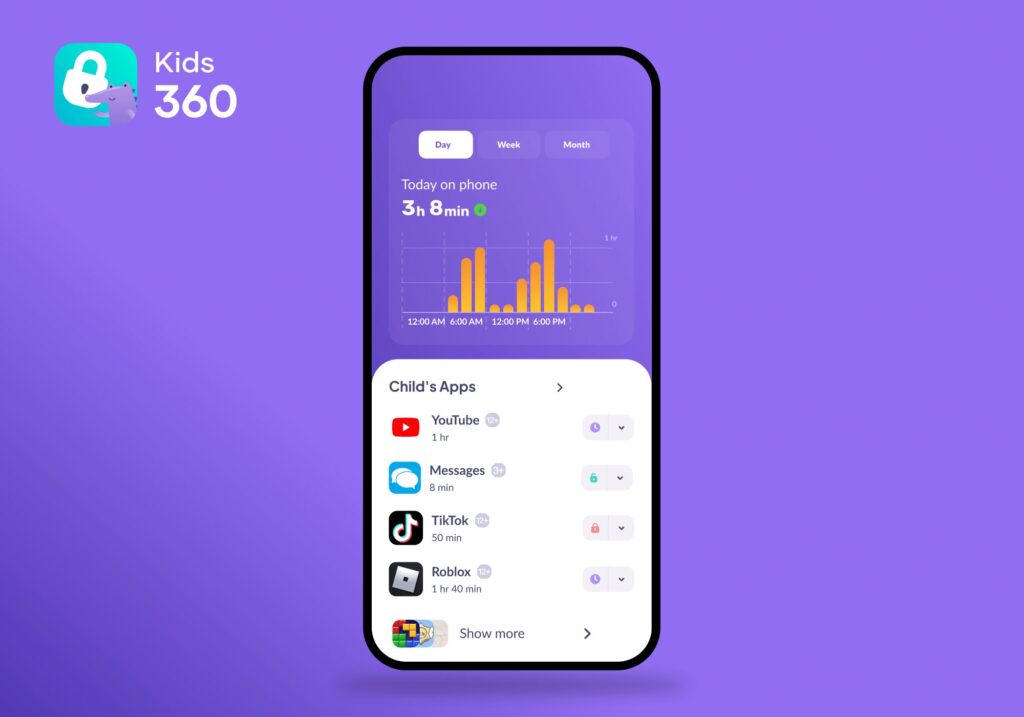
Kids360 provides detailed insights into how children use their devices throughout the day. Parents can view overall screen time, activity by day of the week, and usage statistics for specific apps.
This makes it easier to notice patterns over time—for example, when social media use starts increasing, how long gaming sessions usually last, or which apps take up the most attention.
Flexible App and Device Timers
Parents can set daily screen time limits for the entire device or create individual limits for certain apps. Once the allowed time has been used, the device locks automatically. Essential communication features still remain available so children can contact their parents if needed.
Strategic App Blocking
Parents can block individual apps or restrict entire themes/categories like gaming apps or social media platforms. This can be especially useful during homework time, study sessions, or other parts of the day where fewer distractions are needed.
Automated Downtime Schedules
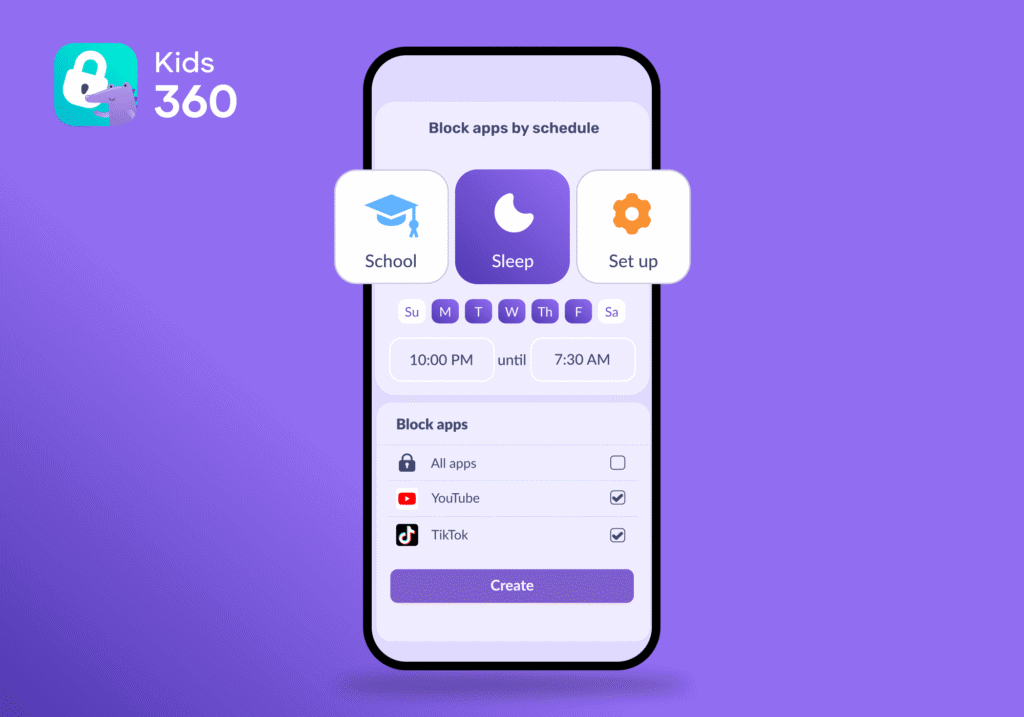
Kids360 lets families schedule downtime throughout the week. For example, apps can be restricted during school hours or devices can be limited before bedtime to encourage healthier sleeping routines.
Web Filtering
Kids360 helps parents filter inappropriate websites while children browse the internet (on platforms like Google Chrome/Safari). This adds an extra layer of protection and helps create a safer browsing experience without parents needing to constantly monitor every search manually.
Browser and YouTube Activity Insights
Parents can also view browsing activity and gain more visibility into how children use platforms like YouTube. This helps families better understand what kind of content a child spends time with, including search activity and viewing patterns, without needing to constantly check the device directly.
Real-Time Location Tracking
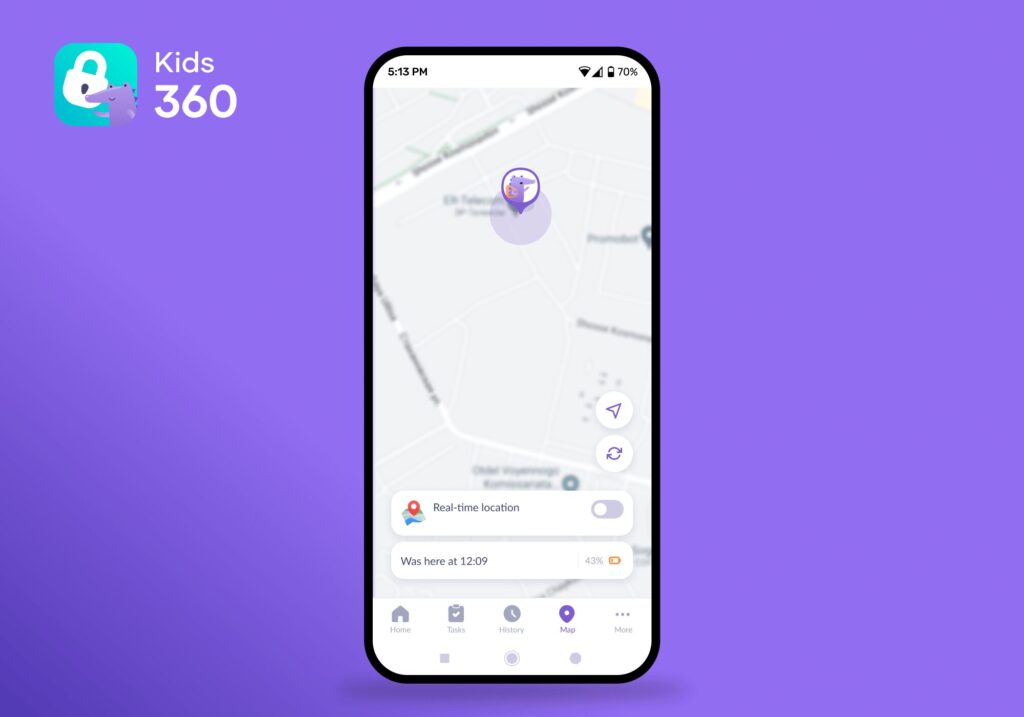
Kids360 also includes live location features that help parents check where a child currently is throughout the day. This can be especially useful during school commutes, after-school activities, or busy family routines where quick reassurance matters.
The Loud Signal Feature
If a child’s phone is on silent, buried in a school bag, or lost somewhere around the house, the Loud Signal feature can help parents get their attention quickly. It sends a loud alert through the device even when notifications have been muted.
Tasks and Reward-Based Motivation
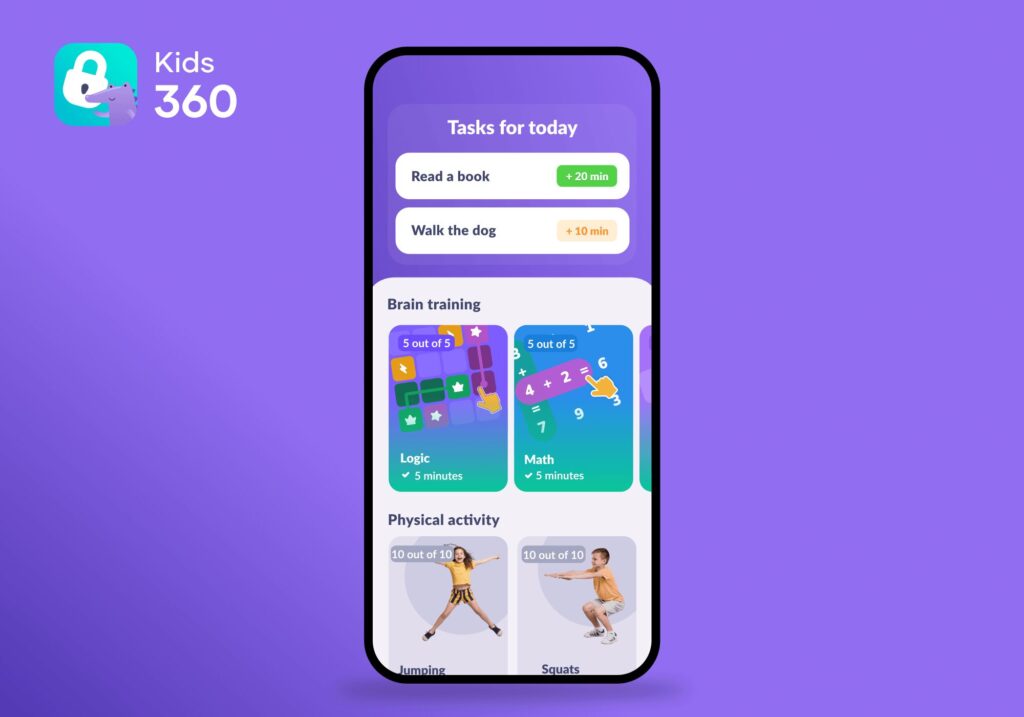
One of the platform’s most distinctive features is its task and rewards system. Instead of relying only on restrictions, Kids360 allows children to earn additional screen time by completing useful activities and responsibilities.
Parents can create custom tasks like homework, reading, physical activity, cleaning their room, walking the dog, or helping around the house. Once a task is completed and approved, the child receives bonus minutes for device use.
The platform also includes an AI-powered fitness trainer that can track certain physical exercises and movement-based activities. In addition, the built-in step counter allows children to exchange daily steps for extra screen time, helping encourage more movement throughout the day in a simple, motivating way.
For children who enjoy challenges, Kids360 also offers logic and cognitive tasks designed to support focus, attention, and problem-solving skills.
Overall, this approach helps shift screen time away from constant conflict and toward a clearer system of responsibility, routine, and positive motivation.
Download Kids360 right now for free to manage screen time, set healthy boundaries, and support better digital habits at home!
Kids360 vs. Google Family Link vs. Built-In Android Parental Controls
Here is a quick comparison of Kids360, Google Family Link, and standard Android parental controls.
| Feature | Kids360 | Google Family Link | Built-In Android Controls |
|---|---|---|---|
| Screen time limits | ✅ Flexible daily limits and app timers | ✅ Basic daily limits | ⚠️ Limited, depends on device |
| App blocking | ✅ Individual apps + categories | ✅ Individual apps | ⚠️ Only basic app restrictions |
| Schedules for sleep/study | ✅ Advanced schedules by time of day | ✅ Bedtime and downtime schedules | ⚠️ Basic bedtime mode only |
| Website filtering | ✅ Block adult sites and unsafe content | ✅ SafeSearch and Chrome filters | ⚠️ Partial browser-level controls |
| YouTube history visibility | ✅ View YouTube watch history | ⚠️ No detailed viewing history | ❌ Not available |
| Browser search history | ✅ View search activity | ⚠️ Limited | ❌ Not available |
| Usage statistics | ✅ Detailed app usage insights and trends | ✅ Basic activity reports | ⚠️ Basic Digital Wellbeing stats |
| Real-time location tracking | ✅ Live GPS location | ✅ Location sharing | ✅ Through Google Maps or Find My Device |
| Loud Signal feature | ✅ Ring the child’s phone even on silent | ❌ No | ❌ No |
| App install monitoring | ✅ See installed apps | ✅ Approve app downloads | ⚠️ Limited |
| Temporary app blocking | ✅ Instantly pause selected apps | ⚠️ Partial | ❌ No |
| 18+ website blocking | ✅ Yes | ⚠️ Limited filtering | ❌ No dedicated feature |
| Cross-platform support | ✅ Android + iOS | ⚠️ Works best inside the Google ecosystem | ❌ Android only |
| Tasks and rewards system | ✅ Kids can earn screen time through tasks | ❌ No | ❌ No |
| Motivation tools | ✅ Built around healthy habits | ❌ Mostly restriction-focused | ❌ No |
| Ease of setup | ✅ Simple setup for parents and kids | ✅ Easy for Google users | ✅ Already built in |
| Designed for parental control | ✅ Yes | ✅ Yes | ❌ Secondary device feature |
What Parents Can See and Manage with Kids360
Kids360 translates abstract rules into functional solutions that fix real, everyday parenting struggles.
Managing After-School Screen Time
Instead of worrying about a child zoning out in front of a video game the second they get home from school (or every second of the weekend), parents can automate their boundaries. The platform can keep entertainment options locked up until homework windows close, keeping kids focused when it matters most.
Curbing Social Media Overuse
When scrolling habits and algorithms hijack a kid’s focus and attention span, parents can step in with targeted limits. By putting a hard cap on specific video or feed apps, the software automatically breaks the endless loop, prompting kids to transition to offline hobbies.
Excessive screen time caused by social media and gaming is a growing concern for many families, and healthy limits often depend on a child’s age. We’ve analysed how much time kids of different ages actually spend on their devices—and what reasonable screen time boundaries look like in real life. Read the full breakdown here to see where your child stands.
Streamlining Homework and Household Routines
By using the built-in task engine, parents can completely flip the script on screen friction. Thanks to these kinds of tasks, you can gently pull a child away from the screen and redirect them more towards beneficial activities, effectively killing two birds with one stone: getting help with household chores and giving the child a break from the screen.
It sets up an ironic but brilliant paradox: digital time actually becomes the ultimate incentive to close the screen. To unlock extra minutes, a child must complete a custom agenda, such as folding their clothes or making their bed.
How to Set Up Parental Controls on Android Using Kids360
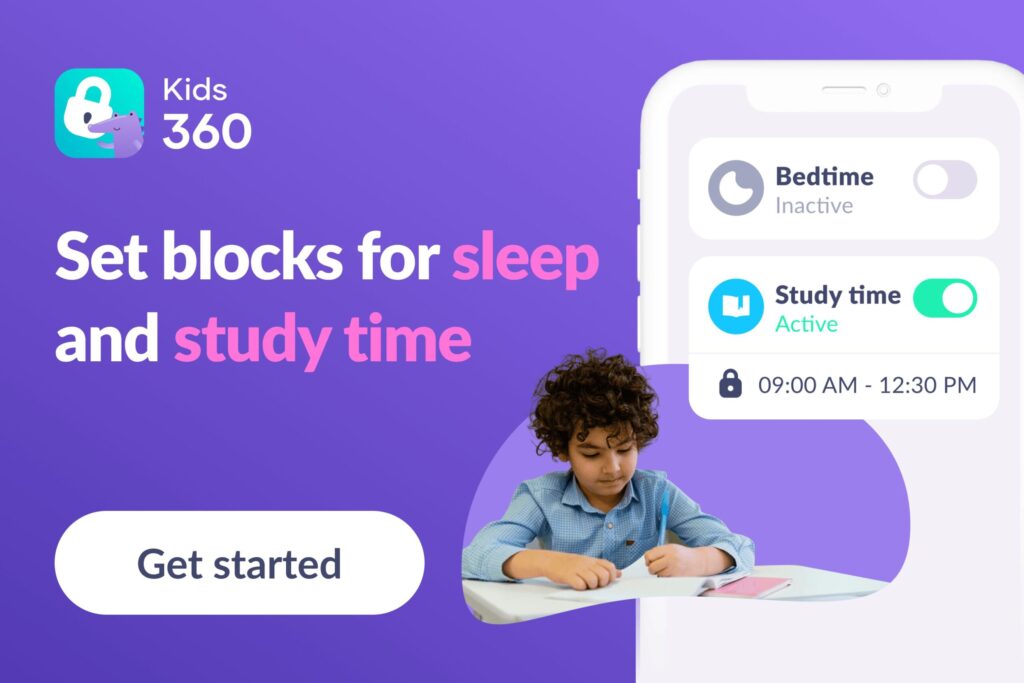
Securing a child’s mobile workspace takes only a few simple steps. Here is how to configure the ecosystem:
- Download the Kids360 app: Open the Google Play Store or App Store on your personal smartphone, find Kids360, and create your master profile.
- Install the Child Utility: Open Google Play on your child’s Android device, search for Alli360, and download the app.
- Link the Devices: Enter the pairing code from your parent app into the child’s screen to connect the accounts securely.
- Grant Administration Access: Toggle the requested system permissions on your child’s phone. This secure step prevents them from deleting the app later to bypass your boundaries.
- Deploy Rules and Tasks: Finalize your daily time limits, activate web tracking to block inappropriate sites, and build your first custom chores.
How to Use Android Parental Controls Without Losing Your Child’s Trust
Before setting up any parental controls, it’s important to think about how they are introduced at home. The way children understand these tools often matters just as much as the settings themselves, especially when it comes to maintaining trust and cooperation.
Have the Conversation First
Turning on parental controls without warning can feel invasive to a child, especially older kids and teenagers. Instead of suddenly limiting access or blocking apps, take time to explain why the controls are being used in the first place.
Make it clear that the goal isn’t punishment or spying. It’s about helping them build healthier habits, protect their sleep, stay focused at school, and create a better balance with technology.
Set Rules That Match Their Age
The way you manage screen time for a younger child will naturally look very different from how you approach it with a teenager.
As children get older and show more responsibility, the controls should evolve too. Younger kids may need stricter limits and blocked content, while older teens may benefit more from flexible time limits, open discussions, and increased independence.
Check In and Adjust When Needed
Parental controls shouldn’t be something you set once and never look at again. Families change, routines change, and kids grow quickly.
It helps to check in regularly and look at screen habits together. These conversations can be a good opportunity to talk about what’s working, what isn’t, and whether certain rules need to be adjusted.
Creating Healthier Digital Habits at Home
Building a healthier relationship with technology doesn’t have to lead to constant conflict at home. With clear communication, realistic boundaries, and mutual trust, parental controls can become a helpful tool rather than a source of frustration.
When used properly, they can encourage better routines, healthier screen habits, improved focus, and more balance in everyday life.
Sources & References
- Physical Activity Guidelines for Children, World Health Organization, 2026
- Media and Young Minds Study, American Academy of Pediatrics, 2016
- Physical Activity Benefits for Children's Brain Health, CDC, 2025
- Systematic Review on Screen Time and Early Childhood Development, ResearchGate, 2025
- Parental Controls Guide for Google Play and Android Ecosystems, Google Support