Kids360: A Family Link Alternative for Screen Time, Safety, and More


Managing a teenager’s phone use gets harder as children become more independent. According to Pew Research Center, 76% of parents of teens ages 13 to 17 say managing how much time their teen spends on their phone is an important or top priority, yet only 47% say they actually limit that time. Among parents of 15- to 17-year-olds, the share drops to just 37%.
That gap highlights one of the challenges of parental controls for older children: parents still want reasonable boundaries, but teenagers need more flexibility and independence. The right parental control app should make it easier to manage screen time, apps, schedules, location, and online safety without relying on one-size-fits-all rules.
Google Family Link is a popular starting point for parental controls, but it may not cover everything a family needs as a child gets older. In this guide, we look at the best Google Family Link alternatives and compare the features that matter most for families with older children and teenagers.
Key Takeaways
- Google Family Link offers useful free parental controls for supervised Android devices and Chromebooks, including app limits, location tracking, and screen time limits.
- Family Link cannot fully supervise a child’s iPhone or iPad.
- Kids360 is a strong Google Family Link alternative for families wanting screen time schedules, app blocking, location tools, and tasks that award extra screen time.
- Apple Screen Time suits Apple-only households, while Bark focuses more heavily on social media monitoring.
- Parental control apps work best alongside clear rules and regular conversations about online safety.
Contents
Why Look for an Alternative to Google Family Link?
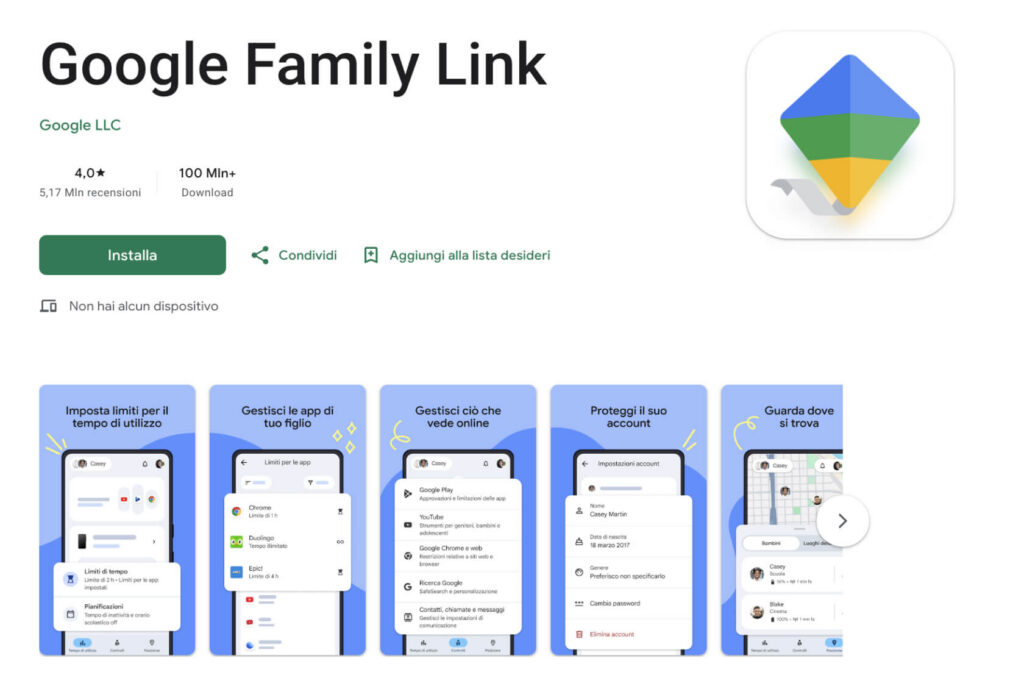
Family Link covers the basic parental controls many Android families need. Parents can set screen time limits, manage Google Play approvals, schedule Downtime or School Time, and check a supported device’s location. For an Android phone or Chromebook, Google Family Link may be enough.
The biggest gap appears when the child uses an iPhone. Google confirms that iPhones and iPads cannot be supervised child devices in Family Link. A parent using an iPhone can manage a supported Android device, but most Family Link supervision tools will not control the child’s iPhone.
Coverage also depends on where the child goes online. Family Link web filtering works in Chrome and some supported Android apps. On an iPhone, signing out of Chrome or changing browsers can leave those parental controls behind. Family Link works mainly inside the Google family ecosystem.
Some families also want parental controls to do more than restrict screen time. With older children and teenagers, simply taking away screen time or blocking apps can sometimes lead to resistance, arguments, or attempts to get around the rules. A reward-based approach can make these boundaries feel more collaborative. Kids360 lets parents turn extra screen time into a reward for completing tasks such as homework, reading, or helping around the house.
Families may also want to combine these rewards with app limits, schedules, and location tracking instead of managing each part of their child’s digital routine separately. In those cases, a parental control app with a broader set of features may fit better.
Best Google Family Link Alternatives at a Glance
There is no universal winner among parental control apps. Even the best parental control software must support the child’s operating system and solve the family’s actual problem.
| Option | Best for | Key features | Point to check |
|---|---|---|---|
| Kids360 | All-in-one routines and safety | Screen time, schedules, location tracking, app blocking, and tasks | Parental controls differ by child platform and plan |
| Findmykids | Location and offline safety | Real-time location, place alerts, and parental controls | Less focused on broad web content filtering |
| Apple Screen Time | Apple-only households | App Limits, Downtime, content restrictions, and parental controls | Primarily useful across Apple devices |
| Microsoft Family Safety | Windows and Xbox households | Activity reports, time limits, and Microsoft Edge filters | Web filtering depends on Edge and supported accounts |
| Bark | Social media monitoring | Alerts for supported texts, email, YouTube, and social media platforms | Monitoring differs across Android and iOS devices |
| Net Nanny | Web content filtering | Dynamic filtering, app blocking, reports, and screen time management | Paid parental control software |
| Norton Family | General device supervision | Screen-time supervision, web and search monitoring, and activity reporting | Not every feature works on every platform |
Before comparing the best parental control apps, parents should name the key features they need. The best parental control software is the option whose parental control features work on the family’s actual devices.
Kids360 is the main recommendation because it covers more than restrictions. Findmykids suits a location-first family, while Bark may fit social media messages. Net Nanny and Norton Family are paid parental control apps with filtering and reporting tools.
Looking for a Google Family Link Alternative? Meet Kids360
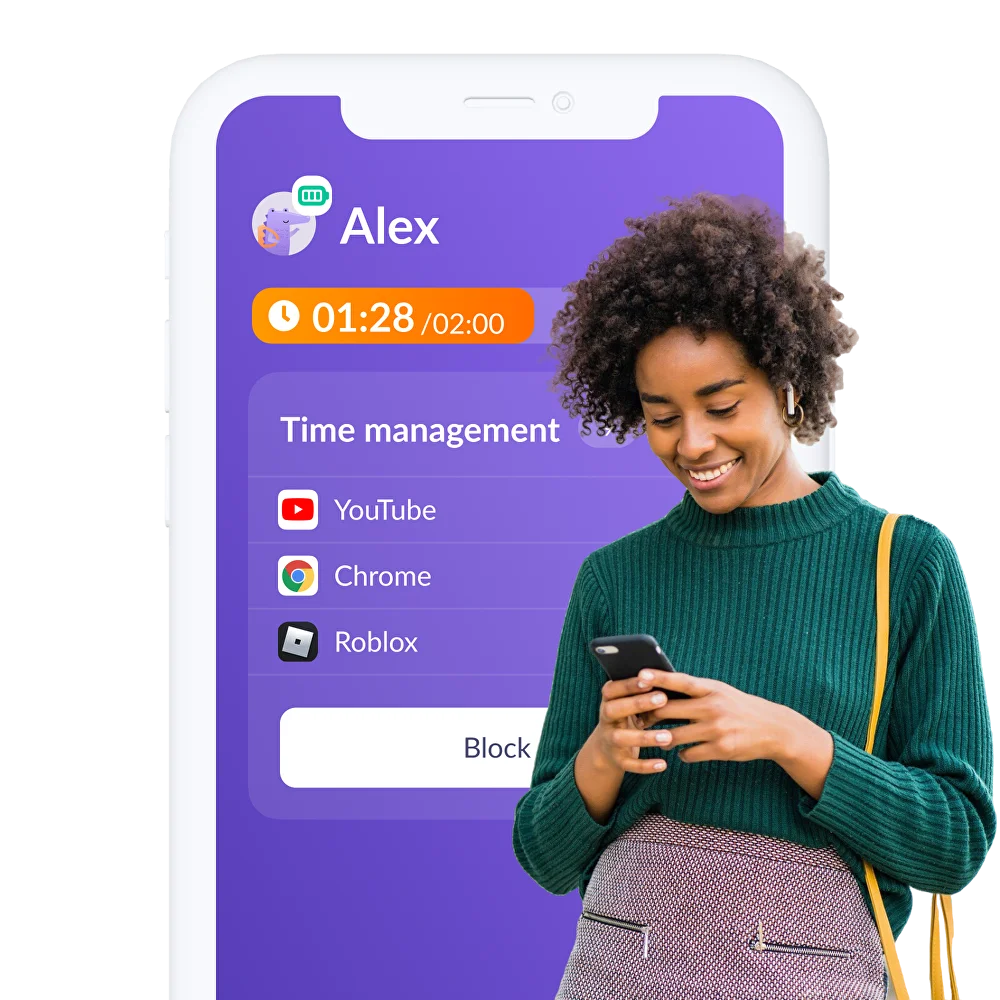
Kids360 combines parental controls that make family rules easier to follow. A parent manages the connected child’s device from their own phone. Many key features support an Android or iOS parent, although availability on the child’s phone varies.
See Where Screen Time Goes
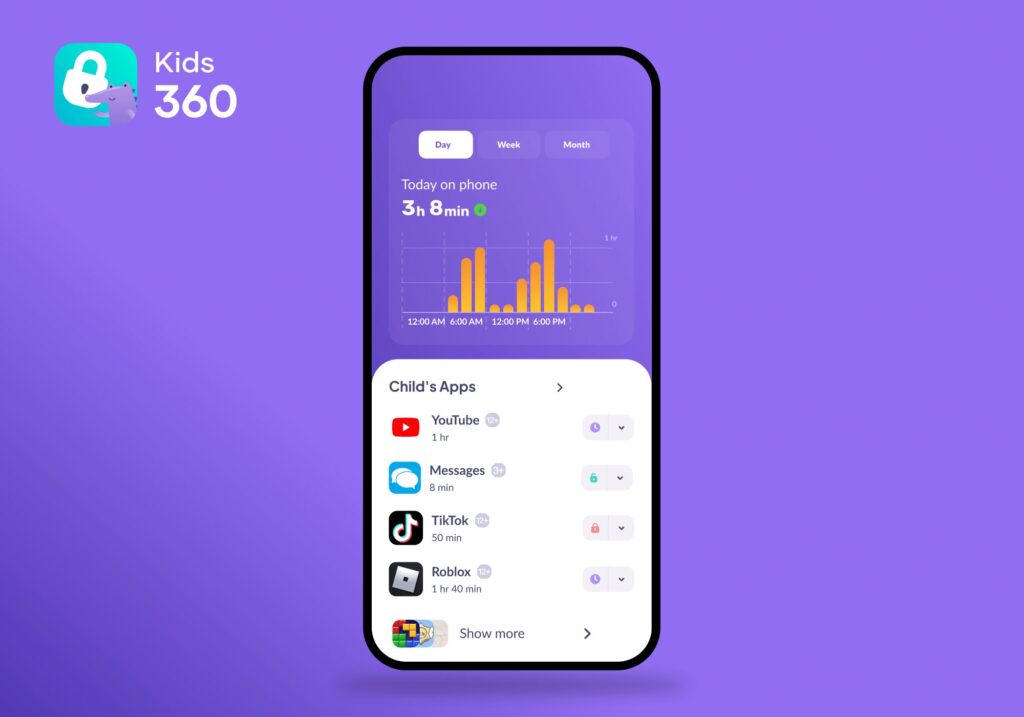
Kids360 app usage statistics give parents a clear picture of how their child spends time on their device. Parents can see total screen time, how much time is spent in individual apps, and which apps are used most often. Usage data can be reviewed over different periods to help parents spot patterns and changes in their child’s habits.
This information can make it easier to set realistic screen-time limits and decide which apps may need additional restrictions. Parents can also use the statistics as a starting point for conversations about healthy device use and the balance between entertainment, schoolwork, sleep, and offline activities.
Set Overall Screen Time Limits
Parents can use Kids360 to set a daily screen-time limit for their child’s device. Once the allowed time runs out, the app can automatically block games and other applications, helping parents manage how much time their child spends on the device.
When blocking is active, essential system functions remain available.
Block Apps and Set More Focused Rules
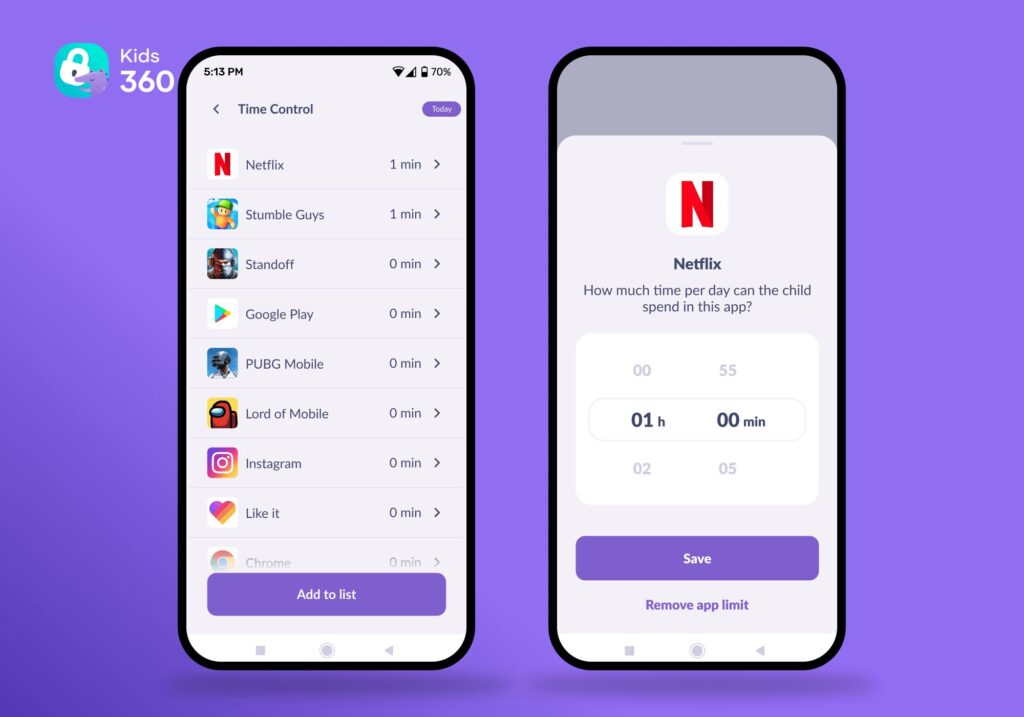
Sometimes overall screen time is not the problem. A child may spend most of their time in one game or open entertainment apps during homework. Kids360 lets parents block individual apps or entire categories and set daily time limits for specific apps.
Parents can also keep important apps available while restricting distracting ones and block new app downloads. This makes it easier to manage specific apps without restricting the entire device.
Create Screen Time Schedules
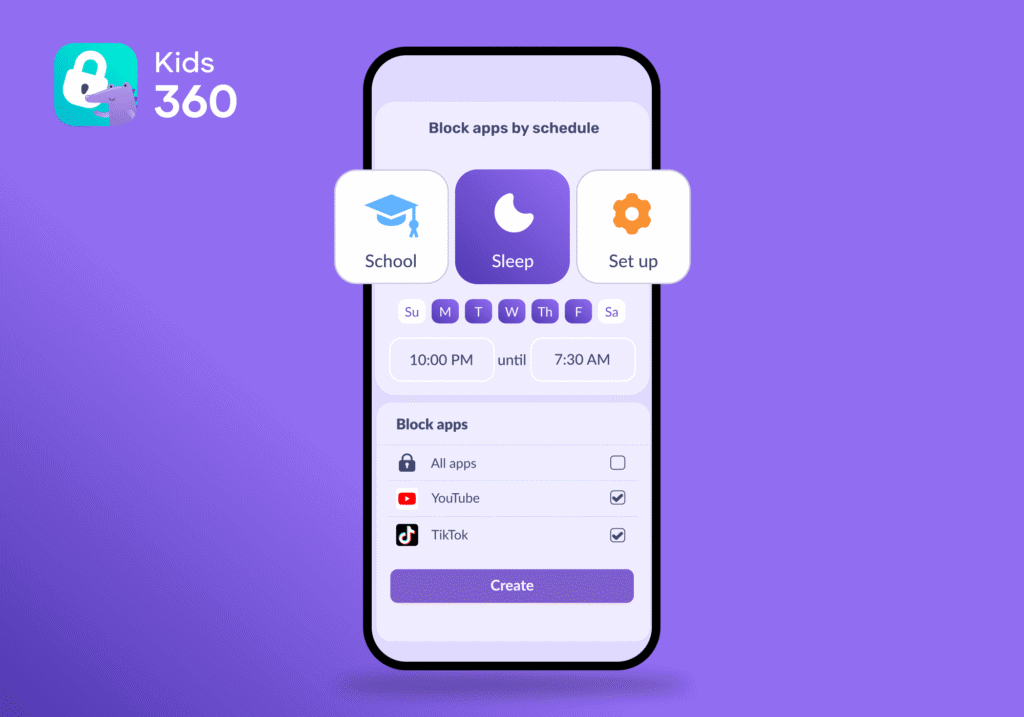
A daily limit answers “How long?” A schedule answers “When?” Kids360 can block unnecessary apps during homework, school time, or bedtime.
The schedules are flexible. Monday can follow one routine while Saturday follows another. Parents can create separate periods for sleep and study, then choose the apps covered where supported.
Add Internet-Safety Controls
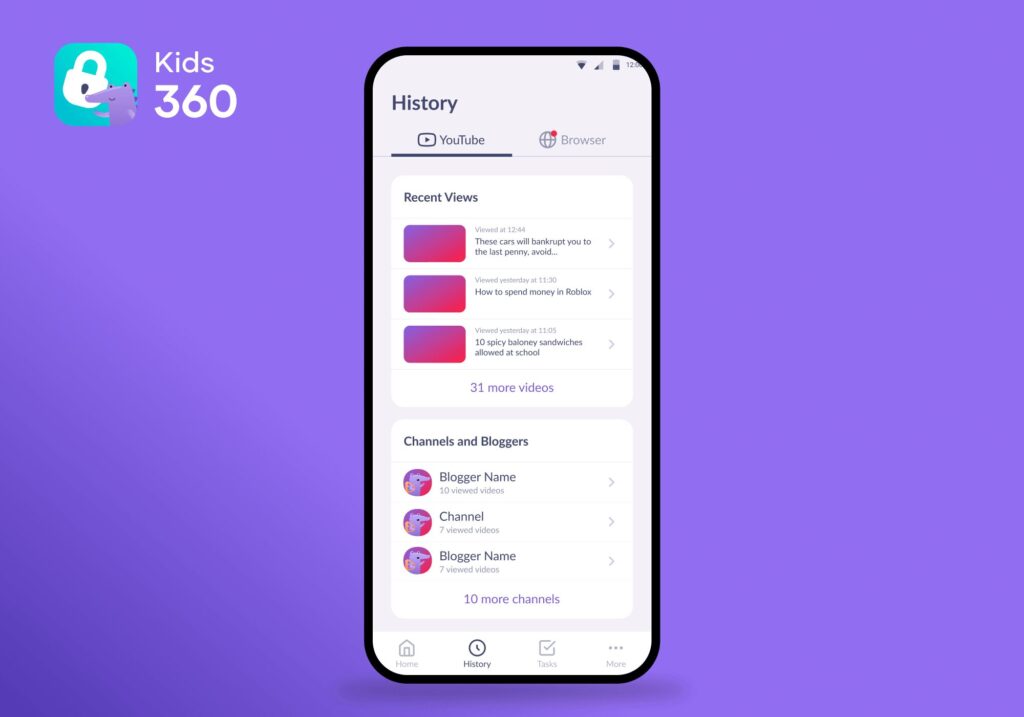
Kids360 includes content-filtering parental controls, but they differ by platform. Blocking adult websites is a subscription feature for a child using iOS. Turning off internet access in selected apps requires iOS for both parent and child.
On a supported Android child device, parents can review search browser history and YouTube watch history. These parental controls can start conversations about a child’s online activity.
Check Location and Send a Loud Signal
Kids360 location tracking shows the child’s real-time location on a map, location history, and places they have visited. Parents can use this information to keep track of where their child is throughout the day and check whether they have arrived at important places such as school, sports practice, or home. Location notifications can also alert parents when the child arrives at or leaves a saved place.
Kids360 also offers a Loud Signal feature that can make the child’s phone ring even when it is set to silent. This can help parents get their child’s attention when they need to reach them or locate the phone nearby.
Let Children Earn Extra Screen Time
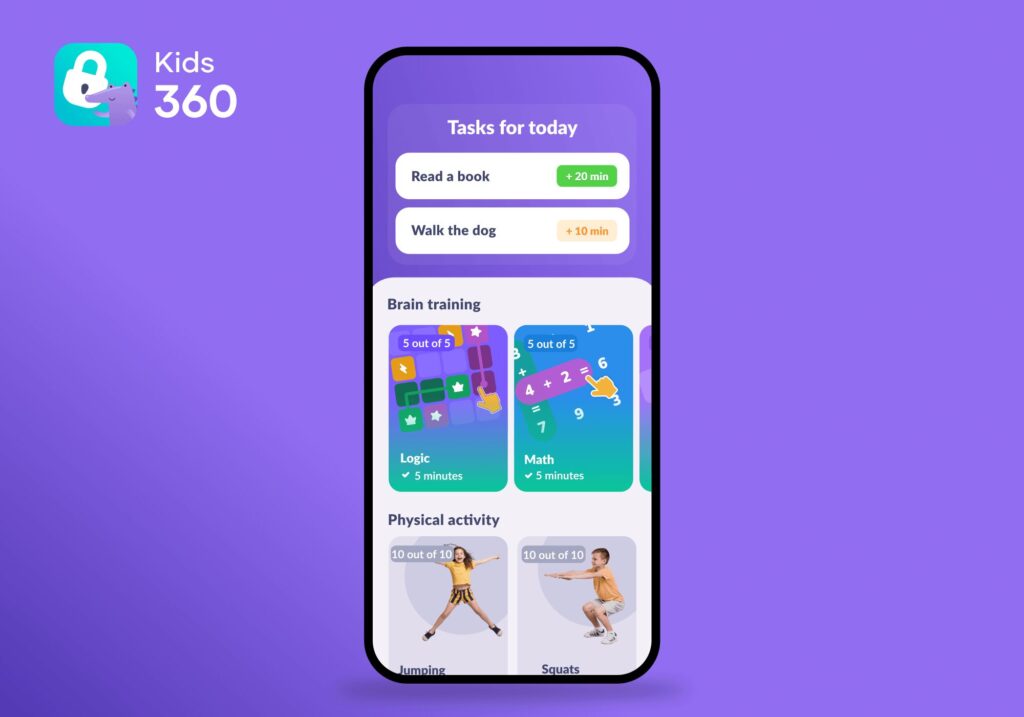
Unlike parental controls that only limit or block screen time, Kids360 lets parents turn extra screen time into a reward for completing real-life tasks. Parents can create their own tasks, such as reading for twenty minutes, finishing homework, or helping around the house, and choose how much additional screen time each task earns. This gives children a clear way to earn extra device time while encouraging them to complete everyday responsibilities.
The app also includes built-in tasks focused on logic, concentration, thinking, and physical activity, giving children more ways to earn extra screen time while completing useful activities.
Try Kids360’s features for free right now and see how they can help you manage screen time, set app limits, stay connected, and build healthier digital routines for your child.
When Is Kids360 a Better Alternative to Family Link?
Kids360 may be a better Family Link alternative in several everyday situations:
- The child uses an iPhone: Family Link cannot fully supervise a child’s iPhone, while Kids360 offers supported iOS screen time, schedules, location tracking, parental controls for purchases, and internet-safety features.
- The parent and child use different phones: Many Kids360 parental controls can be managed from either an Android phone or an iPhone.
- The family needs different rules on different days: Screen time schedules can fit around school, sport, homework, weekends, and bedtime.
- The child responds to incentives: Tasks can turn a request for more screen time into a clear, agreed way to earn it.
- Several children use multiple devices: The feature sheet lists a second parent, unlimited children, and unlimited kids’ devices among its free additions.
- Time and location matter equally: Kids360 combines screen time management and location tracking instead of requiring separate parental control tools.
Family Link may still suit Android users wanting free basic parental controls. Kids360 becomes more compelling when parents need to manage screen time across wider routines or want rewards and iPhone support.
Kids360 vs. Google Family Link: What’s the Difference?
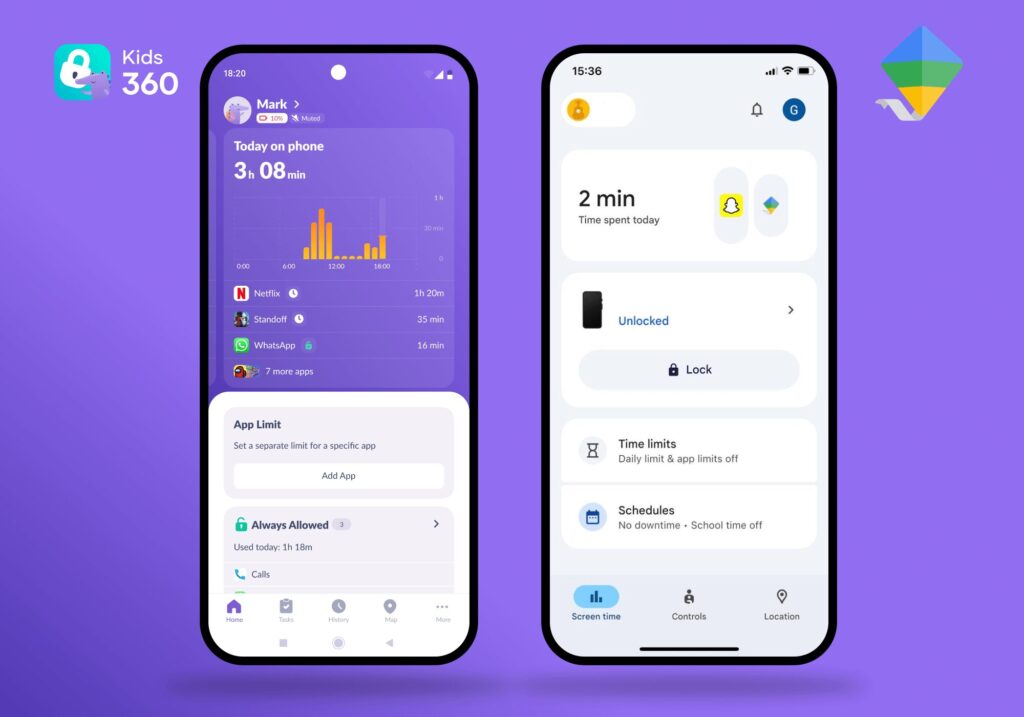
We’ve summarized all the key differences in the table below to make the comparison easier to understand, help you choose the right option, and see why Kids360 may be a better fit for your family.
| Feature | Kids360 | Google Family Link |
|---|---|---|
| Cross-platform compatibility | Yes — Android and iOS | Limited — parent can use Family Link on Android or iPhone, but the child’s device must be Android or Chromebook for full supervision |
| Overall screen time limits | Yes | Yes, on supervised Android devices and Chromebooks |
| App usage statistics | Yes | Yes |
| App-specific allowances | Yes | Supported applications on Android devices |
| Schedules | Flexible schedules for any day of the week, tailored to your family’s needs | Downtime and School Time on supported devices |
| App blocking | Yes | Android and Google Play parental controls |
| Content filtering | Yes, including adult and unsafe content | Chrome and supported Google services |
| Browser history | Yes | No |
| YouTube watch history | Yes | Limited — parents can manage YouTube settings, but Family Link does not provide direct access to the child’s watch history |
| Location tracking | Android and iOS child devices | Supported Android devices and compatible Fitbit devices |
| Tasks and rewards | Yes | No equivalent task-reward feature |
Google Family Link works best on an Android phone in a household already using Google Play and Chrome. Its parental controls include a daily limit, app limits, Downtime, School Time, and permitted apps.
Kids360 supports both platforms, although its parental controls differ between them. It combines screen time, schedules, location tracking, and a motivation system.
Neither app provides complete message monitoring. Parents wanting social media monitoring may prefer Bark; those prioritizing content filtering may compare Net Nanny or Norton Family. These parental control apps solve different problems.
How to Switch From Family Link to Kids360
Ready to replace Family Link with Kids360? The switch is straightforward: install Kids360, connect your child’s device, recreate your existing rules, and then remove Family Link when you’re ready. Your Family Link settings will not transfer automatically, so keep a note of your current limits, schedules, and blocked apps before switching.
- Download Kids360 on the parent’s phone: Use the unified download link to find the correct version.
- Install the Alli360 companion app: Follow the instructions to connect the child’s device to the parent’s own account.
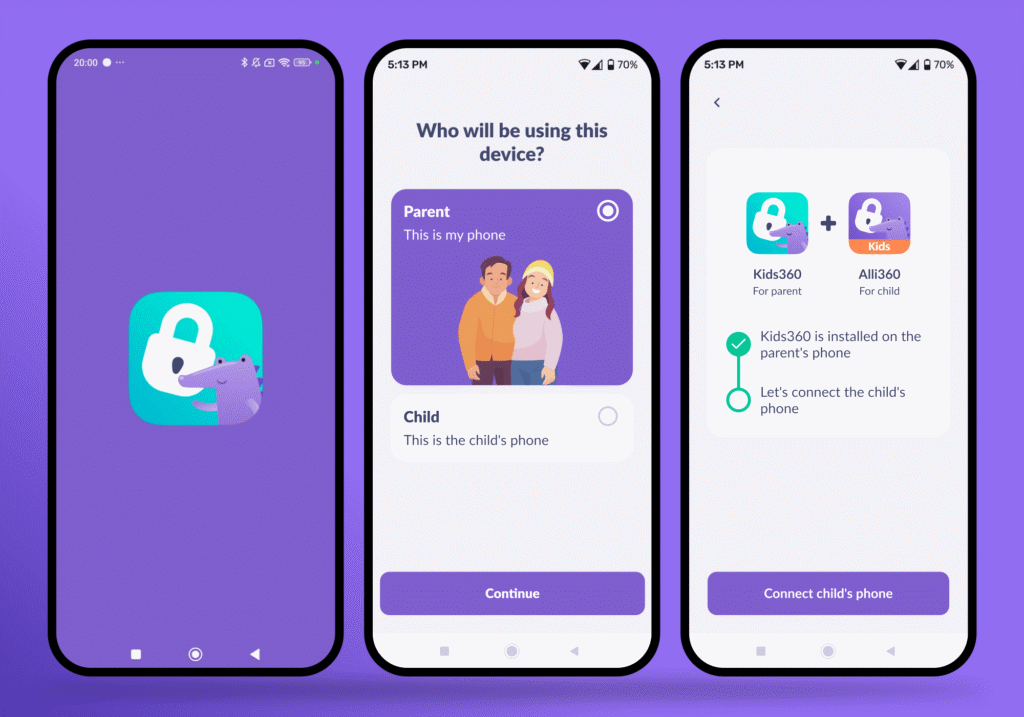
- Grant the required permissions: A device connected without the correct permissions may show usage data without enforcing every restriction.
- Recreate the family rules: Set screen time limits, add schedules, and choose the specific apps or categories covered by the supported setup.
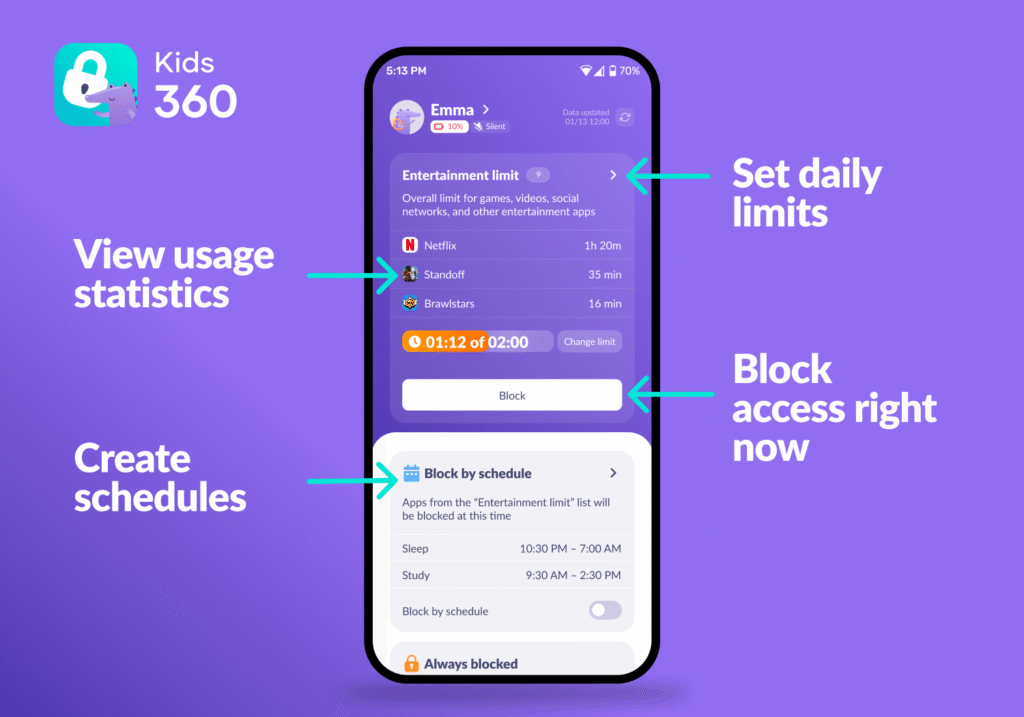
- Test the child’s phone: Use a short temporary limit and check that the parental control software is working properly before relying on the new settings.
- Stop Family Link supervision: Once Kids360 is connected and the new parental controls are set up, follow Google’s official process for stopping Family Link supervision. Do not delete the child’s Google Account.
During the change, check the specific apps used for contact, health, school, or accessibility. Switching parental control apps should not remove something the child genuinely needs.
Other Google Family Link Alternatives
Other parental control apps are worth considering when one specialist feature matters more than an all-in-one setup.
Findmykids for Location and Offline Safety
Findmykids centers on location tracking, place alerts, and offline safety tools. It is a sensible Family Link alternative when a parent mainly wants to know where the child is.
Apple Screen Time for Apple-Only Families
Apple Screen Time is built into Apple devices. It includes App Limits, Downtime, content restrictions, and purchase controls.
Apple Screen Time is often the simplest option when both parent and child use Apple products and do not want third-party apps.
Microsoft Family Safety for Windows and Xbox Households
Microsoft Family Safety suits households already using Windows, Xbox, Microsoft accounts, and Edge. It includes activity reporting and time limits, but its web filtering depends on supported Edge and Family Safety setups.
Bark for Social Media Monitoring
Bark focuses on social media monitoring and real-time alerts for concerns found in supported texts, email, YouTube, and social media apps. It is designed to alert parents to potential issues rather than simply showing how much time a child spends on a device.
Family Link and Kids360 focus more heavily on time, access, and routines. Bark may therefore be a better fit for parents whose main concern is what their child is seeing, receiving, or discussing online, rather than managing daily screen-time rules.
Net Nanny and Norton Family
Net Nanny combines content filtering, screen time management, app blocking, location tracking, and reports. It may suit a family that prioritizes dynamic web filtering. As paid parental control software, Net Nanny’s current device support should be checked first.
Norton Family provides screen time supervision, web tools, and activity reports. Norton says its features differ across Windows, Android, and iOS. Norton Family may suit existing customers, but its parental control features are not identical on every child’s device.
Parental Controls Are Only One Part of Online Safety
No matter which parental control tool you choose, software alone cannot handle every uncomfortable message, online situation, or bad decision your child may face. Parental controls can make family rules easier to enforce, but the American Academy of Pediatrics recommends combining them with a family media plan and regular conversations about your child’s online experiences.
Parents can make the parental controls more useful by agreeing on a few practical rules:
- Explain what the parental controls do before switching them on.
- Set screen time limits that leave room for sleep, schoolwork, movement, and time together.
- Decide what the child should do after receiving a worrying message or seeing explicit material.
- Review app downloads, set age restrictions where appropriate, and check privacy settings when the child joins new platforms.
- Revisit the rules as the child’s age, independence, and device usage change. Notice what the child spends less time doing because of screens.
- Follow shared screen-free rules during meals and family time.
Content filtering and time limits create useful boundaries. Trust makes it more likely that a child will ask for help when those parental controls miss something.
Choose Controls That Fit the Whole Family
Google Family Link remains a useful free choice for a supervised Android phone or Chromebook. For families looking for a broader set of parental control features in one app, Kids360 is the stronger Google Family Link alternative, with screen time limits, flexible schedules, location tracking, and task rewards.
Check the platform details before choosing parental control software, then explain the rules to the child and make sure they understand why the limits are in place. Parents ready to compare parental control apps can download Kids360 and begin with its free parental controls right now.
Sources and References
- How Teens and Parents Approach Screen Time, Pew Research Center, 2024
- Get Started With Family Link, Google Support
- Manage Screen Time for a Child, Apple Support
- Microsoft: Set Up Family Safety, Microsoft Support
- Parental Control Features, Bark
- GPS Tracker and Family Safety, Findmykids
- Parental Control Features, Net Nanny
- Parental Control Software, Norton Family
- How to Make a Family Media Plan, American Academy of Pediatrics, 2026
- Parental Controls and Healthy Media Limits, American Academy of Pediatrics, 2026