The Easy Way to Set Up Parental Controls on Your Child’s Phone


Giving a child a first smartphone brings them freedom, but it also opens a door to games, social media, unintended spending, and web browsing. It’s no surprise that more and more families are turning to parental controls: 47% of parents already use parental control features, while 49% set screen time limits for their children.
This step-by-step guide explains how to set up parental controls on your child’s phone from day one, with Kids360 as the main tool and the phone’s built-in features as extra protection.
Key Takeaways
- The easiest setup is to install Kids360 on the parent’s phone and Alli360 on the child’s device, connect them, grant permissions, and set daily limits and schedules.
- Kids360 lets parents review screen time, app usage, and location from one dashboard while keeping calls, alarms, and approved messaging apps available.
- Apple Screen Time and Google Family Link provide useful additional controls for purchases, downloads, and content, but their features and menus differ by device.
- Parents should explain the rules before handing over the phone, review reports together and adjust restrictions as the child demonstrates responsible habits.
Table of Contents
Why a Child’s First Phone Needs Boundaries From Day One
Online dangers don’t arrive with a warning. A child may follow a harmless-looking link, see inappropriate content in a recommended video, accept a message from a stranger, or accidentally spend money through in-app purchases. Parental controls create a safety net before any of these situations turn into a crisis.
Research shows these risks are more common than many parents expect:
- Teens who spend more than three hours a day on social media are twice as likely to experience poor mental health outcomes, according to the U.S. Surgeon General.
- 54% of parents whose child plays online games with chat features say their child has communicated with a stranger online, according to Norton’s Connected Kids Report.
- 73% of children aged 11–17 reported seeing at least one type of potentially harmful content online over a four-week period, according to Ofcom.
- Thorn reports that one in four children aged 9–17 has experienced some form of online sexual interaction.
- Among children under 8, 30% of YouTube videos watched contained physical violence, while 20% included bullying or other harmful behaviour, according to Common Sense Media.
Of course, not every minute a child spends online is harmful. Phones also support learning, creativity, hobbies and friendships. The goal of parental controls isn’t to ban technology—it’s to help children build healthy digital habits, reduce unnecessary risks and enjoy the benefits of technology in a safer, more balanced way.
The Easiest Way to Set Up Parental Controls: Kids360
Kids360 is a cross-platform parental control app for Android and iOS that brings all essential tools into one place—screen time limits, app blocking, schedules, usage reports, and location tracking. Parents choose it for its flexible settings, quick and easy setup, and the ability to manage everything remotely from a single, unified dashboard without switching between different tools.
Unlike basic blockers, Kids360 also includes a task-based system where children can earn extra screen time by completing agreed activities, which makes the app less likely to be removed or bypassed, as it becomes part of their daily routine rather than just a restriction.
With Kids360, you can:
- Set daily screen time limits
- Limit or completely block individual apps
- Create schedules for bedtime, school, or homework
- Keep essential apps (calls, messages, maps) always available
- View screen time and app usage reports
- Monitor browser and YouTube history
- Reward completed chores or homework with extra screen time
- Manage everything remotely from your own phone
- Track your child’s location
- Use Loud Signal to reach your child if they don’t hear the phone or if it’s on silent
Below is a step-by-step guide to setting up Kids360 on your child’s device.
How to Set Up Kids360 on a Child’s Phone
Getting started only takes a few minutes. The exact menus may vary slightly depending on your device, but the setup process is essentially the same.
Install and Connect Kids360 and Alli360
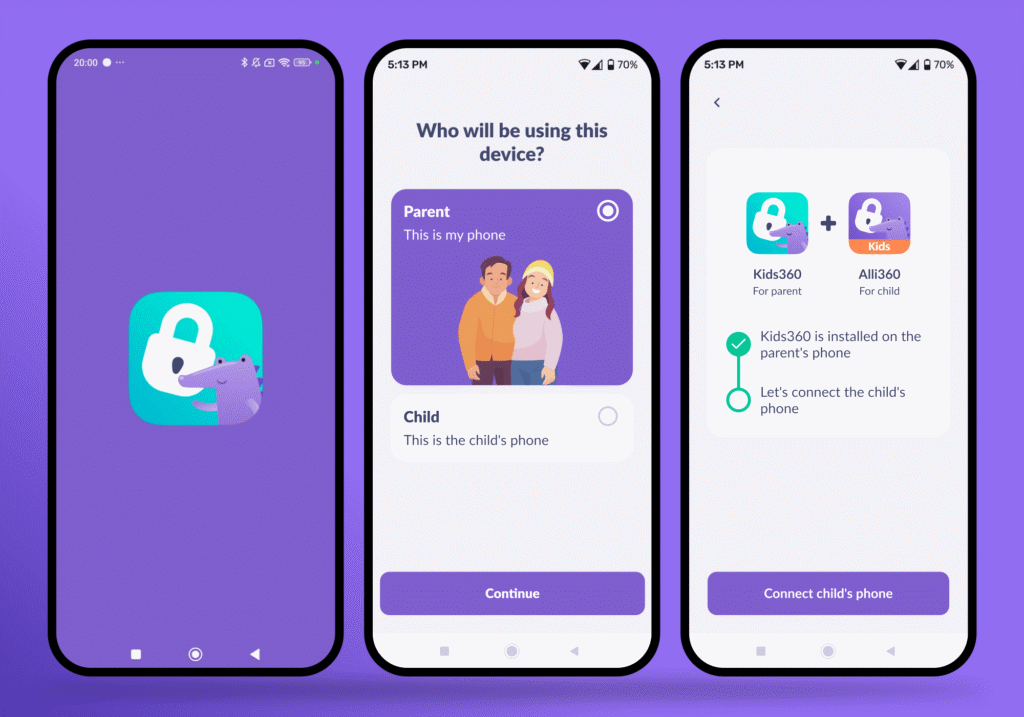
- Download Kids360 from the Apple App Store or Google Play on your phone.
- Then install the Alli360 companion app on your child’s device from the appropriate app store.
- Open Kids360, create your account, and connect the two devices using the pairing code shown in the app.
- Complete the permissions requested on the child’s phone. These may include app usage, location services, and permission to display blocking notices. Android devices may request additional access so the parental controls work correctly.
For the smoothest setup, keep both devices connected to Wi-Fi. Once everything is connected, you’ll see your child’s profile, battery level, and the latest sync time on the Home screen.
Set the Screen Time Limit
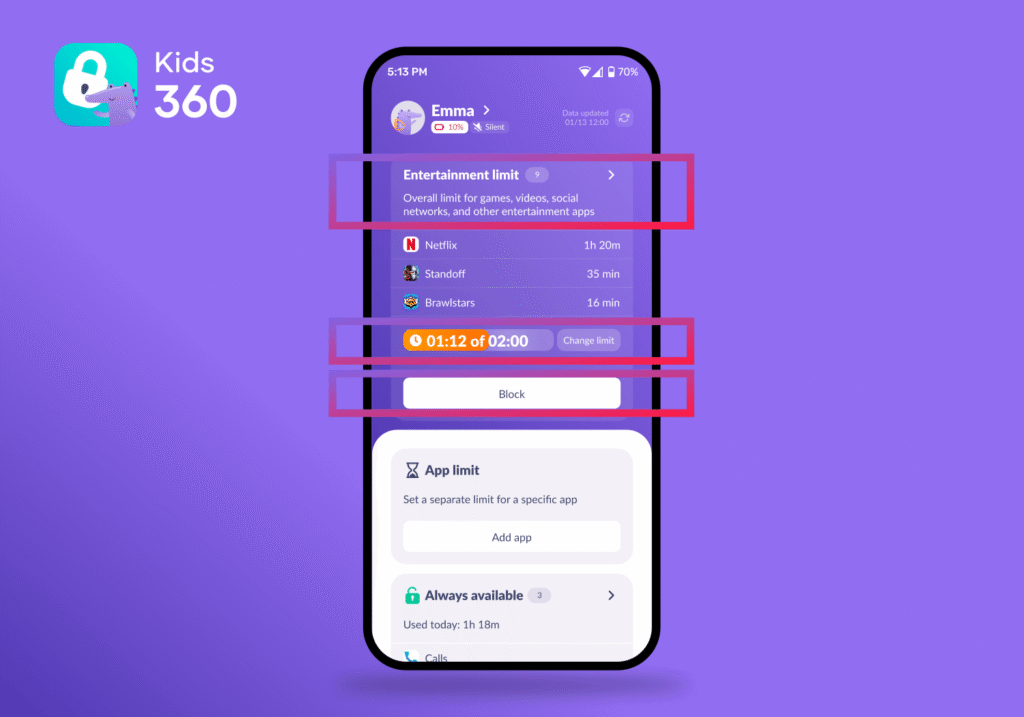
- Open your child’s profile and find the Entertainment limit card. This section combines games, social media, video apps, and other entertainment into one daily allowance. You’ll see how much time is available, how much has already been used, and which apps take up most of your child’s screen time.
- Tap the card or Change limit button, choose a daily allowance, and save it.
If necessary, you can also tap Block to immediately pause entertainment apps while keeping essential communication apps available.
Limit Individual Apps
Sometimes one app is the real problem—not the phone itself.
- Below the Entertainment limit card, find App limit and tap Add app.
- Select the app you’d like to manage, set its own daily limit, and save the rule. This is especially useful for games, social media, or video platforms that tend to consume most of your child’s attention.
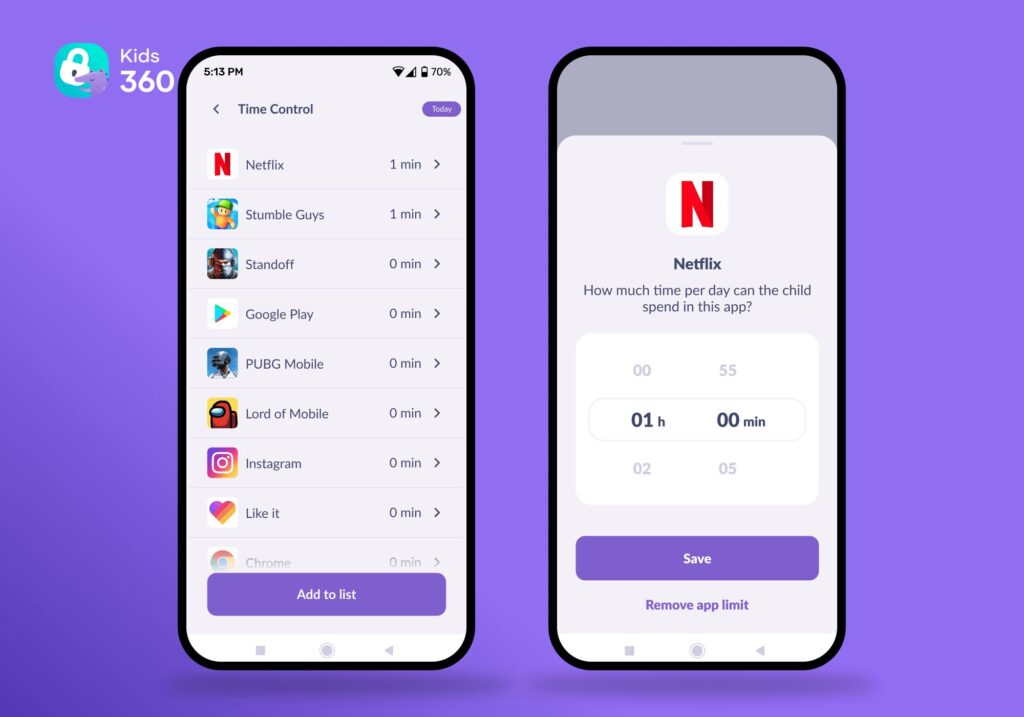
You can also customize which apps always stay available. Under Always available, add important apps such as Phone, Messages, Maps, or other tools your child may genuinely need.
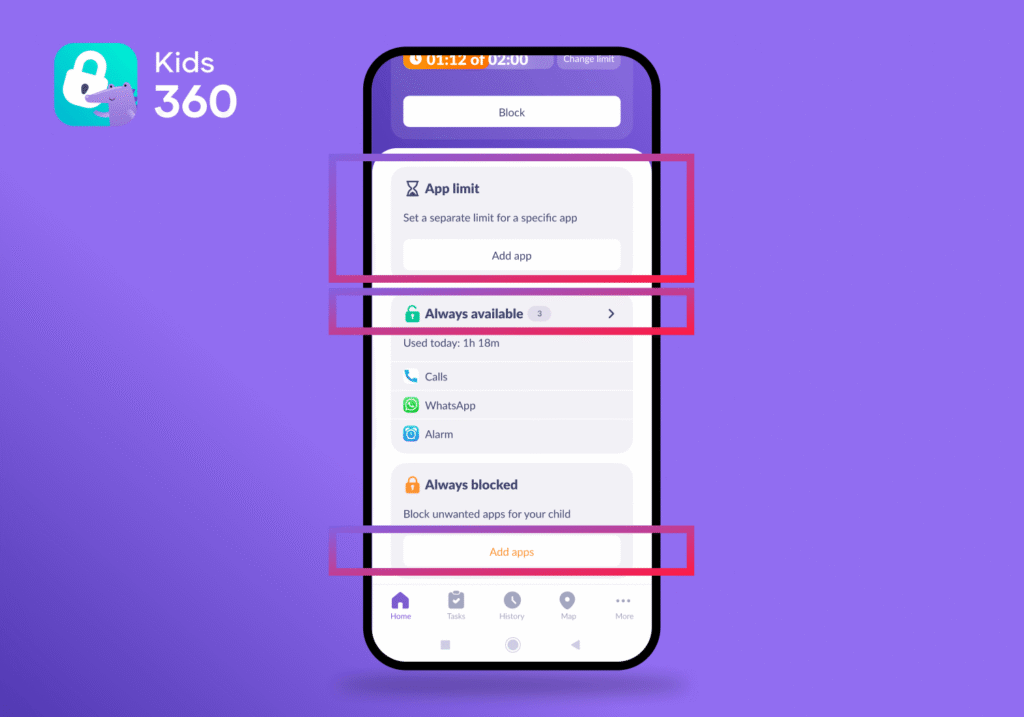
Under Always blocked, add any apps you don’t want your child to access at all.
Create Sleep and Study Schedules
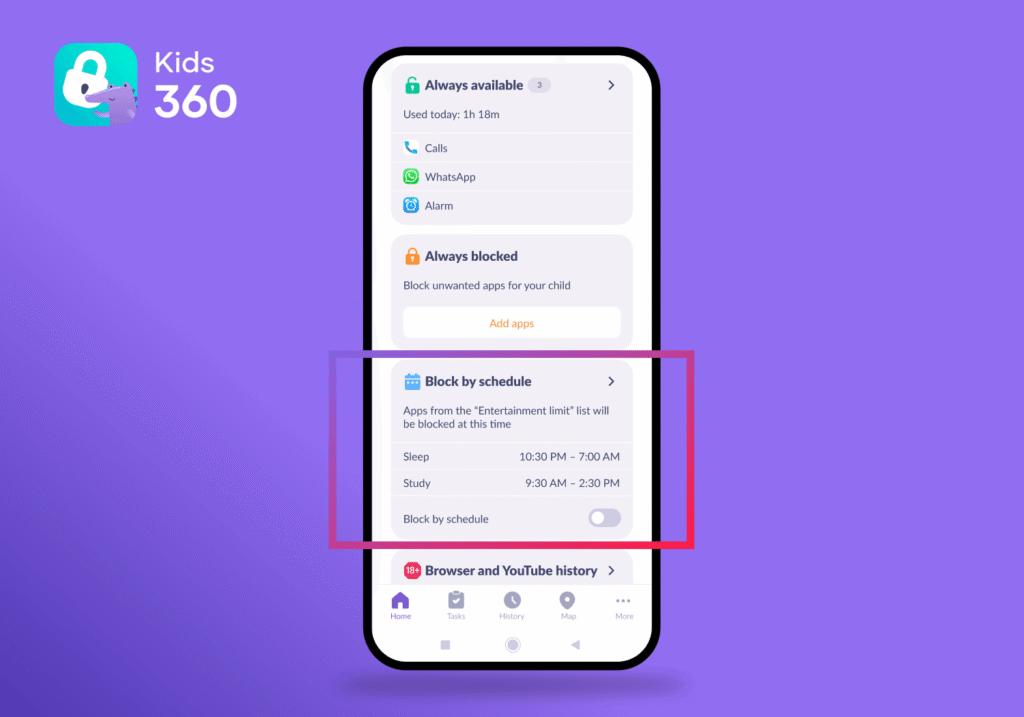
Healthy routines are easier to build when limits happen automatically.
- Scroll down the Home dashboard to Block by schedule and tap the arrow.
- Create separate schedules for bedtime and study time, choose the start and end times, then enable the schedule.
During these periods, apps covered by the limits will automatically become unavailable, helping reduce distractions without constant reminders from parents.
Review Browsing and Add Content Restrictions
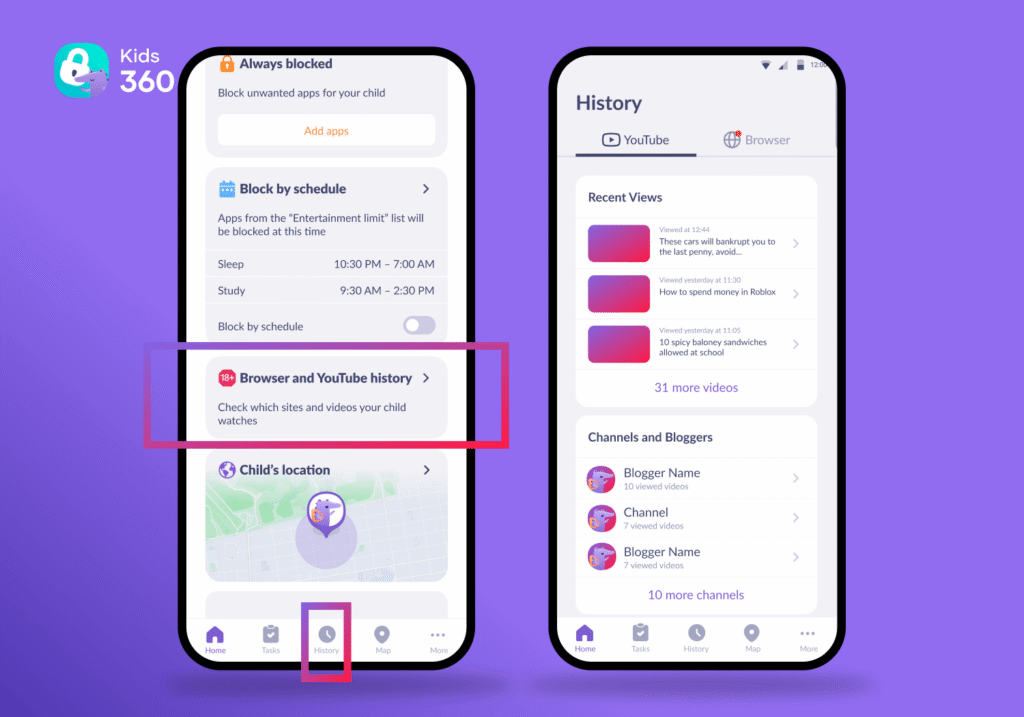
On supported Android devices, Kids360 also lets you review recent browser history and YouTube activity.
Open Browser and YouTube history from the Home screen to see recently visited websites and watched videos.
If something looks concerning, it’s a good opportunity to start a conversation or adjust your child’s app and website restrictions.
Monitor the Dashboard and Receive Reports
The Home dashboard gives you a quick overview of your child’s digital habits.
You’ll see battery level, the latest sync time, daily screen time, and which apps are being used most.
On Android, you can also view reports for each individual app. On iPhone, reports are grouped by app category.
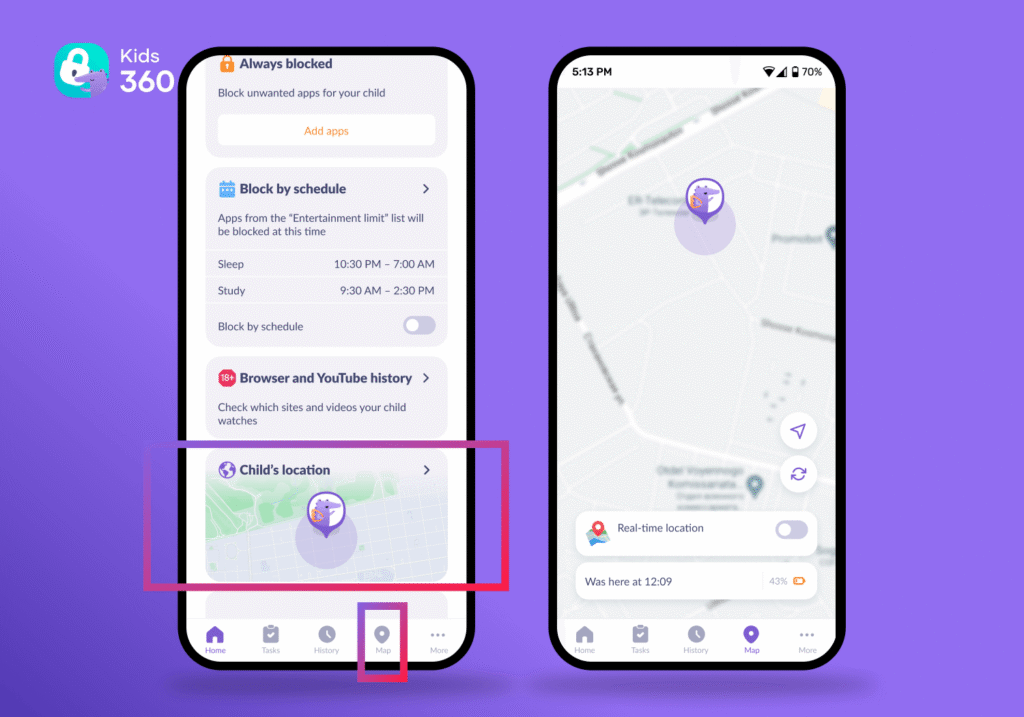
For location tracking, tap Child’s location on Home or open Map in the bottom navigation. The map displays your child’s current position after location permission is enabled. Android parents can also use Loud Signal when the phone is silent.
Use Tasks to Award Extra Screen Time
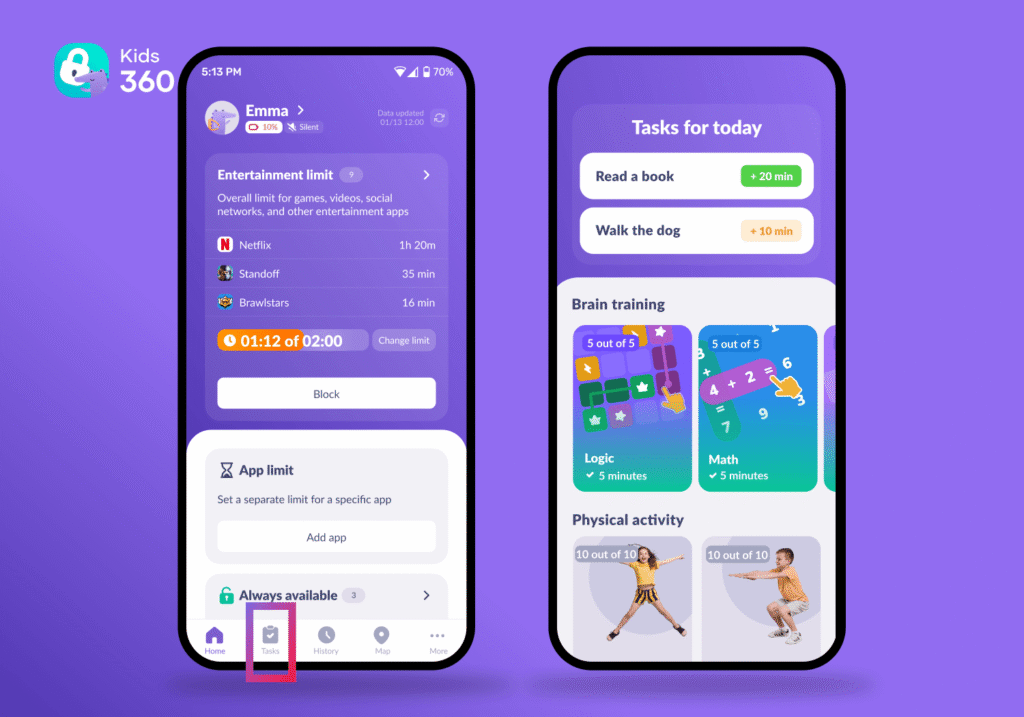
Screen time doesn’t always have to be something parents simply take away.
Open the Tasks section and create activities such as homework, reading, practicing music, or helping around the house. Choose how much extra screen time each completed task earns, then approve it once it’s finished.
Kids360 also includes more than 4,600 built-in educational, logic, focus, and physical activities, giving children plenty of positive ways to earn additional time while building healthy everyday habits.
Ready to make screen time easier to manage? Try Kids360 right now for free to set app limits, create healthy routines, reward good habits, and help your child build a balanced relationship with technology.
Built-In Phone Controls
Both Android and iPhone include built-in parental control tools. They work well for basic supervision and don’t require installing additional software.
However, these features also have limitations. Settings are spread across different menus, available features vary depending on the operating system, and managing multiple devices can quickly become inconvenient—especially in families that use both Android and iPhone. If you need more flexibility or want to manage everything from one place, a dedicated parental control app may be a better option.
Screen Time and Family Sharing on iOS
Apple’s built-in parental controls are available through Screen Time and Family Sharing.
After adding your child’s Apple ID to your Family Sharing group, you can enable Screen Time, create a separate passcode, and configure:
- Daily screen time limits
- App limits
- Downtime schedules
- Communication limits
- Content and privacy restrictions
- Purchase approvals and App Store restrictions
You can also limit explicit content, restrict web browsing, and prevent changes to important device settings, such as Location Services or cellular data.
While Screen Time covers most basic parental control needs, it works only within Apple’s ecosystem. Families with both Android and iPhone devices often find it less convenient, and children who know the Screen Time passcode can disable many of the restrictions.
Google Family Link and Digital Wellbeing on Android
Google’s main parental control solution is Family Link. After connecting your child’s Google account, parents can:
- Set daily screen time limits
- Create bedtime schedules
- Manage individual apps
- Approve or block Google Play downloads
- Filter certain types of content
- View device activity
Android also includes Digital Wellbeing, which provides information about screen time and app usage. However, it’s designed primarily for self-monitoring rather than parental supervision and doesn’t replace Family Link.
Family Link is a useful free option for Android families, but it also has limitations. Some controls depend on the child’s age, device model, or Android version, and content filters cannot block every inappropriate result. Managing children across both Android and iPhone devices may also require using separate parental control systems.
Kids360 vs Built-In Phone Controls
All three solutions help parents manage their child’s device, but they focus on different tasks. Built-in tools are designed primarily for managing settings within their own ecosystem, while Kids360 combines screen time management, app controls, family safety, and rewards in a single app that works across Android and iPhone. Here’s how they compare:
| Feature | Kids360 | Apple Screen Time | Google Family Link |
|---|---|---|---|
| Works across Android and iPhone | ✅ | ❌ Apple devices only | ⚠️ Android-focused |
| Centralized parental controls | ✅ | ⚠️ Multiple system menus | ✅ Family Link app |
| Daily screen time limits | ✅ | ✅ | ✅ |
| Individual app limits | ✅ | ✅ | ✅ |
| Bedtime & custom schedules | ✅ | ✅ | ✅ |
| Screen time reports | ✅Detailed reports | ✅ Basic summaries | ✅ App activity |
| Browser & YouTube history | ✅ | ❌ | ❌ |
| Real-time location | ✅ | ⚠️ Via Find My | ✅ (supported devices) |
| Loud signal | ✅ | ❌ | ❌ |
| Reward tasks & extra screen time | ✅ | ❌ | ❌ |
Kids360 is a strong choice for families that want reports, schedules, location and reward-based tasks together. Apple and Family Link remain useful for operating-system privacy restrictions, purchase approval and other settings that sit outside a third-party app.
How to Set Screen Time and App Rules That Actually Work
Even the best parental controls work only when they fit your family’s routine. The goal isn’t to ban screens altogether, but to help your child build healthier digital habits over time. A few simple rules can make screen time limits easier to follow—and reduce arguments along the way.
Match the Rules to Your Child
There isn’t one “perfect” screen time limit that works for every family. Think about your child’s age, school schedule, hobbies, sleep, and daily routine. Try your settings for a week, then adjust them based on how things are actually going.
Protect Routines First
Block access to entertainment during homework, meals, and the hour before bed. Charge the phone outside the bedroom overnight when possible.
Keep Essential Communication Available
Even when entertainment apps are blocked, your child should still be able to call you, send a message, use navigation, or set an alarm. Before relying on any restrictions, test them together to make sure everything works as expected.
Use Reports as Conversation Starters
Screen time reports aren’t there to catch your child doing something wrong. They’re a great starting point for conversations. If one app suddenly takes much more time than usual, ask what changed before introducing stricter limits.
Explain What Is Being Monitored
Children are much more likely to accept parental controls when they understand why they’re there. Explain what you’re limiting, what information you can see, and that the goal isn’t to punish them—it’s to help them build healthy digital habits.
As children grow, their needs change too. Review your family’s rules from time to time and give your child more independence as they show they can manage it responsibly.
A Safer First Phone Starts With Clear Rules
The simplest approach is to set up parental controls before the new phone becomes part of everyday life. Install Kids360, protect essential routines, add the built-in Apple or Family Link safeguards that fit the device, and review the first week’s reports together. That combination gives parents practical online safety tools while helping the child build healthier habits in the online world.
Sources and References
- Connected and Protected: Insights from FOSI’s 2025 Online Safety Survey, FOSI, 2025
- 4 ways parents are keeping their children safer online, Google, 2024
- Social Media and Youth Mental Health. The U.S. Surgeon General’s Advisory, 2023
- Children’s Online Experiences. Including a comparative analysis of the periods before and after the children’s safety duties came into force, Ofcom, 2026
- How online risks for children are changing in 2026, Norton, 2026
- Youth Perspectives on Online Safety, Thorn, 2026
- As Online Videos Dominate Young Kids' Screen Time, YouTube Exposes Them to Age-Inappropriate Content, Common Sense Media, 2020