The Best Way to Manage Your Child’s Android Phone from Your iPhone

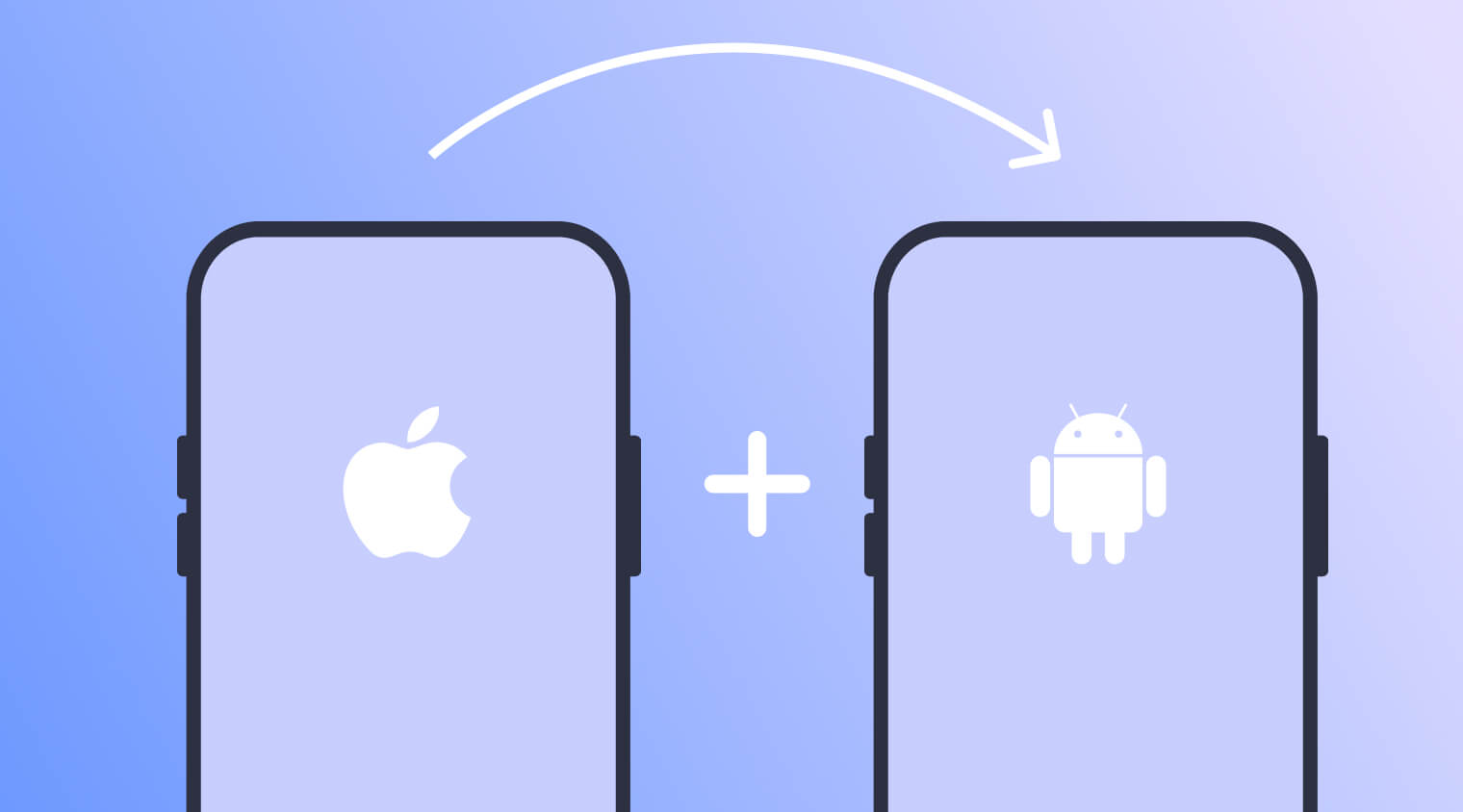
Families today often use a mix of different technology brands. It is very common for parents to have an iPhone while their child uses an Android phone.
This situation immediately brings up a major technical challenge. Finding the right tools to manage an Android from an iPhone can feel overwhelming. Many parents wonder if it is even possible to bridge the gap between these two competing operating systems effectively.
You absolutely can set up parental controls on Android from an iPhone, but it requires knowing which applications actually work across different platforms.
Key Takeaways
- Built-in tools like Apple Screen Time only work within their own ecosystem and cannot manage Android devices.
- Google Family Link allows cross-platform use, but the parent app on iOS lacks some of the advanced features available to Android users.
- Third-party apps provide the most seamless and comprehensive way to manage a child’s device from a different operating system.
- Kids360 provides a cross-platform parental control solution that allows parents to manage an Android child’s device from an iPhone, with screen time management, app usage monitoring, and family safety features.
- It also offers unique task-based rewards that encourage physical activity and cognitive development in exchange for more screen time.
Table of Contents
Can You Set Parental Controls on an Android from an iPhone?
The short answer is yes, but you cannot rely on the default software provided by Apple or Google to get a complete solution. When parents try to mix ecosystems, they quickly hit roadblocks. Apple and Google design their software primarily to keep users within their own family of products.
Apple Screen Time Limitations
Apple Screen Time is a powerful tool for those using exclusively Apple devices. According to Apple’s official support documentation, if you want to manage a child’s iPhone or iPad, this built-in feature works well for setting daily time limits for specific apps or app categories like games or social media.
However, Apple Screen Time works only with Apple devices. It does not communicate with the Android operating system at all. You cannot use it to manage screen time or set restrictions on an Android phone. If you want to stop App Store purchases, block explicit content, or restrict Apple Music, you can do this easily on a child’s iPhone. But you cannot extend these content restrictions to an Android device.
Google Family Link Limitations
Google Family Link is Google’s answer to device management. It works natively with Android, and there is a parent app available on iPhone. Google’s official family support pages confirm that parents can install the app on their iOS device to manage a family group, create and manage a child’s Google Account, and manage devices, apps, and screen time.
However, it has limitations compared with dedicated parental control apps. While you can view basic app activity, the iOS version of the parent app lacks the depth found in specialized cross-platform software. You might struggle to adjust certain privacy restrictions or experience delays in syncing screen time settings between the two different operating systems.
The Third-Party Solution
Because built-in parental control tools are designed to work only inside their own ecosystem, parents must look elsewhere for a complete solution. Third-party apps like Kids360 are specifically designed to bridge the gap between iOS and Android. These applications allow you to install a parent app on your own iPhone and a child app on the Android phone. They help overcome ecosystem limitations, providing access to features like location tracking, detailed web filtering, and strict time limits.
For a mixed-device household, third-party apps are not just an option; they are a necessity.
If you’re looking for the opposite solution—managing your child’s iPhone from an Android device—check out this guide.
Why Cross-Platform Parental Control Is Difficult
Understanding why it is so difficult to manage an Android device from an iPhone requires a quick look at how these companies operate. Apple and Google’s Android are separate ecosystems. They use different development frameworks, different app distribution platforms, and completely different security architectures. They are built specifically to handle their own data and hardware.
Apple heavily restricts external system-level control for privacy and security reasons. The iOS environment is known as a “walled garden.” Apple does not allow third-party developers, or even Google, to have deep system access to an iPhone. This means an app like Google Family Link cannot fully integrate into the iOS settings app. It must operate as a standalone application with limited permissions.
Similarly, Android has its own set of privacy restrictions designed to protect user data. While Android is generally more open than iOS, it still requires specific permissions for an app to read text messages, monitor web traffic on Google Chrome, or block certain apps from opening. When you try to send a command from an iPhone to an Android phone, the command must travel through the third-party app’s servers, translate into a language the Android device understands, and then execute the action.
Built-in parental control tools are designed to work only inside their own ecosystem. Apple wants you to buy a child’s iPhone so you can use Apple Screen Time seamlessly. Google wants the parent to use an Android phone, so Google Family Link has full system integration. Neither company has an incentive to make cross-platform management easy.
This fundamental business strategy is the primary reason why parents experience frustration when trying to set parental controls across different brands. The privacy restrictions and system limitations are intentional barriers.
How to Set Parental Controls on Android from iPhone
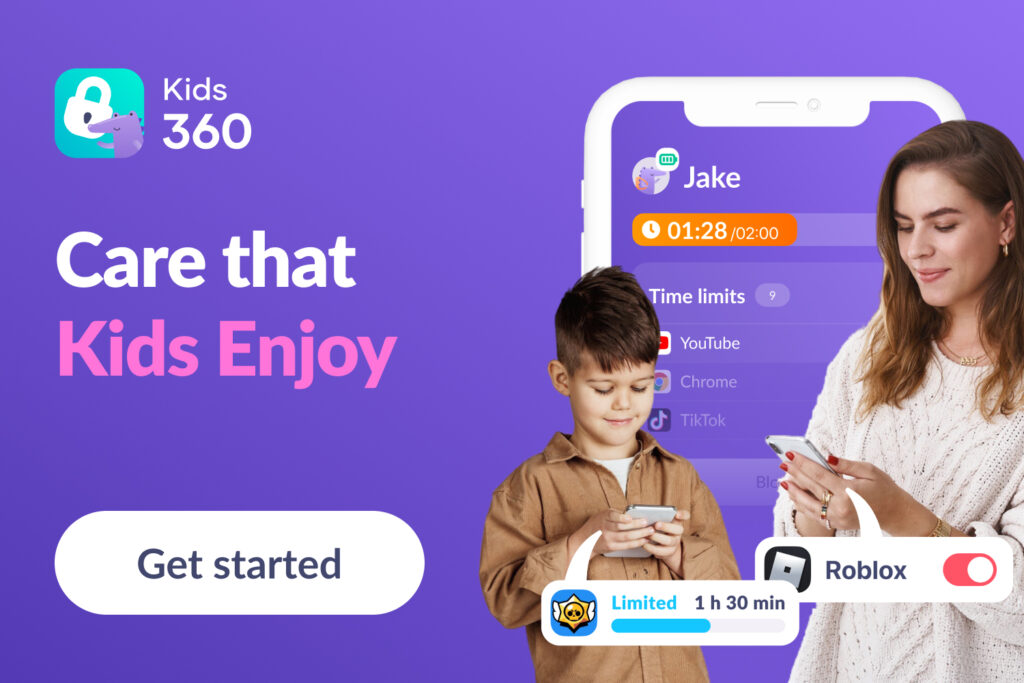
If you want to effectively manage your child’s device without constantly fighting technical glitches, you need a dedicated solution.
Choose the Kids360 App
Kids360 is not just a parental control app; it’s a care that kids actually enjoy. The app offers a balance between control and support, helping children build healthier digital habits while giving parents peace of mind.
Why choose this app over others? Because Kids360 is built specifically for the “parent uses iPhone, child uses Android” scenario. It provides a convenient way for parents to stay involved in their child’s digital life across different devices and operating systems.
Thanks to its quick setup, intuitive interface, wide range of features conveniently available in one place, and unique task-based system, Kids360 stands out among other parental control solutions.
Features

Kids360 provides an extensive list of tools to help you manage your child’s Android phone directly from your own iPhone.
See Screen Time Statistics
Knowledge is the first step to better management. Kids360 provides detailed app usage statistics, helping parents understand their child’s digital habits. In a simple, easy-to-read dashboard, parents can see total screen time and check how much time their child spends on specific apps, games, or video platforms.
Set Daily Screen Time Limits
You can easily set screen time limits for overall device use. Decide how much time your child can spend on their device each day. Once the time limit is reached, the screen will lock, preventing further entertainment use. However, essential communication apps will remain accessible so the child can always reach the parent.
Block Apps Individually
Sometimes you don’t want to lock the whole phone, just certain apps. With Kids360’s app blocker, you can restrict access to unwanted apps. You can block apps by category or individually, and set daily time limits to manage how long your child can use each app. This is especially helpful if they are spending too much time on social media but still need access to educational tools.
Make Schedules
Routines are important for children’s well-being and development. With the schedules feature, parents can block games and apps during bedtime, school hours, or other important parts of the day. By setting up downtime periods, you can reduce distractions, help children stay focused when it matters most, and encourage healthier digital habits.
Block New App Downloads
Children love exploring the Google Play Store. Kids360 allows you to block new app downloads, preventing your child from downloading new games or unsafe apps without your permission. This stops them from bypassing your rules by simply finding a new game to play.
Check Search History & Monitor YouTube
Internet Safety features help parents better understand their child’s online activity by providing insights into browser history and YouTube viewing habits. Monitoring what children watch online can help parents identify potentially inappropriate content and create safer browsing habits.
Location Tracking
Safety goes beyond the digital world. The location tracking feature lets you see where your child is in real time. This provides incredible peace of mind when they are walking home from school or visiting friends.
Tasks for Kids
This is where Kids360 truly shines. The app helps children develop by offering tasks designed to support cognitive and physical skills. Children can earn additional screen time by completing beneficial tasks, making phone use more productive.
- Cognitive development: The app offers short daily educational sessions focused on logic, memory, and math, using a library of more than 4,400 exercises. For every 5 solved tasks, the child earns 5 extra minutes of phone time, up to 20 minutes per day. The algorithm automatically adjusts the difficulty according to your child’s age.
- Sports and physical activity: Using an AI Trainer, the child performs exercises like squats in front of the smartphone camera. The AI technology used by the app analyzes movements in real time. Five repetitions equal 10 minutes of screen time.
- Step counter: The app synchronizes with the phone’s step counter. If the child walks 7,000 steps in a day, the bonus is granted automatically, rewarding them with an additional 5 minutes of screen time.
- Tasks from parents: Parents can create their own list of tasks, from making the bed to reading for 20 minutes, and decide how much extra time the child earns, from 5 to 30 minutes. This helps teach them to manage their own screen time responsibly.
How to Set Up Kids360
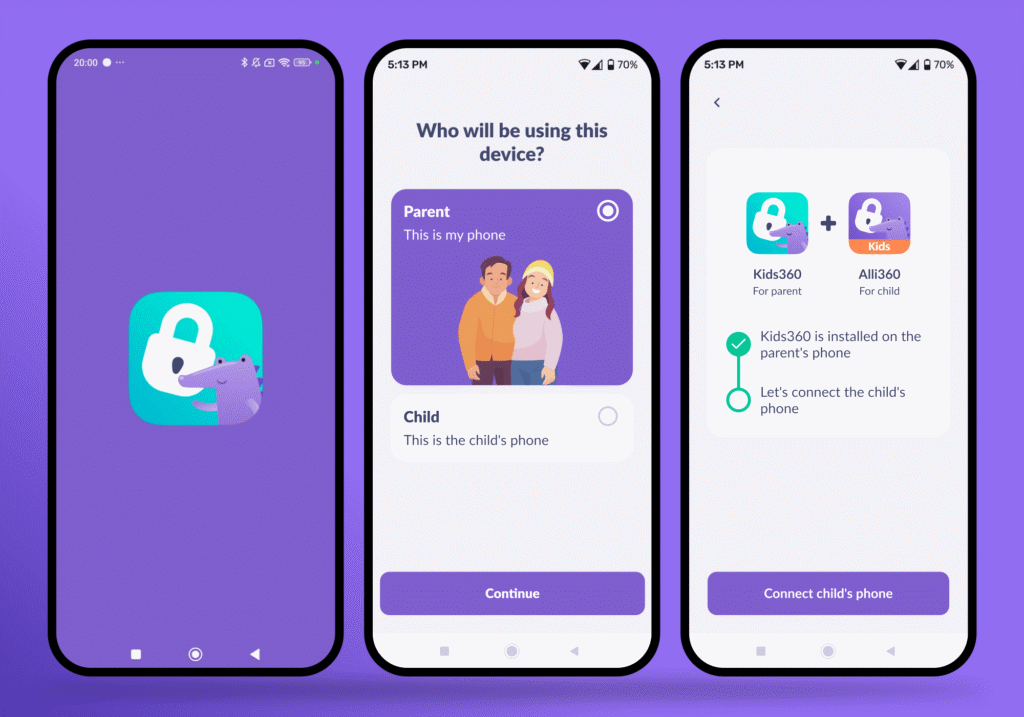
Setting up the app takes just a few minutes, which is especially important for busy parents. Here is how to set up parental controls using Kids360:
- Download the parent app: Open the App Store on your iPhone, search for Kids360, and install the parent app on your device. Create an account or log in if you already have one.
- Download the child app: On your child’s Android phone, open Google Play, search for the child companion app Alli360, and install it.
- Link the devices: On your iPhone, follow the on-screen prompts to add a child’s device. You will receive a unique pairing code. Enter this code into the Alli360 app on the Android phone.
- Grant permissions on Android: The Android operating system requires specific permissions for the app to function. Allow Kids360 to access usage data, location services, and display over other apps. This ensures that screen locks and time limits work correctly.
- Configure initial settings: Return to your own iPhone, navigate to your child’s profile within Kids360. Set your preferred daily screen time limits, adjust content ratings, and block any specific apps you do not want your child to access.
So, if you’re looking for an easy way to set parental controls on your child’s Android device from your iPhone, Kids360 is a practical solution designed specifically for this purpose.
Why Google Family Link Is Not a Full Solution for Monitoring Android from iPhone
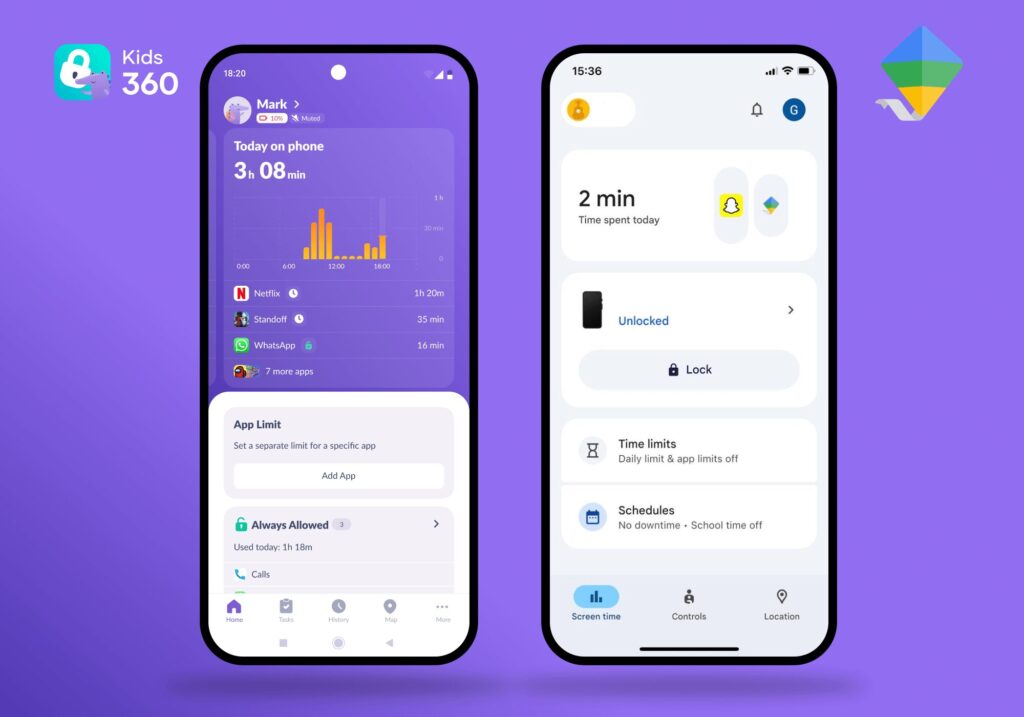
Many parents choose Google Family Link because it is free and created by Google. However, it is not a complete cross-platform solution. While you can install Google Family Link on your iPhone, the parent app experience is limited.
What Family Link cannot do from a parent’s iPhone is provide the same level of integration as it does on Android. While you can approve or block apps, manage screen time, view your child’s location, certain advanced controls—such as more detailed app-level restrictions, full access to all device settings, and some real-time management options available on Android—are not fully available or are more limited in the iOS version or require access from an Android device. Because of iOS platform restrictions, the overall management experience is not as seamless as using Family Link on Android.
Google Family Link is a helpful starting point, but it falls short for modern and caring parents who want not only to control their children’s screen time but also to encourage them to engage in beneficial activities.
Kids360 vs. Google Family Link vs. iPhone Screen Time
When choosing how to set time limits and protect your family, it is helpful to compare the available tools side by side.
| Feature | Apple Screen Time | Google Family Link | Kids360 |
|---|---|---|---|
| Parent can manage from an iPhone | ✅ | ⚠️ Supported, but some features are limited compared with Android | ✅ |
| Works with a child’s Android device | ❌ Apple devices only | ✅ | ✅ |
| Screen time limits | ❌ | ✅ | ✅ |
| Per-app time limits | ❌ | ✅ | ✅ |
| App usage statistics | ❌ | ✅ Basic activity reports | ✅ Detailed statistics and insights |
| Downtime schedules | ❌ | ✅ | ✅ |
| Task-based rewards | ❌ | ❌ | ✅ |
| Cross-platform experience | ❌ Apple ecosystem only | ⚠️ Limited | ✅ Designed for iPhone ↔ Android families |
| Family management | ⚠️ Apple Family Sharing only | ⚠️ Google Family Group management | ✅ Support for multiple parents, children, and devices in one family account |
As the table demonstrates, Apple Screen Time is completely ineffective when the child uses an Android device. Google Family Link allows cross-platform use, but provides only basic family management and limited scheduled restrictions when controlled from an iPhone. Kids360 stands out by offering a comprehensive, fully featured cross-platform experience. It provides detailed app usage statistics, robust per-app limits, and advanced scheduled restrictions, regardless of which phone the parent is using.
Start using Kids360 today for free and discover a smarter way to support your child’s digital habits!
Best Practices for Parents Managing Android from iPhone
Installing parental control apps is only the first step. Navigating screen time management is a widespread challenge. The Pew Research Center found that 71% of parents of a child under 12 say they are at least somewhat concerned their child might ever spend too much time in front of screens. Furthermore, the American Academy of Pediatrics (AAP) emphasizes that healthy media habits depend on a balanced approach: parents should set consistent limits, create screen-free times and spaces, and make sure screen use does not interfere with sleep, physical activity, learning, or family interactions.
To effectively manage screen time and build a healthy digital environment for your family, consider these best practices:
- First, explain the rules before installing controls. Do not just hand your child a locked phone without a conversation. Sit down and discuss why parental controls are necessary. Explain that the internet has risks, like explicit content and dangerous strangers, and that your job as a parent is to keep them safe. Discuss the concept of time limits and why too much screen time is unhealthy.
- Second, adjust rules by age. A seven-year-old child needs much stricter content ratings and privacy restrictions than a fifteen-year-old. As your child grows and demonstrates responsibility, you should gradually loosen the limits. Allow them access to more apps, extend their daily screen time, and give them more freedom to explore the web safely.
- Third, review settings regularly. The digital world changes rapidly. New apps become popular, and old apps update their features. Make it a habit to check the controls tab in your parent app every few weeks. Look at the app activity reports to see if your child has started using a new application that might need to be blocked. Check the search history on Google Chrome to ensure they are sticking to approved websites.
- Finally, do not use controls only as punishment. This is a crucial point. If parental controls are only used to take things away, children will resent them. This is why the Kids360 approach is so effective. It turns gadget use from a passive habit into a learning game where children can manage their own time. By allowing them to earn additional screen time through reading, chores, or physical activity, you empower them. They learn that screen time is a valuable resource that can be earned through effort and should be used wisely.
Empowering Your Child’s Digital Journey
Navigating the complexities of a mixed-device household does not have to be a frustrating experience. While built-in ecosystem tools fail to bridge the gap, third-party apps offer a robust and reliable way to manage an Android phone from an iPhone. By choosing a dedicated solution, you can ensure your child remains safe from inappropriate content while developing healthy digital habits.
Kids360 goes beyond basic restrictions. It offers premium features that actively encourage self-development. By integrating cognitive puzzles, step counters, and parent-assigned tasks, the app transforms screen time into a reward system. It can reduce daily conflicts around phone usage and gives children the independence to earn their digital entertainment responsibly. You get the peace of mind knowing you have full control, and your child gets a fun, interactive way to gain more screen time.
Take a smarter approach to your family’s digital habits today. Download Kids360 and try it for free.
Sources & References
- Parenting Children in the Age of Screens, Pew Research Center, 2022
- The Family Media Plan, AAP, 2024
- Manage your child's screen time, Google For Families Help
- Set up Screen Time for a child on Mac, Apple Support