Parental Control Apps for Android


It feels like almost every child has a smartphone or tablet device on which they play games, watch videos, or make calls with friends. And it’s not just a feeling; it’s actually a reality. By the age of 10, 42% of children have a smartphone, and that increases to 91% by the age of 14. And while these devices offer practical uses such as easier communication and even location tracking, parents must take precautions to create a safe digital environment for their child.
One of the best ways to do that is to set parental controls on Android. These settings can limit what content your child sees and even set screen time limits to build healthy digital habits.
In this guide, we’re breaking down the best parental control app for Android and helping you decide whether it is right for your family. While Android has built-in parental controls, sometimes parents want more comprehensive settings and insights into how their children use their devices.
Key Takeaways
- The best parental control apps are the ones that stop focusing on “no” and start using rewards to build better daily habits.
- While Google Family Link is a great free starting point, it lacks the brain-teasing tasks and advanced reward systems found in parental control software apps like Kids360.
- Parents should look for a “harmonious blend” in which the app prioritizes safety while also helping the child grow independently.
- Getting everything connected usually takes less than five minutes, but it gives you long-term relief knowing where your child is and what they are seeing.
- Top-tier tools offer “flexible” screen time, allowing kids to earn their minutes by finishing homework, doing chores, or staying active.
Contents
What Parents Should Look for in a Parental Control App
Choosing parental control software requires looking past the marketing slogans to see which features actually solve daily parenting struggles. Every family has different needs, but the core pillars of digital safety remain the same across the board.
Reliable Screen Time Management
The primary goal for most parents is controlling a child’s screen time. The best parental control apps should allow you to set a child’s screen time limits that are both firm and flexible. This means being able to lock the phone during school hours or bedtime while still allowing for emergency calls.
Advanced App Blocking and Scheduling
Just yanking the phone away or shutting it down doesn’t teach your child much in the long run. We need a way to be more specific, like being able to block parental control software apps one by one or in clusters. You might want to leave the homework and learning tools wide open during the afternoon, while you restrict access to TikTok or games until the chores are finished. This kind of setup keeps the phone from being a massive distraction and helps it stay useful for the things that actually matter.
Real-Time Location Tracking
Knowing a child’s location provides immense peace of mind. The best parental control apps include high-accuracy GPS features that allow you to see where your child is at any moment. A specialized parent control app can even alert you when a child arrives at a specific location, like school time or a friend’s house.
Content and Web Filtering
The internet is full of adult content that most children with internet access are not equipped to handle. Effective web filtering tools should block adult websites and allow parents to monitor web searches to ensure their kids’ safety online from adult content.
The Most Complete Parental Control Software Solution for Android | Kids360 App
Among the crowded market of Android apps, the Kids360 parent control app stands out because it treats screen time management as a developmental opportunity rather than a punishment. It is designed for caring parents who want to encourage positive digital habits while maintaining necessary oversight of their child’s online activities.
What is Kids360 and Why Choose It?
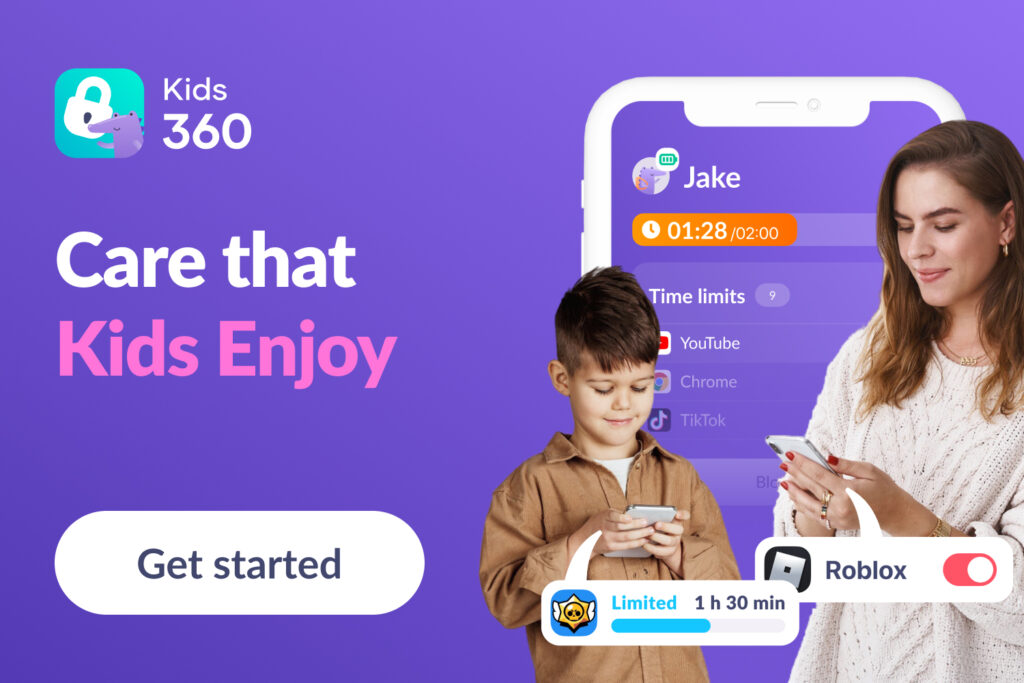
Kids360 is a parental control app designed to help families manage screen time while building healthier digital habits. It combines essential safety tools—like screen time limits, study and sleep blocking, safe browsing, and location tracking—with a simple setup process that takes just a few minutes, making it easy for busy parents to get started.
Unlike basic restriction tools, Kids360 also focuses on positive motivation. Children can earn extra screen time by completing useful tasks, including over 4,400 built-in logic and thinking challenges, as well as parent-assigned chores like cleaning or reading. Physical activity can also be rewarded, encouraging a more active lifestyle.
For parents, the app provides peace of mind through clear control and visibility. For children, it turns device usage into a more structured and rewarding system that supports both mental and physical development while teaching better time management.
How Kids360 Works: Full Feature Breakdown
Here is a breakdown of the key Kids360 features.
Advanced Screen Time Management
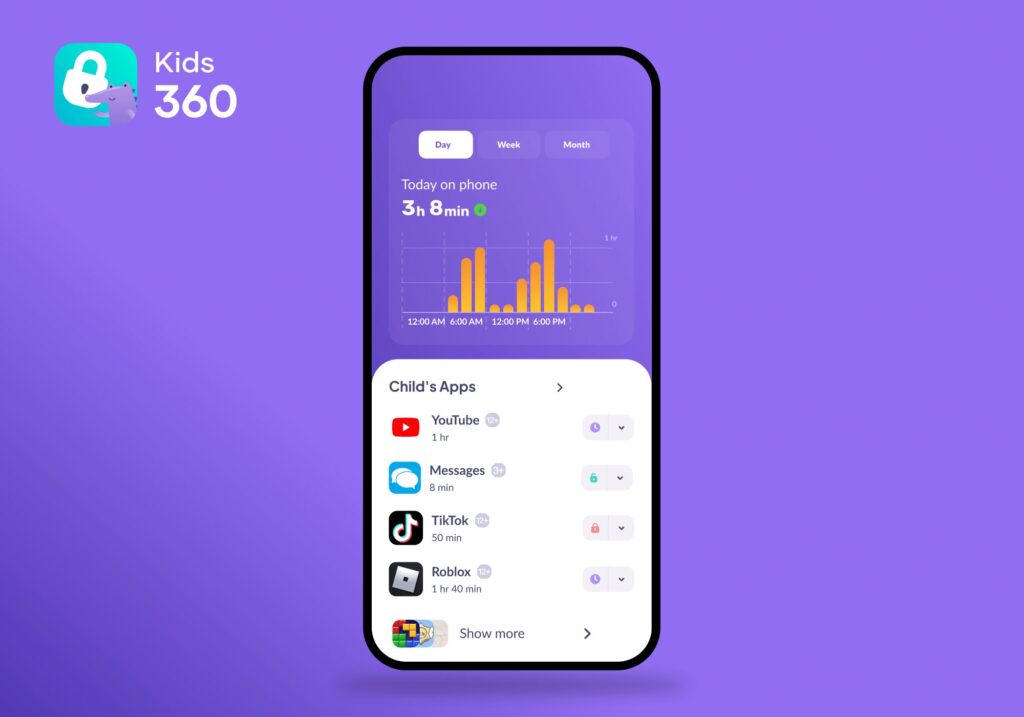
The primary goal for most families is controlling kids’ screen time, but a simple “off” switch is rarely enough. Kids360 allows you to set screen time limits that adapt to your family’s rhythm.
Instead of a single blanket timer, you can create nuanced daily schedules. For example, you can designate specific school hours where only educational tools are accessible, or set a strict “do not disturb” for school time and bedtime to ensure the child’s phone doesn’t interfere with sleep. This level of parental control ensures that screen time is allocated logically throughout the day.
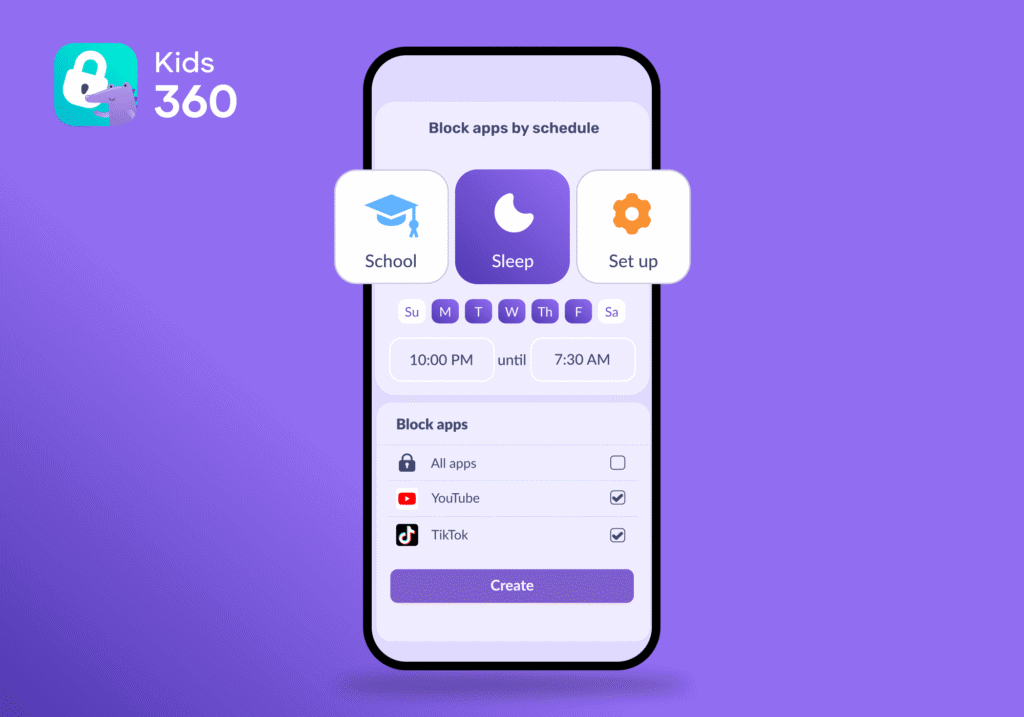
Most basic tracking tools are “read-only,” but a high-tier setup allows for active intervention. While every parent gets access to Daily Reports and Screen Time Statistics for free, the real power lies in the Schedules feature. This is a subscription-based tool that lets you move beyond just watching the clock. It allows you to automate a “digital sunset,” effectively turning off high-stimulus apps during sleep or study hours so you don’t have to stay up late playing the “phone police”.
Granular App Blocking and Customization
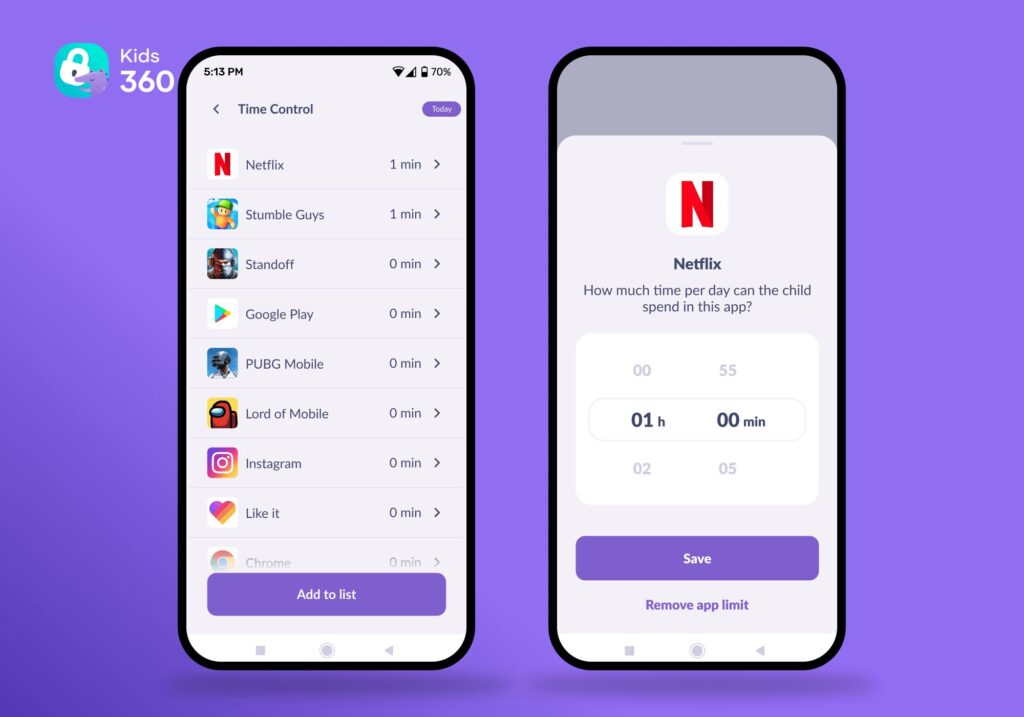
Effective parental control software must be precise. With the Kids360 app blocker, you can block apps individually or by specific app categories, such as social media or gaming.
The “Always Allowed” list helps ensure that essential apps remain accessible even when other restrictions are active. This allows you to restrict access to distracting social media platforms while ensuring that certain apps, like a calculator, language learning tool, or school portal, remain available even after the time limits are reached. This teaches the child that the Android device is a tool for utility first and entertainment second.
YouTube & Web Oversight
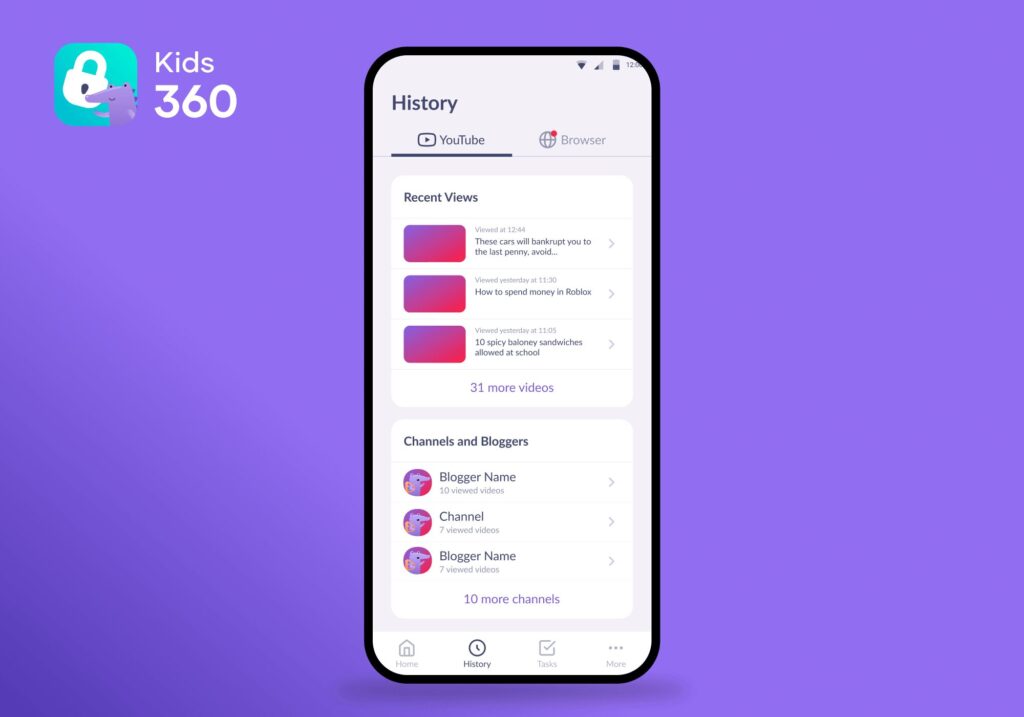
Keeping kids safe online requires more than just blocking the browser. Kids360 provides a safe internet environment by offering deep web monitoring. Instead of a total ban, the parent app allows you to see exactly what they are watching on YouTube and review their browser history.
When combined with the ability to block adult websites and monitor web searches, you gain total visibility into the child’s online experience. This allows you to address potential issues, like exposure to inappropriate adult content, before they become a habit, all while maintaining the child’s account security.
Real-Time Location Tracking
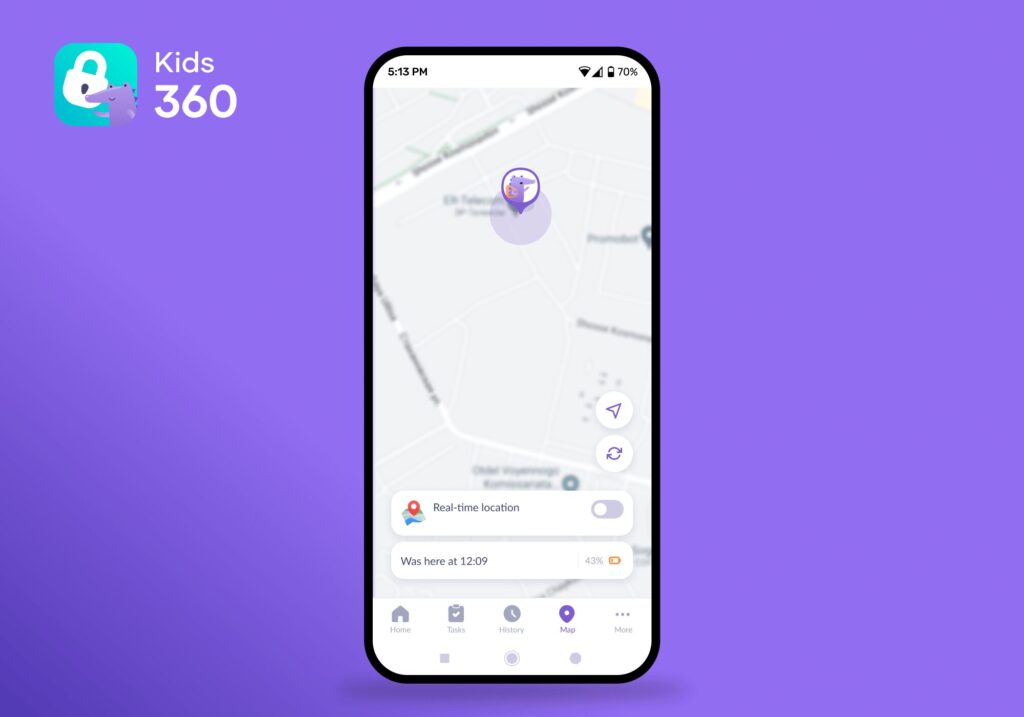
Knowing a child’s location provides immense peace of mind. Kids360 includes high-accuracy GPS features that allow you to see where your child is at any moment. The app can even alert you when a child arrives at a specific location, like home or school, making it a leader among the best parental control apps for physical safety.
The Loud Signal
Communication is a common pain point in parental control. If a child is deep into a game or has their phone on silent, they often “miss” calls or texts. The Loud Signal feature allows you to send a loud alert to the child’s device that bypasses silent and “do not disturb” modes.
This is also an essential safety tool for finding a lost child’s phone in the house or getting their attention in an urgent situation. It provides a direct line of contact that traditional mobile devices often struggle to maintain under strict parental control settings.
Turning Screen Time Into a Resource: The Task System
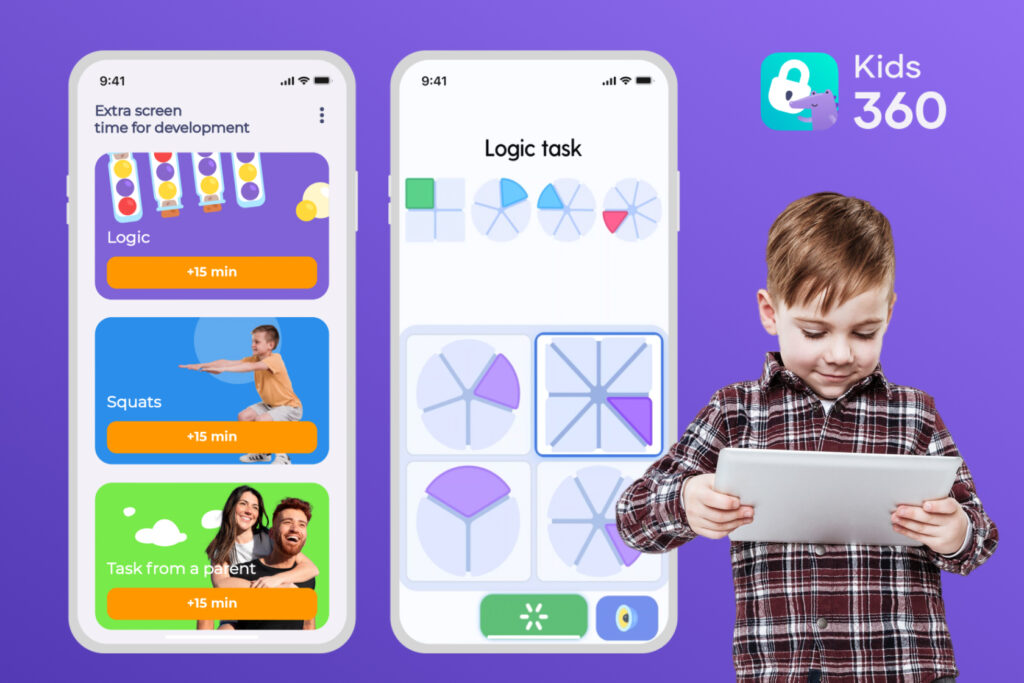
The most innovative part of Kids360 is how it handles screen time features. It moves away from the “strict parent” dynamic and lets the child earn their entertainment.
Cognitive Development Tasks
Instead of screen time being a passive habit, parents can turn it into a quick mental workout. You can set the parental control app to pop up with short challenges that test your child’s logic, math skills, and memory. For every five problems they get right, they earn five more minutes of phone time. It is a simple way to make sure they use their brains a bit before settling in to play.
Physical Activity and AI Training
To keep kids from sitting on the couch all day, Kids360 actually uses the child’s phone to get them moving. Through the phone’s camera, an AI Trainer can watch and count as your child does squats or push-ups, granting extra minutes once they finish their sets. The parental control app even links up with their step counter. If they hit a goal like 7,000 steps during the day, the Kids360 automatically tops up their screen time as a reward for staying active.
Custom Tasks from Parents
Parents can create a personalized list of chores or responsibilities, such as “make your bed” or “read for 20 minutes”. Once the task is done, the parent can award anywhere from 5 to 30 minutes of time, building a clear link between responsibility and reward.
How to Get Kids360 Running
Getting started with Kids360 is designed to be simple and fast. First, parents download the app from the Google Play Store and create an account. After that, they install the companion app Alli360 on the child’s device and link it using a pairing code.
Once connected, parents can immediately set up basic rules such as screen time limits and location tracking. From there, more advanced features like scheduling, app blocking, and task rewards can be activated depending on the family’s needs. The entire setup typically takes only a few minutes and does not require technical experience.
Kids360 is built for parents who want more than just restrictions—they want structure, communication, and long-term habit building. If you’re looking for a way to guide your child’s digital life without constant conflict, try Kids360 and see how a balanced system can support your family’s routine!
Other Types of Parental Control Apps for Android
Choosing the best parental control requires a clear understanding of where each app excels. The following table provides a technical breakdown of how Kids360 compares to other top parental control apps on the market.
| Feature | Kids360 | Google Family Link | Findmykids | Bark |
|---|---|---|---|---|
| Primary Goal | Habit Building & Safety | Basic Management | Physical Safety | Content Safety |
| Earn Extra Time | Yes (Logic & Physical) | No (Restrictive) | No | No |
| Screen Time & Activity Reports | Yes | Yes | Yes | Yes |
| Schedules / Time Limits | Yes (flexible routines) | Yes (bedtime & daily limits) | Limited / basic control | Yes (screen time limits) |
| Location Tracking | Yes (Real-Time) | Yes (Standard) | Advanced (Real-Time + History) | Yes (Standard) |
| App Blocking | Granular / Category | Basic Individual | Yes | Social Media Focus |
| Web Filtering | YouTube & Browser | Chrome Only | No | Yes (AI Detection) |
| Setup Time | 5 Minutes | 10+ Minutes | 5 Minutes | 15+ Minutes |
| Best For | Growth-minded parents | Budget-conscious | Younger children, tweens | Active teenagers |
While Kids360 is a powerful all-rounder, other parental control apps focus on specific niches that might be a better fit for certain family dynamics. Choosing the best parental control for your household involves weighing these specialized tools against your primary safety goals.
Best for Family Location Safety: Findmykids
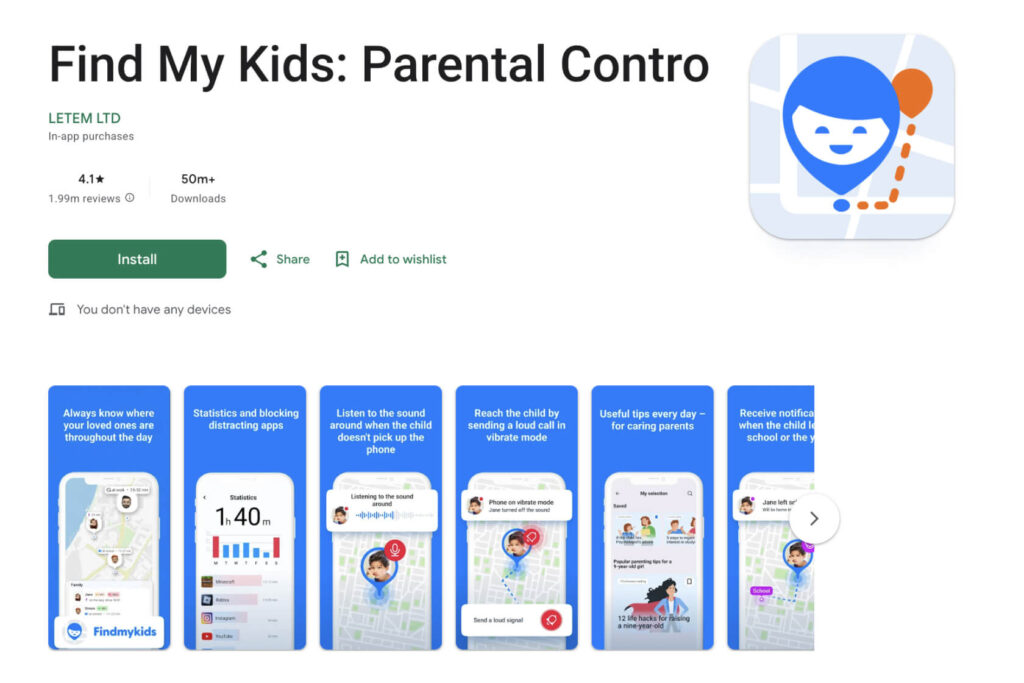
If your primary concern is physical safety rather than screen time management, Findmykids is a top-tier choice. This parental control app is specifically designed for parents of younger children who are beginning to navigate the world independently.
- What it is: A specialized GPS-tracking parental control tool focused on real-time safety and movement history.
- Key Features: It offers high-accuracy location tracking, a Sound Around feature to hear the child’s phone surroundings, and an SOS button for the child to use in emergencies.
- Pros: Exceptional real-time location tracking and the ability to track unlimited devices with high precision.
- Cons: It offers limited app blocking and screen time features compared to comprehensive parental control software.
Best for Basic Web Filtering: Google Family Link
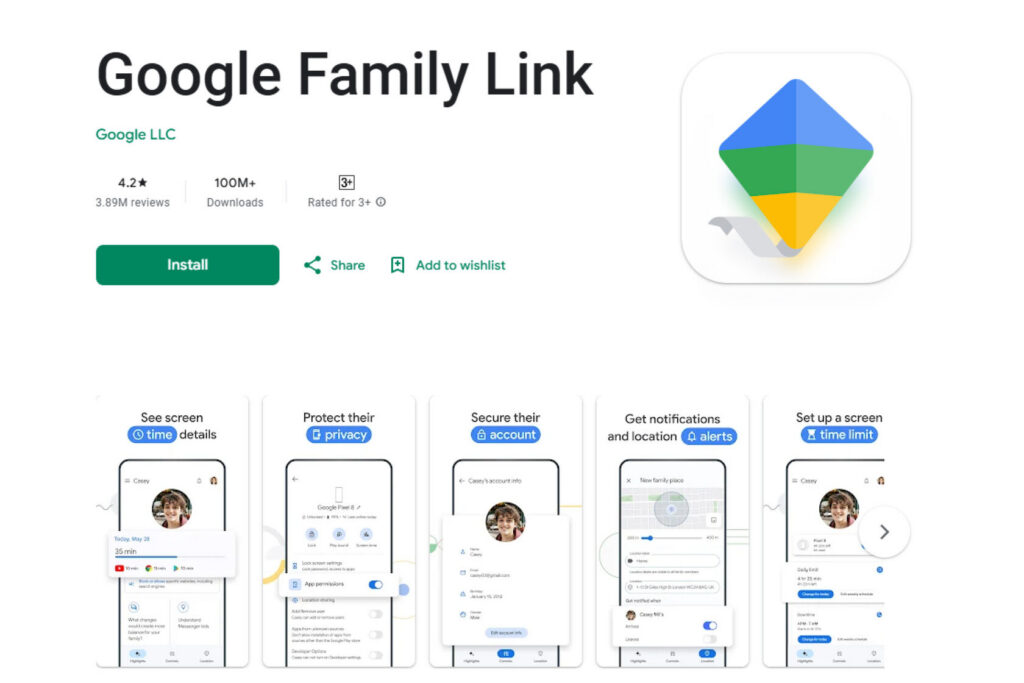
The Google Family Link app is the standard free option for most Android devices. It is built directly into the operating system, making it a convenient starting point for families on a budget.
- What it is: Google’s official, free parental control solution for managing a child’s account and device usage.
- Key Features: It handles basic app limits, web filtering via Chrome, and location tracking. It also allows parents to approve or deny downloads from the Google Play Store.
- Pros: Completely free to use and integrates seamlessly with the Android settings menu.
- Cons: It acts as a “stop” button only; it lacks the positive digital habits coaching, brain-teasing puzzles, and reward systems found in top parental control apps like Kids360. It also has limited cross-platform functionality (best experience is on Android), relatively basic app-level control, and no advanced routines or behavior-based restrictions.
Best for Call and Message Monitoring: Bark
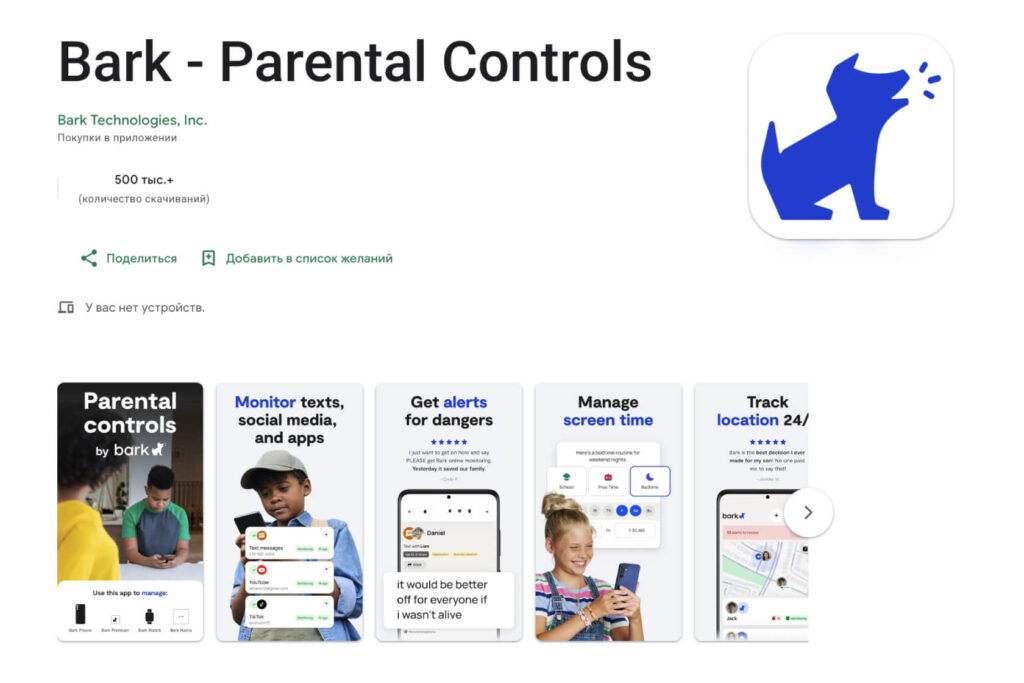
For parents of teenagers who are active on social media platforms, Bark is a specialized parental monitoring app that focuses on content detection rather than just screen time.
- What it is: A monitoring-focused parental control software that scans a child’s text messages, emails, and 30+ social networks for potential dangers.
- Key Features: It monitors incoming and outgoing calls, detects signs of cyberbullying or predatory behavior in a child’s calls, and alerts parents to concerning web searches.
- Pros: Highly effective for social media monitoring without requiring parents to read every single message manually.
- Cons: The setup can be technically complex on Android phones, and it does not offer the same interactive “earned time” rewards for physical or mental tasks. ts deep monitoring approach may also feel intrusive for some families, as it focuses on extensive social media and message scanning rather than lighter, boundary-balanced supervision.
How to Choose the Best Parental Control Software for Android
With so many Android device parental control software available, finding the right fit for your operating system and family dynamic takes a little bit of research.
Check Your Child’s Age
A toddler needs simple web filtering and tools to block adult websites. A teenager, however, needs more freedom but perhaps more social media safety, YouTube monitoring, and location tracking.
Decide What You Need Most
Are you worried about kids’ screen time addiction? Choosing a parental control app like Kids360 means focusing on screen time management and rewards. Are you mostly worried about them getting home safely? A location-focused parent control app like Findmykids might be better.
Check Android Compatibility
Ensure the Android phone control software of third-party parental control apps runs smoothly on your specific Android device. Most third-party apps are designed to be compatible with Google Play Store devices, but it is always worth checking the Google Play Store reviews for your specific model.
Review Privacy and Data Policies
Since these apps handle sensitive information like a child’s location and child’s messages, always check how the company handles data. Stick to reputable companies that prioritize user privacy.
The best parental control apps use end-to-end encryption to ensure that the data being sent from the child’s device to the parent app cannot be intercepted by third parties. Reputable parental control companies, such as the makers of Kids360 and Findmykids, prioritize this security to ensure your child’s location and child’s online activities remain private. Avoid free parental control apps from unknown developers on the Google Play Store, as these often monetize by selling app usage data to advertisers.
Test the App With Your Child
The best way to avoid a “digital war” is to involve your child in the process. Explain how the best parental control apps work and show them how they can set their own screen time limits. This transparency helps build positive digital habits without damaging trust.
Moving Toward Digital Independence
Learning to use parental controls is not a one-time setup, but an ongoing process that evolves as your child grows. Their needs will change over time, and your parental control settings should be flexible enough to adapt alongside them. When you use a tool like Kids360, you are doing more than monitoring a child’s phone—you are helping them build awareness of their own digital habits and learn to manage screen time more responsibly.
When children start taking an active role in how they earn and spend their daily screen time, the usual “conflict” dynamic around devices begins to fade. Instead of constant restrictions and arguments, parents can shift into a mentor role. You guide them through their online world, while they gradually develop the discipline and balance needed to navigate it on their own.