Free Parental Control Apps for iPhone: What You Get Without Paying

It usually starts with a hand-me-down. A parent upgrades, and the old iPhone gets handed down to a 9-year-old. By Friday, “ten more minutes” has turned into an hour of Roblox under the covers.
That’s when most families start looking for a free parental control app for iPhone. Luckily, there are several options that help parents keep screen time in check, protect kids online, and stay on top of their digital habits without spending a cent.
Key Takeaways
- Apple Screen Time is already on every iPhone, and it’s completely free.
- Google Family Link won’t manage a child’s iPhone, since it only reaches their Google account.
- Built-in parental controls aren’t the only option. Third-party apps like Kids360 offer additional tools for managing screen time and setting family rules.
- Kids360’s free plan includes daily screen time limits, live location tracking, and tasks that let kids earn extra screen time.
- Free parental controls almost never include social media monitoring or text reading, and most families are fine without it.
- Kids push back less on screen time rules they helped write.
Table of Contents
Which Free Parental Control App Is Best for iPhone?
There isn’t one app that can be considered the winner. An all-Apple household needs something very different from a home where the 12-year-old has an iPhone and her little brother uses a Samsung tablet. Below, five of the best free parental control apps are compared side by side, then matched to real family situations.
Quick Comparison of Free iPhone Parental Control Apps
Here’s how five popular parental control apps compare in terms of their free features and limitations on iPhone.
| App | What’s Available for Free | Main Limitation |
|---|---|---|
| Kids360 | Daily screen time limits, app usage reports, location tracking, and parent-assigned tasks with extra screen time as a reward | Scheduling blocks requires a paid plan |
| Findmykids | Real-time location tracking, location history, SOS alerts, and Supersignal | Screen time management and other parental controls require a subscription |
| Apple Screen Time | App limits, Downtime, content restrictions, and web filters | Designed for Apple devices only |
| Google Family Link | SafeSearch settings and Google account supervision features | Full device supervision is not available for a child’s iPhone |
| Qustodio | Basic web filtering, Safe Search, and 7-day activity reports on one device | The free plan has limited features and device coverage |
Apple Screen Time gives parents the most for free, including web filters. But it only works if every device in the house is an Apple one. Kids360 is a stronger choice for households with both iPhones and Android devices, especially when parents want to combine screen time limits, location tracking, and rewards for completing everyday tasks.
Which App Is Best for Different Parenting Needs?
The right choice depends on what parents want to manage and which devices their children use:
- For a child who needs help balancing screen time and daily activities: Kids360. Parents can limit screen time and turn chores, reading, or homework into tasks that earn extra screen time.
- For parents who want to manage several children’s devices in one place: Kids360. It supports multiple devices, including iPhones and Android phones, through one parent app.
- For a child who struggles with sudden screen time limits: Kids360. Children can see their remaining screen time, making daily limits more predictable and easier to follow.
- For parents who mainly need location updates: Findmykids. Its free features include real-time tracking, route history, SOS alerts, and Supersignal.
- For an entirely Apple household: Apple Screen Time. It provides built-in app limits, Downtime, and content restrictions without installing another app.
- For families relying on Google services: Google Family Link. It helps manage SafeSearch and Google account settings, although its full parental controls are designed for Android.
- For parents focused on online safety: Qustodio.Its free plan offers basic web filtering, SafeSearch, and activity reports for one device.
- For families with both iPhones and Android devices: Kids360. Parents can manage children’s devices from one app instead of switching between different parental control systems.
The best starting point is to identify the main concern: screen time, location, online safety, or managing different devices. Then check which free plan covers that need.
What Features Should a Free Parental Control App Have?
Most parental control apps share the same core toolkit. Before downloading a free parental control app for a child’s phone, it helps to look for:
- Daily screen time limits that don’t block essential communication apps
- App limits and app blocking, especially for games
- Web filters that keep inappropriate websites out of Safari
- Location tracking, so the child’s location shows up on a map
- Simple reports on the child’s activity, like how long kids spend on YouTube versus homework apps
- Some way to stop a determined kid from switching everything off
Social media monitoring and message reading are rarely included in free parental control mobile apps. Even paid apps may have limited access to private messages on iPhones because of Apple’s privacy and security restrictions. Plenty of families decide a weekly chat about what’s happening online works better anyway.
Best Free Parental Control Apps for iPhone Review
Here are five of the best free parental control options for an iPhone, including what each free plan actually covers and where it runs out.
Editor’s Choice: Kids360 App
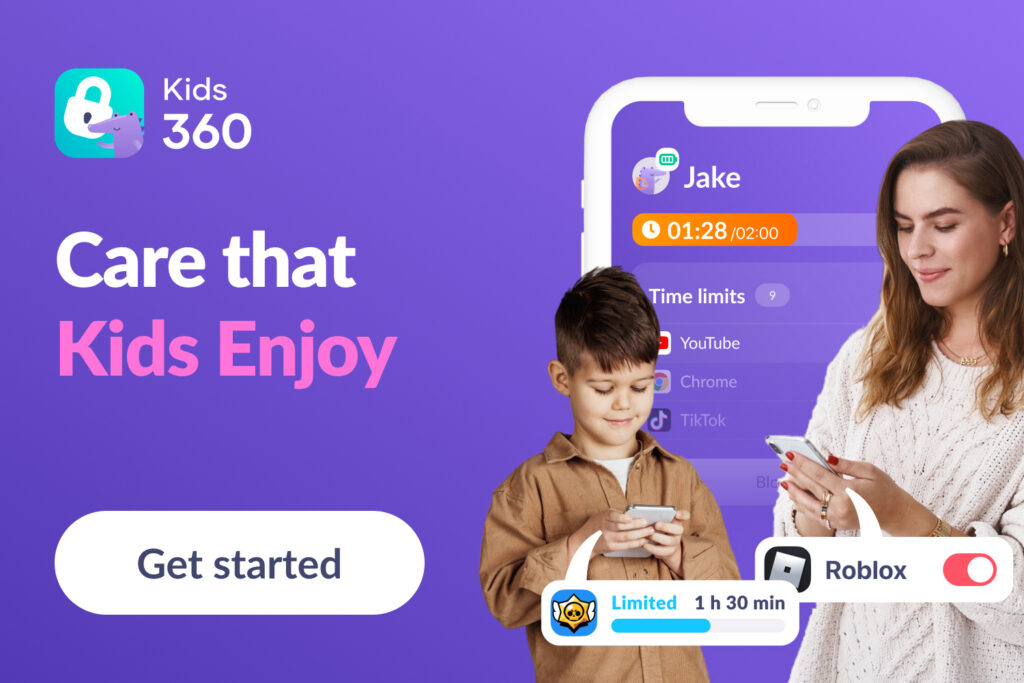
Kids360 is a parental control app for families who want screen time management, location, and healthier phone habits in one place. The parent app goes on the parent’s phone. The child’s phone gets Alli360, a small companion app that connects the two.
What makes it different is the approach. Instead of only taking screen time away, Kids360 gives kids a way to earn it back.
Why Do Parents Choose Kids360?
Families looking for the best free parental control setup tend to mention the same things:
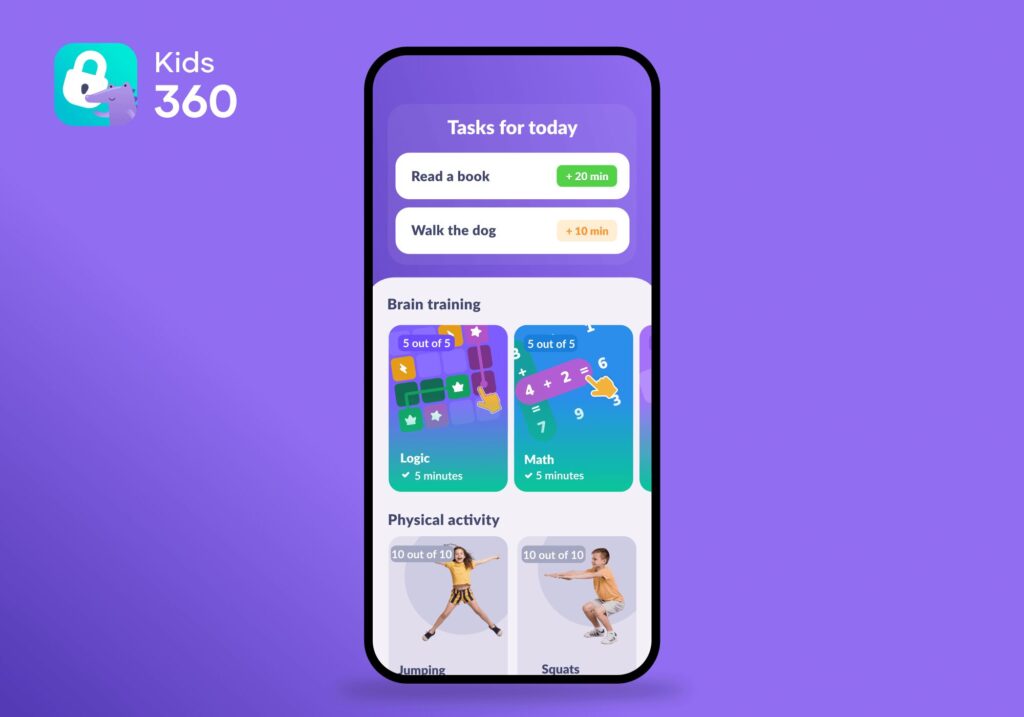
- Screen time rewards: Parents can create age-appropriate tasks for their children, such as practicing piano for 15 minutes, and reward them with extra screen time when they finish. It’s a way to encourage healthy habits while giving kids a little more say in how they earn their screen time.
- Easy setup: A short pairing code connects the parent’s phone to the child’s device.
- Flexible schedules: Parents can adjust screen time rules to fit different routines, from busy school days to more relaxed weekends.
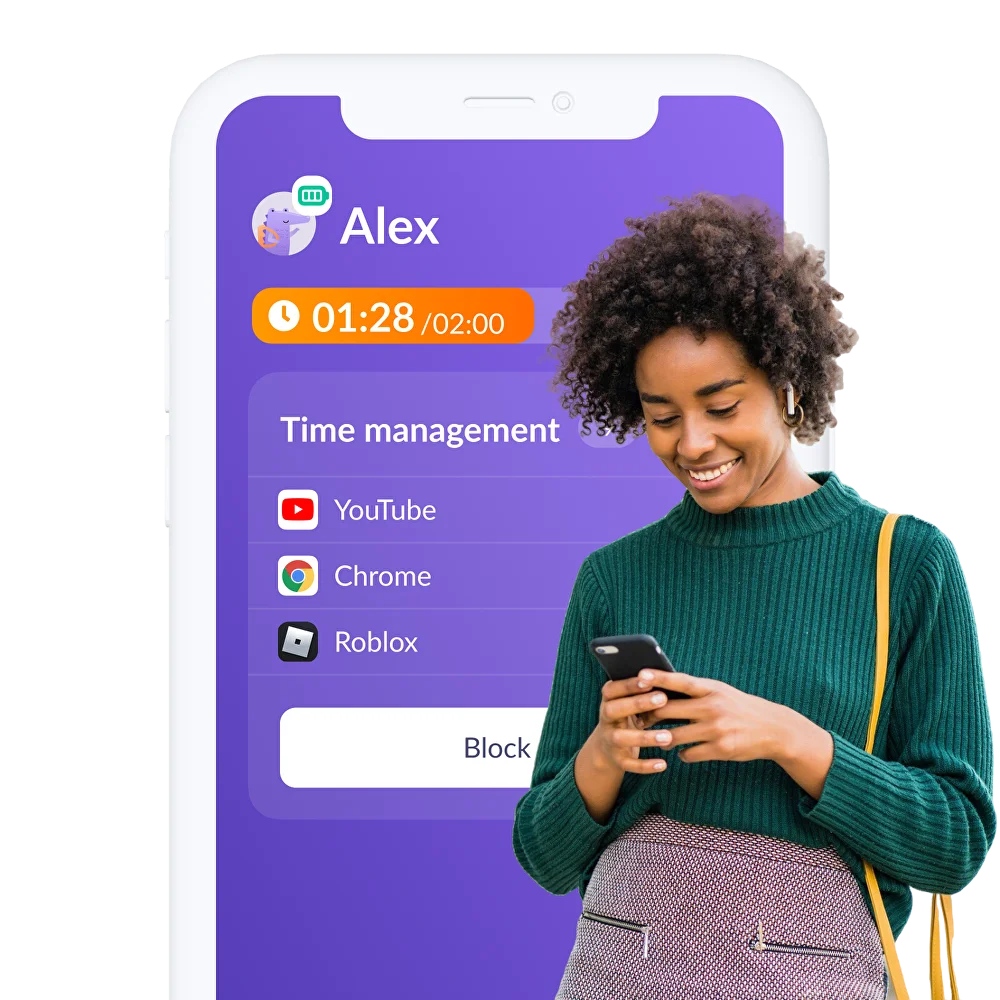
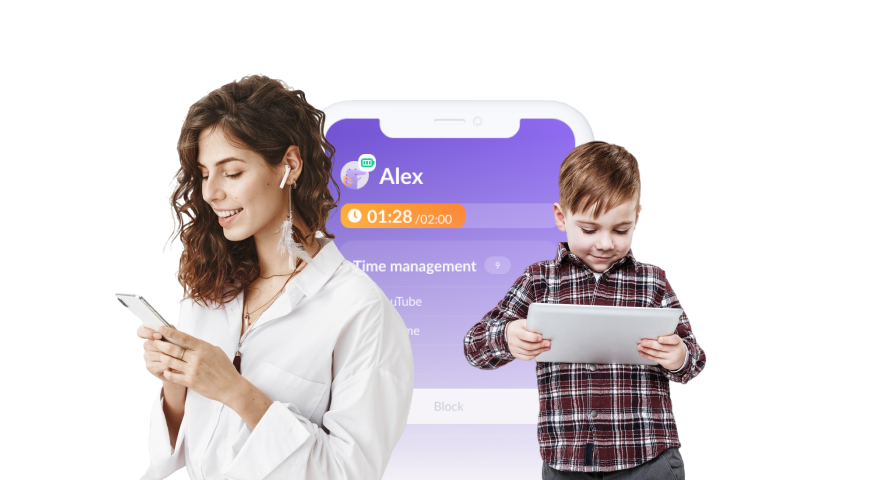
- Clear screen time rules: Children can see their daily limits in the Alli360 app and receive notifications showing how much screen time they have left. Knowing when their time is running out can make limits feel more predictable and help reduce arguments over putting devices away.
- iPhone and Android compatibility: Kids360 supports both platforms, so parents can manage devices used by children in the same family, even if they run on different operating systems.
- Free family sharing: Parents can add a second parent at no extra cost and connect an unlimited number of children’s devices.
- Free features: The free plan includes a lot of useful parental controls, which we’ll cover below.
Free Features in Kids360
The free plan includes all of these:
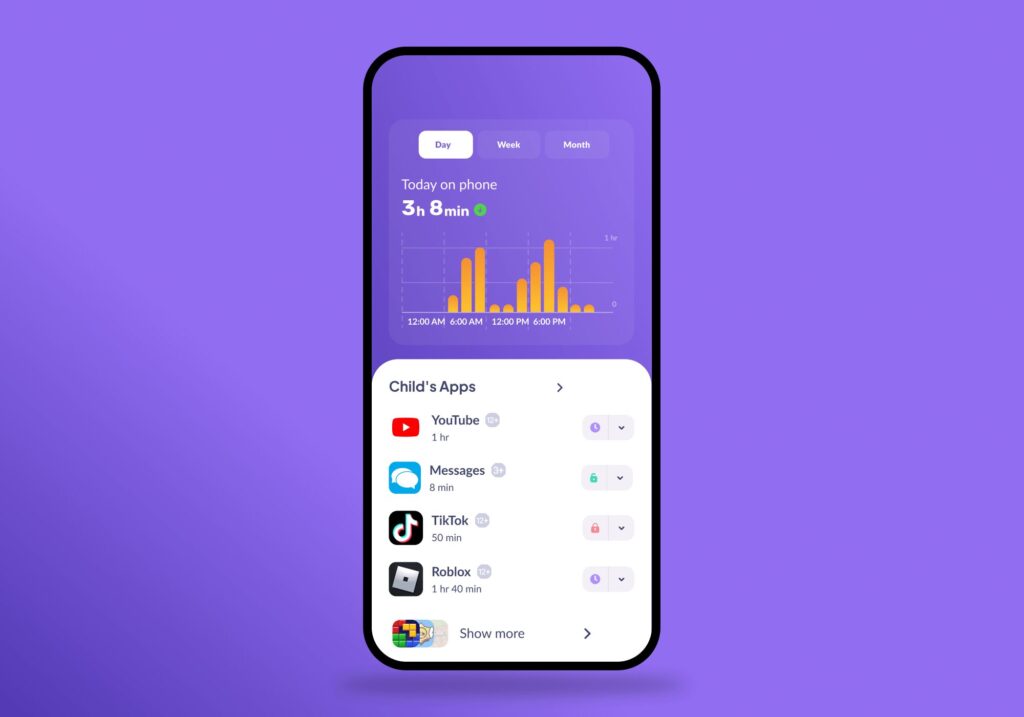
- Viewing screen time statistics to get an overview of the child’s device usage
- Setting daily screen time limits for games and apps, with notifications when the allotted time is reached
- Creating custom tasks from parents that children can complete to earn extra screen time
- Tracking a child’s location with real-time updates on a map
- Adding a second parent to the family account at no extra cost
- Adding multiple children to the family account
- Connecting multiple devices to each child’s profile
- Receiving notifications about screen time when a child reaches or exceeds their limits
- Viewing screen time information in Alli360, where children can check their usage statistics, see their assigned limits, and find out how much app time they have left.
- Getting eye-care reminders that encourage children to take a break after an hour of screen use
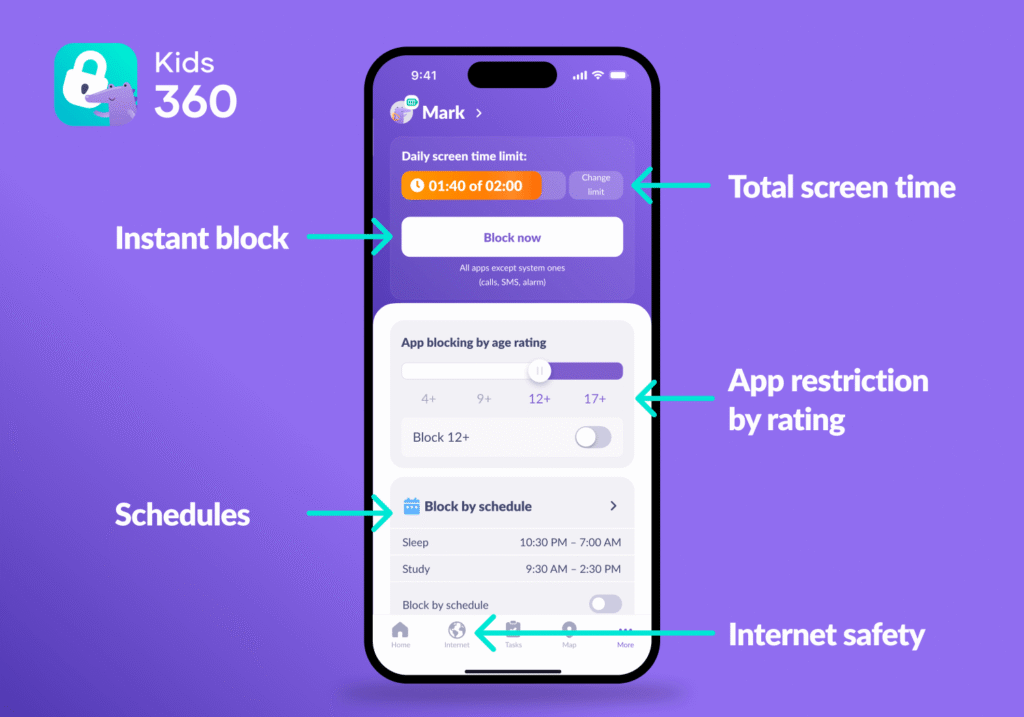
Families can also try premium features during a free trial first. On an iPhone, it covers:
- Schedules that lock certain apps during school hours and at bedtime
- Web filters for adult websites, plus app filtering
- In-app purchase blocking
- Switching off the internet in specific apps
Families who don’t upgrade keep every free feature, so nothing disappears when the trial ends. The free trial is simply a chance to test these screen time features first.
For families with kids aged 7 to 14, that mix of limits and rewards makes Kids360 the best free parental control pick. Download Kids360 right now for free and set it up on the child’s device tonight!
Findmykids
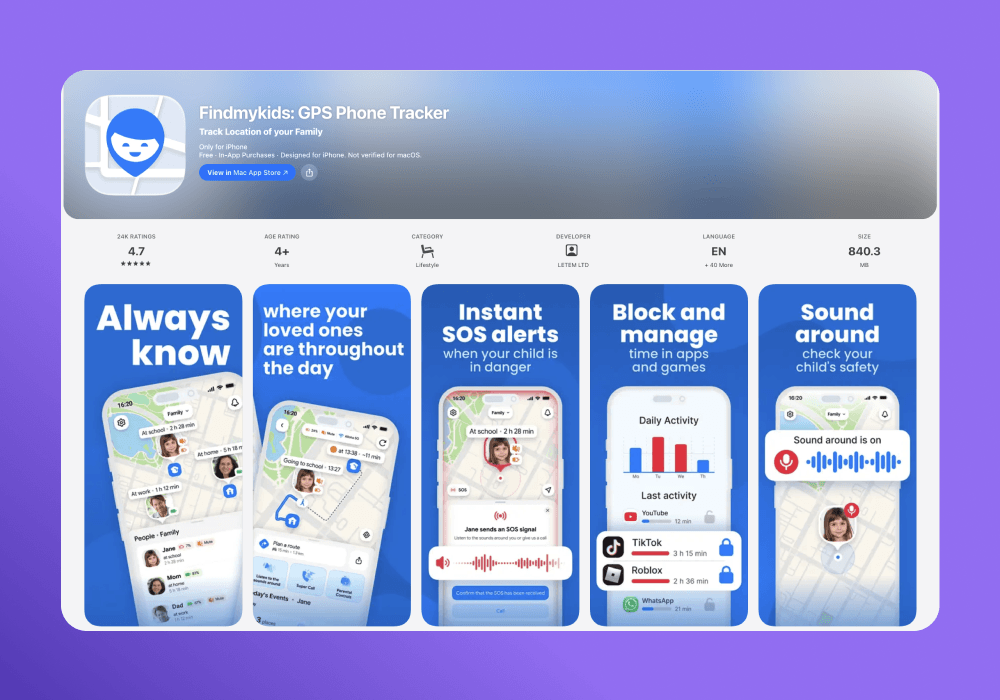
Findmykids gives parents several ways to stay informed about their child’s location without paying for a subscription. The free plan provides live location updates, the most recent routes, SOS alerts, and Supersignals for getting a child’s attention when they don’t pick up the phone. Parents can also set up family circles to share location information with other family members.
This makes Findmykids worth considering for families whose main concern is knowing where their children are and being able to reach them when needed. The app goes beyond accurate location tracking, too: paid plans include screen time management tools, app limits, and content filtering. Upgrading also gives parents access to more extensive location history and additional movement alerts.
Apple Screen Time
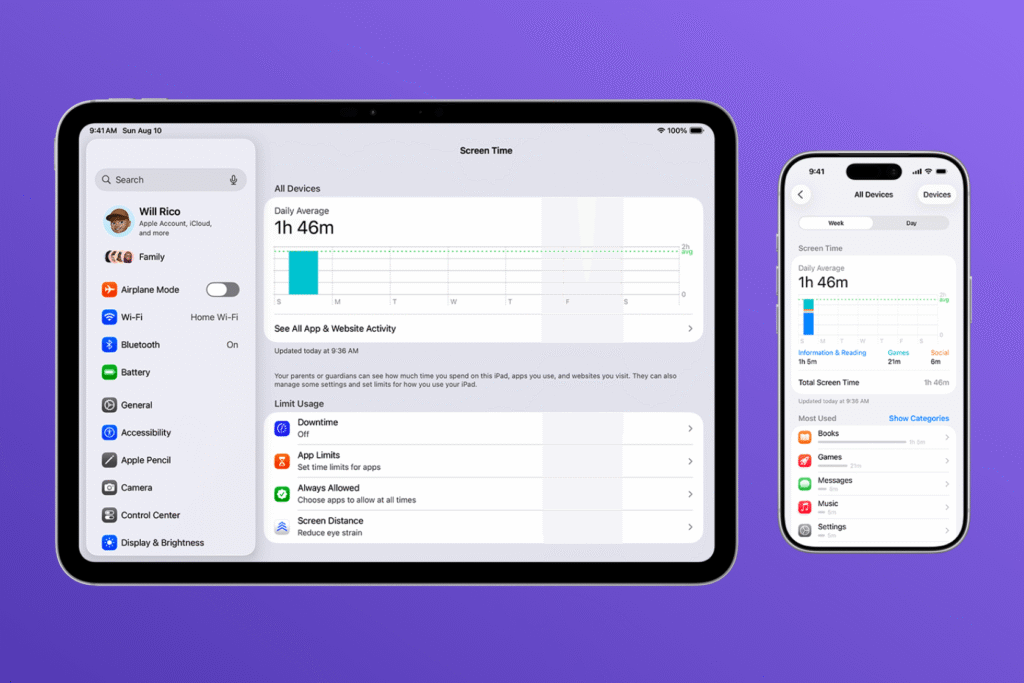
Every iPhone comes with Apple Screen Time built in, and it’s completely free. There’s no separate app to install. When parents set up Family Sharing, they can manage their child’s Screen Time settings right from their own iPhone. This includes checking device usage, scheduling breaks, and setting daily limits for apps and categories.
One of the most useful features is Downtime, which lets parents schedule periods when their child should take a break from the screen, such as at bedtime or during homework. Apps added to the Always Allowed list remain accessible during these periods. Parents can also set individual app limits or block specific apps altogether when they don’t want their child using them.
For more control over what children can access, Content & Privacy Restrictions let parents manage app downloads, purchases, age ratings, and other content settings. Screen Time also provides activity reports, showing how much time children spend on their devices and which apps they use most.
Another useful feature is Ask to Buy. When it’s enabled, children must request parental approval for eligible purchases and downloads, including free apps. Parents can also prevent children from installing or deleting apps through the device’s restrictions settings.
Screen Time includes web content filters, too. Depending on the iOS version and settings available in your region, parents can limit adult websites or restrict browsing to approved websites.
Screen Time isn’t perfect, though. Common Sense Media notes that some controls can be inconsistent or glitchy, and children may find ways around certain restrictions. It’s worth checking the settings regularly rather than assuming everything will work exactly as intended. Another limitation is that Screen Time is designed for Apple devices. If your child also uses an Android phone or tablet, you’ll need a separate parental control solution to manage that device.
Google Family Link
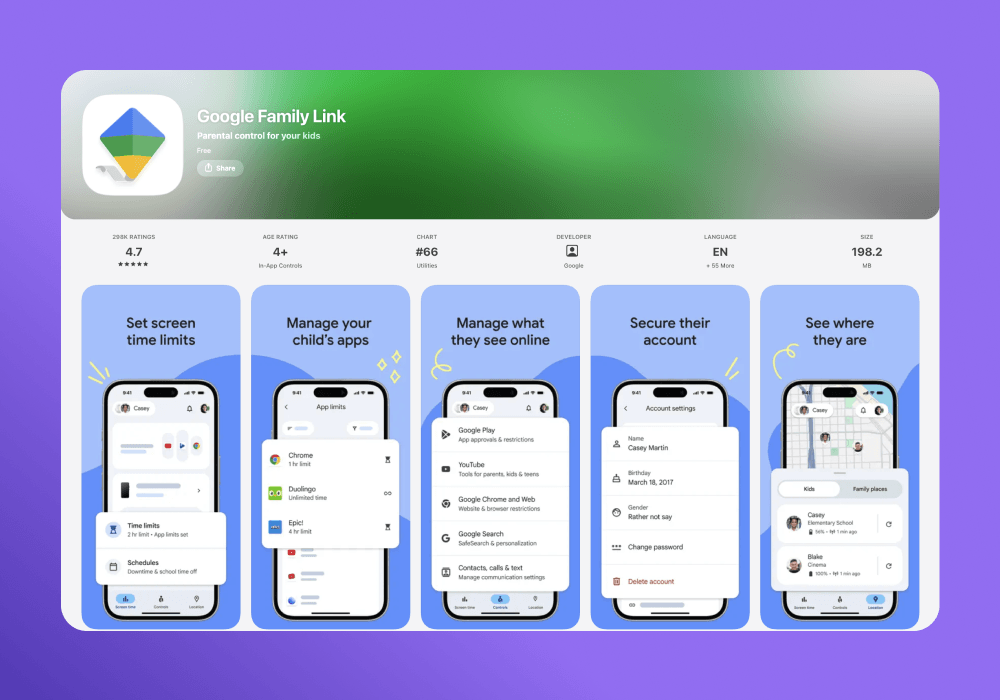
Google Family Link is a free parental control app, and it works best on Android phones and Chromebooks. Parents who use an iPhone themselves can still install it, because the Family Link app runs on iPhones with iOS 11 or newer.
Unfortunately, free tools/settings are more limited when the child is the one with the iPhone. Parents can still manage a few YouTube and Google Search settings, and these apply when the child is signed in to Google apps on an iOS device. However, Family Link can’t manage the child’s other apps or set screen time limits, because those tools aren’t available while the child is using an iOS device.
Family Link is still a good choice for a younger brother or sister with an Android tablet. For screen time monitoring on a child’s iPhone, though, parents will need Apple Screen Time or Kids360. Kids360 works on both iPhone and Android, so families with a mix of phones can manage every child in one app.
Qustodio
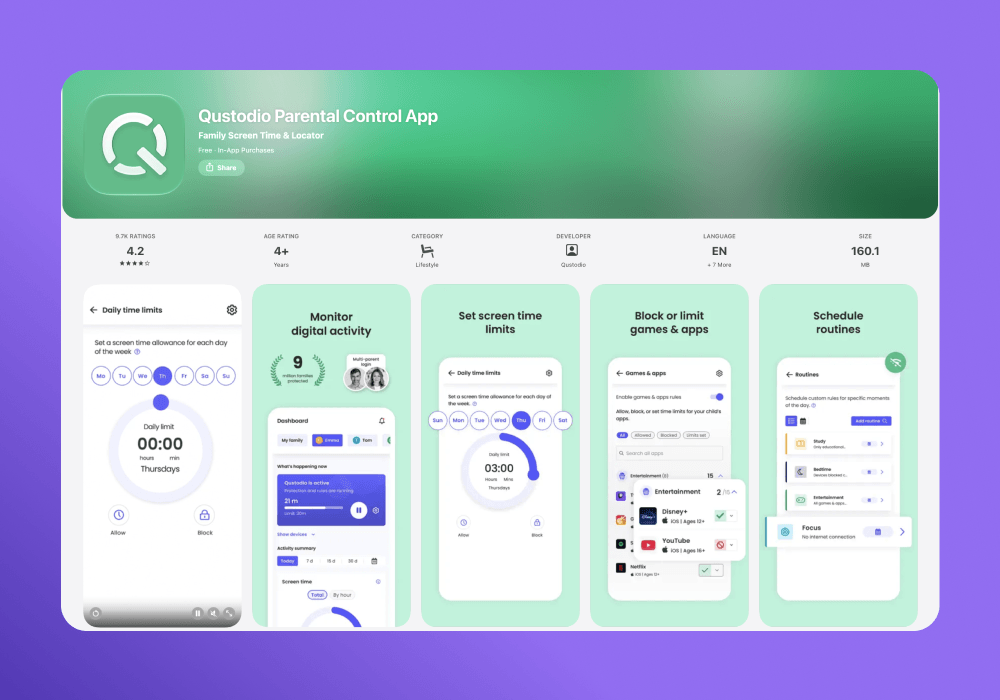
Qustodio is another well-known parental control app with a free plan. It includes web filtering, Safe Search, and seven-day activity reports, but it only covers one child’s device. Daily screen time limits, app restrictions, and location monitoring require a paid plan.
For a single child who mostly uses their own device, that might be enough. Bigger families will outgrow it fast. Security.org also found that the iOS version has limitations due to Apple restrictions and that there’s no location tracking without upgrading. A short free trial lets parents test Qustodio’s parental controls, web filters, and app filtering on an iPhone before paying. Qustodio’s free plan works as a starting point, not as a whole-family setup.
How to Set Up Parental Controls on an iPhone with Kids360
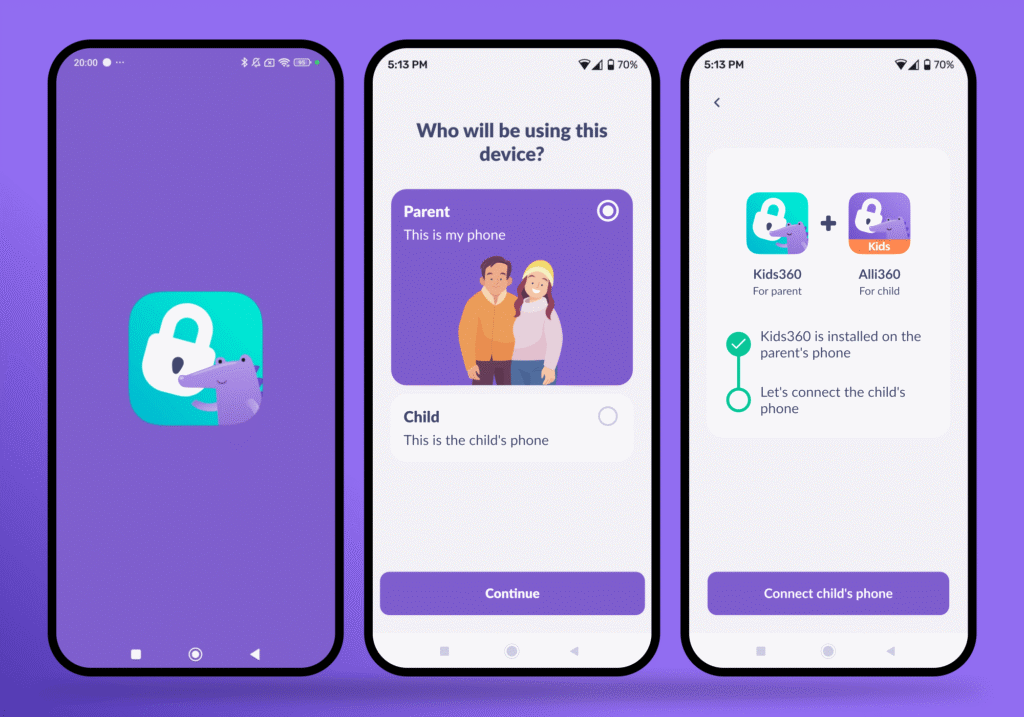
If Apple Screen Time doesn’t offer all the features you’re looking for, or you’d like to manage your child’s screen time alongside location tracking and other family safety tools, Kids360 is worth considering. Unlike Google Family Link, it supports parental controls for a child’s iPhone, with the parent’s settings managed from a separate device.
Getting started is straightforward and takes just a few minutes.
- Install Kids360 on the parent’s phone from the App Store or Google Play, and create an account.
- On the child’s iPhone, install Alli360 from the App Store.
- Type the code from Kids360 into Alli360 to link the two phones.
- Allow the permissions Alli360 asks for on the child’s device.
- Once the devices are connected, set a daily screen time limit and create a first task. It’s a good idea to involve your child so they understand how the rules work.
Before setting limits, take a few minutes to talk with your child about the rules and why you’re introducing them. It’s better to be open about using a parental control app than to monitor your child without their knowledge. Agree on reasonable limits together and explain what happens when screen time runs out. When children understand the rules and feel included in setting them, they’re more likely to accept them.
Are Free Parental Control Apps Safe to Use?
Many free parental control apps from reputable developers are safe to use, but it’s still important to understand what information they collect and how they handle it. These apps may need access to a child’s location, screen time, and device activity, so take a moment to review the privacy policy and check what permissions the app requests before installing it.
A few simple habits can help parents choose and use these apps safely:
- Download parental control software only from the App Store or Google Play, and read a few reviews first.
- Review app permissions and only grant access to information and device features the app actually needs to work.
- Choose an app the child knows about. Kids360, for example, can’t be installed secretly and is used with the child’s consent.
- Avoid any monitoring app that promises to read a child’s cell phone messages without them knowing.
- Set stricter rules for younger kids, based on the child’s age, and relax them as the child shows they can be trusted.
Ultimately, the best parental control app isn’t necessarily the one with the most features. It’s the one that gives parents the tools they actually need without collecting more personal information than necessary.
Read more: Best Free Parental Control App for Kids: How to Choose the Right Solution.
Keep Kids Safe Online With Free Parental Controls on iPhone
The right parental control setup depends on your family’s devices and what you want to manage. If everyone at home uses an iPhone, Apple Screen Time is a good place to start. It covers the essentials at no extra cost. But if you need to manage both iPhones and Android devices, keep track of your child’s location, or make screen time limits more engaging with tasks and rewards, Kids360 offers a more flexible option.
You don’t have to figure out every setting at once. Start with the features that matter most to your family, talk through the rules with your child, and adjust them as their needs change. Download Kids360 to explore its free features and set up your family’s first screen time limits.
Sources & References
- Use Screen Time on Your iPhone or iPad, Apple Support
- Set Up Parental Controls with Family Sharing on iPhone, Apple Support
- Use Parental Controls on Your Child’s iPhone or iPad, Apple Support
- Parents’ Ultimate Guide to Apple Screen Time, Common Sense Media g
- Family Link FAQ, Google
- Qustodio Review and Pricing, Security.org
- The Best Free Parental Control Apps, Security.org
- Findmykids, Findmykids.org