Best Free Parental Control App for Kids: How to Choose the Right Solution


Kids360 is the best free parental control app for families that want more than simple screen time limits. By combining device management features with gamified tools that encourage healthy habits, Kids360 helps parents create balanced digital routines while giving children space to develop independence.
The need for smarter digital parenting tools is growing as children gain access to personal devices earlier than ever. According to the 2025 Common Sense Census, nearly one in four children in the U.S. has their own cellphone by age 8, while the way kids use technology is becoming increasingly complex with more gaming and short-form video consumption.
This guide explains what makes a free parental control app effective, which features matter most, and why Kids360 stands out as a practical solution for modern families.
Key Takeaways
- Kids360 stands out as a leading free parental control app option because it provides seamless cross-platform management between devices, allowing parents on Android to manage a child’s iPhone and vice versa without forcing families into a single device ecosystem.
- Modern parental controls work best when they balance safety with positive reinforcement, and Kids360 achieves this by letting kids earn extra screen time through educational logic puzzles, physical exercises, and parent-assigned household tasks.
- Native tools like Google Family Link fail on Huawei hardware, while Apple Screen Time only works within an all-Apple ecosystem, making dedicated third-party free parental control apps a useful option for diverse households.
- Effective digital parenting relies on monitoring overall device usage, web search logs, and YouTube activity while respecting child privacy, rather than reading private social media messages.
- Parents get access to robust baseline protection, including real-time location tracking, an emergency loud signal, uninstall protection, app blocking, and live battery level monitoring on free plans.
Table of Contents
What Makes the Best Free Parental Control App? Key Features to Look For
With so many parental control apps available, it can be difficult to know which one is right for your family. While every household has different needs, the best free apps combine effective screen time management, content filtering, and simple tools that make protecting children easier.
Screen Time & App Management
The best parental control apps should make it easier for families to build healthy digital habits without completely restricting device use. Screen time tools help parents create consistent routines while allowing children to access apps they genuinely need.
- Screen time schedules — Help establish healthy daily routines by limiting device use during homework, bedtime, or family time.
- Selective app blocking — Limits access to distracting apps, such as social media, games, or video platforms, while keeping educational and communication apps available.
- Screen time reports — Provide insights into app usage and daily screen time, making it easier to identify unhealthy digital habits.
Online Safety & Family Protection
Beyond managing screen time, a good parental control app should help reduce everyday online risks. Safety features give parents better visibility while helping children navigate the digital world more securely.
- Web filtering — Blocks inappropriate websites, explicit search results, and other harmful online content.
- Real-time location tracking — Shows a child’s live location and can notify parents when they arrive at or leave important places.
- Cross-platform compatibility — Supports families using different operating systems, such as Android and iOS, without losing parental control functionality.
Parents should also pay close attention to how easy the tool is to install and use daily. A parental control app that requires complex technical configurations or frequent manual resets leads to a lot of frustration. Reliable software runs quietly (and easily) in the background on your child’s phone, delivering smooth performance without draining the device battery or causing system glitches.
Transparency and Respect in Child Phone Monitoring
Effective supervision is about guidance rather than invasive spying. A good parental control app gives parents visibility into overall device activity, app usage, and broad browsing trends without intruding on private conversations. At the same time, children should feel like active participants in the process, knowing that their opinions matter and their personal boundaries are respected.
The best parental control tools therefore benefit both parents and children: they help families build healthier digital habits while protecting a growing child’s privacy in an age-appropriate and reasonable way.
Best Free Parental Control Apps Compared
Many parents begin their search looking for a completely free tool. However, most parental control apps on the market fall into one of two categories: built-in parental controls bundled with phone operating systems, or third-party free parental control tools designed for specific mobile (or web) platforms.
| App Category | Primary Examples | Major Advantages | Key Constraints |
|---|---|---|---|
| Cross-Platform Free Apps | Kids360 | Runs across iOS and Android, includes gamified tasks | Requires installation on both parent and child devices for complete setup |
| Native Operating System Tools | Google Family Link, Apple Screen Time | Pre-installed, completely free, basic time limits | Platform-locked, easily bypassed by tech-savvy kids |
| Network & Router Controls | OpenDNS FamilyShield | Filters all devices connected to home Wi-Fi | Does not work when kids switch to mobile data outside home |
Free parental control software often comes with compromises. Basic free plans might restrict management to just one device, limit daily schedule updates, or lock detailed reports behind hidden costs. Some free apps rely on intrusive ads that clutter the interface. Finding the best parental control apps means identifying options that offer true utility on their free plans without sacrificing safety or usability.
Editor’s Choice: Why Kids360 Leads the Pack for Families
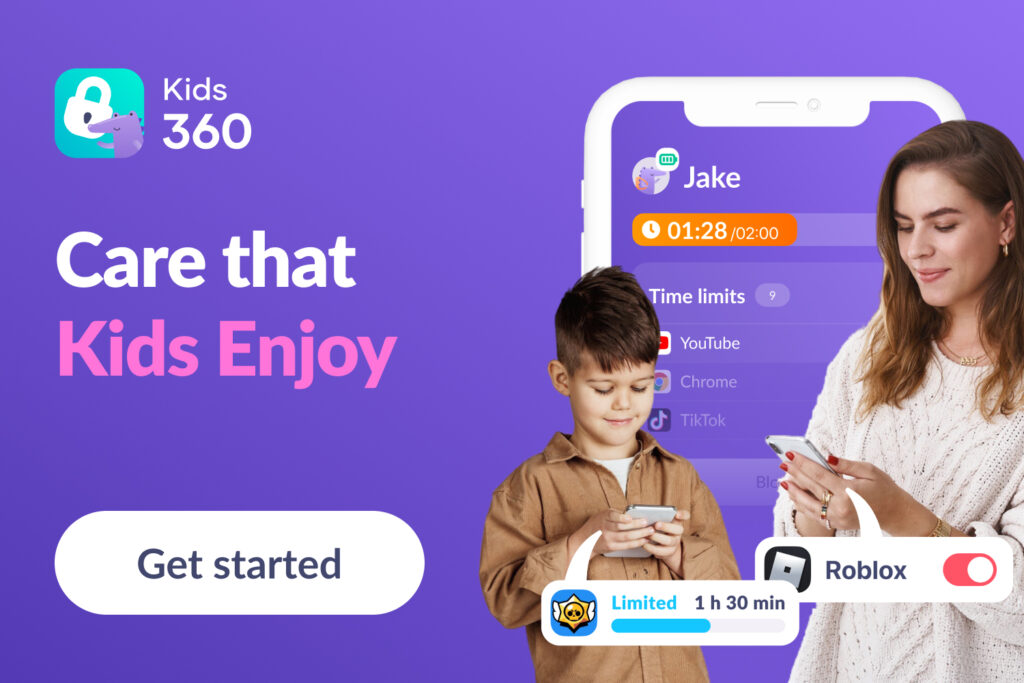
Kids360 takes the top spot as our Editor’s Choice because it perfectly combines safety controls with a fun task system that kids actually enjoy. It gives parents reliable cross-platform management across Android and iOS devices, making digital screen time balance a positive, rewarding routine for the entire family.
What is Kids360?
Kids360 is an all-in-one modern parental control app built to balance digital safety with positive encouragement. Rather than acting purely as a rigid screen lock, Kids360 combines standard parental controls with interactive habit-building features that children may find engaging. It transforms everyday phone supervision into an engaging, collaborative experience that teaches long-term digital responsibility.
Setting up the application is exceptionally easy. Parents can link their account with their child’s device in under five minutes using a secure authorization code. The clean interface gives parents one-click access to schedule controls, app filters, and real-time location tools directly from their own phone.
A Child-Friendly Approach: Gamified Tasks and Motivation
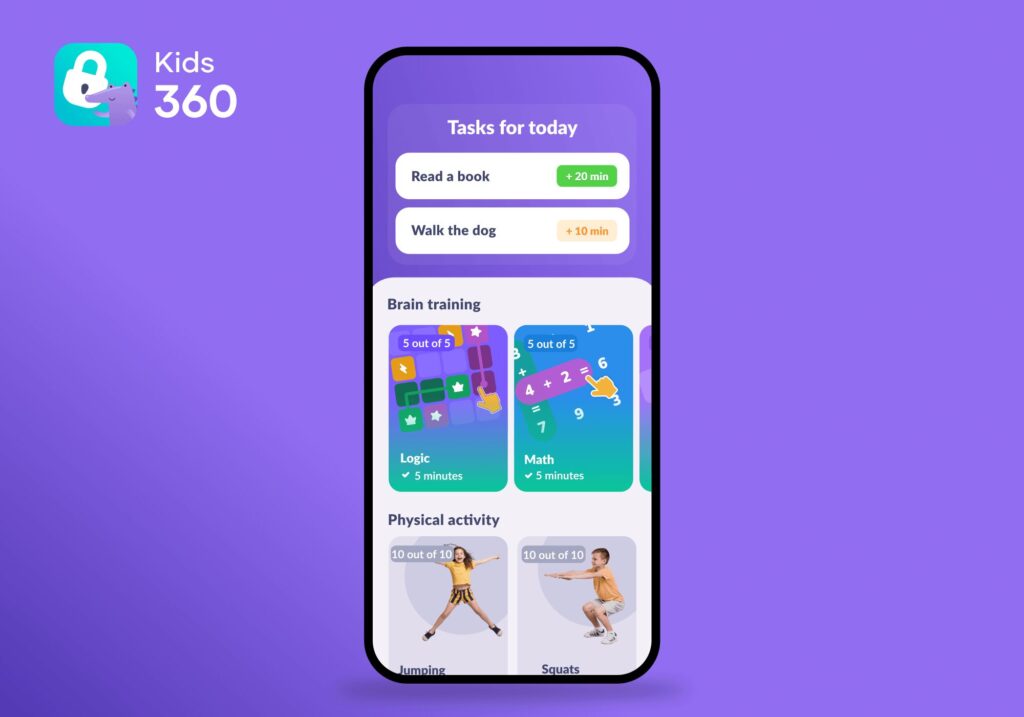
The most standout feature of Kids360 is its positive motivation model. Instead of constant arguments over screen time limits, Kids360 teaches children that screen access is a valuable resource earned through productive daily habits. This gamified system replaces daily negotiations with clear, predictable rules that kids respect.
| Task Type | How It Works in Kids360 | Screen Time Reward |
|---|---|---|
| Cognitive Development | Offers daily math, logic, and memory challenges from a library of 4,400+ exercises | Earn 5 extra minutes for every 5 solved tasks (up to 20 minutes per day) |
| Physical Activity (AI Trainer) | Uses the phone camera to analyze real-time body movements during exercises | 5 squats or push-ups earn 10 additional screen minutes |
| Step Counter Sync | Automatically syncs with the phone’s step counter during daily movement | Reaching 7,000 steps awards 5 bonus screen minutes |
| Custom Parent Tasks | Parents set specific real-world chores like reading or making the bed | Parents set custom rewards ranging from 5 to 30 minutes |
Completing cognitive workouts helps children practice cognitive skills before they indulge in online/device entertainment. The adaptive difficulty algorithm continuously adjusts challenge levels based on the child’s age and progress, ensuring exercises remain engaging without becoming frustrating. Meanwhile, physical activity tracking ensures kids get moving away from the couch before spending hours on social media apps. Custom tasks turn everyday discipline and domestic responsibilities into an encouraging, conflict-free routine.
True Cross-Platform Flexibility for Every Household
A major challenge for modern households is managing different hardware brands across family members. A parent on an Android phone can easily manage a child’s iPhone, and vice versa. Kids360 runs seamlessly across both major mobile platforms on official app stores like Google Play and the Apple App Store, operating reliably without requiring everyone to own the exact same brand of phone.
The app also supports families with multiple caregivers and children. Parents can add another adult account to help manage digital routines together, while multiple child profiles and devices can be connected and managed within the same account. This makes it easier to adjust screen time schedules, app limits, and safety settings for each family member from one place.
Whether a child uses a smartphone or a tablet, Kids360 maintains synchronized settings across all registered devices. This cross-platform flexibility allows parents to update schedules, check location tracking data, and adjust individual app limits instantly from the device they already use.
Robust Suite of Free Features

Kids360 includes a comprehensive set of free features designed to handle everyday family life:
- App usage & time limits: View daily app usage and set overall screen time limits or custom time limits for individual apps or app categories.
- Safety & search logs: Review browser search history and YouTube viewing history to keep tabs on interests and guard against online threats.
- Real-time geolocation & loud signal: Track location in real time and trigger a loud audio signal on your child’s phone even when muted.
- Smart notifications: Receive updates when screen time limits are reached or exceeded, while children get reminders about remaining app time, usage statistics, and their set limits. These notifications help make screen time rules more transparent and easier to follow.
- Device protection & monitoring: Built-in protection against app uninstallation ensures settings stay active, while live child’s phone battery level reporting prevents unexpected dead phones.
- Eye protection: Screen time reminders encourage healthier viewing habits and help children take regular breaks.
Try Kids360 for free and explore simple tools for managing screen time, app usage, and online safety in one place!
Is Apple Screen Time or Google Family Link Enough?
While third-party parental control apps like Kids360 offer a wider range of tools for managing children’s digital habits, many parents first consider the options already built into their child’s device. Apple Screen Time and Google Family Link are free solutions provided by the operating systems themselves, but parents often wonder whether these built-in tools are enough for everyday family needs.
| Metric | Google Family Link | Apple Screen Time | Kids360 |
|---|---|---|---|
| Supported OS | Android (Full) / iOS (Limited) | Apple devices only | Full Android & iOS cross-sync |
| Huawei Compatibility | Unsupported (No Google Services) | Incompatible | Fully compatible & operational |
| Parent-Child Cross Match | Android managing Android/iOS | Requires all-Apple devices | Any parent OS managing any child OS |
| Motivating Tasks | Not available | Not available | Built-in brain exercises & AI workouts |
Google Family Link is a popular choice for Android phones, but its functionality is more limited when parents and children use different operating systems. While parents can use the Family Link app on iOS to manage some settings, the experience is more restricted compared with Android, and some features may not be available. For families where a child uses an iPhone and a parent uses Android—or vice versa—built-in tools may not provide the same level of cross-platform control.
Google Family Link also depends on Google Mobile Services, which means it may not work on some devices, such as certain Huawei smartphones without Google services.
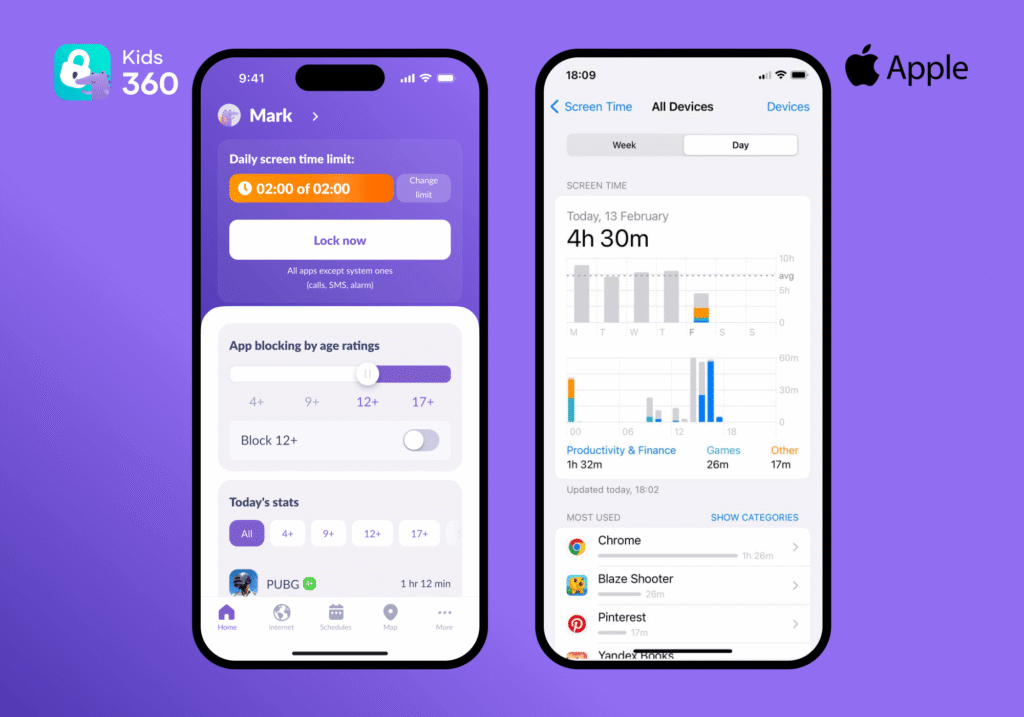
Apple Screen Time offers solid basic controls, including screen time limits, app restrictions, and content settings. However, it works best when the whole family uses Apple devices. If a parent uses an Android phone while their child has an iPhone, or if the parent has an iPhone but the child uses Android, Apple’s built-in tools cannot provide full cross-platform management between devices.
Tech-savvy kids also frequently discover workarounds to bypass native screen limits. Using a dedicated third-party parental control app like Kids360 gives families flexible cross-platform tools that operate reliably regardless of device brand.
Specialized Free Tools for Other Devices & Browsers
Besides mobile devices like phones, children frequently access the web through personal computers, gaming systems, and home Wi-Fi networks. Using complementary free tools helps parents secure these home endpoints.
Microsoft Family Safety for Windows Computers and Xbox
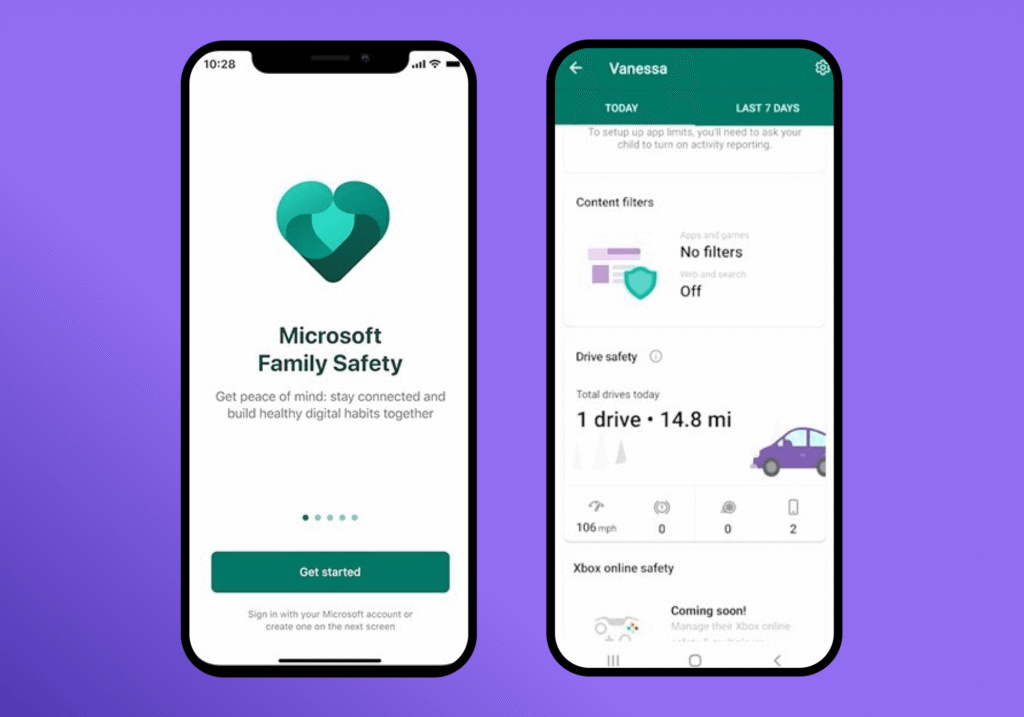
For households with desktop setups or gaming consoles, Microsoft Family Safety is an effective tool for managing Windows computers and Xbox consoles. It allows parents to restrict access during school hours, manage app downloads, and view activity reports across desktop screens.
OpenDNS FamilyShield for Router-Level Web Filtering
OpenDNS FamilyShield (now part of Cisco Umbrella’s DNS security ecosystem) offers free, router-level web filtering for the entire home network. By applying these DNS router controls to your Wi-Fi network, any tablet, PC, or Kindle device connected to the home network automatically blocks explicit content and adult content before it reaches the screen.
Google SafeSearch for Search Protection
Google SafeSearch is a built-in search filter that blocks explicit image and video results across web browsers. Enabling SafeSearch provides a simple first line of defense against accidental exposure to explicit media during basic internet access.
Comparison Table: Free Parental Control Apps at a Glance
The following table compares the primary free tools available for parents today:
| Parental Control App | Cross-Platform Support | Primary Free Features | Key Limitation |
|---|---|---|---|
| Kids360 | Android & iOS (Universal) | Gamified tasks, time limits, app blocking, search & YouTube logs, GPS tracking, loud signal | Needs setup on parent and child devices |
| Google Family Link | Android (Full) / iOS (Limited) | Location tracking, screen time schedules, app permissions | Unsupported on Huawei devices; limited iOS management |
| Apple Screen Time | iOS / Apple Devices Only | Content restrictions, app time limits, web content filters | Incompatible with Android parent devices |
| Microsoft Family Safety | Windows, Xbox, Android, iOS | Screen time limits for PC/Xbox, location sharing | Mobile monitoring is less robust than dedicated apps |
| OpenDNS FamilyShield | Router-Level (All Devices) | Whole-network adult content filtering | No screen time schedules or app-specific limits |
Free vs Paid Parental Control Apps: Which Option Is Right for Your Family?
Understanding the difference between free and paid parental control apps helps parents choose a solution that matches their family’s needs. Free tools can be a good starting point, especially for basic screen time management, but they often come with limits that become more noticeable as children grow and their digital habits become more complex.
Common Free-Plan Restrictions
Many free parental control apps provide essential features such as basic screen time limits, app restrictions, or simple activity insights. However, free versions may limit advanced options, such as detailed reports, flexible schedules, customization, or management across multiple devices. These restrictions may not be noticeable at first but can become important as families need more personalized control.
When a Free Parental Control App is Enough
A free plan can be a practical choice for younger children with simple routines — for example, when a child mainly uses one tablet for educational content, videos, or occasional games. In these cases, basic time limits and app controls may be enough to create healthy digital boundaries.
As children become older and start using more apps and devices, parents may need additional flexibility. More advanced parental control tools can provide deeper customization, broader insights, and features designed to support changing family needs over time.
Read also: The Best Parenting Apps of 2026.
Smart Digital Parenting: Building Trust Beyond Technology
Choosing the best free parental control app is not only about the number of features. The right solution should help families build healthy digital habits while supporting children’s growing independence.
For most families, Kids360 is a strong choice because it combines essential parental control tools—including screen time management, app limits, location tracking, and activity insights — with a child-friendly approach that focuses on responsibility rather than strict restrictions.
However, no monitoring app can replace open communication between parents and children. Technology can provide structure and support, but regular conversations about online safety and healthy habits are what help children develop lasting digital literacy.
The goal of parental control is not to monitor every action, but to help children build a balanced and responsible relationship with technology. With the right tools and family support, parents can create a safer digital environment while encouraging confidence and independence.
Sources & References
- The Common Sense Census: Media Use by Tweens and Teens, Common Sense Media, 2025
- How Parents Manage Screen Time for Kids, Pew Research Center, 2025
- Google for Families, Google Support
- Use Screen Time on your iPhone or iPad, Apple Support
- Microsoft Family Safety, Microsoft
- FamilyShield Router Web Filtering Setup, OpenDNS Home Security