6 Educational Apps for Kids That Can Make Screen Time Count


A child asks for more screen time, and a parent wonders whether those extra minutes could be used for something more meaningful. The best educational apps for kids turn that time into a chance to solve problems, practice school skills, create something new, or even get moving.
Key Takeaways
- Kids360 turns screen time into motivation by rewarding children for completing logic exercises, family tasks, and physical activities.
- Khan Academy helps children strengthen school subjects through structured lessons completed at their own pace.
- PBS KIDS Games combines familiar characters with educational games covering reading, math, science, and creativity.
- Prodigy Math brings curriculum-based questions into a game-like world that many children find engaging.
- The right app should match the child’s age, interests, and learning needs, while leaving room for books, movement, sleep, and family time.
Table of Contents
What Makes a Good Educational App for Kids Ages 8–10?
Children between eight and ten are building more than academic knowledge. They are learning to work independently, stay with a challenge, explain their ideas, and recover when they make a mistake. Good educational apps should support those skills rather than simply keeping kids occupied.
Before downloading another app, parents can look for the following qualities:
- A clear purpose: The app should teach or strengthen a specific area, such as reading, writing, math skills, language, memory, or problem-solving.
- The right level of difficulty: Content should suit the child’s age and current ability. Material that is too easy becomes boring, while work that is far too difficult can make learning feel discouraging.
- Active participation: Children should answer questions, solve puzzles, make decisions, create, or explore. Watching videos can be useful, but it should not be the only activity.
- Steady progression: A strong learning app gives a child room to work at their own pace while gradually introducing harder concepts.
- Useful feedback: Instead of simply marking an answer wrong, the app should help the child understand what to try next.
- A natural stopping point: Educational apps should not rely on endless scrolling to hold a child’s attention.
- A place in a balanced routine: Digital learning should leave time for school, sleep, outdoor play, art, children’s books, conversation, and hands-on activities.
Parents do not have to judge an app by its engaging visuals or sound effects alone. Trying the first lesson together often reveals whether the child is thinking, learning, and enjoying the experience, or simply tapping through it.
6 Best Educational Apps for Kids Ages 8–10
No single app is best for every child. One child may need help with multiplication, while another wants to learn a language, write stories, or take on more responsibility at home. The educational apps below support those goals in different ways.
1. Editor’s Choice — Kids360: Best for Turning Screen Time Into Developmental Activities
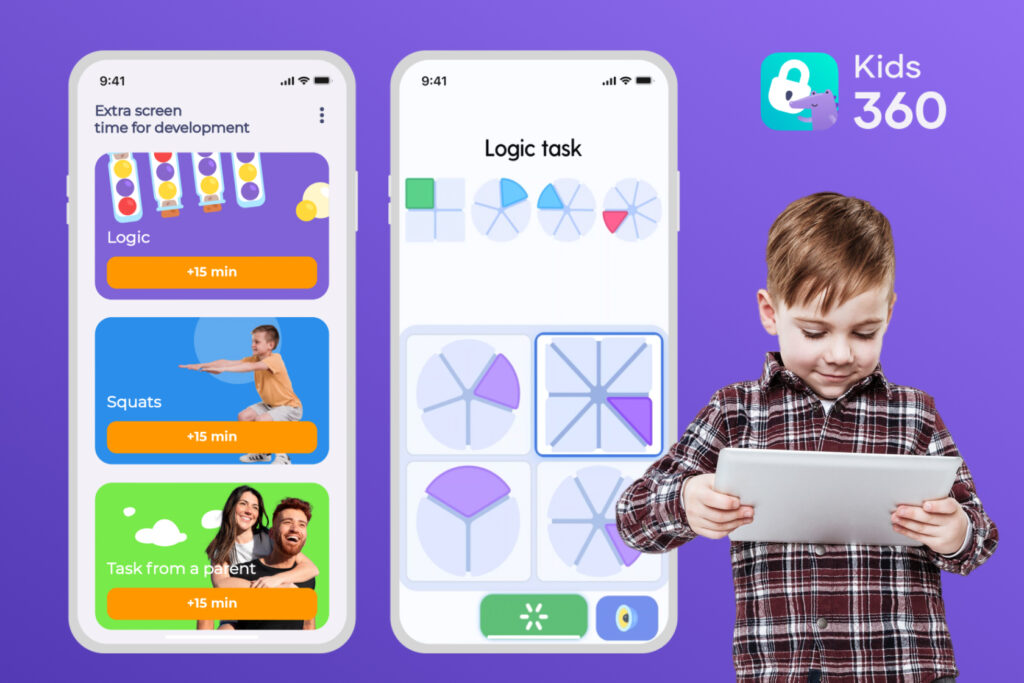
Kids360 takes a different approach to learning. Instead of adding another activity that keeps children in front of a screen, it uses screen time as motivation for completing developmental exercises, physical challenges, and everyday responsibilities.
Its developmental tasks for kids include more than 4,600 logic and thinking exercises. The activities support attention, memory, reasoning, and problem-solving, with the level adapting according to the child’s age and performance.
After completing five exercises in a category, a child can earn five additional minutes of screen time, up to the daily reward limit. This creates a simple connection between effort and a benefit that many kids value.
The activities are varied enough to make children think in different ways. A child might continue a pattern, solve a visual puzzle, remember the position of an object, or choose the missing piece in a sequence. These are short challenges, but they encourage children to slow down and consider an answer before tapping.
Parents can also create their own tasks. For example, a child could:
- Read a chapter of a book
- Pack a school bag for the next morning
- Finish a short writing activity
- Tidy a bedroom or feed a pet
- Help prepare dinner
- Practice spelling or multiplication
- Complete an agreed family responsibility
The parent chooses the task and decides how much additional screen time it earns. Tasks can be created as one-time activities or repeated as part of the family’s routine.
Kids360 can also bring physical activity into the motivation system. Supported features include guided exercise challenges and step-based goals, helping children break up long periods of sitting.
With AI Trainer, children can perform exercises such as squats or push-ups in front of their phone’s camera, while AI analyzes their movements and confirms completion. The step counter can also automatically grant a 5-minute bonus when a child reaches 7,000 steps in a day. This gives families different ways to balance learning, movement, responsibilities, and fun.

The motivation system is only one part of Kids360. Parents can also use:
- Screen-time limits to manage overall device use
- Flexible schedules for school, homework, sleep, and family time
- App controls for distracting games and other apps
- Usage reports to understand how time is being spent
- Location tracking for everyday reassurance
- Safe Internet tools for additional online protection
- Search and YouTube activity insights on supported devices
Children can see how much time remains and what limits have been set. This gives them an opportunity to plan instead of discovering the rule only when an app becomes unavailable.
Kids360 is a strong choice for parents who want educational activities to support a wider family routine. It does not treat learning as another reason to stay online all afternoon. Instead, the app helps children connect effort, responsibility, movement, and screen time in a way that is easy to understand.
Families can download Kids360 and choose a few developmental tasks to try together right now!
2. Khan Academy: Best for Structured School Learning
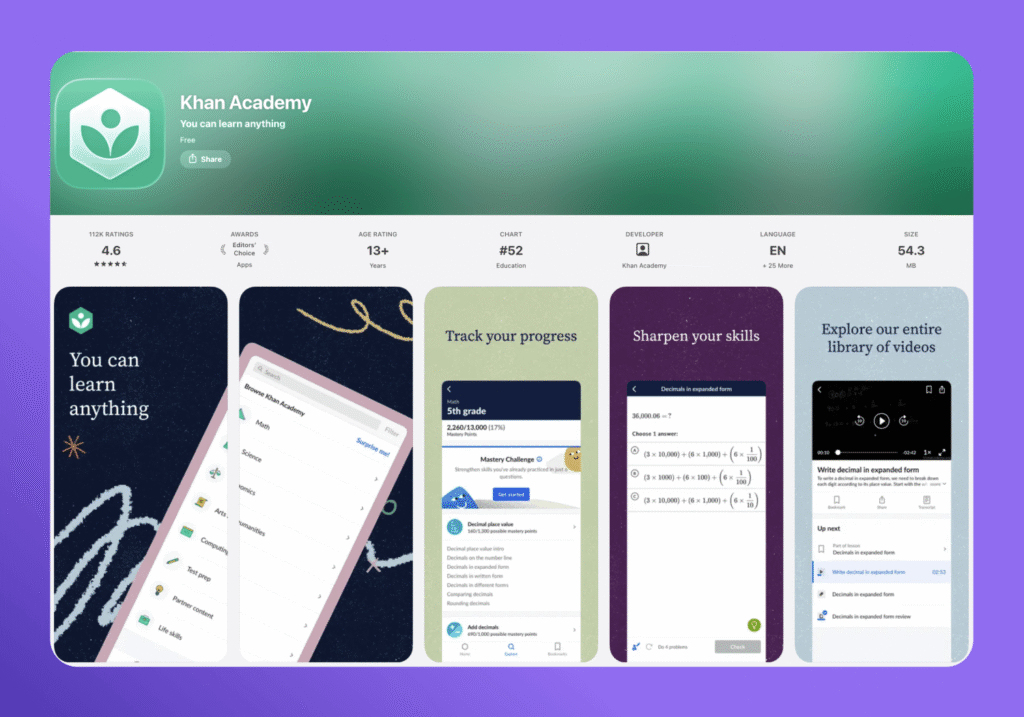
Khan Academy is one of the best apps for children who need structured support with school subjects. It covers math, science, computing, grammar, history, and other areas through videos, explanations, exercises, and lessons.
Children can work at their own pace, which is useful when a school topic needs more practice. A child who is unsure about fractions can return to the basic concepts, while advanced learners can move ahead without waiting for the next classroom lesson.
Khan Academy is free and gives parents and teachers access to a broad collection of educational resources. The platform can support homework or revision, but it works best when an adult helps the child choose an appropriate course rather than leaving them to search through many lessons alone.
- Best for: Structured math, science, and school learning.
- Keep in mind: Khan Academy contains material for many ages, so parents should help young students find the right starting point.
3. PBS KIDS Games: Best for Learning Through Familiar Characters
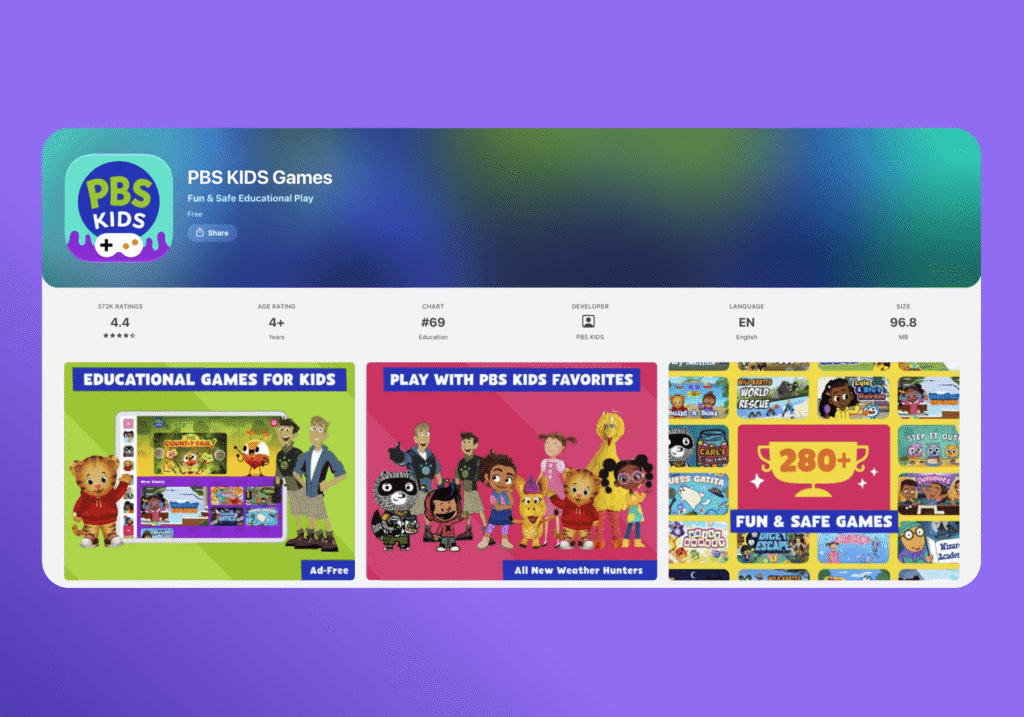
PBS KIDS Games offers educational games connected to familiar PBS KIDS shows and characters. Its activities cover reading, math, science, creativity, and social-emotional skills.
The app uses colorful settings and engaging visuals to encourage children to explore. Games often ask players to solve a problem, test an idea, recognize a pattern, or use knowledge from a PBS program.
Although PBS KIDS is often associated with young kids and early learning, some activities can still appeal to children at the younger end of the 8–10 age range. Parents should look through the games with their child and choose those with enough depth to remain interesting.
The National Science Foundation has supported children’s science programming such as Cyberchase, which extends learning through PBS KIDS games, videos, and hands-on activities.
- Best for: Short educational games using familiar stories and characters.
- Keep in mind: Some activities are intended for younger learners, so the difficulty varies.
4. Prodigy Math: Best for Game-Based Math Practice
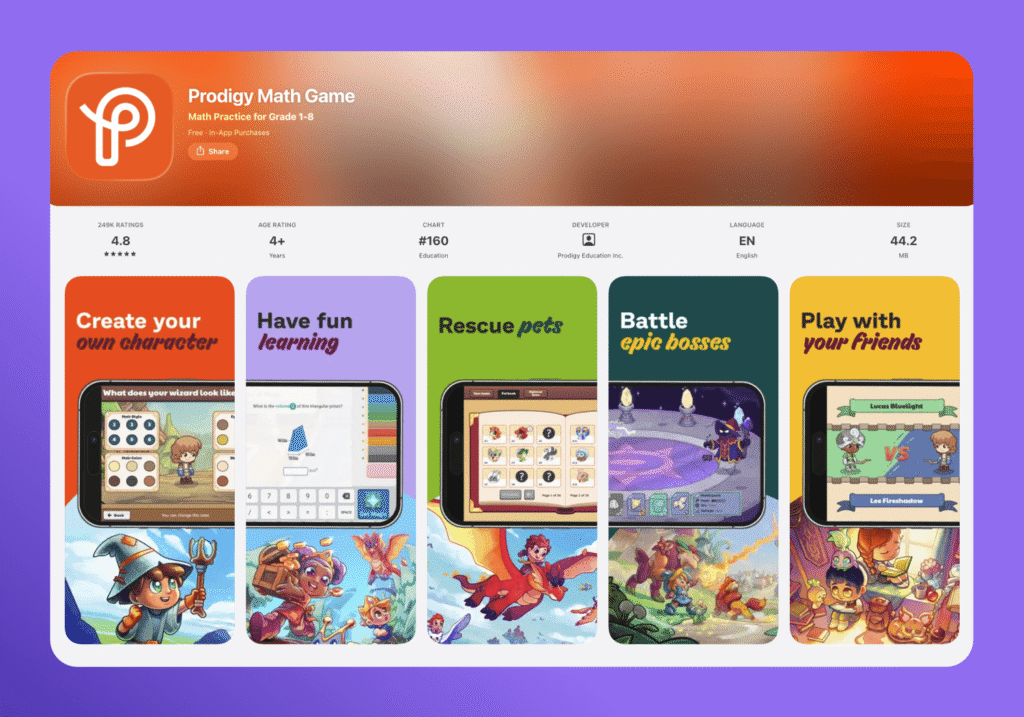
Prodigy Math places math questions inside a fantasy-style game. Children explore a digital world, complete quests, collect rewards, and use their answers to move through challenges.
The app covers a range of math skills, including arithmetic, fractions, geometry, and number sense. Content aligns with educational standards such as Common Core, making it easier for teachers and parents to connect the practice with schoolwork.
Prodigy may suit children who resist worksheets but enjoy games. The story and characters can make practice feel less repetitive, while progress information helps adults see which skills may need more support.
However, the game itself can sometimes attract more attention than the math. Parents may want to ask the child what they practiced after each session to make sure the learning remains visible.
- Best for: Children who enjoy fantasy games and need regular math practice.
- Keep in mind: The free app includes useful learning content, but children may also notice optional game features.
5. Duolingo: Best for Building a Language-Learning Habit
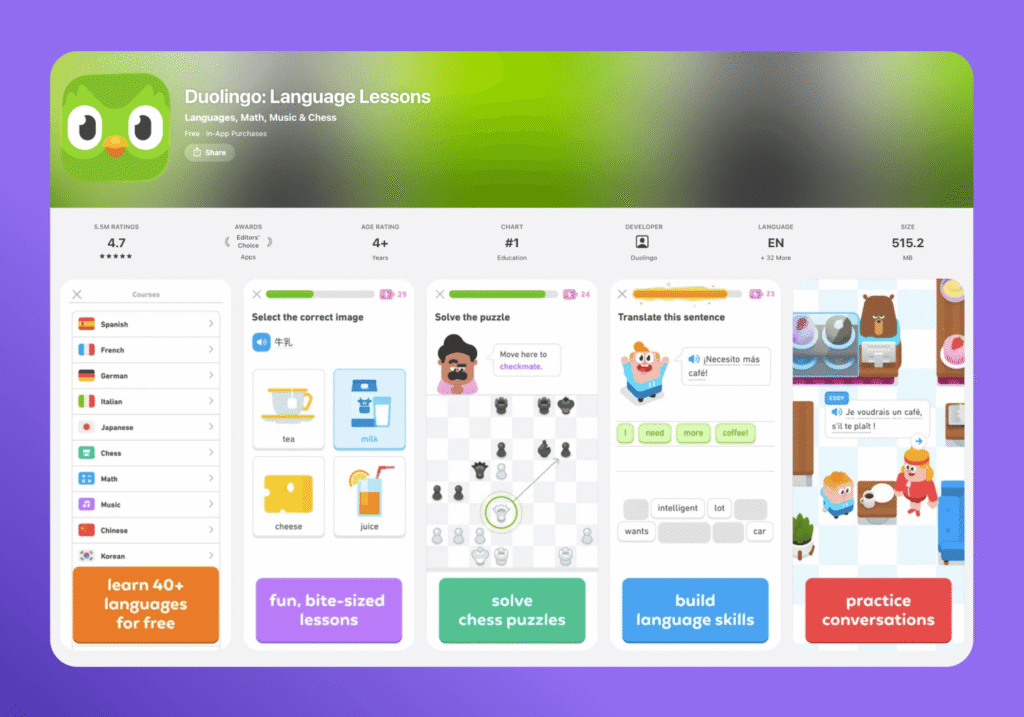
Duolingo uses short lessons to introduce vocabulary, listening, reading, pronunciation, and sentence construction in a new language.
Its small activities are easy to fit into a daily routine. Children receive immediate feedback and can follow their progress as lessons become more challenging. The app also uses points, streaks, and characters to keep language practice engaging.
Duolingo can teach useful vocabulary and help a child become more comfortable with the sound of another language. However, no free app can provide every part of language learning. Conversation, music, stories, writing, and real-world practice remain important.
Parents can ask the child to use a new word at dinner, label household objects, or teach another family member a short phrase. This turns a few minutes in the app into knowledge the child can use elsewhere.
- Best for: Building a regular language practice habit.
- Keep in mind: The app should support real conversation and reading rather than replace them. Also, children under 13 may have additional account and privacy requirements, so parents should check the current age rules when setting up Duolingo.
6. Toca Boca World: Best for Creativity and Self-Expression
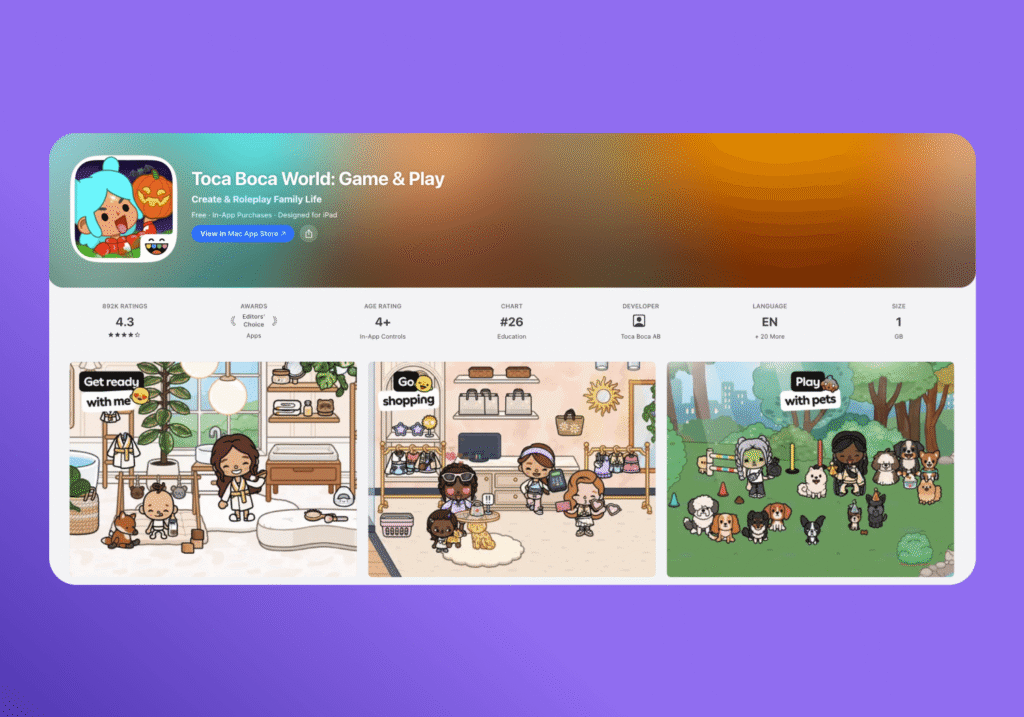
Toca Boca World is not a traditional lesson-based app. It is an open-ended digital play space where kids can create characters, arrange locations, explore a colorful world, and tell their own stories.
There is no single correct way to play. A child might design a home, run an imaginary shop, create a group of cute characters, or act out a story. These creative activities make room for imagination, decision-making, and self-expression.
Parents can extend the play beyond the screen by asking the child to explain what happened in the story, draw a character, or write a new ending. That simple conversation can turn imaginative play into an opportunity for speaking and writing.
- Best for: Storytelling, creative activities, art, and self-expression.
- Keep in mind: Its educational value comes from creating and exploring rather than completing formal lessons.
Educational App Comparison
The table below makes it easier to match each app with the skills or type of activity that may suit a child.
| App | Best For | Main Skills | Additional Benefits |
|---|---|---|---|
| Kids360 | Turning routines into developmental activities | Logic, memory, focus, responsibility, and movement | Developmental activities for kids combined with parental controls and GPS tracking for their safety |
| Khan Academy | Structured school learning | Math, science, grammar, and subject knowledge | Children can learn at their own pace |
| PBS KIDS Games | Short activities with familiar characters | Reading, math, science, and creativity | A varied selection of interactive games |
| Prodigy Math | Game-based math practice | Arithmetic, problem-solving, and number sense | Curriculum-aligned questions and progress insights |
| Duolingo | Regular language practice | Vocabulary, listening, reading, and writing | Short lessons with visible progress |
| Toca Boca World | Open-ended creative play | Storytelling, imagination, and self-expression | Character creation and role-play |
Kids360 supports the broadest family routine because its features connect developmental activities with responsibilities, movement, and screen-time management. The other educational apps concentrate more closely on a subject or type of play, so families may use one alongside Kids360 rather than choosing between them.
How to Choose the Right Educational App
Many apps look appealing in the App Store or Google Play Store, but polished graphics do not always lead to meaningful learning. A short checklist can help parents narrow the choice:
- Start with one goal: Decide whether the child needs support with reading, math, language, creativity, focus, or another skill.
- Check the recommended ages: A good app should match the child’s current ability, not only the age printed in its description.
- Try an activity together: Watch what the child actually does. An interactive app should require thinking rather than random tapping.
- Look at the feedback: Helpful corrections should guide the child toward another attempt.
- Review the content: Check advertising, privacy details, external links, purchases, and the type of access the app requests.
- Ask a teacher when needed: Teachers may know whether a particular resource supports the methods used at school.
- Notice what happens afterward: A useful app should leave the child with an idea, question, skill, or piece of knowledge that can be used away from the screen.
A smaller collection of purposeful learning apps is usually more useful than filling the device with options the child rarely explores.
How to Use Learning Apps at Home
Even the best educational technology needs a little structure. The following habits can help families turn app use into useful learning.
Set One Clear Goal
Choose a specific purpose for each session. “Practice the seven-times table” gives the child more direction than “do some math.” A clear goal also makes it easier to know when the activity is complete.
Keep Sessions Short and Consistent
A focused 15- or 20-minute session can be more useful than an occasional hour spent moving between games. Short sessions also leave room for schoolwork, play, movement, and rest.
Read also: Average Phone Screen Time by Age: A Simple Breakdown for Parents.
Ask What the Child Learned
Parents do not need to deliver another lesson. One simple question, “Can you show me how you solved that?” encourages the child to explain their thinking.
A child might demonstrate a puzzle, read a new passage aloud, teach a language phrase, or explain an interesting science fact. This helps adults see whether genuine learning took place.
Continue the Activity Offline
The screen can be the starting point rather than the whole experience. A reading app can lead to children’s books, a math app can inspire a measuring activity in the kitchen, and a creative app can lead to drawing or building.
Children learn in many different ways. Combining digital resources with real objects, conversation, movement, and free play gives them more opportunities to understand and remember new ideas.
How Much Educational Screen Time Should Children Ages 8-10 Have?
There is no single daily number that suits every child or family. The American Academy of Pediatrics’ guidance for school-age children encourages parents to consider the child, the content, how media is used for calming, what it supports in communication, and what it crowds out.
Educational screen time should still leave enough room for sleep, movement, school responsibilities, friendships, family time, and offline play. An hour spent creating a story or working through math questions is different from an hour of autoplay videos, but both still involve sitting in front of a device.
Parents can pay attention to how easily the child stops, whether the activity affects bedtime, and whether learning continues outside the app. Kids360 can help families separate educational periods from recreational use and create screen-free parts of the day.
Choose Learning That Continues Beyond the Screen
The best educational apps for kids do more than hold their attention. They start something: a question, a story, a drawing, a conversation, a physical challenge, or a new interest to explore.
Kids360 stands out because it connects learning with everyday life. Children can complete developmental exercises, help with family responsibilities, move their bodies, and earn screen time through their effort. Parents can then use the same app to manage the rest of the digital routine.
When technology supports curiosity instead of filling every quiet moment, screen time can become one useful part of a much bigger world.
Sources & References
- The 5 C’s for School-Age Children, American Academy of Pediatrics (AAP), 2024
- #NSFstories: What a magic school bus can teach us about science education, U.S. National Science Foundation, 2020
- Mathematics Educational Resources, National Science Foundation, 2025