Snapchat Parental Controls: Full Guide

Now, more than ever, teens are spending their free time online. From watching videos and playing games to sharing photos or messaging friends, parents must consider how their kids are interacting with the digital world. One of the most popular apps among teenagers today is Snapchat.
Snapchat is one of the most popular social media apps among teenagers today. With 55% of teens using Snapchat daily, and one-in-ten admitting to constant use, it’s important for parents to know what the app is and how to keep their kids safe when using it. Snapchat parental controls have improved since the app’s inception, but still leave some safeguards to be desired. The nature of the app’s disappearing content and lack of robust parental controls makes it difficult to monitor what your teen is doing on Snapchat. In this guide we will walk through some of the best ways to keep your teens safe on Snapchat.
Table of Contents
What exactly are your teens doing on Snapchat?
Snapchat is a multimedia messaging app where users send pictures, videos, and messages that, by design, disappear after viewing. Here are some of the app’s key features:
- Snaps: Photos or videos that can be sent or received that disappear after they’re viewed.
- Stories: A series of snaps that last for 24 hours and can be viewed by friends or the public.
- Chat: Text messages that also disappear after being viewed, but can be saved for later viewing.
- Lenses & Filters: Augmented reality (AR) features that let users overlay animations or effects on their faces or surroundings.
- Snap Map: Allows users to share their location with friends and see where friends are.
- Discover: A place to find news, entertainment, and original shows from publishers and creators.
- Memories: A private archive where users can save their snaps and stories.
Why Keeping Eyes on Snapchat is Key
Kids can get into trouble online just about anywhere. But, Snapchat carries a bit more risk for teens than other social media apps. The temporary nature of the app, along with its fun, laid back atmosphere makes it incredibly popular with older kids and teens. But, the features that make Snapchat so attractive and appealing to younger audiences are the same features that have the potential to make it a challenge for parents to keep their kids safe in a digital environment.

One of the most famous features of Snapchat is that content disappears quickly. This makes it harder for parents to monitor both the content their kids are posting and viewing. As a result, teens may be more apt to share risky or inappropriate content if they think it won’t be seen later. They may also be less likely to tell a trusted adult if they are sent something like mature, violent, bullying, or other inappropriate content.
To make matters worse, Snapchat has features like “My Eyes Only” and “ghost mode” that allows users to hide content or their location from parents. Snapchat is also a breeding ground for sexting and cyberbullying because content disappears, leaving no record of the interaction
Snapchat Parental Controls
Snapchat does have limited parental controls in the Family Center. Parents will have to have their own Snapchat account that they can then link to their child’s account. By linking to your teen’s account parents can keep an eye on things such as:
- Viewing your child’s friends on the app
- Who your teen has sent Snaps or chats to over the past week
- Restricting sensitive content in Stories and Spotlight
- Request your teen’s location on Snap Map and view their safety and privacy settings.
- Block Snapchat’s AI chatbot from interacting with your teen
- Report safety concerns or accounts
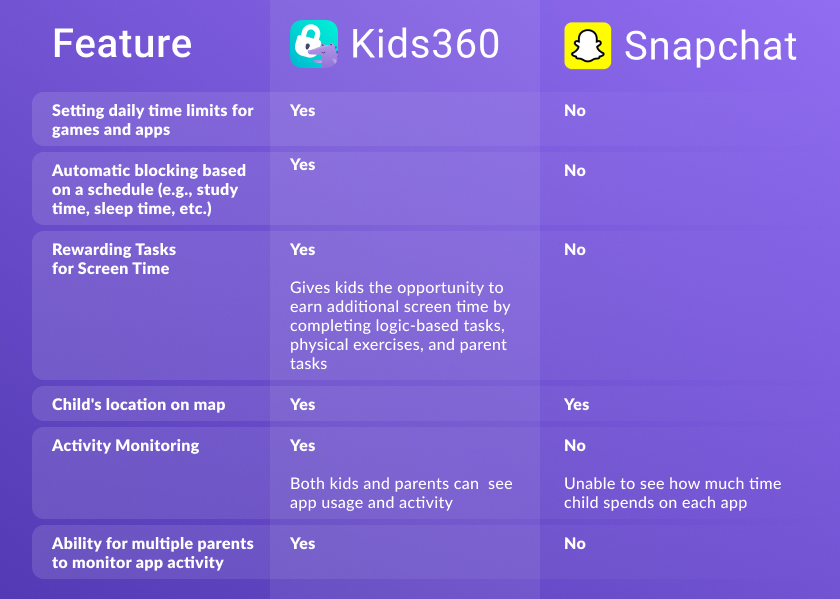
While Snapchat has made an effort to have some form of parental controls, their internal controls have some serious shortfalls. First, your teen has to accept your supervision and they can turn it off at any time without your permission. Getting your teen to willingly agree to more parental interference can pose a big challenge for some families. In addition, you can’t see the actual content or photos your teen sends or views.
Snapchat Parental Controls vs Kids360
When searching for ways to monitor their teen’s online activity, many parents will find themselves typing ‘parental controls Snapchat’ into search engines in hopes of finding tools or settings that can help them manage how their teens use the app, or how to restrict the amount of time spent on it.
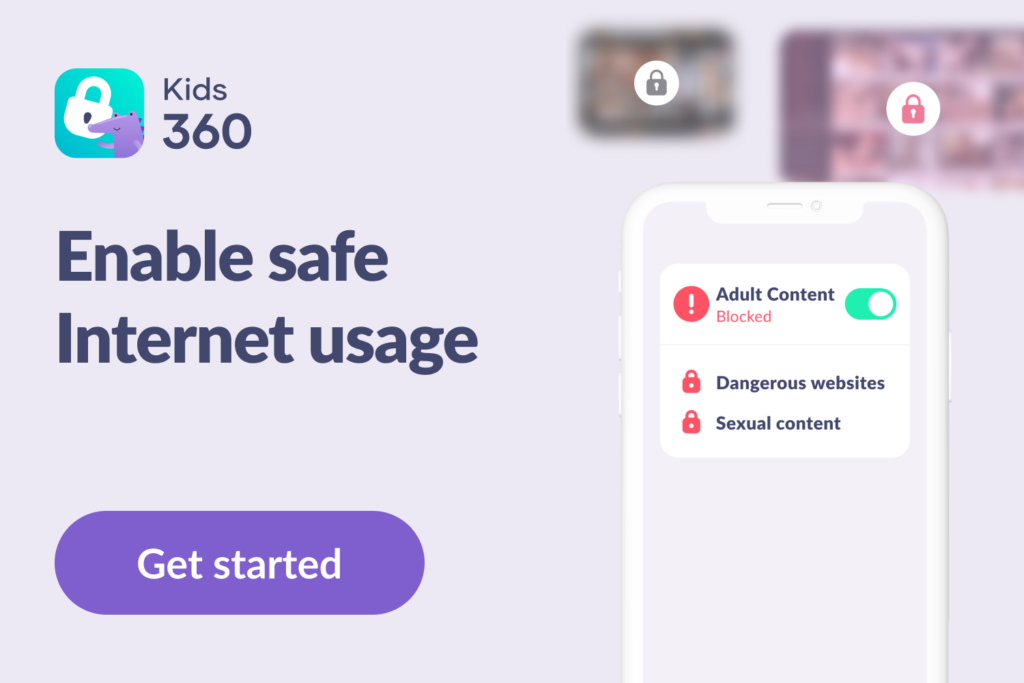
While Snapchat’s own parental controls leave much to be desired, third party parental control apps, like Kids360, can give parents a better sense of security around their child’s online presence.
The best first line of defense in keeping your kids safe online is to have open communication and an honest chat about the risks of apps such as Snapchat. However, since Snapchat is a particularly risky app for teens, a little oversight wouldn’t hurt either. With Kids360 parents can:
- Set daily or weekly time limits for Snapchat as well as for other apps. This helps manage overall screen time and prevents teens from spending too much time on their devices.
- Block Snapchat or any other app entirely, giving you full control over when your child is allowed to access certain content. You can remotely turn access on and off at any time.
- Allow for extra time on Snapchat. Kids360 lets teens earn time on Snapchat or other apps by completing educational tasks. This makes screen time productive and encourages kids to balance learning with fun.
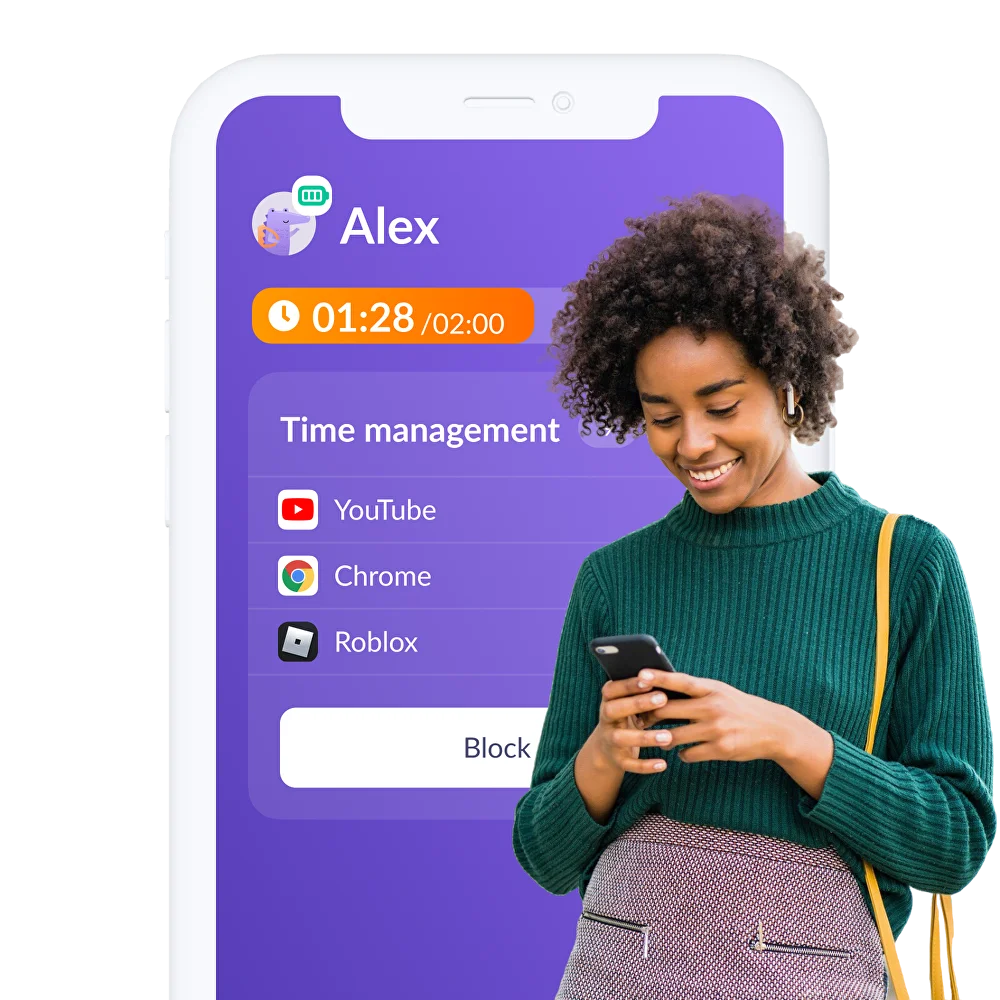
Kids360 is a single app that allows parents to manage and monitor multiple apps, not just Snapchat, but YouTube, Roblox and more. You don’t need to set up 10 different parental control apps—everything is conveniently located in one place, at your fingertips. This makes managing your child’s digital experience, and keeping them safe and secure online, so much easier.
How to Set Up Parental Controls on Snapchat
To get started using Snapchat’s Parental Controls, called Family Center, you as the parent will need to download Snapchat on your iPhone or Android device and create your own account and username.
Now that you’ve set up and signed in to your own Snapchat account, start by tapping your profile icon in the top left corner of the home screen.
Next, toggle to and tap the settings/gear icon in the top right corner.
Scroll down until you see the Privacy Controls section, and select “Family Center.”
For the next step, send an invite to your teen.
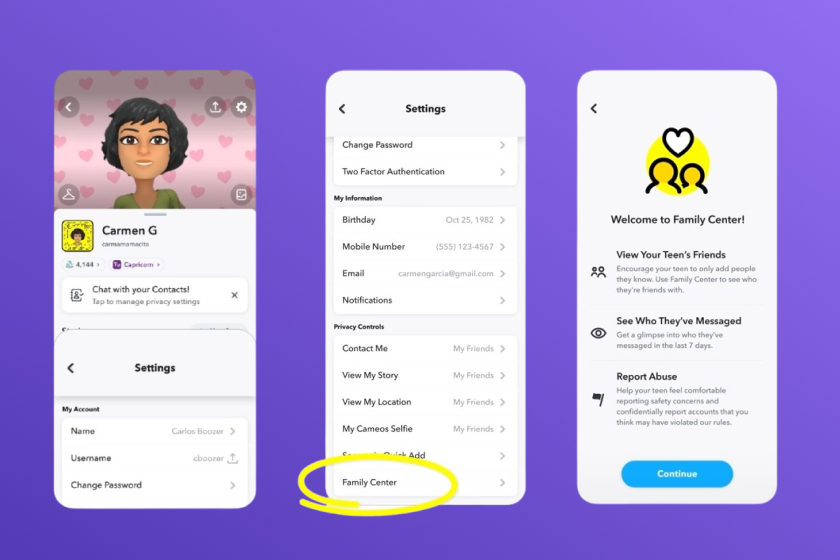
Once your teen has accepted your invitation, when you go to the Family Center, you’ll be able to view their friends, see who they have communicated with in the last 7 days, restrict sensitive content in Stories and Spotlight, block MyAI, request your teen’s location, and report concerns to Snapchat.
If your child’s account was created with their correct birth year, the app will not show them inappropriate content. However, many teens sign up with a fake birth year to gain access to all of Snapchat’s content, which includes mature content.
The teen years are arguably some of the most challenging for parents, but when it comes to boundaries around devices, social media, and apps like Snapchat, they don’t have to be. While Snapchat’s appeal is it’s disappearing photos, videos, and messages, it’s important to have a conversation with your teen that the things they put on the internet can last forever. Making sure your teen understands that the things they think they are sending confidentially might not be so private. Anyone can capture a screenshot of anything they post that they thought would disappear and can come back to cause a lot of heartache and embarrassment.
With a combination of open and honest communication about the risks of posting and consuming content on Snapchat, utilizing Snapchat’s Family Center features, and leveraging a little extra oversight with apps like Kids360, parents can sleep well knowing their teens aren’t up all hours of the night sending Snaps or encountering inappropriate content.