How To Block Videos on YouTube: Ways to Manage Your Kids’ YouTube Experience
Watching YouTube videos has become this generation’s version of Saturday morning cartoons. Kids worldwide are busy watching their favorite creators on YouTube spout fun facts about science, teach them how to apply makeup, show them exciting (and sometimes strange) toy unboxing videos, and so much more. But while your kids are learning how to draw or doing a kids’ workout video disguised as a fun game, inappropriate content lurks around the corner.
The good news is YouTube isn’t all bad, and you don’t have to block YouTube entirely to keep them safe. As part of your parental control strategy, you can restrict access to inappropriate content, block certain YouTube channels, and set limits on kids’ YouTube use.
In this guide, we will walk you through how to block videos on YouTube, along with additional measures to give you peace of mind that your child is safe while watching videos online.
Key Takeaways
- Kids360 helps parents manage YouTube usage through screen time limits, app blocking, detailed activity reports, and customizable schedules, making it easier to build healthy digital habits.
- YouTube’s Restricted Mode reduces exposure to inappropriate content but does not guarantee full protection due to algorithm limitations.
- Manual tools like “Not Interested” and “Don’t Recommend Channel” help refine recommendations, but require ongoing parental involvement.
- YouTube Kids offers a more controlled environment with age-based content filters and channel approvals, mainly suited for younger children.
- Google Family Link adds basic, free parental controls but lacks advanced filtering and flexible time management features.
- The most effective approach combines platform tools with third-party parental control apps for layered protection.
Contents
Why Block Videos on YouTube
YouTube is a virtual treasure trove of information. From entertainment and creative videos to a vast library of educational content, YouTube can be a huge benefit to your kids and their ever-growing minds. However, YouTube has been associated with a darker side of the internet too–littered with adult content, videos depicting violence, inappropriate advertisements and comments, and more that no parent wants their child to stumble upon. Even when watching your kids’ every move on YouTube with your own eyes, things can pop up that are just not intended for innocent eyes.
Without blacklisting YouTube completely, because it truly does have so much valuable content, how can parents keep their kids protected from videos that simply aren’t intended for them? Great question–here are some easy ways to keep your kids safe and how to block videos on YouTube’s app.
Restricted Mode: What Is It and How to Use It
YouTube has a built-in feature called Restricted Mode, which limits potentially inappropriate, offensive, or harmful YouTube videos from showing up in searches, the suggested videos section, and elsewhere on YouTube, making the platform more suitable for young viewers. It must be turned on manually in the app in order to limit the user’s viewing experience.
Turning on Restricted Mode in the YouTube app is easy. Simply follow the steps below:
- Open YouTube and sign into Google account.
- Select profile photo (top right corner on desktop or bottom right corner on the mobile app).
- Click on the Settings icon and select General.
- Toggle Restricted Mode to On.
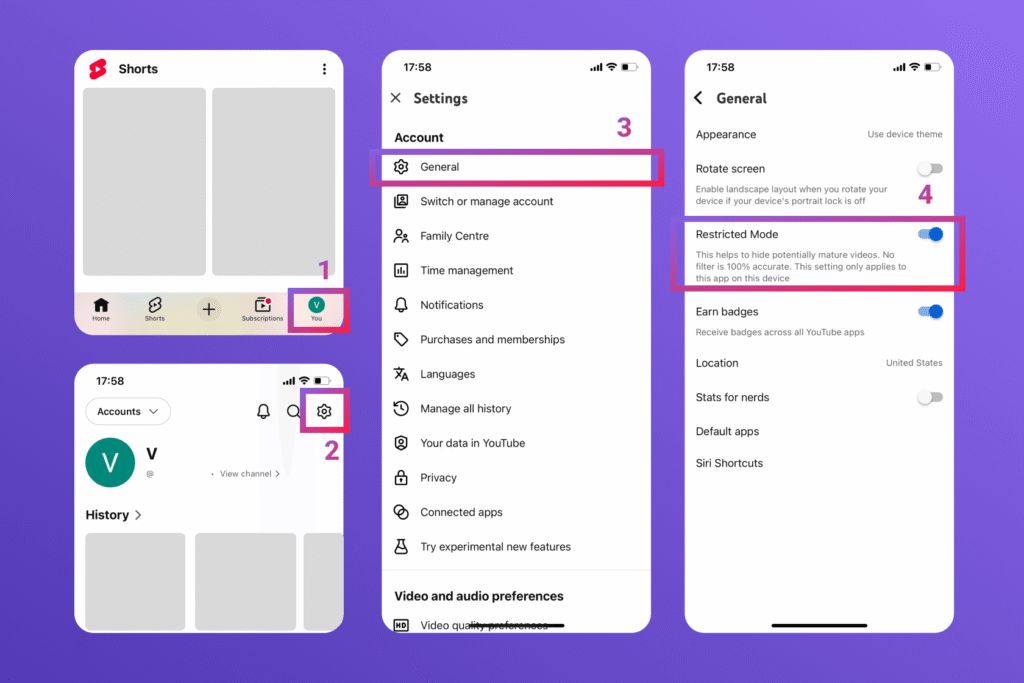
Now, when your child uses YouTube, they will be less likely to run into mature or inappropriate content. YouTube will only recommend age-appropriate content on their feed. However, it’s not perfect, and YouTube provides a disclaimer that using Restricted Mode may not catch 100% of potentially mature content.
Blocking Specific Videos
If Restricted Mode alone isn’t tailoring what your child sees to your preference, you can also block specific videos and channels.
This can get a bit tedious, as YouTube doesn’t offer a straightforward way to block channels or specific videos in the app. But if your child keeps coming across videos from the same channel or a certain type of video, this will be a good option for limiting their exposure.
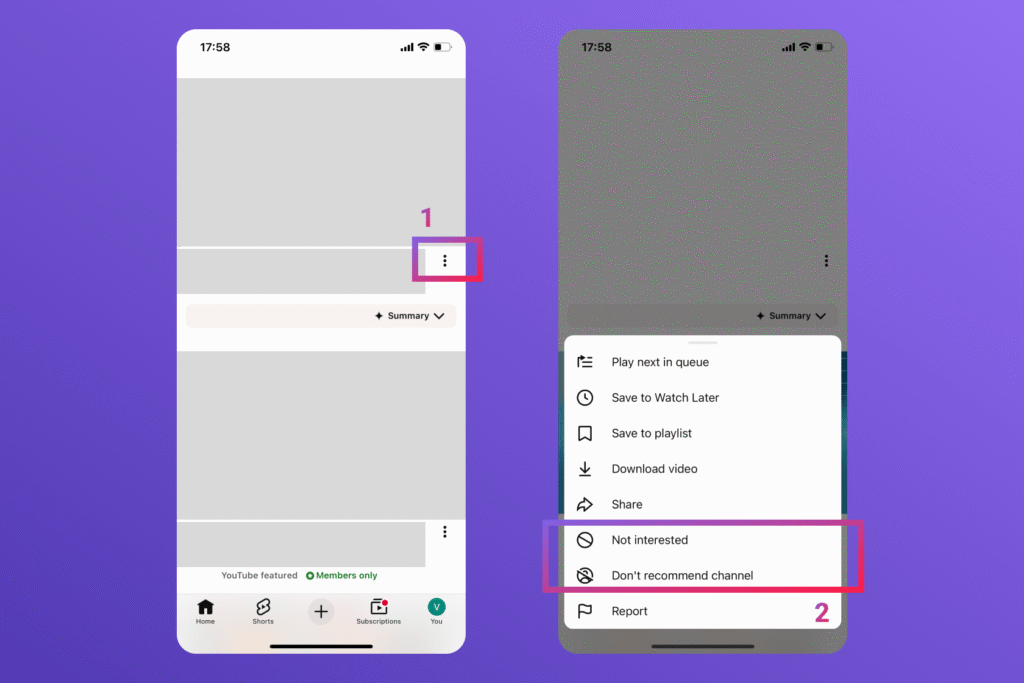
To block videos or channels, choose Not Interested or Don’t Recommend Channel when a video page opens, which will limit similar videos shown in the future. However, you’d have to be watching over your child’s shoulder for that to really be effective, and there is no guarantee another similar video won’t pop up.
To curate your child’s feed to not include certain videos, follow these steps:
- Open YouTube and sign into your child’s Google account.
- Identify a video you do not want your child to see.
- Select the three dots next to the video title and choose Not Interested.
- To block the entire channel, select Don’t Recommend Channel.
By choosing Don’t Recommend Channel, YouTube will no longer recommend any content from that channel or similar channels.
Alternatively, if the channel posts content that violates YouTube’s content guidelines, you can take action and report the user. This will bring the channel to the platform’s attention and could ban it or filter it out from being shown to young users.
Tracking and Limiting YouTube Time
Using YouTube’s Restricted Mode and blocking individual channels and videos is a good way to keep your kids safe on YouTube. But adding in the benefit of a third-party app is a great way to protect them.
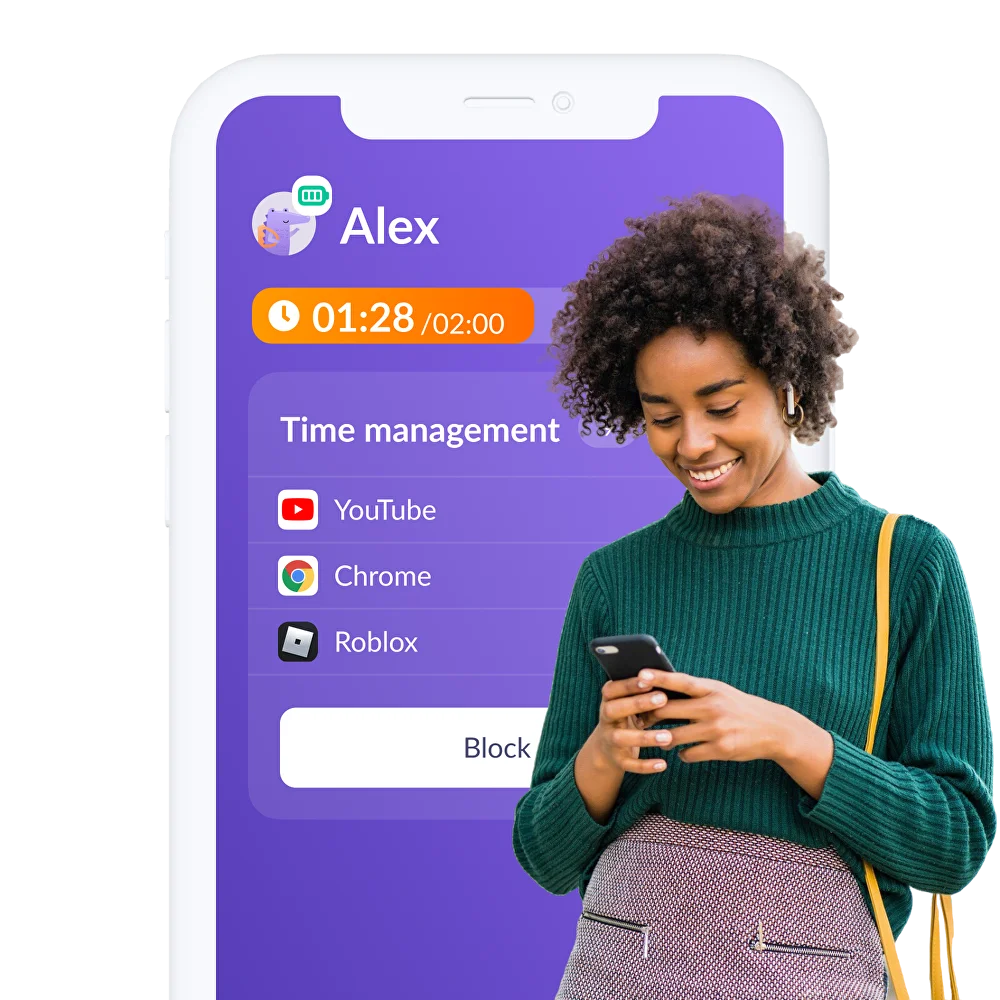
With third-party parental control apps, you can have more control over how your child uses their device. We recommend the Kids360 app to limit screen time, monitor your child’s digital activity, and keep them safe online.
With Kids360, parents can:
- Easily track what their kids are watching on YouTube in real time
- Get detailed screen time reports and a history of the videos they watched and for how long
- Set daily or weekly time limits for YouTube and other apps
- Block YouTube or other apps at any time

In addition to providing excellent protection against inappropriate content and app overuse, Kids360 empowers kids to take responsibility for their own digital habits. If your child is always complaining that they never get enough YouTube time, let them earn more time responsibly by completing educational tasks. Screen time can be productive and encourage kids to associate learning with fun–it’s an entire win-win for parents and kids.
Not only is Kids360 a great way for parents to start a dialog with their kids about healthy digital habits, but it also takes some of the work out of keeping their kids safe on their devices. Kids360 allows parents to monitor more than just YouTube. They can keep an eye on their kids’ devices, apps, and internet usage all in one place, making it that much easier to manage their kids’ digital experience.
Try Kids360 for free today and start building healthier screen time habits in your family—in just a few minutes!
Use the YouTube Kids App
YouTube noticed just how many children were using the platform for entertainment and education. So, they created a separate YouTube Kids app to further restrict inappropriate content like videos, language, ads, and comments. With the YouTube Kids app, only videos under clearly approved categories will be shown to your child.
With YouTube Kids, you have more control over what content your child sees. In fact, you can set up the Approve Content Yourself feature, which allows you to select which channels your child can access.
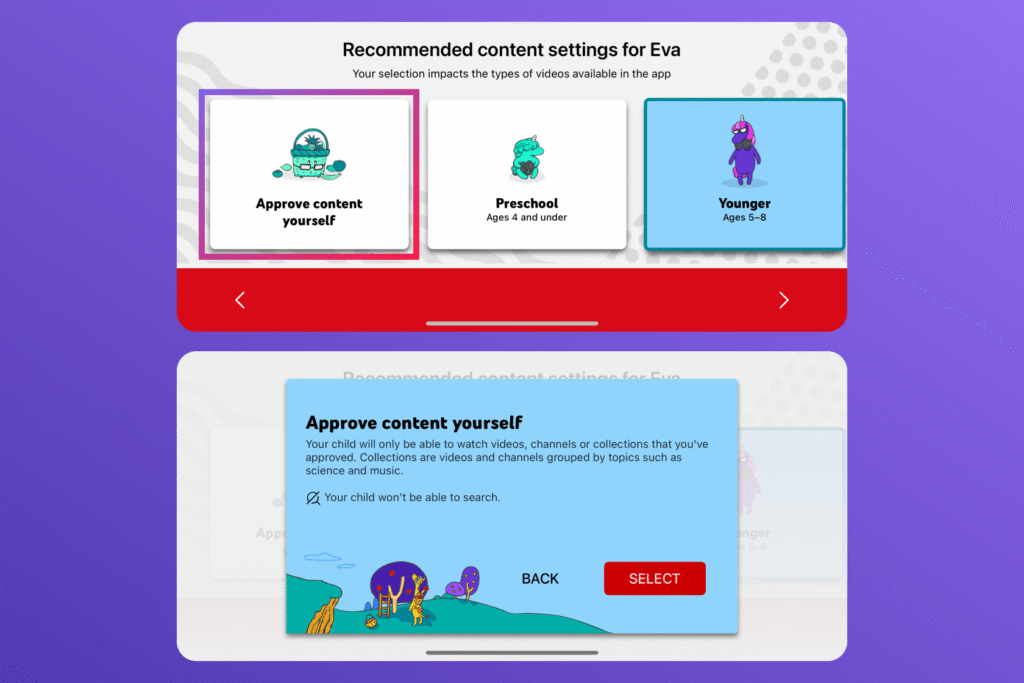
Additionally, you can manage content restrictions and YouTube Kids app limitations through the Google Family Link app. This allows you to block content, turn off search, and select age-appropriate content levels remotely from your phone.
The good news is that your child doesn’t need their own Google account to access YouTube Kids. You can set it up right from your own account. To do so, follow these steps:
- Download the YouTube Kids app to your child’s device.
- Select I’m a Parent when you open the app.
- Sign in to your Google account.
- Create a profile for your child and enter their name, age, and birth month.
- Choose the content settings from the options: Preschool, Younger, or Older.
- Toggle Safe Search on or off. When you turn it off, it will limit your child to a curated video selection.
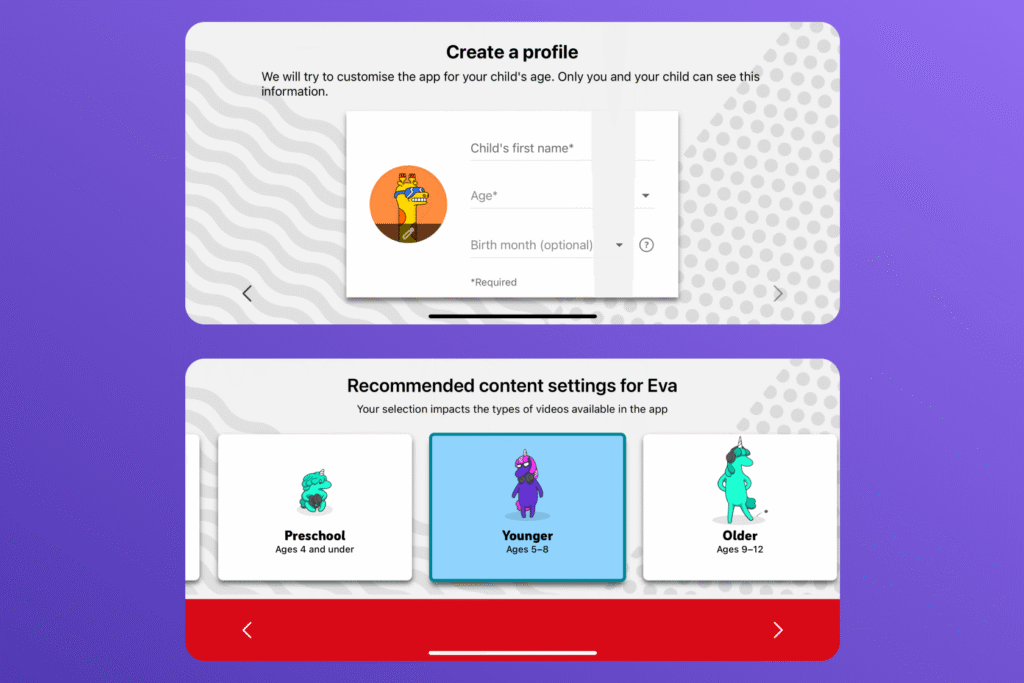
It’s important to note that once your child turns 13, these settings will automatically be undone. Teens will have full access to YouTube and be free from the linked parent account.
Block Specific Channels on the YouTube Kids App
Another great feature of the YouTube Kids app is that you can block channels entirely. This feature is not available on the regular YouTube app or the PC version.
When you block a channel, your child will not see any past or future posts from the creator. They also will not be able to subscribe to any blocked channels.
To block channels on your child’s YouTube Kids app, follow these instructions:
- Sign in to your YouTube account.
- Select your child’s profile photo linked to your account.
- Go to the channel page you wish to block.
- Tap the three dots in the top right corner.
- Tap Block Channel for Kids.
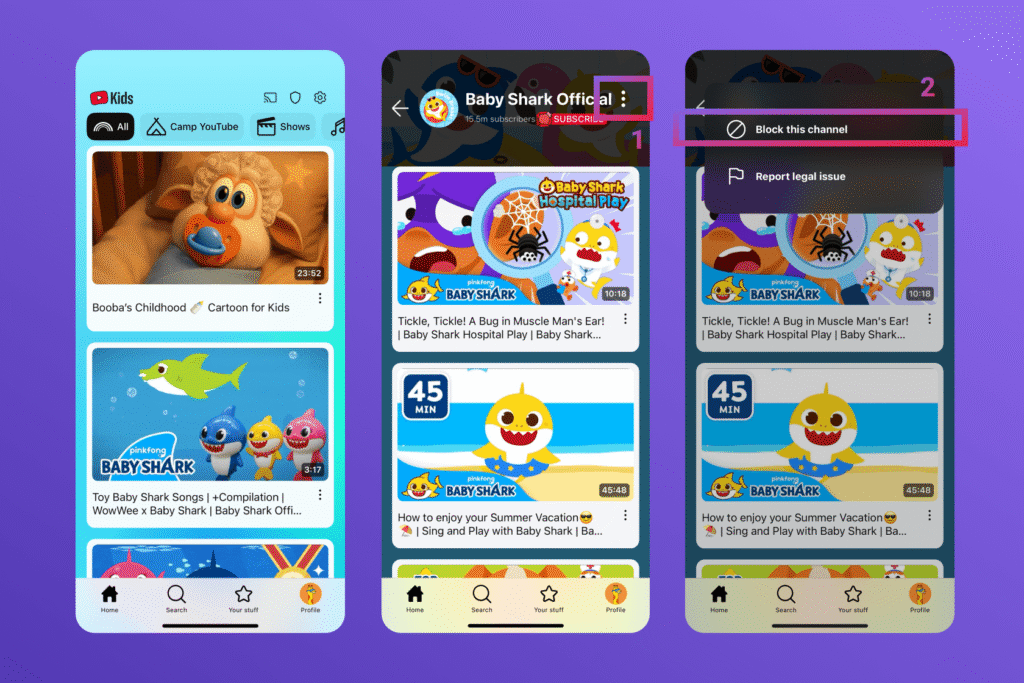
If you are using a computer, follow these steps:
- Sign in to your YouTube account.
- Select your child’s profile photo under supervised accounts.
- Go to the channel page you want to block.
- Select About.
- Click the flag button.
- Tap Block Channel for Kids.
It’s important to note that videos from other channels with similar content can still appear in the YouTube algorithm for recommended videos. So parents must be careful about what videos their child finds and plays as they navigate the platform.
The only option to keep your child 100% safe from ever seeing something inappropriate would be to never let them see the light of day. But since we live in the real world, the combination of Restricted Mode, blocking channels and videos, and leveraging a third-party app to keep tabs on their YouTube activity should do a pretty good job of keeping their little eyes safe on YouTube.