How to Block Apps on iPhone With Kids360


Technology is a natural part of our everyday life now, and kids are integrating it into their own routines at an astonishing young age. According to reports, more than half of kids own a personal tablet before entering kindergarten, while a quarter of them own a smartphone by the age of 8. And while there are practical reasons for allowing kids to use smart devices, there are also potential dangers parents must consider, such as inappropriate content and apps.
Understanding how to block apps on an iPhone and limit the kind of content your child can access on their device is the first step in keeping them safe. iPhones were not made for children, so parents need to take extra special precautions to encourage safe and responsible use.
In this guide, we will explain how to block an app on an iPhone and set screen time limits on the device. By the end, you will be able to take action and have strong reasoning for securing your child’s iPhone!
Key Takeaways
- Kids360 supports overall daily limits and flexible schedules on a connected child’s iPhone.
- Apple Screen Time can block specific apps, prevent downloads, restrict purchases, and apply age ratings.
- App Limits suit apps that are used too much, while schedules address poor timing.
- Guided Access temporarily keeps an iPhone or iPad inside one app when a child borrows the device.
- Families can combine Kids360 and Apple’s controls when they need both broader routines and detailed app restrictions.
Table of Contents
Why Parents May Want to Block or Limit Apps
Just like you wouldn’t let your kids eat candy and ice cream for dinner every night, even though they want to, neither should you allow them unrestricted access to every app under the sun. Not only are there apps out there that are downright inappropriate for children, but even those that are geared specifically for children should also have limits.
Blocking certain apps, or some apps for just a certain time, should be part of your digital parenting strategy to:
- Protect their children from harmful and inappropriate content. Blocking apps with mature, explicit, or violent content can reduce the risk of accidental exposure.
- Help children learn digital boundaries and manage screen time. Parents can use a time limit to introduce healthier habits without removing every app from the child’s device.
- Limit apps that are difficult to put down or distracting. Social media apps and games can easily take over time meant for homework, sleep, or other responsibilities.
- Prioritize real-world connections, family time, and schoolwork. Limiting screen time and blocking apps when necessary leaves more room for movement, hobbies, and time with other people.
How Kids360 Helps Manage Apps on a Child’s iPhone
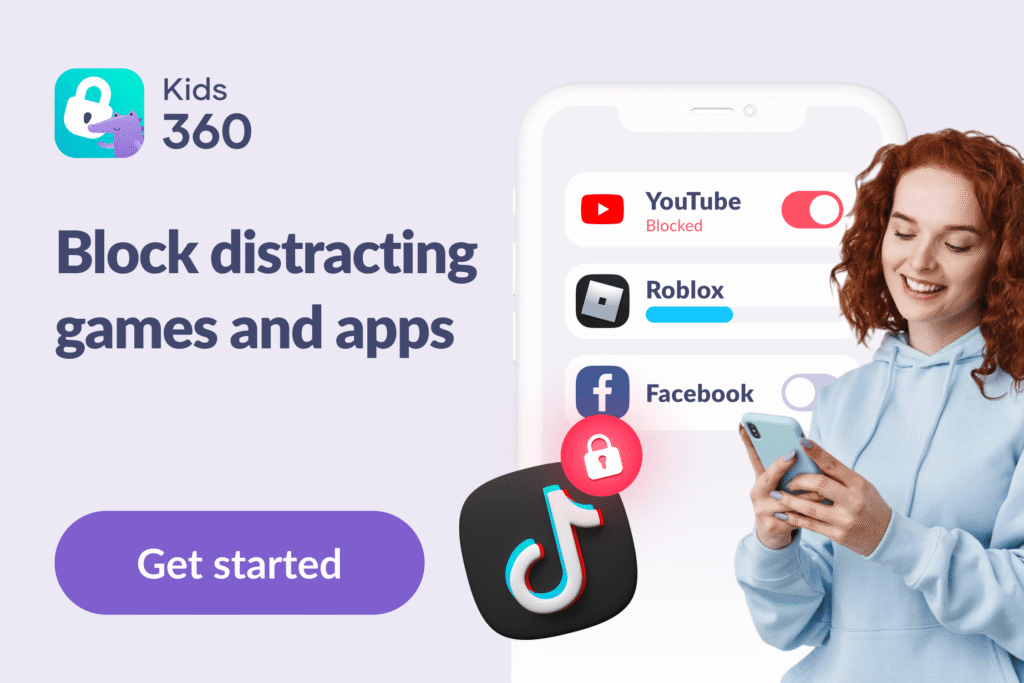
Apple’s built-in controls are useful for restricting specific apps and App Store downloads. However, parents may also want one place to manage the child’s overall screen time, schedules, and location. Kids360 brings these parental controls together and can be managed from either an Android phone or an iPhone.
On a child’s iPhone, Kids360 is best used to manage the broader digital routine. Parents can set an overall daily allowance, automatically enforce that limit, and create schedules for periods when unnecessary apps should be unavailable.
Why Parents Choose Kids360
Kids360 gives parents more than a basic time limit. Its key features for a supported child’s iPhone include:
- An overall daily screen time limit, which is free to set
- Automatic blocking of games and applications when the overall limit is reached
- One-tap device blocking, which lets parents instantly pause access to the child’s device
- Schedules for restricting unnecessary apps during sleep, school, homework, or family time
- Free weekly usage reports showing total time by day and app category
- Internet access controls for selected apps, allowing parents to turn off internet access for social media and online games
- Adult-website filtering through Safe Internet
- Blocking of new app installations, preventing children from downloading new apps without parental approval
- In-app purchase blocking
- Free real-time location tracking
- Location history showing the child’s previous routes and frequently visited places
- Safe zones and place notifications, with alerts when a child arrives at or leaves a saved location
- Free eye-protection reminders after extended screen use
- Free parent-created tasks and subscription-based logic activities that allow children to earn additional screen time
Children can see their remaining time and the limits that have been set. This gives them some warning before access changes instead of leaving the parent to watch the clock throughout the day.
How to Set Up Kids360 on a Child’s iPhone
Setting up Kids360 on a child’s iPhone takes just a few steps, and the whole process takes about five minutes when you have both phones at hand.
- Install Kids360 on the parent’s phone and create an account.
- Install Alli360 from the App Store on the child’s iPhone.
- Connect the two devices using the access code or pairing link provided in Kids360.
- Complete the setup on the child’s iPhone by following the permissions and iOS instructions shown in Alli360.
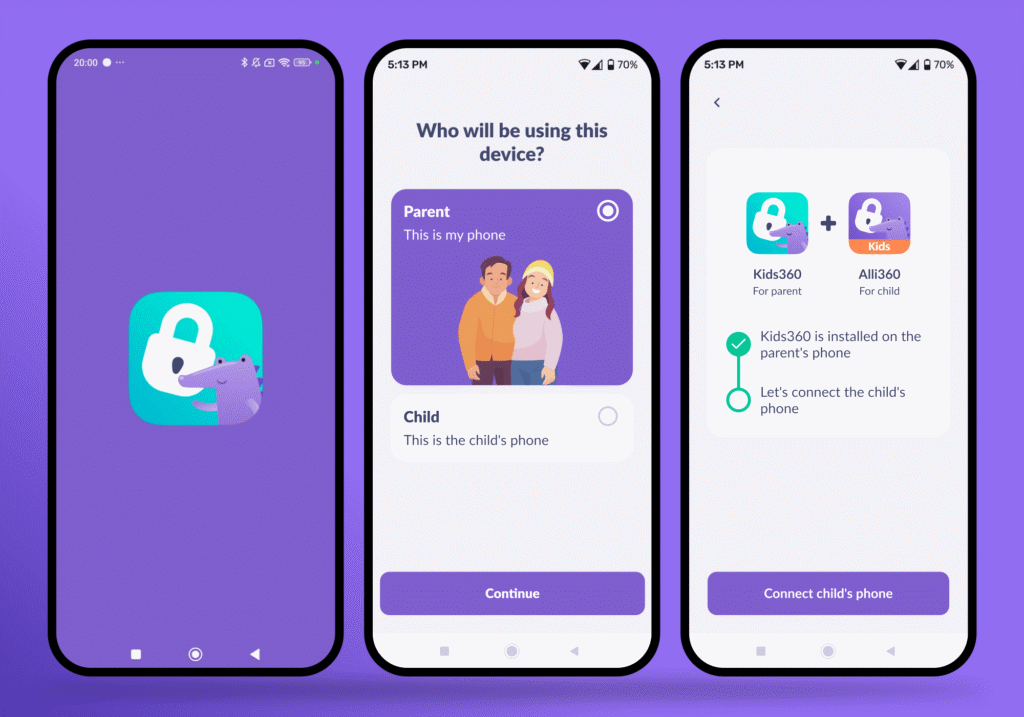
- Confirm the connection in Kids360 and check that the child’s iPhone appears in the account.
- Set daily screen-time limits for the child’s device.
- Create schedules for bedtime, school, study, or other regular parts of the week. Different schedules can be set for different days.
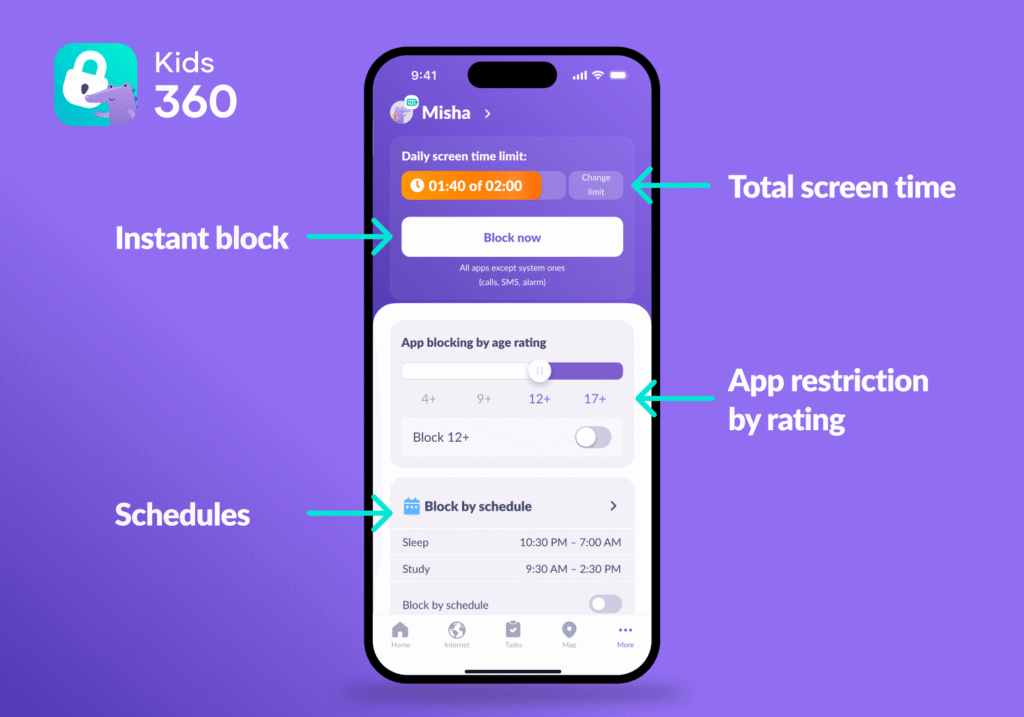
- Test the settings on the child’s iPhone to make sure the limits and schedules work as expected.
Once everything is connected, the main settings can be managed from the parent’s phone. This means everyday changes to screen-time limits and schedules can be made remotely, without having to take the child’s iPhone each time.
Helping Children Earn More Screen Time
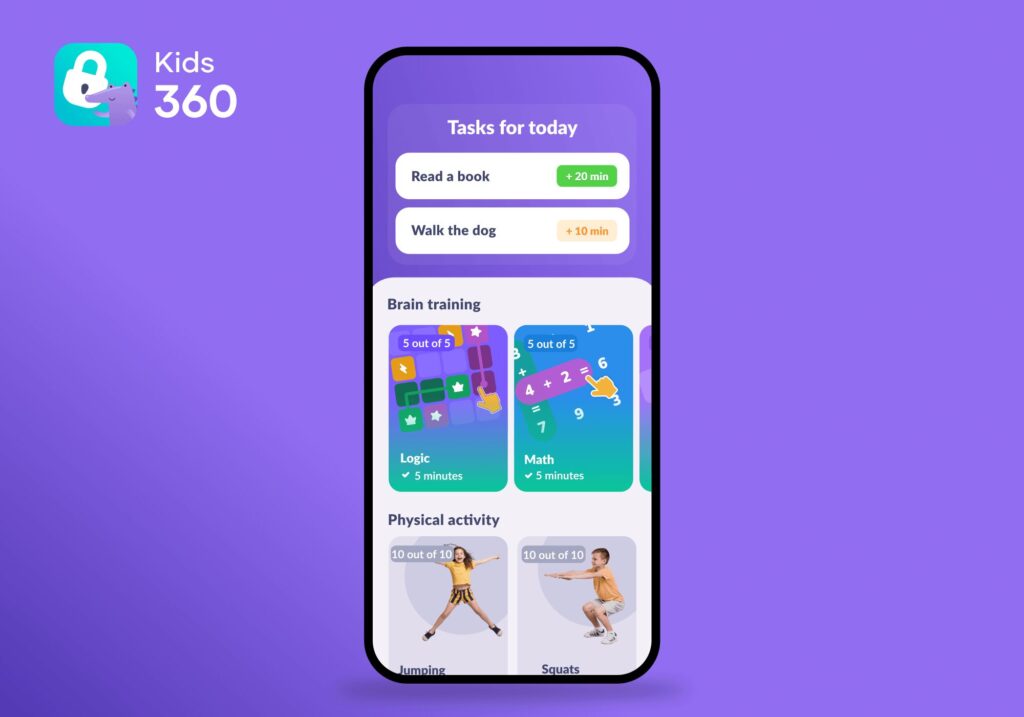
Not only does Kids360 help parents manage their kids’ screen time and keep them safe online, but it also helps children take a more active role in managing their own screen use. Kids360 gives children the opportunity to earn extra time by completing tasks created by their parents or working through built-in logic and thinking activities.
This approach makes children part of the process instead of simply putting limits on them. When kids understand how they can earn additional screen time, they may be more willing to follow the rules and less likely to see parental controls as something being imposed on them. Over time, taking responsibility for tasks and managing earned screen time can also help children develop greater independence and a better understanding of digital boundaries.
Parents decide how much extra screen time each task earns, so the system stays clear and predictable. Rewards can still fit within the family’s daily limits and bedtime schedule.
Download Kids360 right now for free to manage app limits on your child’s iPhone and give them a more active role in managing their screen time.
How to Block or Restrict Apps on iPhone Using Screen Time
Apple’s Screen Time settings give parents several ways to manage app access. They can block specific apps, prevent new App Store downloads, apply age ratings, set daily time limits, and create schedules for school or bedtime. The menu names differ slightly by iOS version, so parents should follow the labels displayed on their device.
To open the parental controls on a current iPhone:
- Go to the Settings app.
- Tap Family, then choose the child’s name. Parents making changes directly on the child’s iPhone can open Screen Time instead.
- Enter the Screen Time passcode if prompted.
- Open Apps & Websites to review allowed and blocked apps or websites.
- Use Time Allowances to limit how long your child can use apps in different categories.
- Open Screen Time Schedule to restrict access during selected hours.
- Use Content & Privacy Restrictions to manage age ratings, purchases, web content, and changes to important settings.
On an older iOS version, the same controls may appear under Settings → Screen Time → Family → child’s name. These devices may use the labels App Limits, Downtime, and iTunes & App Store Purchases instead of the newer menu names.
Prevent New App Downloads and App Store Purchases
Parents can block new installations without removing apps that are already on the child’s iPhone. On a current iOS version (27):
- Open Settings, tap Family, and choose the child.
- Tap Apps & Websites and enter the Screen Time passcode if prompted.
- Tap App Store.
- Open Installing Apps or App Clips and choose Blocked.
- Review Ask to Buy and the available App Store purchases settings.
- To disable in-app purchases, open In-App Purchases and select Blocked.
On an older iOS version, follow these steps: Settings → Screen Time → child’s name → Content & Privacy Restrictions → iTunes & App Store Purchases → Installing Apps → Don’t Allow.
You can also enable the Ask to Buy feature: Settings → Family → child’s name → Ask to Buy → Require Purchase Approval.
Set App Limits or Time Allowances
A time limit is useful when an app is suitable for the child but is being used too often. Current iOS versions may call this feature Time Allowances, while older devices use App Limits.
On a current iPhone, open Settings → Family → child’s name → Time Allowances. Tap Add, then choose the relevant app categories and set the available time.
On an older iOS version, open Settings → Screen Time → child’s name → App Limits → Add Limit. Select a category, multiple apps, or a single app, then choose the daily allowance. Turn on Block at End of Limit if that setting appears.
Once the allowance expires, the app icon may dim on the Home Screen. The app is not deleted, and the child may still be able to request additional time from the parent.
Create Screen Time Schedules (Downtime)
Bedtime, school hours, and homework often need different rules from the rest of the day. Apple’s scheduling controls let parents restrict apps during these periods without blocking them permanently.
On iOS 27, Apple uses the name Screen Time Schedule:
- Open Settings and tap Family.
- Choose the child’s name.
- Tap Screen Time Schedule and turn on Schedule.
- Tap Add Schedule.
- Choose the days and times when the schedule should apply.
- Review which apps will remain available during that period.
On an older iOS version, open Settings → Screen Time → child’s name → Downtime. Turn on Scheduled, then choose whether the same times should apply every day or whether different days need different hours. Enable Block at Downtime if apps should become unavailable when the schedule starts.
Calls and apps marked as always allowed can remain accessible during Downtime. Depending on the settings, the child may also see an option to request more time. A Screen Time passcode prevents the child from approving that request or changing the schedule without the parent.
A schedule is usually more practical than a permanent block when the app itself is acceptable, but the timing is the problem.
Use Content and Privacy Restrictions
Content & Privacy Restrictions help parents control what children can download, view, and change on their iPhone. The available controls include app and media age ratings, explicit content, built-in apps, account changes, privacy settings, Game Center features, and web content.
Open Settings, tap Family, choose the child, and select Content & Privacy Restrictions. Enter the Screen Time passcode if requested, then choose the type of content or setting to manage.
For website controls, open Content & Privacy Restrictions, then review the available Web Content filtering options. Parents can limit adult websites, block specific websites, or use an approved-sites list where supported. Menu names may differ on an older iOS version, so follow the labels shown on the child’s device.
Enable Guided Access for Temporary App Locking
Guided Access keeps an iPhone or iPad inside a single app. It is useful when a child borrows a parent’s device for a video, activity, or call and should not open other apps.
- Open Settings → Accessibility → Guided Access and turn the feature on.
- Set a Guided Access passcode and enable Face ID if preferred.
- Open the app the child will use.
- Triple-click the side button. On an older device, triple-click the Home button instead.
- Choose which buttons, screen areas, or touch controls should remain available.
- Set a time limit if needed, then tap Start.
To pause or end the session, use the same button shortcut and authenticate with the passcode or Face ID. Guided Access is intended for temporary single-app use rather than ongoing remote parental control.
iPhone Built-In Controls vs. Kids360
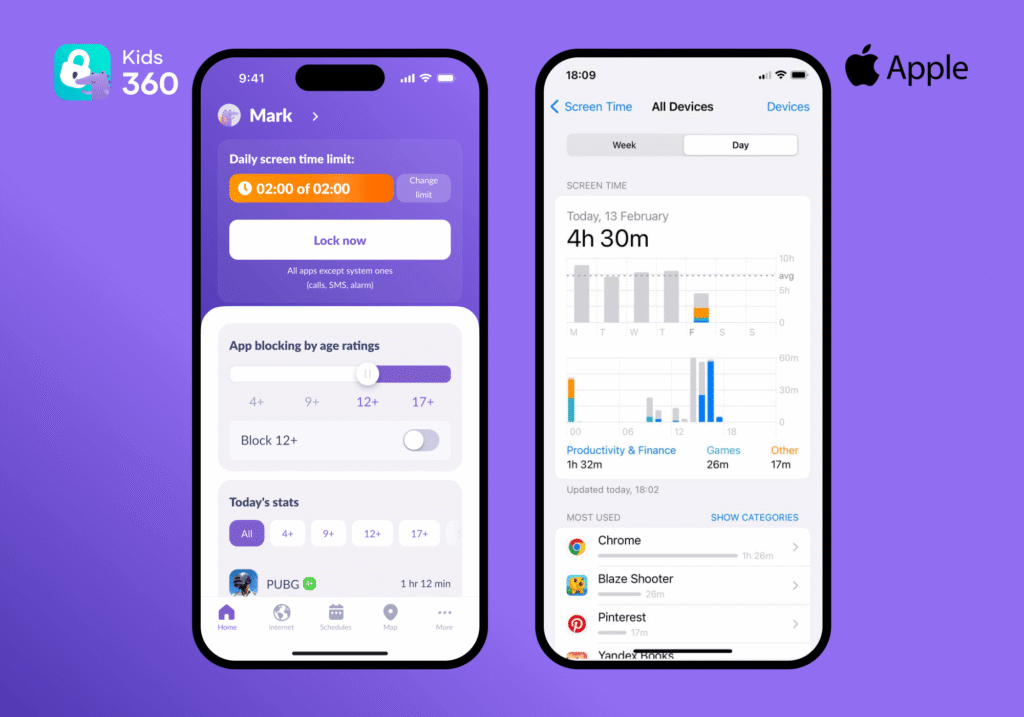
Apple’s built-in parental controls and Kids360 solve different parts of the same problem. Apple gives parents detailed control over the apps and content on a child’s iPhone, while Kids360 helps families manage broader screen time routines from the parent’s phone.
| Feature | iPhone Built-In Controls | Kids360 |
|---|---|---|
| Overall screen time limit | ✅ Yes | ✅ Yes |
| Automatic blocking when time runs out | ✅ Yes | ✅ Yes |
| Block specific apps | ⚠️ Through Apps & Websites on iOS 27 | ⚠️ Not available for individual iPhone apps |
| App schedules | ✅ Yes | ✅ Yes |
| Different schedules by day | ✅ Yes | ✅ Yes |
| App Store downloads | ✅ Yes | ✅ Yes |
| App Store purchases | ✅ Yes | ✅ Yes |
| Content and website restrictions | ✅ Yes, through Content & Privacy Restrictions | ✅ Yes, adult-website filtering is available through Safe Internet |
| Usage reports | ✅ Yes, detailed Screen Time activity for apps and websites | ✅ Yes, weekly reports showing time by day and app category |
| Remote management | ✅ Yes, from a parent’s Apple device through Family Sharing | ✅ Yes, from a parent’s Android phone or iPhone |
| Location tracking | ⚠️ Available separately through Apple’s Find My services | ✅ Yes, free real-time location tracking is included |
| Tasks and screen time rewards | ❌ Not included | ✅ Children can earn additional time through parent-created or built-in tasks |
Apple’s controls are useful when parents want to block specific apps, control App Store purchases, prevent app downloads, or apply age-based Content & Privacy Restrictions. They also work well for temporary controls such as Guided Access, which keeps the device inside a single app.
Kids360, on the other hand, provides a way to manage the child’s overall routine in one place. It combines a daily time limit, flexible schedules, location tracking, usage reports, and rewards. It can also be managed across platforms, which helps when the parent uses Android but the child’s device is an iPhone.
Use the Right App Controls for Your Family
iPhone gives parents several ways to control app access, from locking or restricting individual apps to setting screen-time limits and schedules. Apple’s built-in controls are a useful option for families who want to manage restrictions directly through the device and Apple’s Family Sharing system.
For parents who want a more centralized approach, Kids360 adds app blocking, daily screen-time limits, schedules, usage information, and other parental controls that can be managed from a parent’s phone. This can be especially useful when parents want to manage a child’s iPhone without having to change settings directly on the child’s device each time.
The best setup depends on your family’s needs. If you want straightforward controls built into the iPhone, Apple’s Screen Time provides them. If you want additional tools for managing your child’s apps and daily screen-time routine remotely, Kids360 is another option worth considering.
Sources & References
- Here’s How Many Elementary Students Have Their Own Cellphones and Tablets, Education Week, 2025
- Screen Time Schedules and Time Allowances, Apple Support
- App Store settings and restrictions, Apple Support