Family Link on iPhone: What Parents Can and Can’t Do


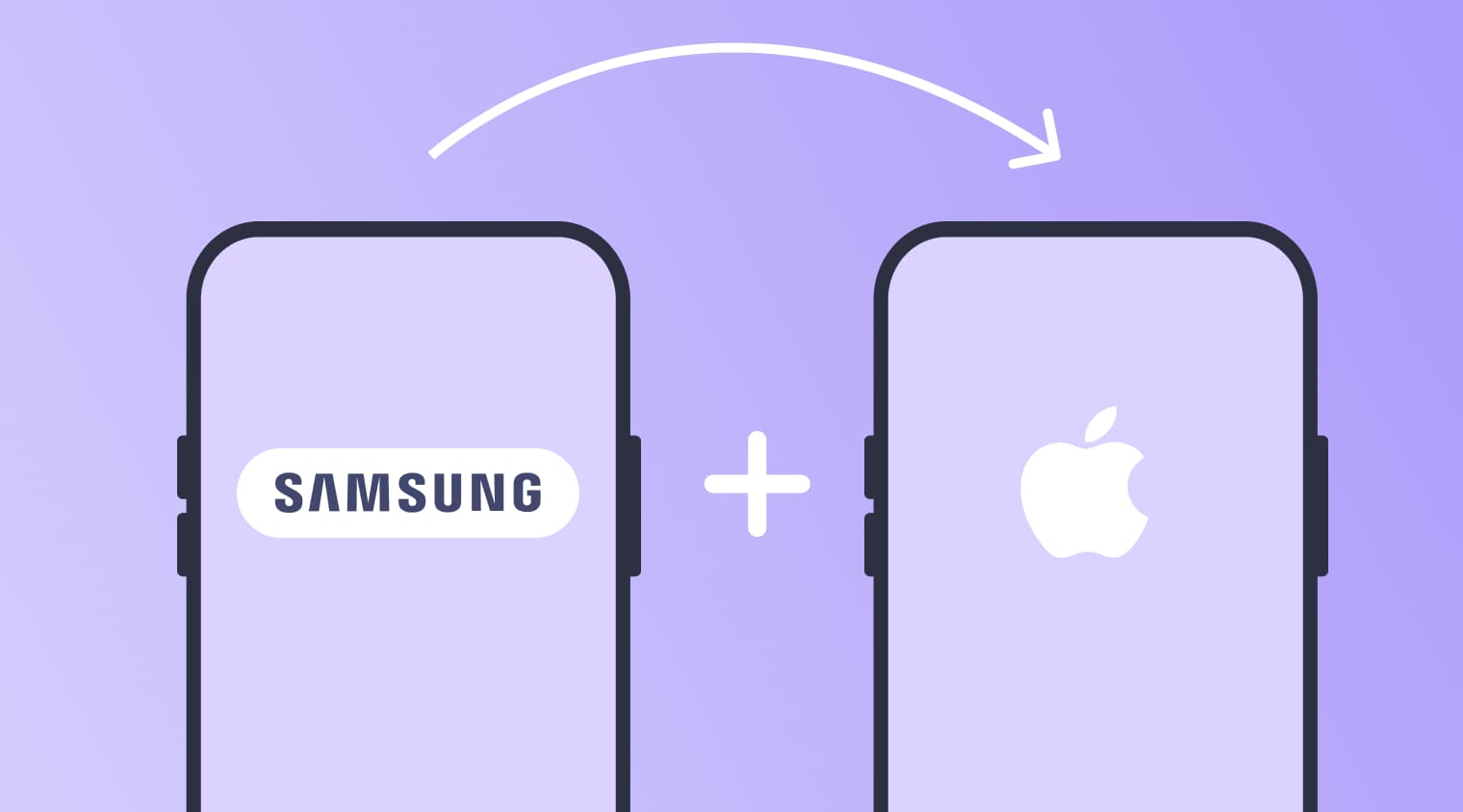
Parents often turn to Google Family Link to manage their child’s smartphone, set digital boundaries, and keep an eye on how a device is being used. But things get more complicated when the child has an iPhone. While parents can use Family Link on their own iPhone, Google’s parental controls do not provide the same level of device supervision on a child’s iPhone.
So what can Family Link actually do on iOS, and what options are available if you want to manage screen time, apps, schedules, and other everyday phone rules? This guide explains how Family Link works with iPhones and looks at Kids360 as an alternative for families who need more control over a child’s iPhone.
Key Takeaways
- The child’s device matters more than the parent’s device when a family chooses parental controls.
- Parents can install the Family Link app on a compatible iPhone and use it to supervise a supported Android device.
- A child’s iPhone receives only partial supervision of the child’s Google Account and supported Google services.
- Family Link cannot control screen time, block apps, report app activity, or show device location when the child uses an iPhone.
- Kids360 supports screen time limits, schedules, location tracking, and task-based rewards on a connected iPhone.
Table of Contents
Does Family Link Work on iPhone?
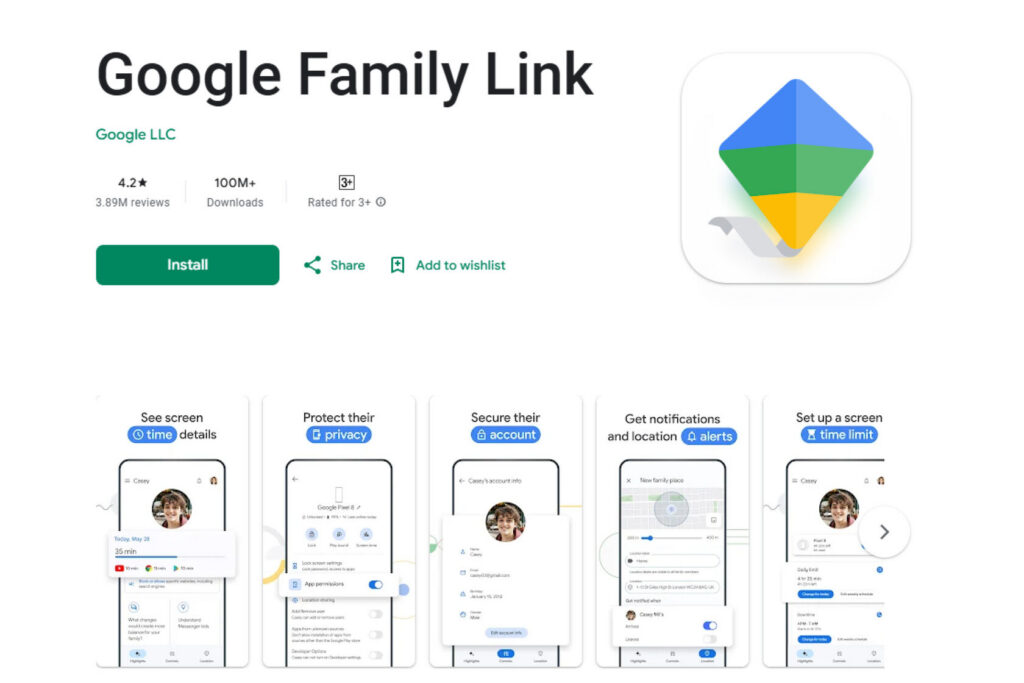
Family Link can be installed on a parent’s iPhone and used to manage a child’s Google Account. When the child uses a supported Android device or Chromebook, Family Link provides the main supervision features, including screen-time limits, app controls, and, on supported devices, location tracking.
The situation is different when the child uses an iPhone. iPhones and iPads cannot be supervised with Family Link, so most device-level parental controls are unavailable. Parents can still manage certain Google Account settings and supported Google services, including some Chrome settings on the child’s iPhone.
| Device Combination | Does Family Link Work? | Level of Control |
|---|---|---|
| Parent’s iPhone → Child’s Android | Yes | Core supervision on a supported Android device |
| Parent’s Android → Child’s Android | Yes | Core supervision on a supported Android device |
| Parent’s iPhone → Child’s iPhone | Limited | Google Account and some supported Google services; no device-level supervision |
| Parent’s Android → Child’s iPhone | Limited | Google Account and some supported Google services; no device-level supervision |
The key factor is the child’s device. A parent can use Family Link from either an iPhone or Android phone, but an iPhone used by the child cannot be supervised at the device level through Family Link.
What Can and Cannot Parents Do With Family Link on an iPhone?
The answer depends on which iPhone you’re talking about: the parent’s or the child’s.
Family Link can be installed on a parent’s iPhone and used to manage a child’s compatible Android device. But if the child uses an iPhone or iPad, Family Link does not provide the same level of parental control. Google states that iPhones and iPads cannot be supervised with Family Link.
Using an iPhone as the Child’s Device
This is where the main limitation appears.
A child can use certain Google services on an iPhone, and parents can manage some aspects of the child’s Google Account. However, Family Link cannot fully supervise the child’s iPhone. Google specifically lists several parental-control features that are unavailable when a child uses Google services on an iPhone or through a web browser. These include:
- Screen time limits
- Device location and location sharing
- App activity reports
- App blocking and app permissions
- Some Google Chrome website and permission controls
In other words, installing Family Link or signing a child into a Google Account does not turn an iPhone into a fully supervised device. For the full set of Family Link device controls, Google requires a compatible Android device or Chromebook.
This can be a significant limitation for parents who specifically want to set screen-time limits, restrict individual apps, monitor app usage, or manage their child’s location from their own phone.
Using an iPhone as the Parent’s Device
If the parent uses an iPhone while the child uses a compatible Android device, Family Link can be used for parental supervision without the iPhone itself creating additional limitations.
To set up supervision, the parent needs a Google Account, must meet the applicable age requirement, and must live in the same country as the child. The child needs a Google Account and a compatible Android device.
Once supervision is set up, the parent can manage screen time and approve or block supported Google Play apps from the iPhone.
Why Is Family Link Limited on a Child’s iPhone?
Family Link was built primarily to supervise devices within Google’s ecosystem, such as Android phones and ChromeOS devices. An iPhone is different: it runs on Apple’s operating system, and Google cannot manage the device at the same level as an Android phone.
As a result, Family Link can work with a child’s Google Account on an iPhone, but it cannot turn the iPhone into a fully supervised device.
For parents who want to manage the child’s screen time and phone use more broadly, a parental-control app like Kids360 designed to work with iPhones is a more suitable option.
Read also: The Best Family Link Alternative for Screen Time, Safety, and More.
Kids360: A Cross-Platform Family Link Alternative for iPhone
Kids360 is designed for mixed-device families: a parent can manage a supported child’s iPhone from Android or iOS without replacing either phone.
Why Parents Choose Kids360
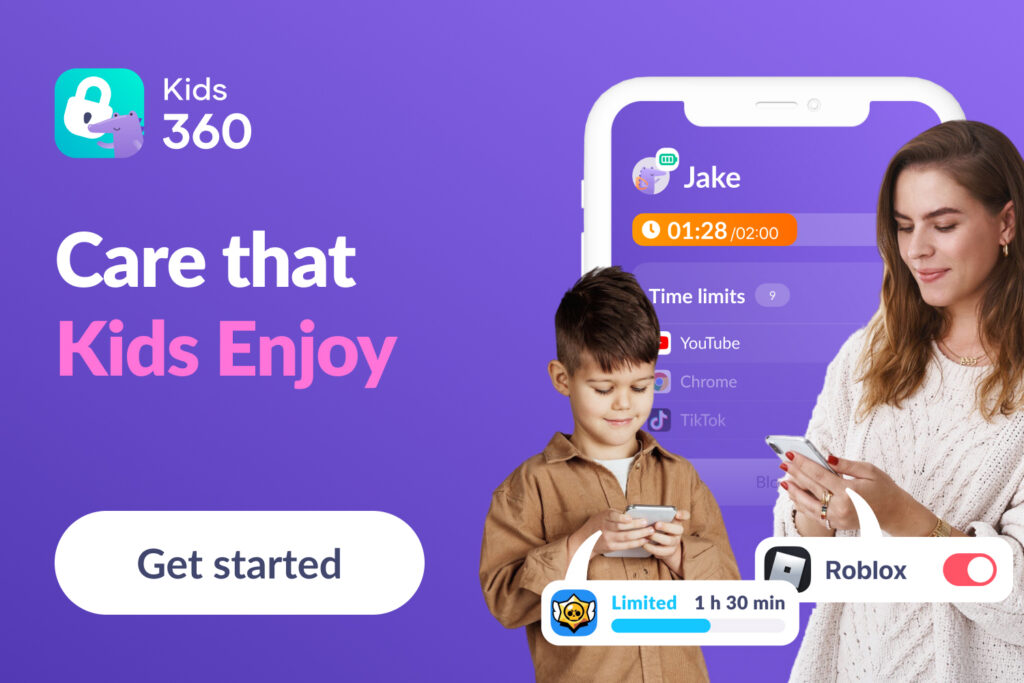
Kids360 brings screen-time limits, schedules, app management, location, and digital safety together in one app. It works across iPhone and Android, so parents can manage their children’s devices even when the family uses different types of smartphones.
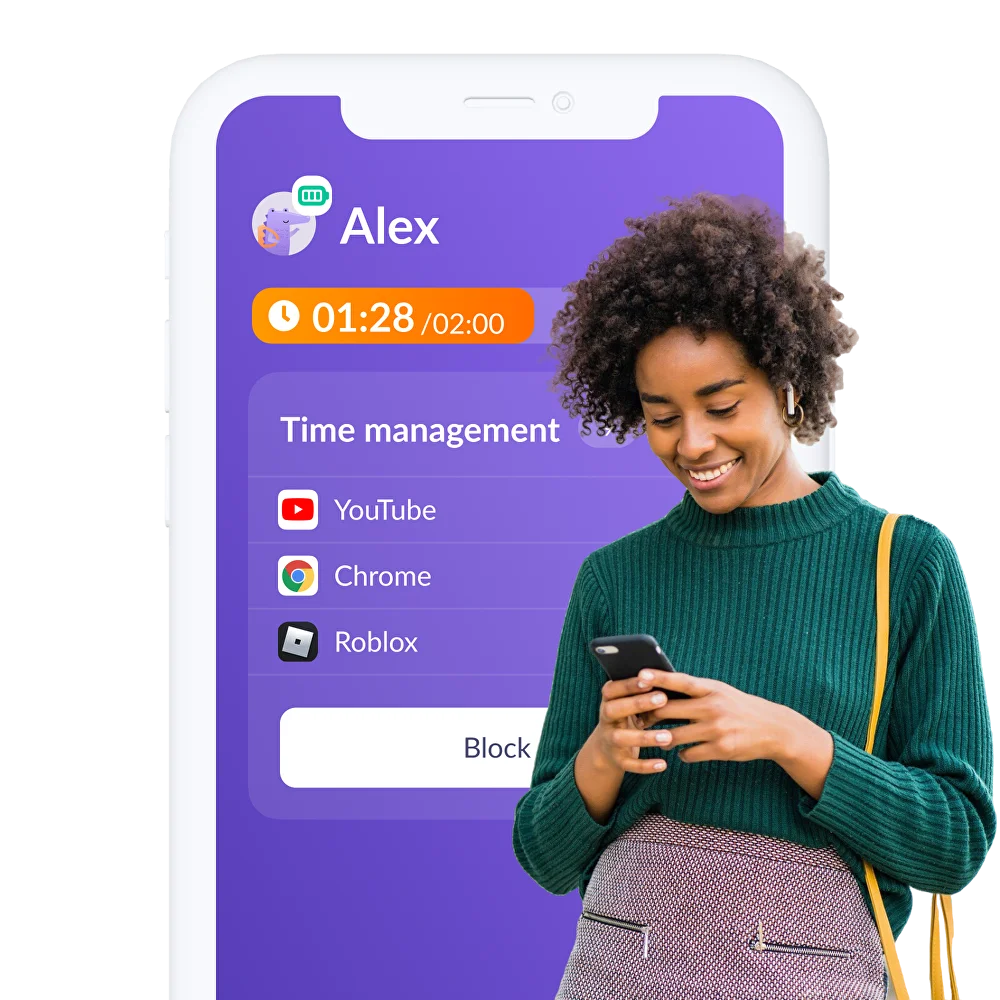
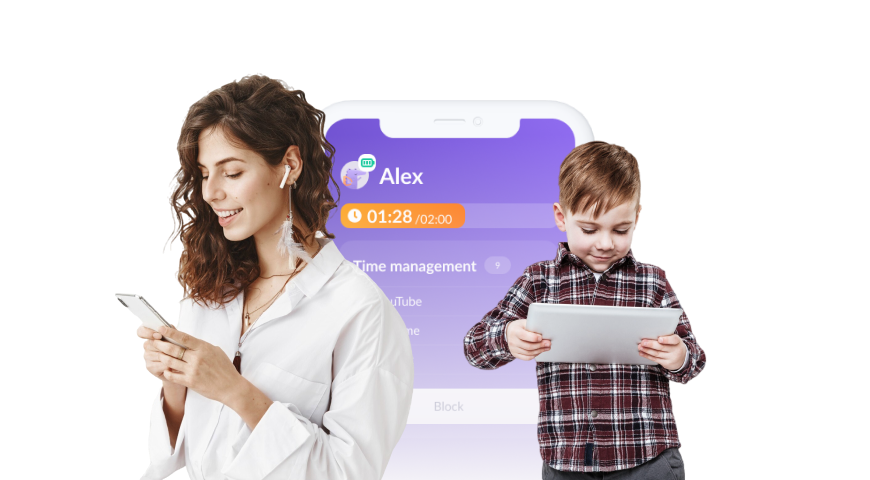
Getting started is simple, and once everything is set up, parents can manage the main settings from their own phone. Children can also see how much screen time they have already used and how much they have left in Alli360, so they know what to expect when their time runs out.
If a child needs more time, Kids360 offers a more friendly alternative to simply removing the phone. Parents can create free tasks that children complete to earn extra screen time, making it easier to turn restrictions into an everyday routine rather than a source of arguments. Built-in logic activities are also available with a subscription.
The same approach works for the whole family. Parents can add a second parent, connect multiple children and child devices, and manage everything from one account, keeping screen-time rules and other parental controls in one place.
Kids360 Features for a Child’s iPhone

Kids360 combines the main tools for managing a child’s iPhone in one place.
Screen-Time Statistics
Weekly statistics give parents a clear picture of their child’s screen habits. The report shows total screen time for each day and breaks usage down by app category, making it easy to spot changes in the child’s digital routine over time.
Daily Screen-Time Limits
A daily screen-time limit helps keep phone use within the amount of time set for each day. When the available time runs out, access is restricted automatically, while essential communication remains available.
One-Tap Device Blocking
When the phone needs to be put away immediately, one tap is enough to pause access. This can come in handy at bedtime, during family activities, or whenever parents want to get their child’s attention away from the screen.
Schedules for Sleep and Study
Bedtime, school, and homework hours can follow their own schedules. Once a schedule is set, selected apps are restricted automatically at the chosen times, so the routine does not have to be managed manually every day.
In-App Purchase Blocking
Kids360 can help prevent unexpected spending inside games and apps by restricting in-app purchases. This is useful when a child uses games or other apps where paid items, subscriptions, or bonuses can be purchased.
Internet Access Control
Parents can turn off internet access in selected apps when they want to limit online games or social media without necessarily blocking the entire device.
Adult Website Filtering
Built-in filtering helps protect children from adult and other inappropriate websites. It adds an extra layer of digital safety as children explore the internet.
New App Installation Blocking
New app installations can also be restricted, giving parents more control over which games and applications appear on the child’s iPhone. This is especially useful for keeping downloads within agreed family rules.
Location Tracking
Location tracking shows where the child is on a map and provides access to location history. Safe zones and place notifications can also help parents keep track of important parts of the child’s daily routine.
Tasks and Extra Screen Time
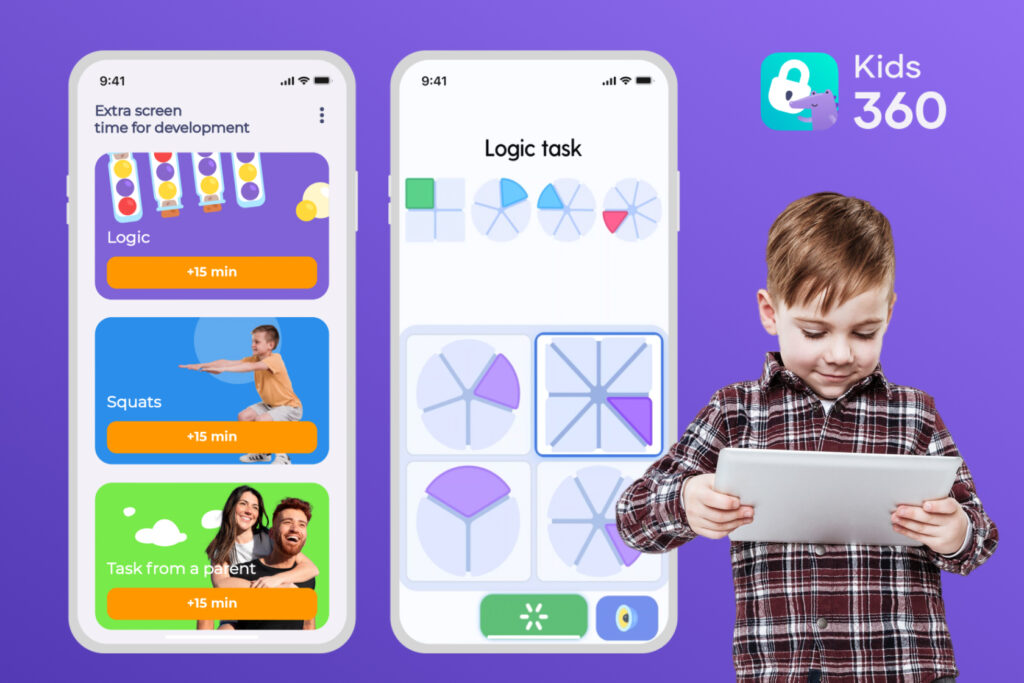
Everyday responsibilities can become part of the screen-time routine through parent-created tasks. Homework, reading, tidying up, or helping around the house can be turned into tasks that earn extra screen time when completed.
The app also includes logic and thinking activities designed to encourage focus and learning. Children can complete these activities as an additional way to earn screen time.
Notifications and a Child-Friendly Approach
Screen-time rules stay visible to both sides. Parents receive notifications about important changes and limits, while children can see how much time they have already used and how much remains in Alli360. This gives children a clearer idea of what to expect throughout the day.
Together, these tools let parents manage screen time, routines, online safety and location from one app—even when the child uses an iPhone and the parent uses a different type of device. Download Kids360 and try it today for free!
Family Link vs. Kids360 for a Child With an iPhone
This comparison applies when the child uses an iPhone.
| Feature | Google Family Link | Kids360 |
|---|---|---|
| Overall daily screen time limits | ❌ No | ✅ Yes |
| Usage information | ❌ No for the child’s iPhone | ✅ Weekly category-based iPhone view |
| Schedules | ❌ No | ✅ Yes |
| Automatic blocking when limits are reached | ❌ No | ✅ Yes |
| Block in-app purchases | ❌ No iPhone-wide control | ✅ Yes |
| Adult website filtering | ⚠️ In Chrome only | ✅ Yes |
| Location tracking | ❌ No for the child’s iPhone | ✅ Yes |
| Task-based screen time rewards | ❌ No | ✅ Yes |
| Google Account management | ✅ Yes | N/A |
For a child using an iPhone, the difference comes down to how much control parents want over the device itself. Family Link can still be useful for managing the child’s Google Account and Google services, while Kids360 provides a broader set of parental controls designed to work directly with the iPhone.
If you want to manage screen time, schedules, app access, location, and other everyday phone rules from one app, try Kids360.
How to Set Up Kids360 on an Android Parent Phone and iPhone Child Phone
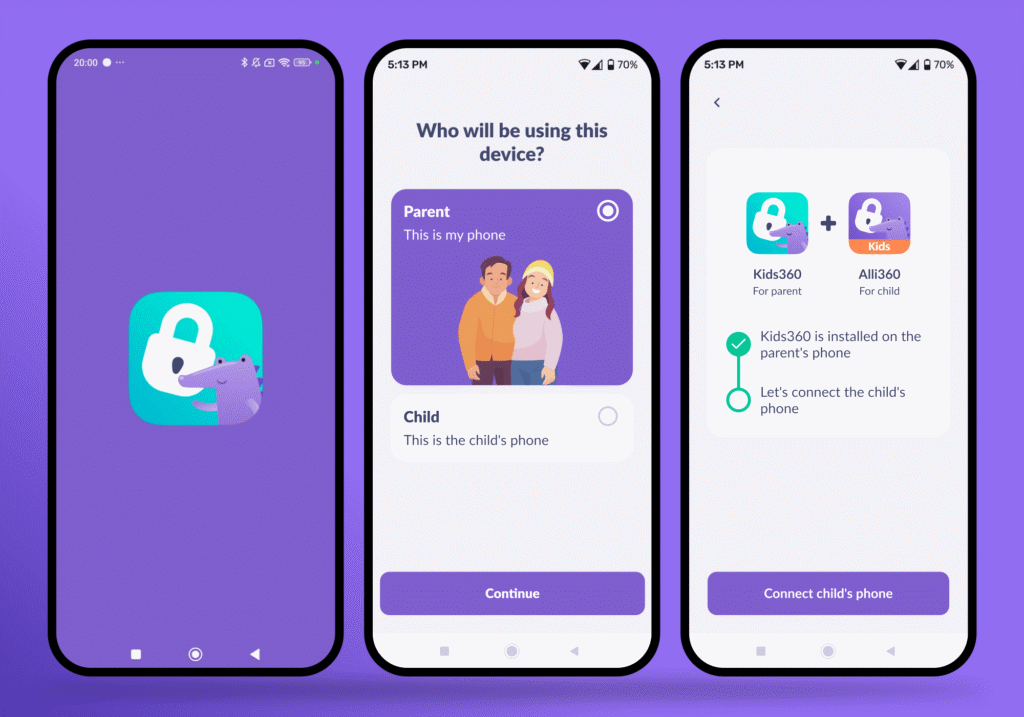
Setting up Kids360 takes just a few steps. Keep both phones nearby and have the Kids360 app ready on the parent’s Android phone and Alli360 on the child’s iPhone.
- Install Kids360 on the parent’s Android phone.
- Open the App Store on the child’s iPhone and install Alli360.
- Enter the access code or use the pairing link.
- Complete the permissions and iOS steps shown by Alli360.
- Confirm in Kids360 that the phones are connected.
- Set parental controls, including a daily limit and any needed schedules.
- Test the controls on the child’s iPhone and check what remains available when a limit begins.
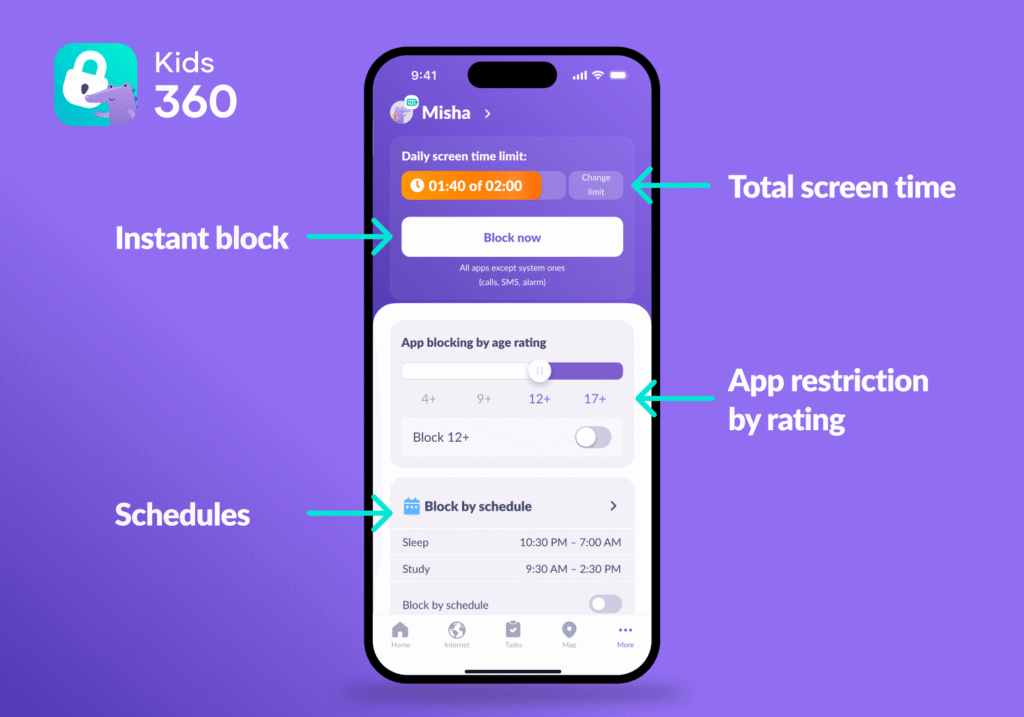
Once the initial setup is complete, there is no need to keep taking your child’s iPhone to change the rules. Screen-time limits, schedules and other available controls can be managed from Kids360 on the parent’s Android phone, so everyday adjustments can be made remotely.
Choose the Tool That Matches the Child’s Phone
Family Link remains a useful tool for families using supported Android devices, especially when parents want to manage a child’s Google Account and device settings from their own phone. The situation is different when the child uses an iPhone: Family Link can still manage certain Google Account settings and services, but it does not provide device-level supervision.
For parents who want to manage screen time, schedules, app access, location, and other everyday phone rules on a child’s iPhone, Kids360 offers a way to bring these controls together in one app. It also supports mixed-device families, so parents can manage a child’s iPhone from an Android or iPhone of their own.
Sources & References
- Frequently Asked Questions and Answers – Google Family Link, Google
- Learn which devices can be supervised, Google
- Sign a child into an iPhone or iPad, Google