Can You Manage an iPhone from a Samsung Phone? Yes, with Kids360

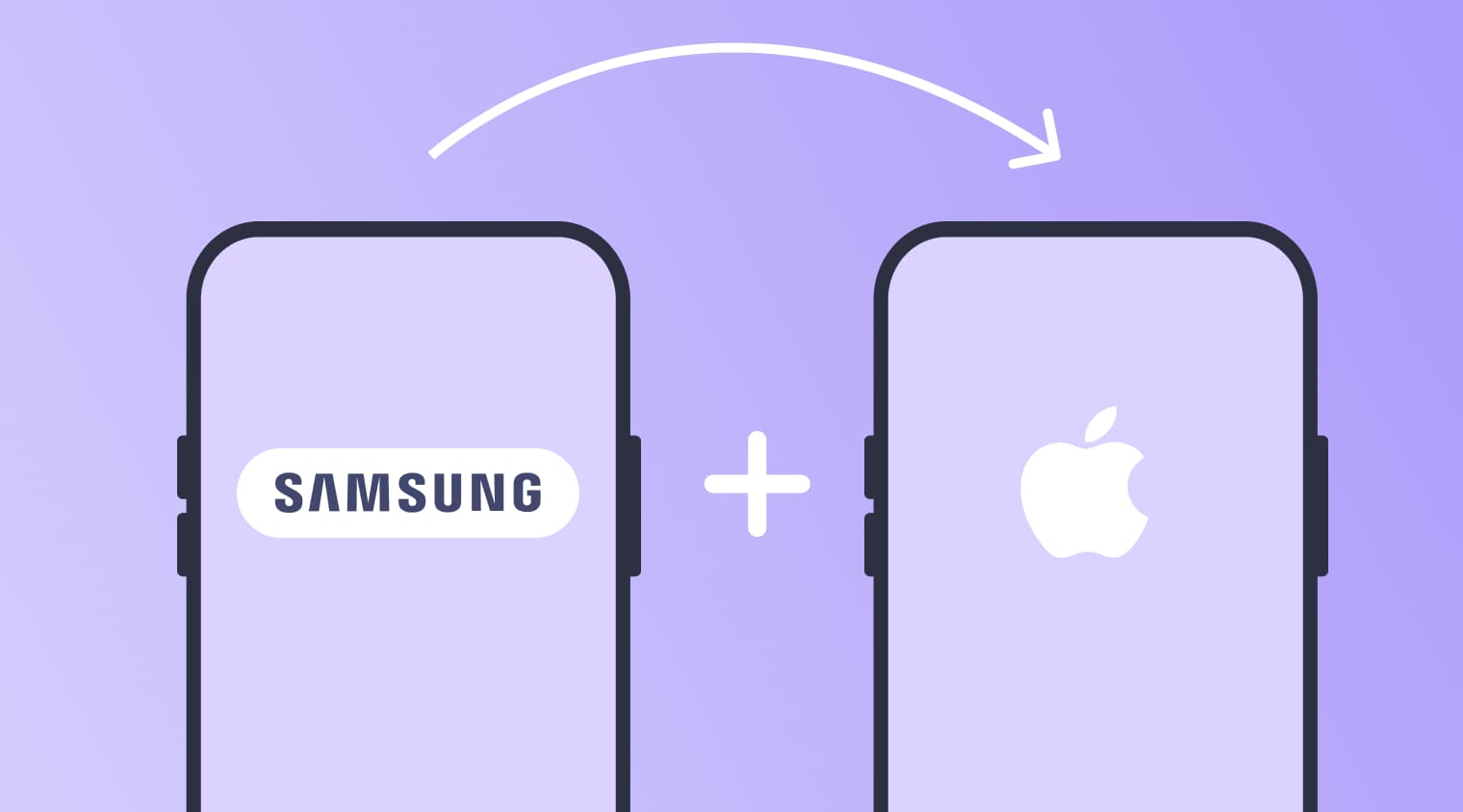
When a parent uses a Samsung and their child has an iPhone, setting digital boundaries can quickly become complicated. Can a parent with a Samsung phone use parental controls on an iPhone without replacing either device? Yes, Kids360 provides a practical way to manage compatible controls across both platforms.
Key Takeaways
- Screen Time can be set on an iPhone, but a Samsung parent cannot manage it remotely through Family Sharing.
- Google Family Link can run on an Android phone, but Google says an iPhone cannot be supervised as a child device.
- Kids360 lets an Android parent manage supported limits, schedules, safety, and location features on a child’s handset.
- Some Kids360 controls vary by platform, so families should check which features are available for their specific Android-to-iOS setup.
Table of Contents
Can a Samsung Phone Control an iPhone With Parental Controls?
Not with the built-in parental controls alone. A Samsung phone runs Android, while an iPhone runs iOS. Each company builds its tools around its own services and accounts.
The options are:
| Parent’s phone | Child’s phone | Practical parental-control option |
|---|---|---|
| Samsung or another Android handset | Samsung or another Android device | Google Family Link or Kids360 |
| Samsung or another Android handset | iPhone | A compatible third-party app such as Kids360 |
| iPhone | iPhone | Apple Screen Time with Family Sharing or Kids360 |
| iPhone | Samsung or another Android device | Google Family Link or Kids360 |
One point matters most. The parent cannot open the built-in Screen Time settings from Android. Family Link can be installed on the adult’s phone, but it cannot lock or supervise the child’s iOS device as it controls supported Android devices. A cross-platform parental control app bridges that gap, although its available features still depend on the pairing.
The Easiest Way to Manage an iPhone From a Samsung: Kids360
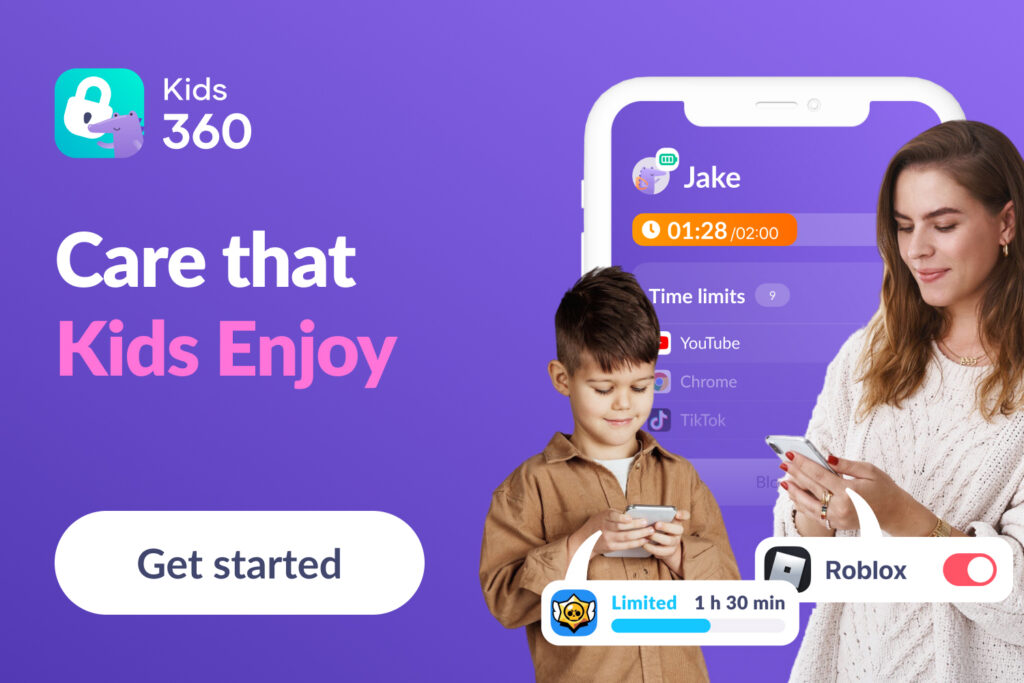
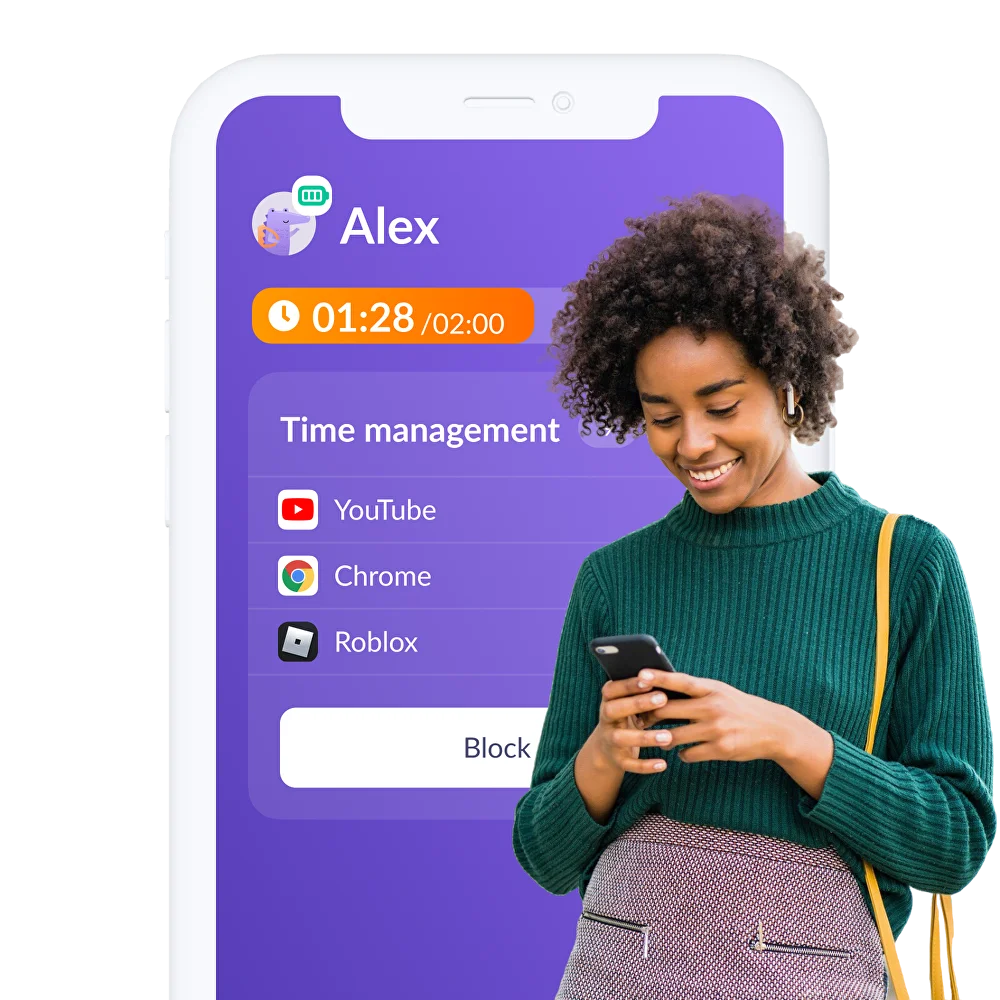
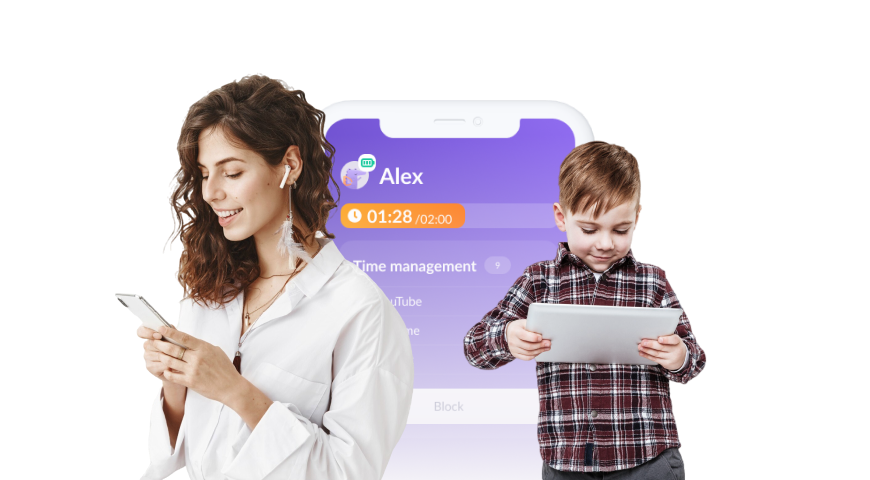
Kids360 connects a parental control app with a companion app on the child’s device. Supported settings can then be managed from the adult’s own phone, even when the two devices use different operating systems.
The parent does not need a Mac, iPad, or second Apple device. Families with multiple devices can keep the rules in one place.
What Can Parents Manage With Kids360?
The supplied information confirms several controls for this pairing. Some are free; others require a subscription.
Daily Limits and Flexible Schedules
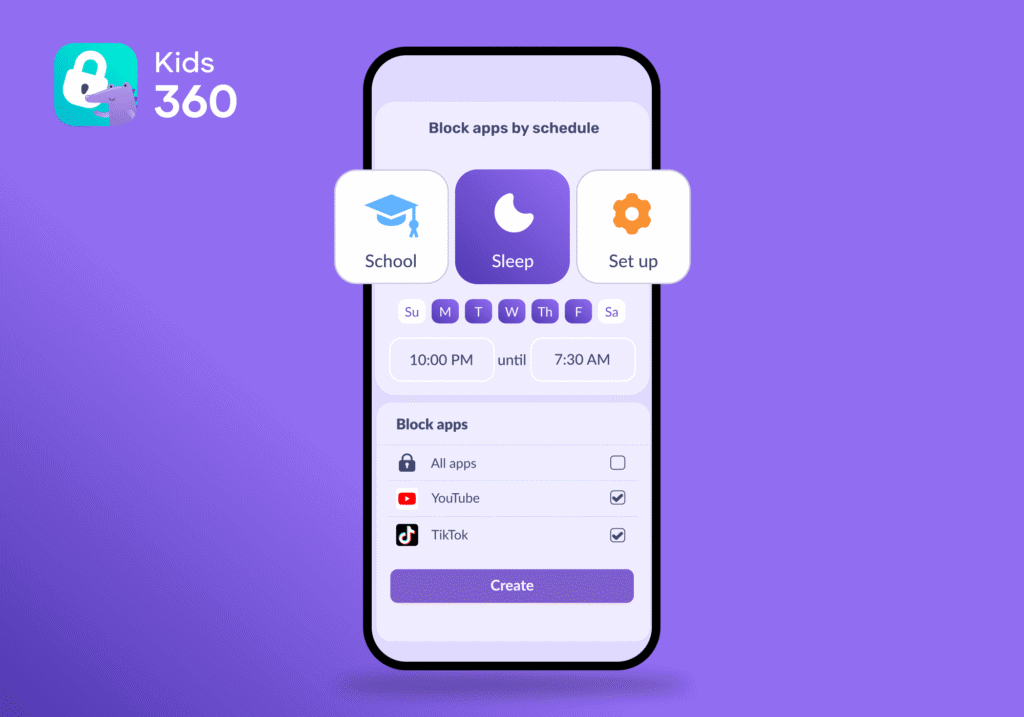
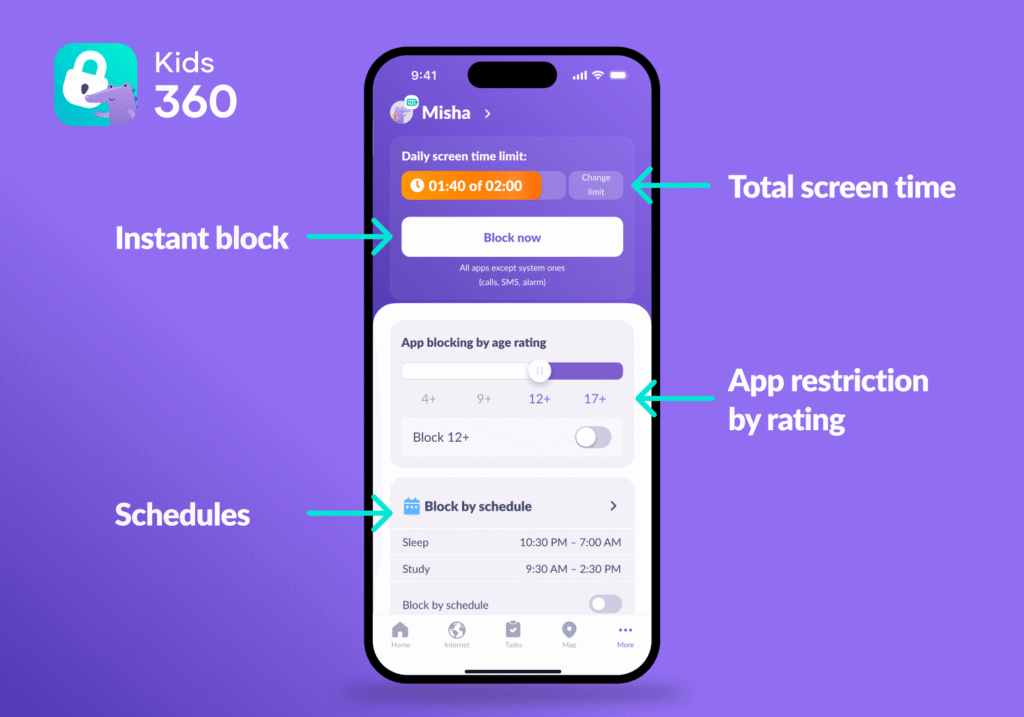
Kids360 makes it easier to turn screen time into a routine rather than a daily negotiation. Parents can set an overall daily allowance for the child’s connected device, so there is a clear limit on how much recreational screen time is available each day. Once the allowance runs out, covered games and apps can be blocked automatically, while essential communication apps are intended to remain available.
Schedules add another layer of control by letting parents decide when restrictions should apply. Set different rules for school, homework, bedtime, or family time, and adjust them for individual days of the week. If Monday needs an earlier block than Tuesday, for example, parents can set the schedule accordingly without changing the rest of the week.
Together, daily limits and flexible schedules give families a simple way to create predictable screen-time boundaries that fit around real-life routines.
Remote App Blocking
Sometimes you need to stop phone use immediately—for example, when a child is using the device during class, ignoring a family rule, or staying on their phone when they should be getting ready for bed. With Kids360 on iPhone, parents can remotely block the child’s device, while essential system apps remain available.
This can be especially useful when you’re not nearby and need to put a quick stop to distracting phone use without physically taking the device away.
In-App Purchases
A child taps “Buy,” and suddenly there’s a charge you weren’t expecting. Kids360 helps parents keep in-app purchases under control, which can be particularly useful for families with children who play games with paid items, subscriptions, or virtual currency.
In-App Internet Access
Sometimes the problem isn’t the app itself—it’s what happens once it goes online. Kids360 can restrict internet access for supported apps on an iPhone, giving parents more control over how certain games and apps connect without having to block the entire device.
Real-Time Tracking and Location History
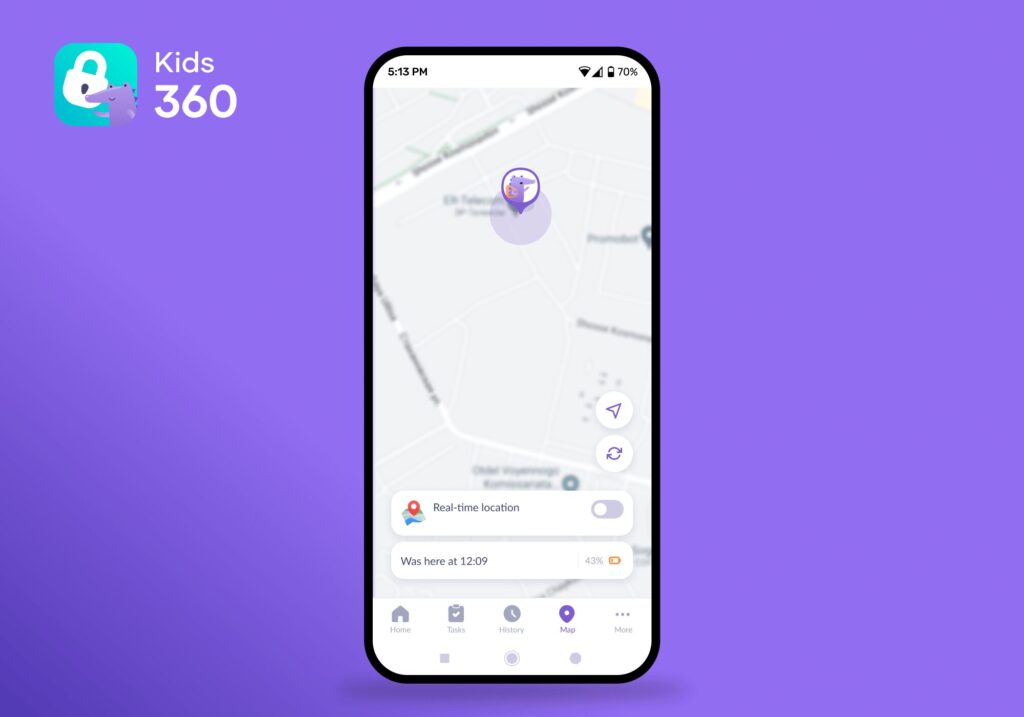
When a child starts going places on their own, a quick look at the map can be more reassuring than another “Where are you?” text. Kids360 combines real-time location tracking with location history, so parents can check where their child is now and see where they’ve been throughout the day.
Tasks
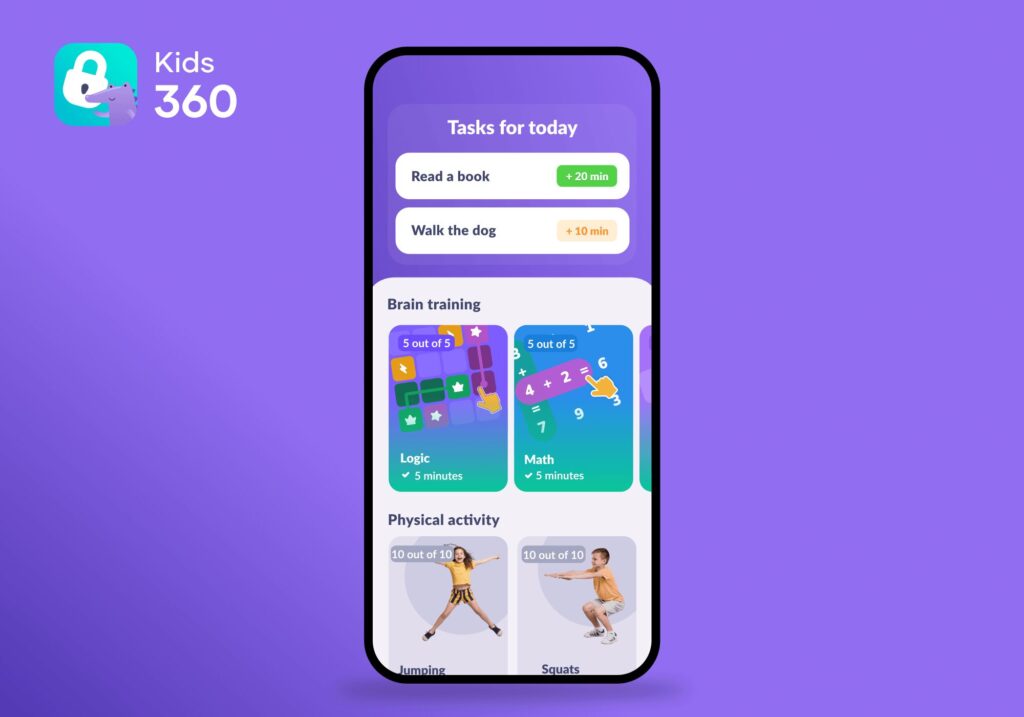
Not every screen-time rule has to end with “Because I said so.” Kids360 lets parents turn everyday responsibilities into tasks and reward completed ones with extra screen time. It can be a simple way to connect things like homework or chores with a reward children actually care about.
How to Set Up Kids360 on Both Phones
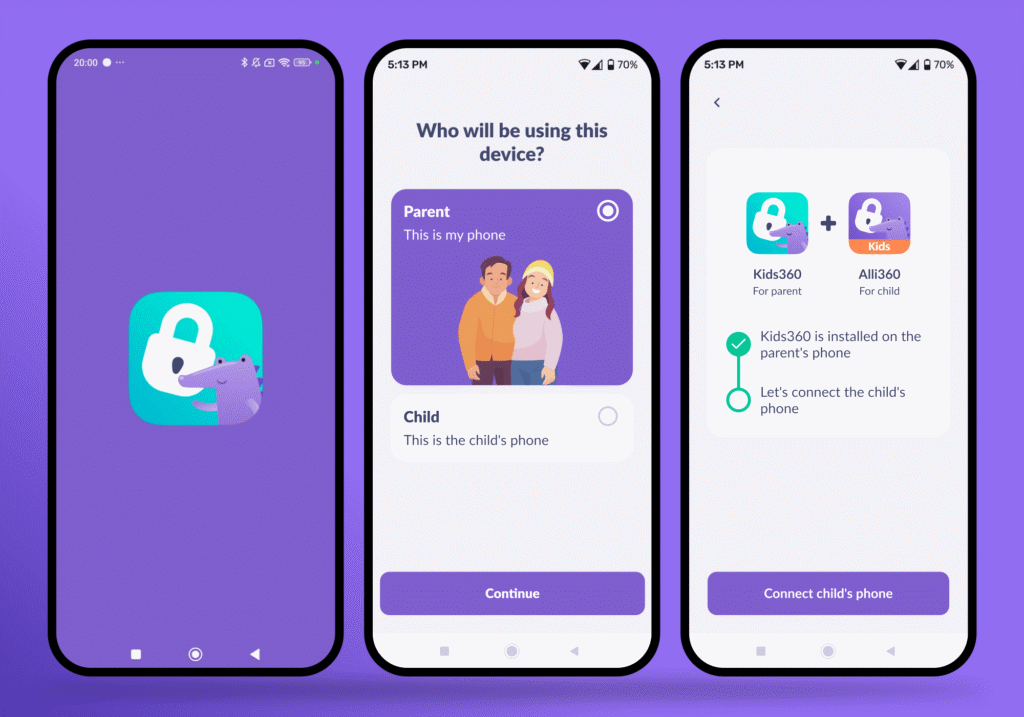
Keep both devices nearby and agree with your child on the first rules before starting. Then follow the setup shown in the apps:
- Install Kids360: Use the download link to get the parent app through Google Play.
- Create an account: Sign in and add the child’s profile.
- Install the companion app: Follow the displayed instructions on the child’s iOS device.
- Connect the account: Complete the authorization prompts and check that the correct device appears.
- Set the rules: Create the daily allowance and any sleep or study schedules.
- Test the result: Confirm what becomes unavailable and check that essential calls and contacts still work.
Once everything is set up, give the rules a quick test and make sure they work as expected. Check the usage information, see which apps remain available, and confirm that your child can still use essential communication features. If something doesn’t work the way you expected, adjust the settings before relying on them as part of your daily routine.
Download Kids360 for free right now and start creating a routine that works for your family!
Can Apple’s Screen Time Work if the Parent Uses Android?
Yes, but it must be managed directly on the child’s handset. The built-in parental controls include App Limits, Downtime, content restrictions, purchase controls, and activity reports.
The adult can enable Screen Time in Settings and protect it with a passcode. This prevents the child from changing the limits. An Android handset cannot open those settings, receive approval requests, or manage the parental controls remotely.
This local setup works for basic controls, but it also means that activity reports and other Screen Time information must be checked on the child’s iPhone. Parents using Android cannot view the child’s Screen Time data or change these settings remotely from their own phone. Kids360 is more convenient when you want to manage screen time and see usage information from a separate parent device.
What About Family Sharing?
Family Sharing allows an adult with an Apple device to create a family group, add a child’s Apple Account, and manage parental controls remotely. Apple Account is the current name for what many people still call an Apple ID.
An Android phone cannot act as the required Apple device. The child can remain in an existing family group, but the parent will not receive those controls. Another family member with an iPhone, iPad, or Mac could manage them instead.
Why Family Link Cannot Fully Control an iOS Device
Google Family Link can be installed on a parent’s Android phone, but an iPhone or iPad cannot be used as a fully supervised child device. Google allows children to sign in to some Google apps on iOS, but most Family Link supervision tools do not work there.
That means parents cannot use Family Link on an iPhone or iPad to set screen time limits, view app activity, block apps or manage their permissions, track the device’s location, or remotely lock the device. These are some of Family Link’s core controls on supported Android devices and Chromebooks.
Web controls are also limited. Family Link can manage certain Chrome settings on an iPhone or iPad, including allowing or blocking specific websites and enabling filters. However, the child can sign out of Chrome or use another browser where those Family Link settings do not apply.
For families whose child uses an iPhone, this means Family Link cannot replace Apple’s built-in parental controls or a third-party parental control app like Kids360 for managing the device itself. If parents want to manage screen time, app access, and other restrictions remotely from their own phone, they need a solution that supports those controls on iOS.
Read also: Best Google Family Link Alternatives in 2026.
Kids360 vs. Apple Screen Time vs. Google Family Link
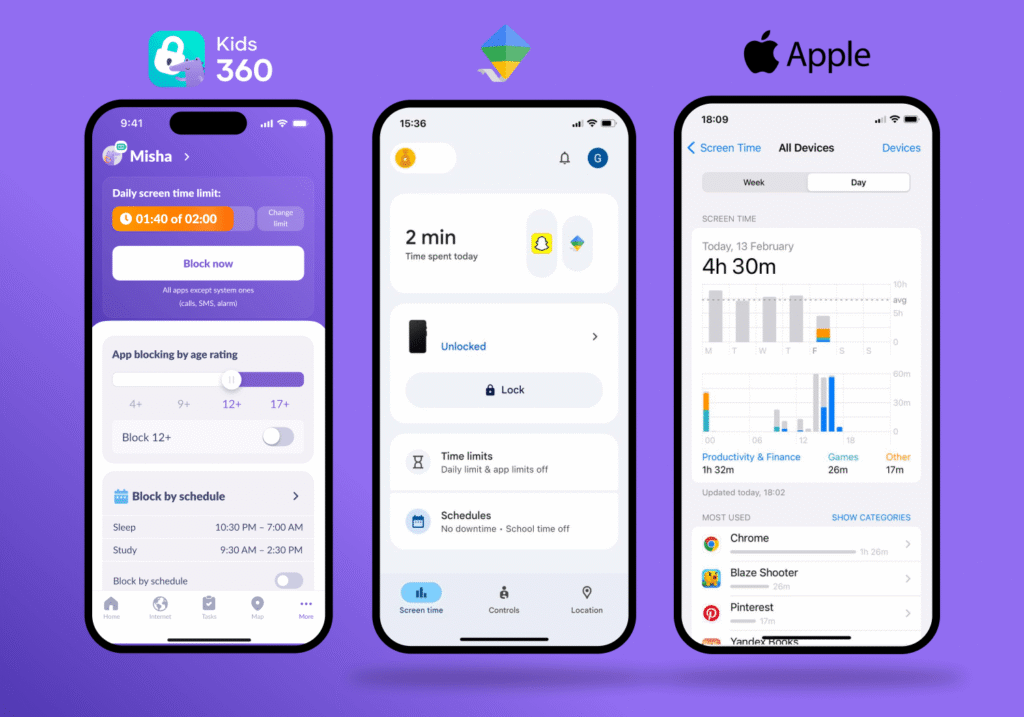
Each option works best in its intended environment. This comparison focuses on an Android parent and an iOS child.
| Feature | Kids360 | Apple Screen Time | Google Family Link |
|---|---|---|---|
| Controls an iPhone child device | ✅ Yes, through the parent app | ⚠️ Locally or through another Apple device | ❌No full device supervision |
| Overall screen time limits | ✅ Yes | ✅⚠️ Yes | ❌No for an iPhone child |
| Flexible schedules | ✅ Yes | ✅⚠️ Yes | ❌No for an iPhone child |
| Purchase restrictions | ✅ Yes | ✅⚠️ Yes | ⚠️ Google Play purchases only |
| Web filters | ✅ Adult-site blocking is supported | ✅⚠️ Built-in web restrictions | ⚠️ Limited to supported Google services |
| Location | ✅ Real-time tracking | ⚠️ Through Apple services | ❌Not as an iPhone child-device control |
| Reward-based tasks | ✅ Yes | ❌ No | ❌No |
Apple Screen Time offers strong built-in parental controls, but remote management stays inside its own ecosystem. Google Family Link suits Android families, yet it cannot supervise a child’s iPhone or iPad.
Kids360 is the most convenient choice for this mixed pairing because supported iOS features can be managed without buying another phone. Choose parental controls that work with the devices the family already owns.
Choose Controls That Work Across Both Phones
Managing an iPhone from a Samsung phone is possible, but Apple’s built-in Screen Time and Google Family Link do not provide a complete solution for this cross-platform setup. Apple’s parental controls work best within the Apple ecosystem, while Family Link cannot supervise an iPhone as a child device.
For parents who use Android while their child uses an iPhone, a cross-platform parental control app can make things much simpler. Kids360 lets parents manage supported screen-time limits, app restrictions, schedules, location tracking, and task-based rewards from their own phone. It also works across Android and iPhone, so families do not need to replace their existing devices.
The key is to choose controls that match the devices your family already uses. With the right setup, parents can create clear digital boundaries without making different phone platforms another source of stress.
Sources and References
- How Family Sharing Works, Apple
- Devices That Family Link Can Supervise, Google