How to Set Up Parental Controls on iPhone from Android


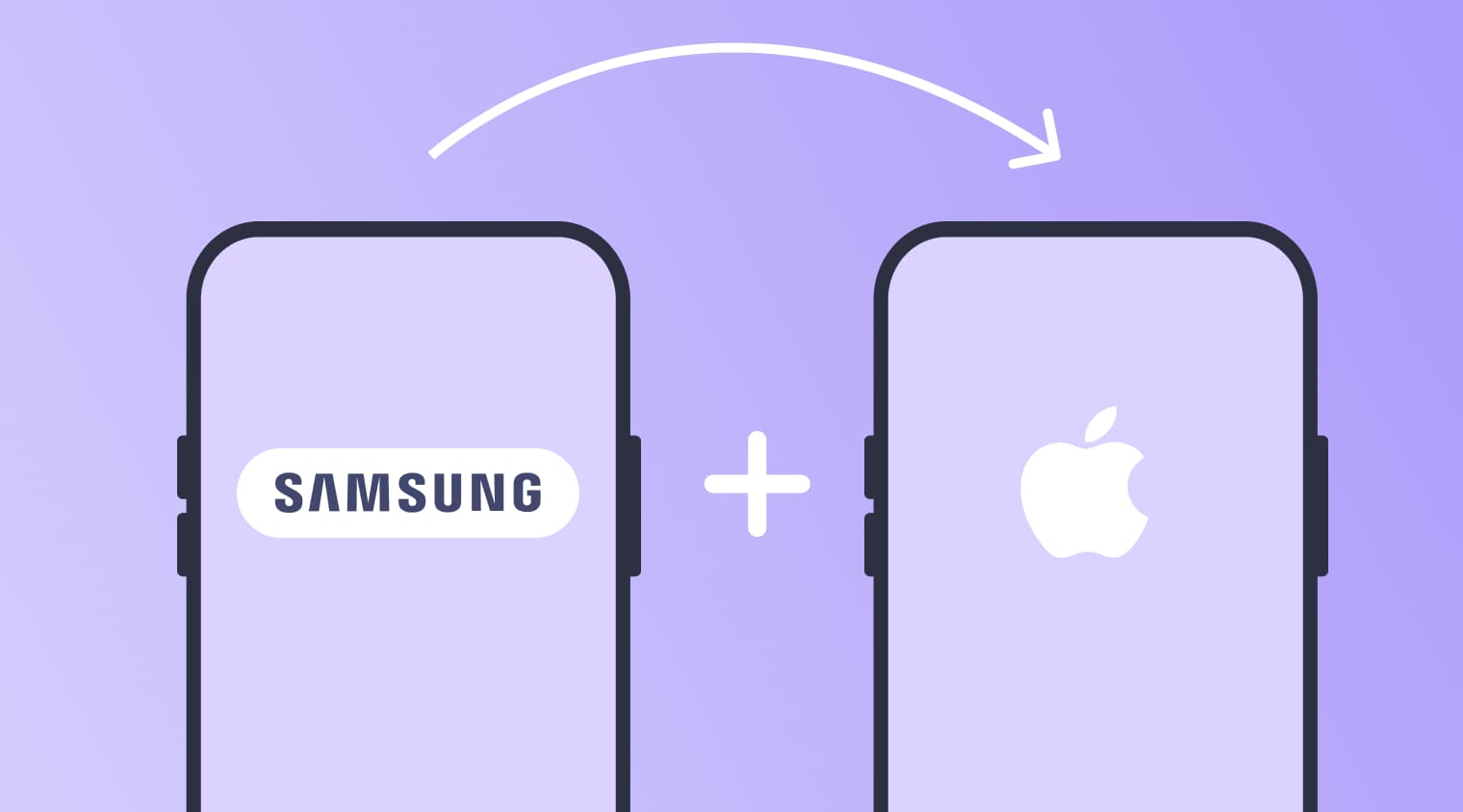
Running a home where everybody uses a different brand of phone makes managing tech feel like an endless (confusing) battle. It gets old fast. Trying to configure parental controls on an iPhone from Android can be a major technical headache because Apple and Google don’t design their software to communicate with each other. Parents end up stuck right in the middle of a frustrating platform war while trying to protect their kids.
That’s why it helps to rely on tools that are built to work across devices, so the setup doesn’t depend on which phone you personally use—just like Kids360, which is designed to work on both Android and iOS.
Key Takeaways
- Built-in screen time tools can be limited when families use different operating systems across Android and iOS.
- Cross-platform parental control tools are designed to help bridge this gap and provide more consistent supervision.
- Apps like Kids360 are built specifically for cross-platform setups, helping parents manage screen time and basic safety settings across Android and iOS devices without switching between systems.
- Clear rules and consistent routines matter as much as the technology itself when it comes to managing children’s screen time.
Contents
Can You Set Parental Controls on an iPhone from an Android Phone?
The short answer: yes, you absolutely can. But there is one massive catch. You won’t get it done using the built-in, default settings that come with the device out of the box.
Native tools only care about their own brand. Because of that, parents cannot simply link an Android device straight to Apple’s native Screen Time feature. To make these two totally separate systems speak to one another from afar and fix the cross-platform gap, families must look to third-party apps built from scratch.
Why Cross-Platform Parental Control Is Difficult
Why is this setup so incredibly frustrating? It comes down to competing mobile operating systems that genuinely hate sharing data. Android leaves things open, making it simple to tweak system rules. Apple does the opposite; they keep iOS completely locked down behind high walls.
Apple deliberately blocks outside systems from messing with its core programming to protect user privacy and device security. Because of this tight restriction, an ordinary parental controls app can’t reach in from the outside to change things remotely on an iOS device.
So, built-in tracking features from Google or Apple only work perfectly if the entire household uses the exact same hardware. If you attempt to look after a child’s iPhone using a standard Android phone without an extra software bridge, you will hit a technical brick wall every single time.
How to Set Parental Controls on iPhone from Android
To avoid compatibility dead-ends, families need a system specifically designed to bridge different operating systems. Instead of struggling with mismatched settings, a dedicated cross-platform parental control solution allows an Android device to manage an iPhone from afar seamlessly.
Choose the Kids360 App
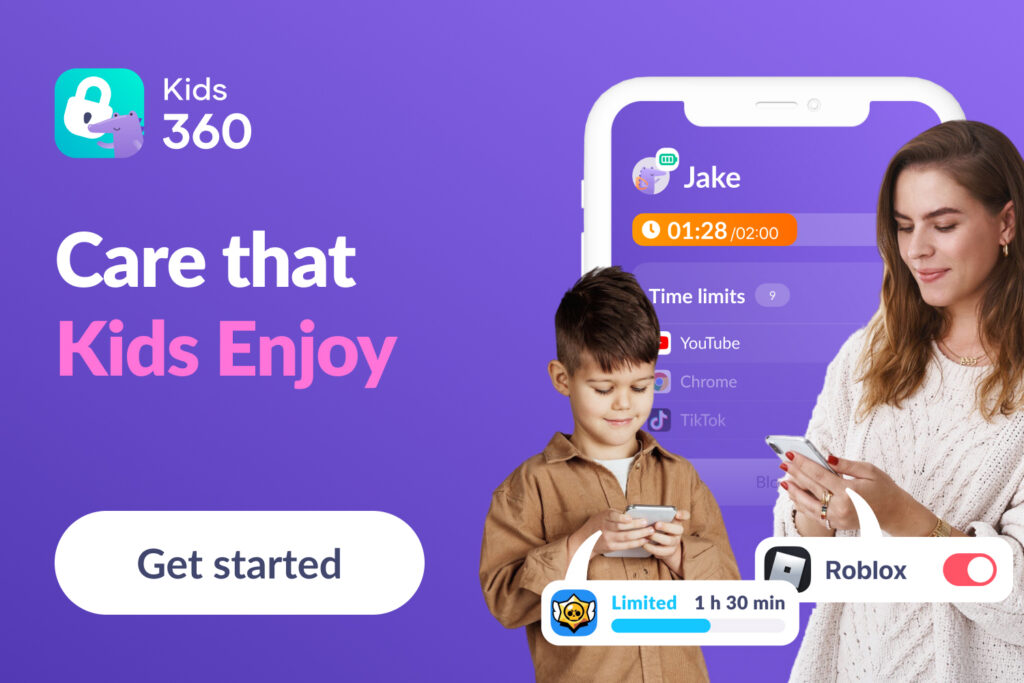
Kids360 stands out because it behaves like a full cross-platform network rather than a standard, single-device app blocker. This unique setup lets an Android phone supervise an Apple device seamlessly without losing crucial security tracking details along the way.
Instead of acting like a rigid, invisible wall that sparks constant arguments, the software keeps things transparent. It monitors background app usage, sets custom screen time boundaries, and lets parents issue real-world tasks that kids complete to earn extra minutes. It transforms digital rules into a fair, open routine that kids actually respect.
How to Set Up Kids360
Linking an Android master hardware option with a child’s iOS device is incredibly straightforward. It takes only a few minutes when you connect both devices under a single, unified account:
- Install Kids360 on the parent’s Android device: Head to the Google Play Store on your personal phone, search for Kids360, download, and install the primary app. Create your admin account to launch the central dashboard.
- Install the companion app on the child’s iPhone or iPad: Grab your kid’s device, open the Apple App Store, and download and install the specialized child utility called Alli360.
- Connect both devices under one account: Open the parent dashboard to find your unique pairing code. Type this secure code directly into the Alli360 app on the child’s iPhone or iPad to link both systems to your primary account profile.
- Configure your digital rules: Once paired, use your phone to set the main usage rules for your child’s device. You can define daily time limits for apps and categories (such as games or entertainment), manage when the device can be used during the day, and apply restrictions that help limit access to inappropriate content and new app installations.
- Enable tracking and safety settings: Complete the setup by enabling live location tracking on the child’s device so location updates work in real time.
Core Features in an Android-to-iPhone Setup

When an Android parent device is connected with a child’s iPhone, Kids360 brings together core parental control tools for managing both safety and screen habits in one place. The main functionality includes:
- Screen time and app management. Parents can set daily screen time limits for apps and categories such as games or entertainment. When the limit is reached, access is automatically paused. It is also possible to set schedules that define when the device or selected categories are available for use, for example during school hours or at night.
- Content and spending restrictions. The app allows blocking access to 18+ websites. Parents can also prevent new app installations and restrict in-app purchases to avoid unintended spending.
- Notifications and usage awareness. Parents receive alerts when screen time limits are reached or exceeded, while children can see reminders about remaining time and usage limits throughout the day.
- Motivation and screen time balance. Children can earn additional screen time by completing tasks assigned by parents. These can include simple routines or more structured cognitive and logic-based activities designed to encourage balanced screen use.
- Location and family oversight. The system provides real-time location tracking on a map. It also supports shared access for a second parent and allows multiple children and devices to be managed under one account.
If you’re looking for a simple way to manage screen time and safety across Android and iPhone devices, Kids360 can help bring all these tools into one place and make everyday digital routines easier to handle!
Why Google Family Link Is Not a Full Solution for iPhone from Android
Many families start with Google Family Link because it is a free and widely used parental control tool. However, its functionality becomes significantly limited when used with iPhones due to iOS system restrictions.
On iOS devices, Google Family Link does not provide app-level controls, detailed browsing history tracking, or deep system-level management. It also has limited access to real-time app usage data because of Apple’s background activity restrictions.
As a result, using Family Link across Android and iPhone mainly offers basic supervision features such as location sharing, but lacks the flexible screen time controls and deeper management options that many parents rely on for everyday digital rules.
Read also: The Best Parental Control Apps for Android.
Kids360 vs. Google Family Link: Cross-Platform Comparison
To better understand how Kids360 compares with Google Family Link on iPhone, it helps to look at the core features side by side. While both tools aim to support parents, their capabilities differ significantly when it comes to cross-platform control between Android and iOS.
| Feature | Google Family Link | Kids360 |
|---|---|---|
| Android → iPhone control | ❌ Not supported | ✔ Supported |
| iPhone → Android control | ❌ Limited support (Android-focused ecosystem) | ✔ Supported |
| App blocking on iPhone | ❌ Very limited on iOS | ✔ Available |
| Screen time management | ❌ Limited on iOS | ✔ Available |
| Activity monitoring | ❌ Restricted on iOS | ✔ Cross-platform insights |
| Location tracking | ✔ Basic location sharing, limited features on iOS | ✔ Real-time tracking |
| Setup complexity | Medium | Simple |
How to Choose the Right Parental Controls App
When searching for a cross-platform tool to keep your family secure and teach healthy digital habits, focusing on a few specific features can save you months of technical headaches. The right software shouldn’t feel like a clumsy, temporary fix; it needs to bridge the gap between different operating systems seamlessly while adapting to real life.
True Cross-Platform Capabilities
The monitoring software must operate cleanly across different setups without dropping key features. If the parent view lags, glitches, or options suddenly vanish just because you are using an Android phone to look after an iOS device, that app won’t solve your issues. A well-engineered ecosystem like Kids360 guarantees that the parent interface remains identical and fully functional, whether you are managing an iPhone from an Android device or vice versa.
Verified App Restrictions
Always check exactly what level of control you get on the child’s device. Many standard tracking tools merely send passive notifications after your child has already spent hours playing mobile games, which does little to stop device reliance. To get real results, a high-quality parental controls app must give you the immediate ability to enforce strict app limits and block platforms right away, a core design focus that makes Kids360 highly reliable across hardware brands.
Deep Activity Reports
A reliable setup should give parents a clear view of how a child uses their device without overwhelming detail. Instead of complex breakdowns, Kids360 presents daily usage data in a simple format that shows overall screen time and activity across app categories.
This helps parents understand general usage patterns—such as time spent in games, social apps, or other categories—and makes it easier to notice trends and discuss healthy limits together.
Live Location Mapping
Reliable safety and location tracking features offer immense peace of mind when kids leave the house. The app should pull live GPS data so you can check their location and verify the exact moment they walk into school or visit friends. Because basic tools frequently restrict cross-platform map updates, Kids360 maintains a highly accurate, live tracking feed that works flawlessly across split-ecosystem homes.
Seamless Daily Operation
Keep a close eye on how simple the software is to install and navigate on a daily basis. If updating a basic schedule, adding a task, or resetting time limits turns into a giant, multi-step technical project, you will probably give up on the tool within a few weeks. This is why Kids360 prioritizes a clean, single-screen parent dashboard, making daily rules entirely stress-free.
Long-Term Adaptability
Your parental controls must evolve naturally as your children grow up. A ten-year-old child needs strict content restrictions to filter out explicit language or mature web searches, but an older teenager requires more independent breathing room and trust. Because Kids360 relies on a flexible, reward-based task system rather than just flat blocking walls, it works perfectly for younger kids while transforming into a collaborative time-management tracker for older teens.
What to Do Before Setting Up Any Parental Control Tool
Before setting up any parental control system, it’s important to start not with the app, but with a conversation. Introducing restrictions without explanation can easily feel sudden for a child and may affect trust. It helps to talk openly about why these tools are being used — not as a form of surveillance or punishment, but as a way to support healthier routines, protect sleep, help with focus at school, and leave space for offline life.
It’s also important to agree on rules that match the child’s age and level of independence. Younger children usually need clearer boundaries and stronger safety settings, while teenagers benefit more from flexibility and gradually increasing responsibility. As children grow, these rules should evolve as well, shifting from strict limits to a more collaborative approach that respects their maturity.
Finally, parental controls work best when they are treated as an ongoing process rather than a one-time setup. Family routines change, and children’s habits develop over time, so it makes sense to check in regularly and adjust the rules when needed. Looking at screen time patterns together can help keep expectations realistic and make it easier to agree on adjustments, whether that means extra time, new boundaries, or encouragement to spend more time offline.
Creating Healthier Digital Habits at Home
Building an intentional relationship with technology doesn’t have to cause non-stop friction at home. Managing a split-ecosystem household shouldn’t mean dealing with constant tech issues, missing data settings, or endless arguments.
By moving away from basic, top-down system restrictions and using an automated, reward-focused app like Kids360, you can move away from strict surveillance toward smart motivation. This approach transforms smartphones back into helpful utilities for learning and physical growth while taking the emotion completely out of daily device rules.
When deployed properly, these safety guardrails encourage better focus, healthier screen routines, and a lot more balance in everyday life. The parent app dashboard and the child companion tool are available to download for free on both Google Play and the Apple App Store, giving your entire family an immediate path to a calmer, happier home.