Is CapCut Safe for Kids? A Closer Look at the App

One minute, a child is trimming a birthday video; the next, they are browsing templates made by strangers and asking to post their edit online. That quick change from a private project to public content is why parents ask: Is CapCut safe for kids? CapCut makes it easy to edit videos and can be a useful creative tool, but children need clear rules about what they upload and where their finished videos go.
Key Takeaways
- CapCut’s terms say its services are intended for people aged 13 and older, and users under 18 need permission from a parent or guardian.
- The video editing features can encourage creativity, but community content may include inappropriate content.
- CapCut collects account, device, activity, and uploaded-content information, so privacy concerns deserve attention before a child starts creating.
- Parental controls like Kids360 can help families manage screen time, purchases, and access to CapCut, even though they cannot control every choice made inside the app.
Table of Contents
What Is CapCut?
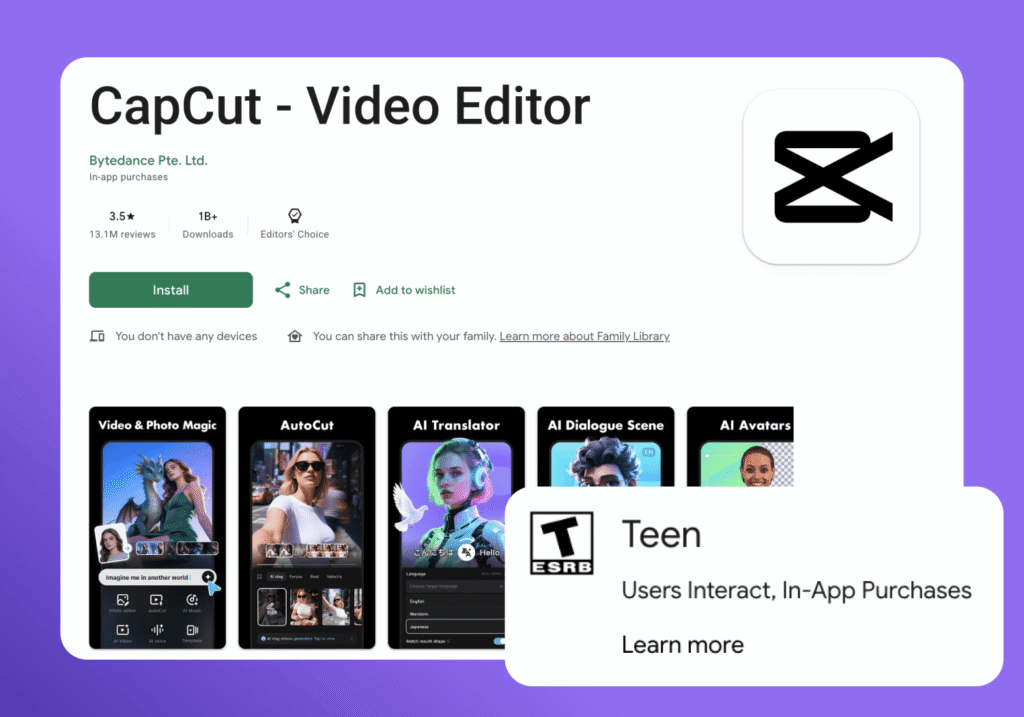
CapCut is a free video editing app developed by ByteDance, the same company whose products include TikTok. The simple video editing app lets people trim footage, add captions, and use ready-made templates to edit videos for social media and other platforms.
The video editor includes music and sound effects, transitions, stickers, and appearance filters. CapCut has reported reaching hundreds of millions of users.
This video editing tool extends beyond trimming:
| Feature | What Parents Should Know |
|---|---|
| Video editing | The app’s core function is helping users create and edit short videos. |
| Templates | Some may include mature themes or language. |
| Music and sound effects | Audio may reflect trends from social media platforms. |
| AI tools | Some features require media, text, or prompts to be uploaded. |
| Beauty filters | These tools can significantly alter a face or body. |
| Social sharing | Projects can be sent to linked social media accounts. |
| Comments and community | Features can differ between versions of the app. |
| In-app purchases | Paid tools and features are available. |
| Parental controls | CapCut’s family-management options are limited compared with a dedicated parental-control app. |
CapCut gives children plenty of ways to create and edit videos, but parents should know what personal content they upload and where the finished videos are shared.
What Age Is CapCut Appropriate For?
https://www.tiktok.com/@wsryss5/video/7658388399396572446?is_from_webapp=1&sender_device=pc
CapCut’s current Terms of Service say the service is intended for people aged 13 and older. Users under 18 also need a parent or guardian’s permission.
That means children under 13 shouldn’t use CapCut on their own. The app’s parental guidance makes this clear, too. Younger children can still take part in a family video project, but they should do so with an adult’s help—not by creating and using their own CapCut account.
Age limits are only one part of the picture. A child can enter a birth date and get past an age gate, but that doesn’t mean they’re ready to use the app. As the UK Information Commissioner’s Office (ICO) warns, age checks based on self-reported information can be easy to get around. Parents still need to consider whether CapCut is right for their child and what risks they may encounter.
Is CapCut Safe for Kids?
CapCut can be a fun editing tool when a child is making a family video beside a parent. The experience changes once that child begins browsing public templates, interacting with other users, or sharing videos alone.
When deciding whether CapCut is safe for kids, parents should look at how the app will be used, not only whether it is installed.
Inappropriate or Mature Content
CapCut uses automated systems and human reviewers to moderate templates, comments, effects, and AI-generated content. Users can also report posts that break its rules. However, moderation does not guarantee that every unsuitable post will be removed before a child sees it.
A child browsing templates may still come across strong language, sexual references, frightening images, or jokes intended for an older audience. Parents of younger children may prefer to choose templates together instead of allowing unsupervised browsing.
Privacy and Personal Information
A child does not need to publish a video for privacy to matter. CapCut’s Privacy Policy explains that it may collect account details, device and usage information, and content created or uploaded through its services. In some cases, CapCut may pre-upload user content to its services while it is being created, imported, or uploaded, even if it is never saved or published.
Parents should check the app’s permissions and talk to children about what should never appear in a video. School uniforms, street signs, house numbers, daily routines, and live locations can reveal more personal information than a child realizes.
Sharing and Public Exposure
An unfinished draft and a public post are not the same thing. CapCut says projects kept in My Projects or saved locally remain private unless the user chooses to share them. However, the app does not currently offer a setting that makes an entire account private. Videos posted to the CapCut Community or shared through public links can be viewed by other people.
Before a child exports a project, a parent should check where it will be saved or posted. Comments and public sharing can also bring unwanted attention from strangers, even if the video itself seems harmless.
AI Features and Misleading Edits
CapCut’s AI features can alter faces, generate images, change voices, and create realistic-looking scenes. These tools can be entertaining, but children may also use them to imitate a classmate, make an embarrassing joke, or create something viewers mistake for real.
CapCut advises users not to upload another person’s face, voice, or private content without permission. Children should also understand that appearance filters can create unrealistic ideas about how people are supposed to look, which may affect self-esteem.
In-App Purchases and Paid Features
CapCut offers many free editing options, but some effects, templates, storage features, and other tools require payment. A child may tap through a purchase screen without fully understanding that money is involved.
Parents can prevent unexpected in-app purchases by requiring approval through the App Store or Google Play. It is also worth explaining which features are free, which are paid, and why a child should ask before starting a trial or confirming a purchase.
Is CapCut a Social Media App?
CapCut is primarily a video editor, but it overlaps with social media apps. Children may browse templates, view comments, and share finished work to social media platforms.
It is not built around direct messaging like many traditional networks. Still, connecting a child’s TikTok account can move a private project into a public environment. Editing and publishing should remain two separate decisions.
Does CapCut Have Parental Controls?
CapCut has reporting and account settings, but no full parent dashboard for remotely managing a child’s use. One private account setting would not solve every privacy concern either.
Device-level parental controls can limit how long a child uses the app, block access at certain times, and, on supported devices, restrict in-app purchases. They also help parents monitor usage without supervising every editing session.
How to Make CapCut Safer for Kids
There is no single setting that makes CapCut completely child-friendly. A safer setup comes from checking the account, limiting what a child shares, and agreeing on a few rules before editing begins.
Check the Account and Privacy Settings
Open the child’s CapCut profile together and look at the information other people could see. Remove personal details, disconnect services the child does not need, and review the app permissions on the phone.
This is also a good time to check for old public posts or links. Good data privacy often comes down to a simple rule: if CapCut does not need the information, do not add or upload it.
Decide What Can Be Shared
Younger users can begin by editing their own videos and keeping the finished projects on the family device. Avoid clips that reveal a school, home address, regular route, or current location.
Parents can also help children choose approved templates and creators. A popular template is not automatically age-appropriate, so it is worth watching it from beginning to end before a child uses it.
Agree on Rules for AI Editing
Children should ask permission before using another person’s image or voice in a video. Even a joke between friends can become upsetting when a realistic edit is saved, forwarded, or posted publicly.
Talk about consent before a problem happens. Children should understand that an AI-generated video can look convincing without being true, and that digital responsibility includes thinking about how the person in the video might feel.
Put a Time Limit on Editing
A quick edit can turn into an hour of testing filters, sounds, and transitions. Agree on a stopping time before the child opens CapCut, particularly on school nights.
Parental supervision does not need to mean watching every edit. It can be as simple as checking in, protecting time for homework and offline hobbies, and following the same cutoff consistently. This allows children to enjoy creating videos without letting the app take over the rest of their day.
How Kids360 Helps Parents Set Boundaries Around CapCut

Editing videos can be a fun way for kids to express themselves. But when a child gets caught up in choosing effects, trying templates, or perfecting a clip, it can be hard to notice how much time has passed.
Kids360 parental control app helps parents set clear limits around CapCut and other apps—without turning every “time to put your phone away” into an argument.
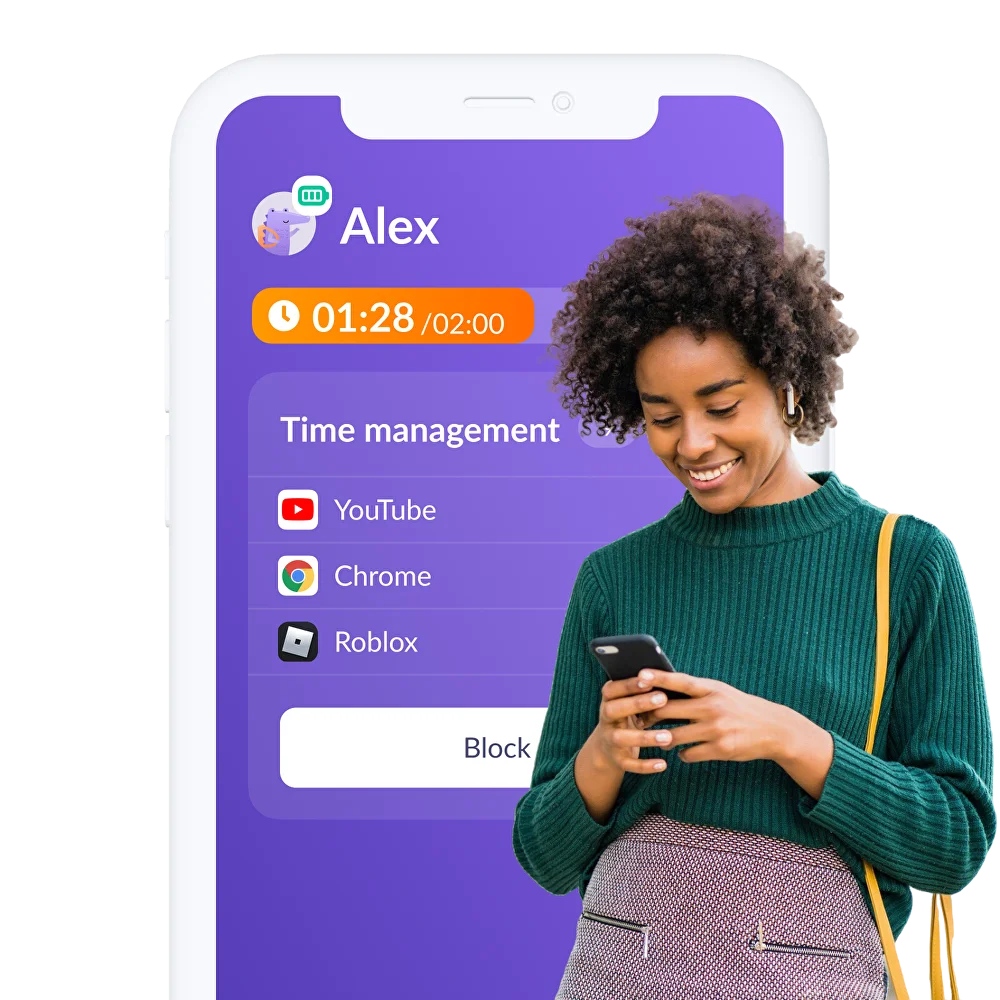
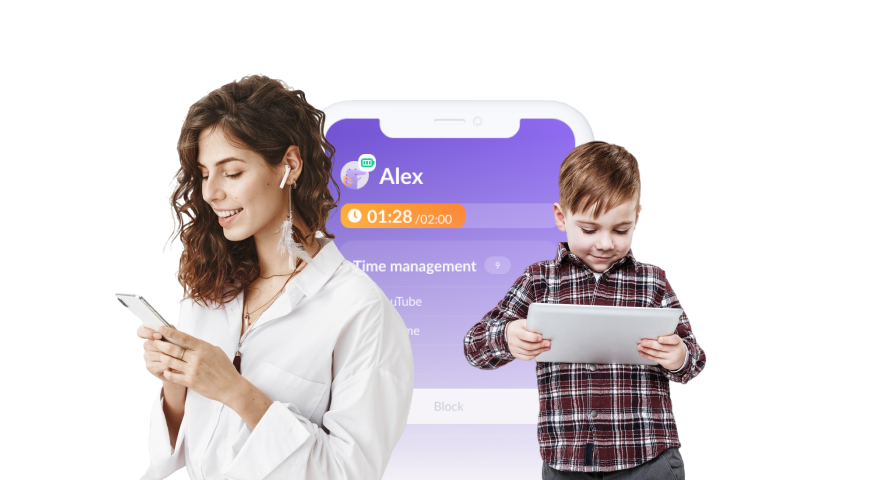
With screen-time limits, parents can set daily boundaries for entertainment apps. And with app controls, they can restrict CapCut while keeping essential apps available. This can be especially helpful when a child needs to focus on homework, get ready for bed, or take a break from the screen.
A routine can make limits easier to follow. Kids360 lets parents set schedules for when selected apps are available. For example, CapCut can be off-limits during homework or bedtime, so parents don’t have to keep reminding their child to close the app.
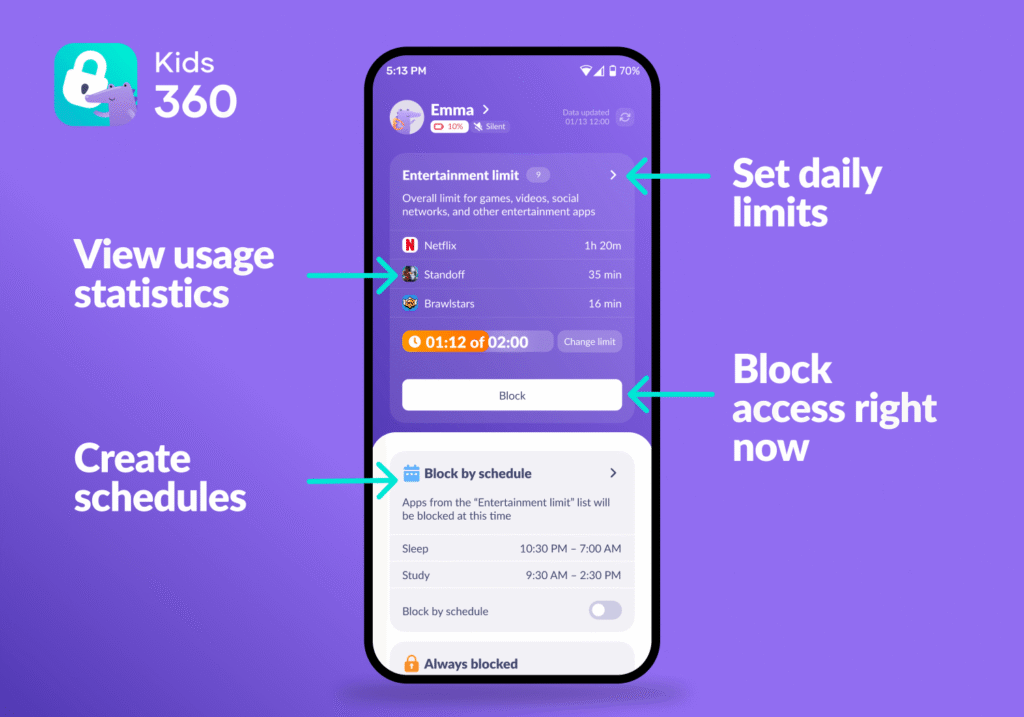
It’s also easier to talk about screen time when you know how the child actually uses their phone. Usage statistics show how much time they spend in apps, helping parents spot patterns and decide together whether the current limits are working.
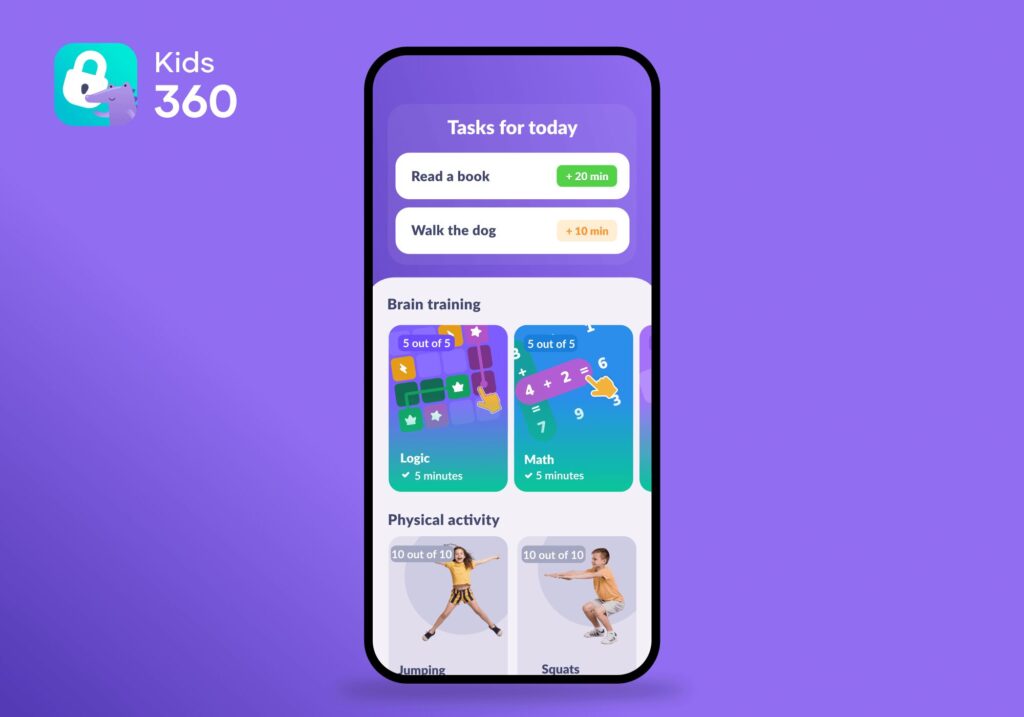
And screen time doesn’t have to be only about watching or editing videos. With developmental tasks, children can earn extra phone time by completing learning activities or tasks agreed on with their parents. That gives them a chance to practice responsibility while making room for other activities, too.
Kids360 doesn’t read a child’s CapCut projects or choose which videos and templates they can use. It helps families manage when and how long apps are available, so children can enjoy creative projects within clear, agreed-upon boundaries.
Download Kids360 for free right now and set screen-time rules together with your child.
When Taking a Break From CapCut May Be the Right Choice
Using CapCut does not have to be an all-or-nothing decision. However, a temporary break may help if a child shares private information, repeatedly ignores family rules, makes purchases without permission, or stays awake editing videos.
Parents can explain what needs to change before the app returns. The child may need to keep projects private, ask before making purchases, or use CapCut only during agreed hours. Kids360 parental controls can help parents manage the break and set clear limits when the child is ready to use the app again.
Sources and References
- Terms of Service, CapCut
- Privacy Policy, CapCut
- Parent Safety Guide, CapCut
- Trust Center, CapCut
- ByteDance Products and Services, ByteDance
- Open letter to social media and video sharing platforms on strengthening age assurance, Information Commissioner’s Office
FAQ

No, CapCut is not intended for independent use by children under 13. Its terms set 13 as the general minimum age. For younger kids, parents should choose a video editing app designed for children or remain directly involved in the project. This keeps the activity within the service’s stated rules.
CapCut has account and reporting tools, but not the same remote parental controls as Kids360. You can use Kids360 for screen time, schedules, and app access, then use CapCut’s settings to review projects and sharing. Each handles a different part of the child’s experience. Review both sets as the child’s needs change.
CapCut says its service isn’t intended for children under 13. Its privacy policy also explains that it collects information about users, their devices, activity, and the content they create. Before your child starts using the app, take a look at what information it collects. It’s also a good idea to avoid uploading videos that show sensitive family details or reveal where you live.
Other users may be able to interact with public projects through comments or community features. Even if there’s no traditional private chat, public content can still lead to unwanted attention. Talk with your child about keeping projects private when possible and asking you before moving a conversation to another app. Make sure they know they can tell you if someone makes them uncomfortable.
Not through one universal switch. CapCut’s current guidance says an account-wide private account option is not available across its services. Unshared projects remain private, but community posts and public links do not. Children should save locally unless sharing has been approved. Delete anything published accidentally as soon as it is noticed.
Yes. Templates, comments, audio, and video trends may include content that isn’t suitable for children. You can lower the risk by staying involved, helping your child choose templates, and checking what they’re watching or using. Remind them that they can close anything that feels uncomfortable and come to you without worrying about getting in trouble.
With Kids360, parents can restrict or limit CapCut. Open your child’s profile and set the app restriction. You can make it part of a schedule or use it when you want your child to take a break. Explain the rule beforehand so the block doesn’t come as a surprise, and check together that it works as expected.