How to Check Your Child’s Screen Time on Android with Kids360

Many parents feel lost trying to track their kids’ activity on Android devices. While phones come with built-in tracking, that data is often hard to find or decipher because it is scattered in the phone’s settings. Figuring out how to check screen time on Android is the first real step for parents who want to help their family swap endless scrolling for better, more intentional habits.
The pressure to act is real (and urgent) because digital devices are built to shatter our focus. Researchers at the University of California, Irvine, found that it takes more than 23 minutes and 15 seconds to regain deep focus after a single interruption. For a child trying to finish schoolwork or get lost in a hobby, those constant dings and notifications make it nearly impossible to reach that same state of calm, deep concentration. Parents who set clear boundaries aren’t being strict; they are protecting their children’s ability to think and learn in a world that never stops interrupting them.
Key Takeaways
- Built-in tools on Android and Samsung Galaxy devices provide basic usage data but often lack the motivation-based features needed for long-term habit change.
- Kids360 acts as a comprehensive, cross-device solution that allows parents to move beyond simple monitoring into active digital mentorship.
- Setting up Kids360 allows parents to see app usage, overall screen time, and browser history in one unified dashboard.
- Children learn responsibility by earning extra screen time through educational tasks, physical movement, and chores.
- Consistent monitoring is the most effective way to protect a child’s mental health and physical fitness.
Contents:
Kids360: The Best Way to Monitor and Manage Screen Time Across Devices
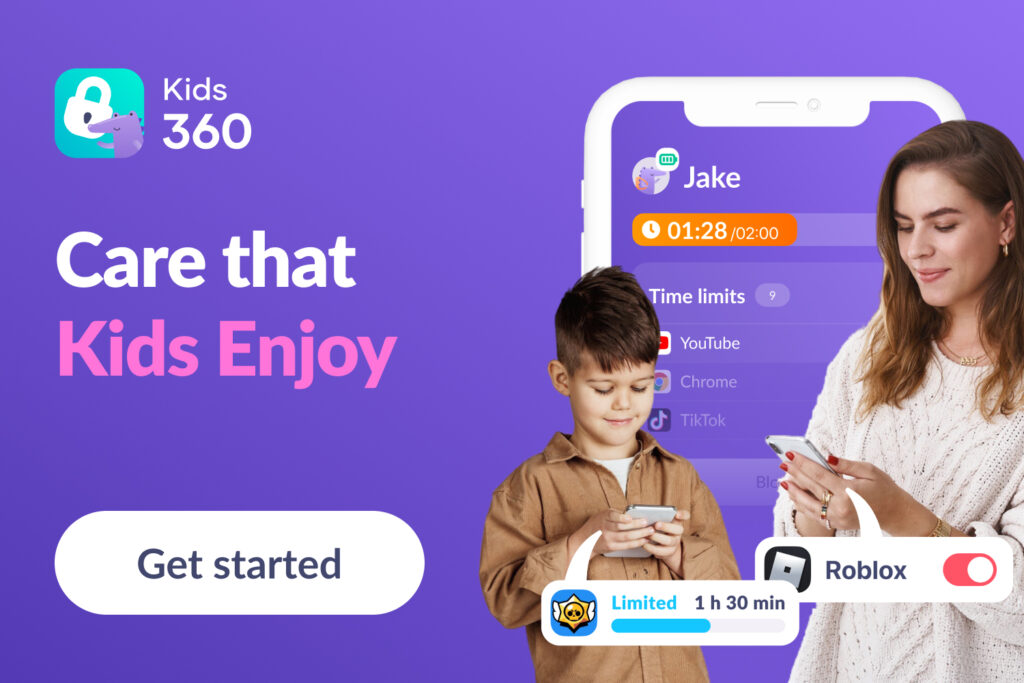
Many parents find that standard device settings are not enough to manage a child’s complex online life. Native tools are designed for personal tracking, but managing a family requires a more hands-on approach. Kids360 provides a complete system that blends oversight with child development.
By using Kids360, parents gain a partner in their child’s development rather than just an app blocker. The app turns the chore of monitoring into a productive system where children take ownership of their own time.
Limitations of Native Android Screen Time Tools
Android devices include Digital Wellbeing and Family Link, which offer a starting point for families. However, Android screen time tools often have significant gaps. They can be easy for a child to bypass, and they rarely provide the tools needed to encourage productive alternatives to scrolling.
- Fragmented Data: Android screen time tools often require checking each device individually, which becomes difficult for parents with multiple children.
- Limited Cross-Platform Access: These tools are designed primarily for Android ecosystems. If a parent uses a different device—such as an iPhone—accessing or managing screen time data becomes less convenient and, in some cases, limited.
- Lack of Positive Reinforcement: Native tools are purely restrictive. They do not offer the cognitive or physical challenges that help children grow while they use their phones.
- Incomplete Insights: Parents often need a more detailed breakdown of usage, including specific YouTube views or browser activity, which is not always easily accessible in native settings.
What is Kids360?
Kids360 is a parental control app designed to foster a balance between digital security and a child’s well-being. Rather than simply saying “no,” Kids360 provides a system where children learn that time on their device is a resource that can be earned through effort. By turning gadget use from a passive habit into a productive learning game, the app helps children manage their time with greater independence.
With Kids360, you get a complete set of tools to stay in the loop and keep your kids safe:
- Manage Time and Apps: You decide the total hours allowed each day and pick which specific apps stay off-limits.
- Create a Routine: You can set schedules to block playing games or social media during times meant for school, homework, or sleep.
- Keep Them Safe: You can check your child’s real-time location, see what they search for or watch on YouTube, and block content that is not age-appropriate.
- Reward Productive Habits: You can turn monitoring screen time into a game where kids earn extra minutes by finishing reading, doing household chores, solving logic puzzles, or hitting a daily step count.
Designed for modern parents who want to encourage supportive activities, Kids360 is available for download on Google Play or the App Store, and other platforms. Start your free trial and experience the slogan, Kids360—Care that kids love.
How to Check Screen Time on Your Child’s Android with Kids360 Parental Controls
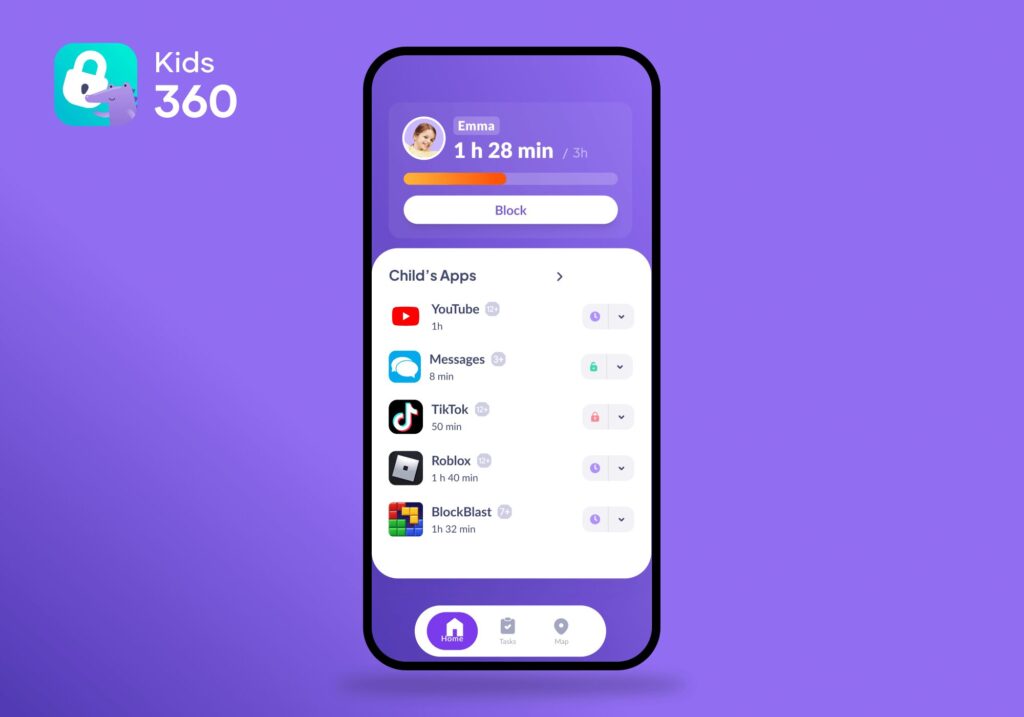
Setting up Kids360 is simple and takes only a few minutes. This is especially helpful for busy parents who need a fast, reliable way to manage a child’s account.
Step-by-step instructions:
- Download Kids360 from Google Play or the App Store.
- Install the companion app Alli360 on the child’s Android device.
- Follow the on-screen prompts to link the child’s account to your parent dashboard.
- Grant the necessary permissions on the child’s device to allow for accurate monitoring and app blocking.
What Kids360 on Android Actually Shows You
Once connected, you get a clear view of your child’s phone habits and even notifications. You no longer need to guess how much time is being spent on specific tasks.
- Total Daily Usage: View parental controls to see exactly what the daily usage or weekly usage is.
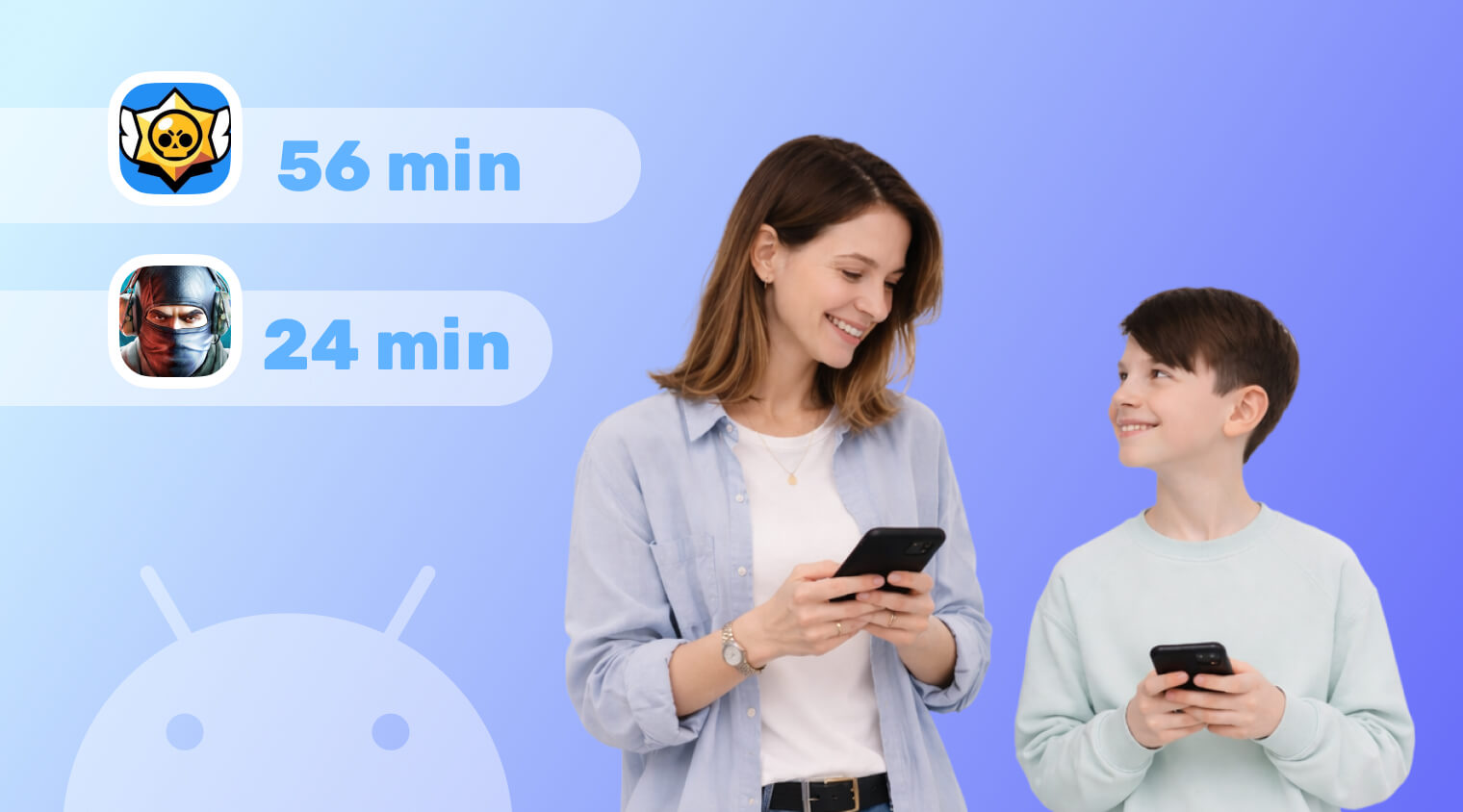
- App-Specific Time: View a detailed breakdown of which games or social media apps consume the most time.
- Daily Reports: Receive consistent updates on digital patterns, making it easy to spot when a child spends too much time on a specific platform.
- Browser and YouTube History: Review search history and video views to ensure the content remains safe.
How Kids360 Can Help Manage Your Child’s Screen Time
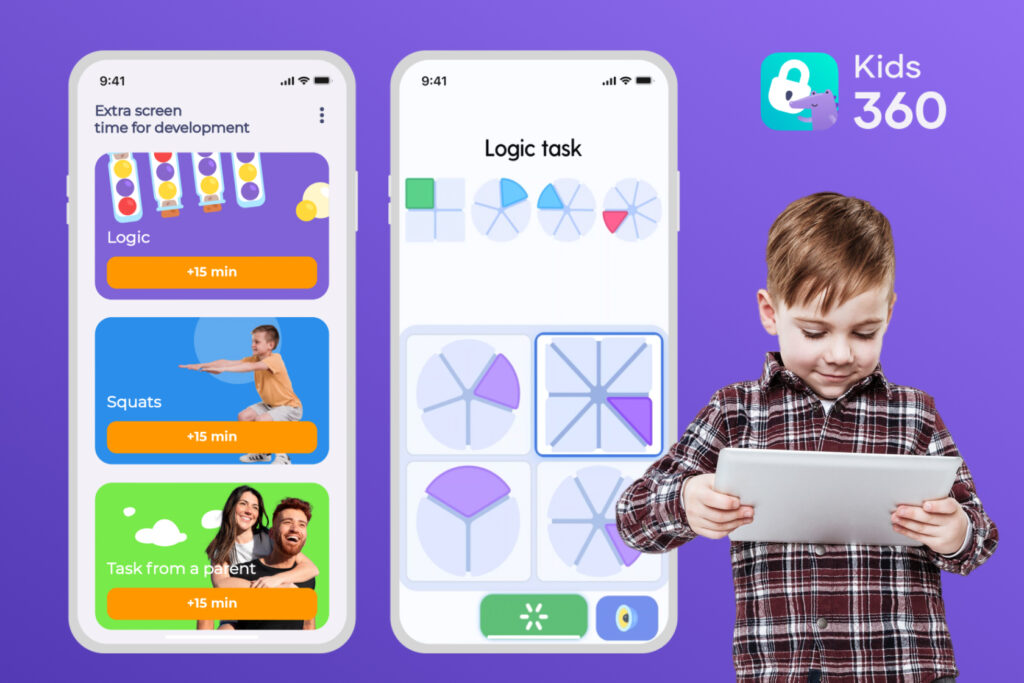
Kids360 allows you to move beyond just checking usage. You can actively shape how your child interacts with their device.
- Set a hard cap on the total hours allowed for device use each day.
- Set time limits to specific games or individual apps that you deem unproductive.
- Block games and apps during school hours, homework time, or at night to protect sleep by using bedtime mode.
- Prevent the download of new apps without your approval.
- Use the cognitive and physical task system to teach your child that daily screen time is a resource earned through effort.
Ultimately, managing screen time isn’t just about setting limits—it’s about helping children build healthier habits and understand how to use their time more intentionally. Tools like Kids360 make that process easier by combining clear oversight with features that encourage independence and responsibility.
If you’re looking for a more structured and flexible way to support your child’s digital habits, Kids360 is worth exploring. Try it for free right now!
How to Check Screen Time on Android Using Built-In Features
If you choose to use the native tools, you can find them within the settings menu of the Android phone.
Method 1: Digital Wellbeing
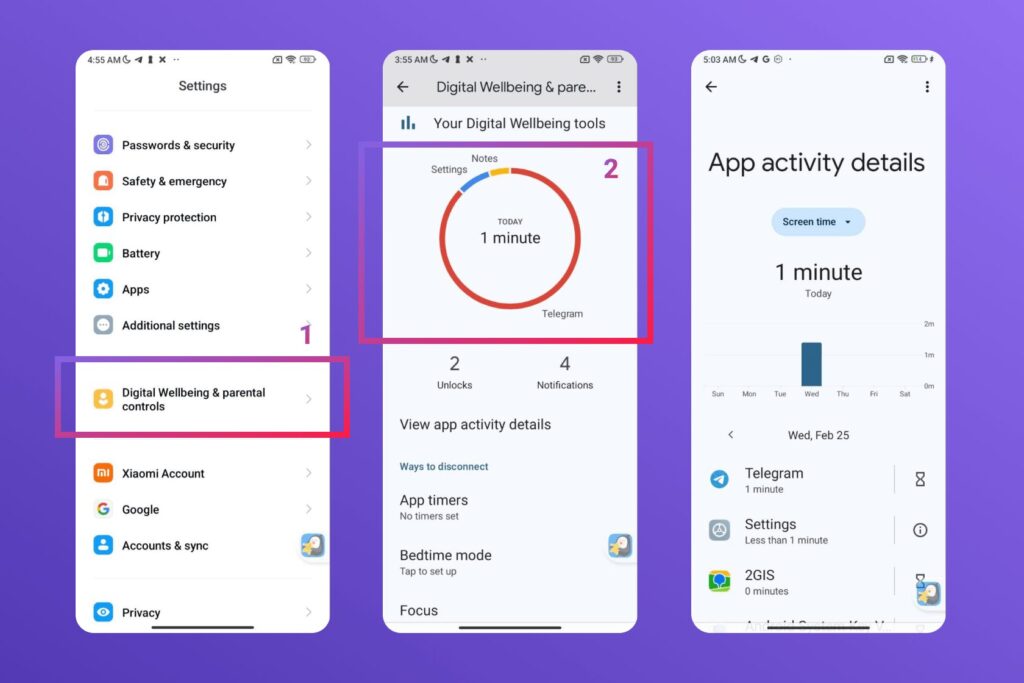
- Open Settings on the Android phone.
- Scroll down to find Digital Wellbeing and parental controls.
- Tap the Digital Wellbeing dashboard to see a detailed breakdown of all time spent.
- You can then set up a Focus Mode, a distraction-free setting.
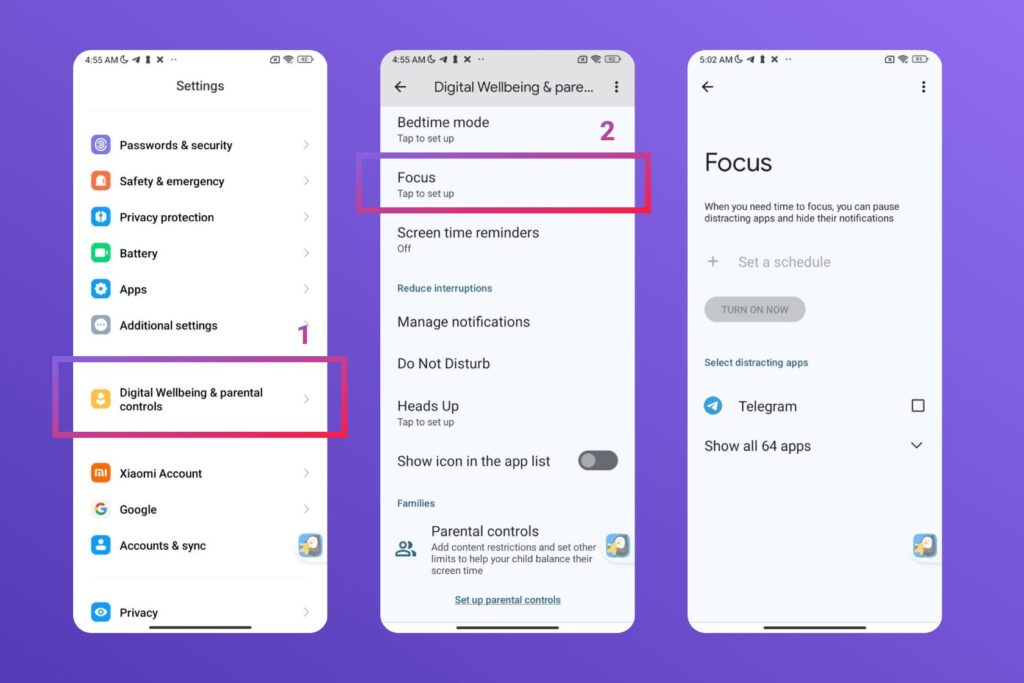
Method 2: Google Family Link
If you have set up a Google Family Link account, you can manage settings remotely. Open the Family Link app usage on your own device, select your child’s account, and view the usage statistics listed under their profile.
You do not have to be the parent who constantly plays the “bad guy” by taking your child’s phone away. When you use a tool that is helpful and offers support, the phone turns from a constant source of fighting into a tool for learning. You might start with the basic settings on your phone or decide to try the more complete tools in Kids360, but the end goal is the same. You are building a safer home where tech helps your family instead of taking over.
Download Kids360 on Google Play or the App Store today to start for free, and see how simple it is to get your child’s digital habits on the right track!