Free Parental Control Apps for Android: Which Ones Are Worth Trying?

Within a day of getting a new Android phone, most kids have found YouTube, downloaded three new games, and asked for more. A free parental control app for Android lets parents set a few ground rules without adding another monthly bill. Several free tools do this well, but each one suits a different kind of family.
Key Takeaways
- Google Family Link is completely free and offers strong built-in parental controls for Android phones and Chromebooks.
- Kids360’s free plan includes app usage statistics, location tracking, parent-assigned tasks, and unlimited devices.
- Free plans rarely include social media monitoring in their parental controls, so parents should check the feature list before installing.
- Parental controls work best alongside clear screen time rules the child helped create.
- Download parental control apps only from official app stores and review every permission they request.
Table of Contents
Which Free Parental Control App Is Best for Android?
There is no single winner, because each free parental control app covers a different mix of parental controls. The table below compares the free plans side by side, followed by recommendations for common family situations.
Quick Comparison of Free Android Parental Control Apps
Each of these apps offers some parental controls without payment, but the free features vary a lot.
| App | Included in the free version | Paid features | Free trial | Best for |
|---|---|---|---|---|
| Kids360 | App usage statistics, overall daily screen time limit, time limit for one app, location tracking, tasks, Loud Signal, unlimited devices | Full app blocking, schedules, blocking new downloads | Yes | Families who want not only to set screen time limits but also to teach children responsibility and build healthy digital habits |
| Findmykids | Real-time location, route history, SOS, Supersignal, family circles and location sharing with loved ones | Full route history, Sound Around, expanded movement notifications, app blocking and other advanced parental controls | Yes | Families who prioritize children’s physical safety and want to keep track of other loved ones too |
| Google Family Link | Daily limits, app limits, app approvals, Chrome web filtering, location | Nothing, the app is free | The core service is free | Families already using Google accounts |
| Qustodio | One device, web filtering, Safe Search, 7-day activity reports | More devices, app blocking, location | Yes | One child with one main device |
| Kaspersky Safe Kids | Web filtering, app management | Screen time scheduling, GPS, alerts | Yes | Web safety on a computer and phone |
Google Family Link offers a solid set of free parental controls for Android. But managing screen time isn’t just about setting limits—it’s also about helping children build healthy digital habits. That’s where Kids360 stands out: parents can set limits, reduce distractions, and reward children with extra screen time for completing tasks. It also works across both major mobile platforms, which Apple Screen Time and Family Link cannot do alone.
Which App Is Best for Different Parenting Needs?
The best parental control app depends on the family’s daily routine, and real situations make the choice easier than any feature list:
- A child with a first phone who is still learning to manage screen time: Kids360. Parents can see how much time their child spends on different apps, set a daily screen time limit and a limit for one specific app, and get notifications when the limit is reached.
- A child who needs motivation to finish chores or homework: Kids360. Parents can create their own tasks and offer extra screen time as a reward. This makes it easier to connect phone privileges with everyday responsibilities instead of relying on restrictions alone.
- Parents who want to understand their child’s digital habits: Kids360. Free usage statistics show which apps the child uses and for how long. Parents can also check the last three browser searches and YouTube videos watched.
- A family that already uses Google accounts and a school Chromebook: Google Family Link, which applies free parental controls to the child’s account across Google services.
- A child who mainly uses one tablet, with websites as the biggest worry: Qustodio’s free plan, which adds web filtering on a single device.
- A parent who mostly wants to know a child arrived at practice: Findmykids, which offers real-time location tracking, route history, SOS alerts, and Supersignal in its free version. Screen time management and other parental controls are available with a paid subscription.
- A family that wants basic screen time tools and location tracking in one app: Kids360. The free version combines usage statistics, screen time limits, real-time location tracking, and Loud Signal to help parents reach a child who isn’t answering.
- A household with one child on an iPhone and another on Android: Kids360, which manages Apple devices and Android devices from one parent app. Apple Screen Time handles parental controls on the iPhone alone, while Google Family Link only fully supervises the Android side.
Free versions can cover quite different needs, so it helps to look beyond the number of features.
Read also: Parental Controls on Android: How to Move from Restrictions to Real Growth.
What Features Should a Free Parental Control App Have?
Most parental control apps share the same core parental controls, whether they come from free tools or paid parental control software. Before installing one, parents can check for:
- Screen time limits that cap daily use without cutting off calls.
- App blocking and app limits for specific apps, such as games or social media apps.
- Web filtering and content filtering that hide adult content and explicit content in the browser.
- Location tracking that shows the child’s location on a map.
- Activity reports on app usage, so parents can spot habits early.
- Protection against removal, so parental controls stay in place even with tech-savvy kids.
Social media monitoring is rare in free tools, and most free apps cannot read social media messages at all. Gaming consoles also need separate settings, because phone parental control tools do not reach an Xbox or a Nintendo Switch. Families with gaming consoles should switch on each console’s built-in parental controls too.
It’s also worth checking which features are genuinely free, whether they work on your child’s device, and if any important restrictions require a paid subscription.
Best Free Parental Control Apps for Android Review
Parents comparing the best free parental control options usually narrow the list to these five free tools, which rank among the best parental control tools for Android. Each review covers how its parental controls work on the free plan and where they fall short.
Editor’s Choice: Kids360 App
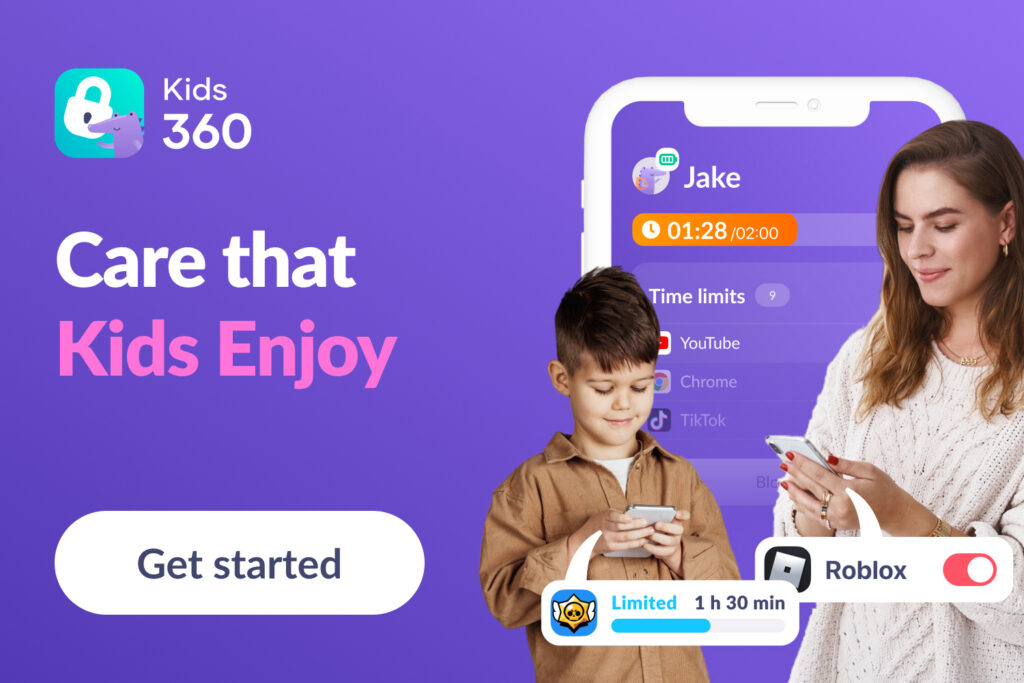
Kids360 is a parental control app that helps parents manage screen time, follow the child’s location, and build healthier phone habits across mobile devices. Parents install Kids360 on their own phone, while the child’s device runs a companion app called Alli360.
What makes Kids360 stand out is that it goes beyond setting limits. It gives parents tools to help children become more independent and responsible with their devices, while making screen time more purposeful and balanced. This makes it a strong choice for families who want parental controls to support healthy digital habits, not just restrict phone use.
Why Do Parents Choose Kids360?
Parents tend to pick Kids360, and many call it the best free parental control app for families, for a few practical reasons:
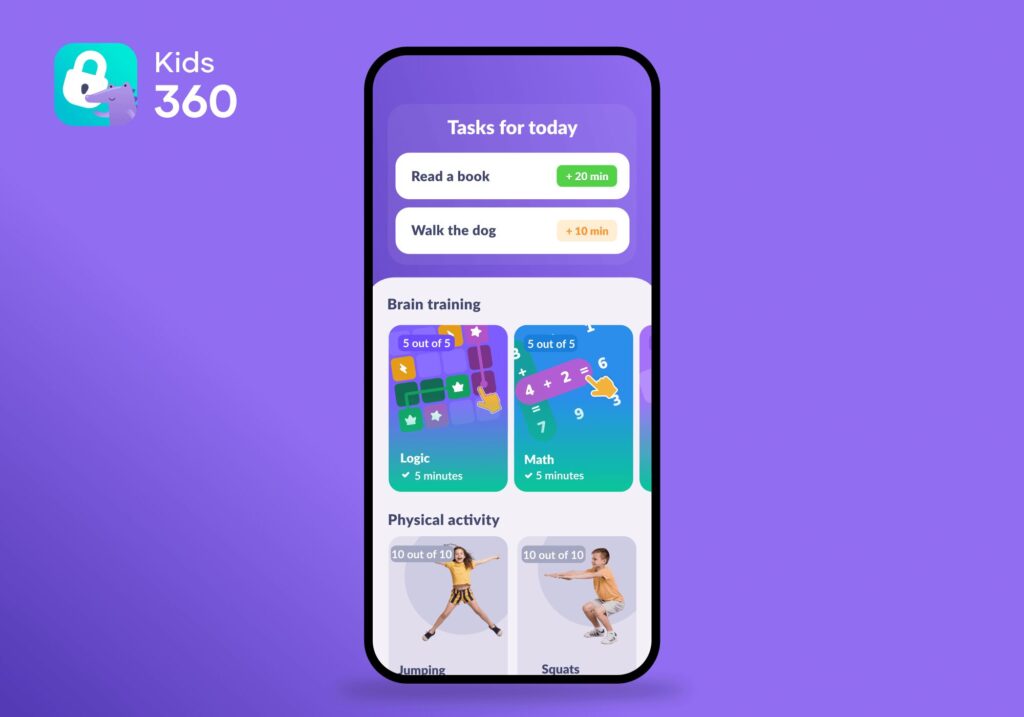
- A child-friendly approach: parents can create tasks for children, such as “read for 20 minutes,” and reward them with extra screen time. Children can also see their screen time limits and how much time they have left, so they know what to expect and can take an active role in managing their phone use. This transparency helps avoid surprises and arguments when screen time runs out.
- Easy setup and screen time management: linking the parent app to the child’s phone takes a few minutes with a short code.
- A wide range of free features: the free plan goes well beyond basic controls, as the list below shows.
- Flexible parental controls: limits and tasks fit everyday family situations, from busy school weeks to relaxed weekends.
- No limits on children’s devices: parents can connect multiple children’s devices to one family account, making it easy to manage screen time across the family. Both parents can also access the app and stay involved in managing their children’s device use.
- Cross-platform support: Kids360 works on Android and iPhone, which helps when siblings use different phones.
Free Features in Kids360
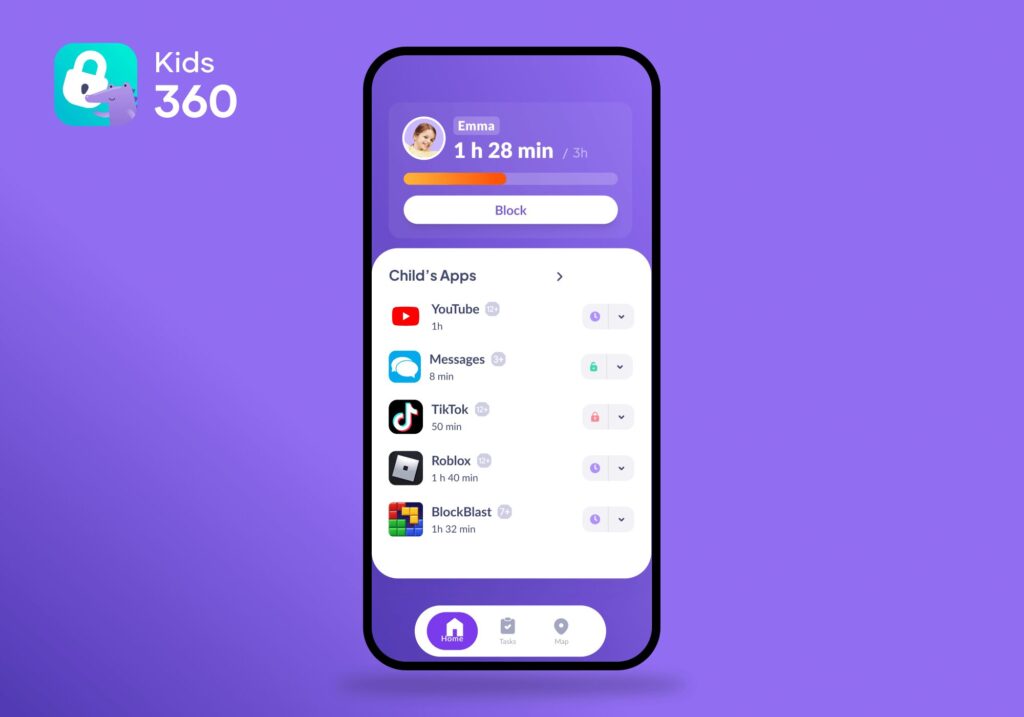
The Kids360 free plan includes a long list of parental controls that many apps keep for paid users:
- Viewing app usage statistics, with a breakdown by app on a child’s Android phone
- Setting an overall daily screen time limit for games and apps
- Setting time limits for one specific app on Android
- Checking the last three browser searches and YouTube videos watched on Android
- Assigning tasks that earn children extra screen time
- Tracking the child’s location in real time
- Using Loud Signal to make the child’s phone ring even when it’s on silent
- Protecting the app from being uninstalled from the child’s device
- Checking the child’s phone battery level
- Adding a second parent to the app
- Connecting multiple children and an unlimited number of devices for each child
- Receiving notifications when time limits are reached or exceeded
- Receiving notifications about remaining screen time, usage statistics, and set limits
- Receiving eye-care reminders to take a break after an hour of screen use
The free version of Kids360 offers flexible tools for managing screen time, understanding children’s digital habits, and keeping track of their location. Families who want to block apps completely or by app categories, schedule school hours and bedtime, or stop new app installs can upgrade without setting anything up again.
For many families with children aged 7 to 14, Kids360 is the best free parental control choice because its parental controls make managing screen time feel fair. Download Kids360 to try the free features on the child’s device right now!
Findmykids
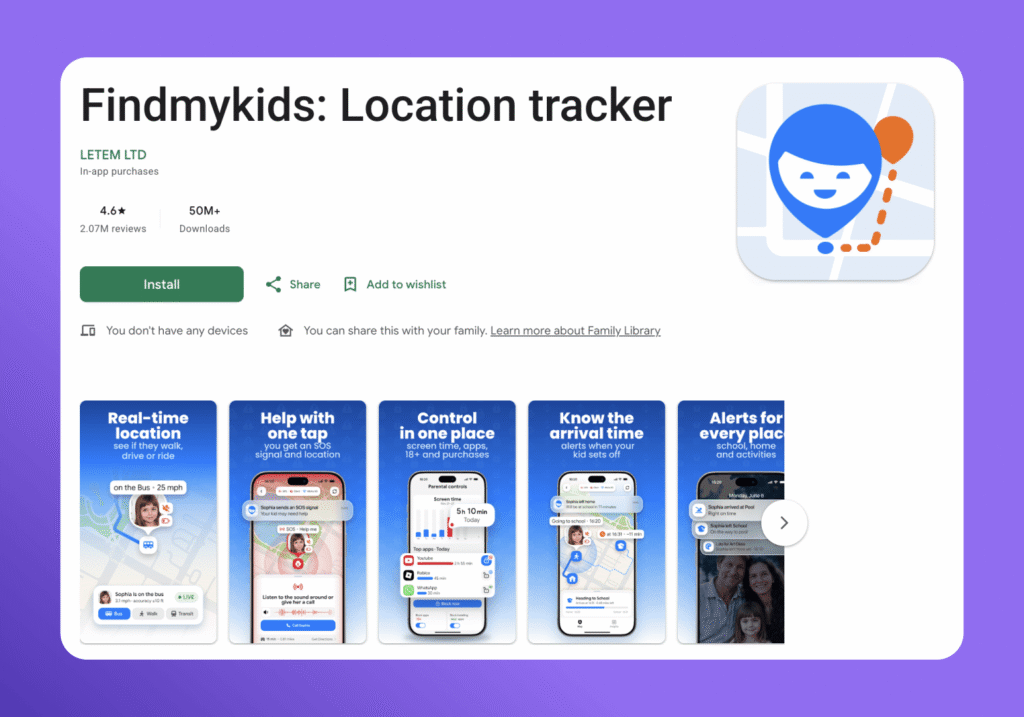
Findmykids is designed primarily to help families stay connected and keep track of children’s whereabouts. Its free version includes real-time location tracking, access to the last three routes, SOS alerts, and three Supersignals that help parents reach a child even when they don’t answer a regular call. Families can also use family circles to share locations with other loved ones.
The app is a good fit for parents who care most about their child’s physical safety and want to stay connected with other family members. Findmykids also offers parental control features, including screen time management, app limits, and content filtering, but these require a paid subscription. A subscription also unlocks additional location features, such as full route history, expanded movement notifications, and more.
Pros:
- Real-time location tracking and access to the last three routes for free
- SOS alerts and three Supersignals
- Family circles for sharing locations with other loved ones
- Additional parental controls available with a subscription
Cons:
- Screen time management, app limits, and content filtering aren’t included in the free plan
- Full route history, expanded location notifications, and other features require a subscription
Google Family Link
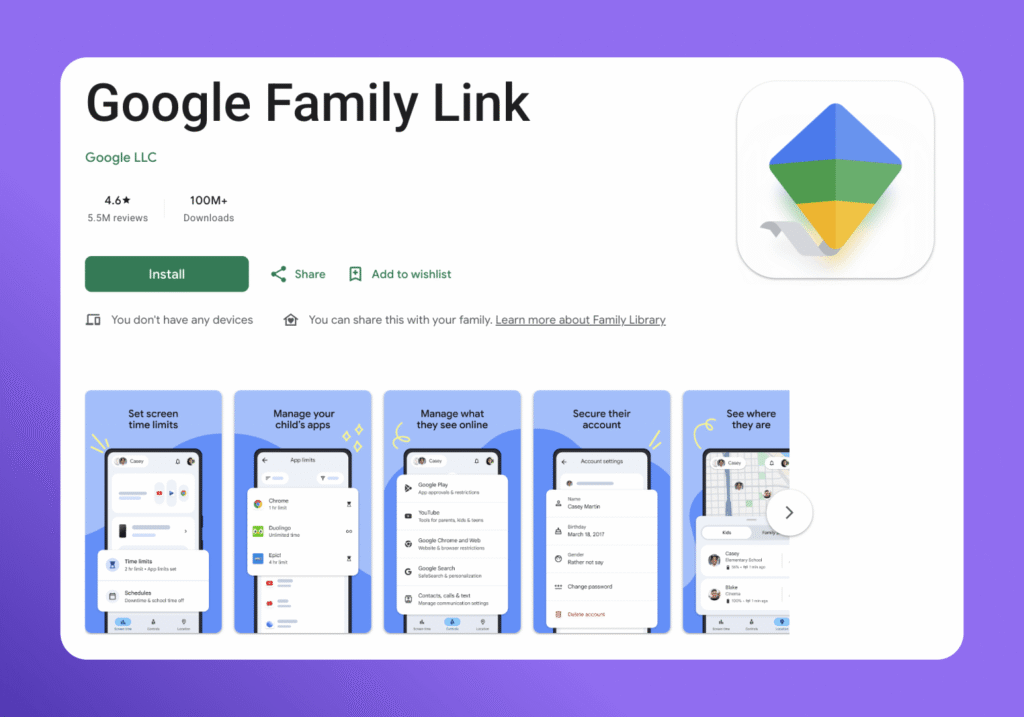
Google Family Link is Google’s free parental control app. It lets parents set daily screen time limits, manage the apps their child can use, approve downloads from Google Play, and check the child’s device location. Parents can also set app-specific limits, use School time to reduce distractions during the school day, and enable content filters for Chrome and Google Search.
Family Link is a good option for families who already use Android devices, Google accounts, and Chromebooks. Parents can manage their child’s settings remotely, as long as the device is connected to the internet. However, its parental controls are limited on iPhones: features such as app management, Chrome filtering, and screen time limits don’t apply to a child’s iOS device. Supervision options also change as children get older, with age rules varying by country.
Pros:
- Free screen time limits, app management, and location tracking
- Useful controls for Android devices and Chromebooks
- App download approvals and web filtering
Cons:
- Most device-level controls don’t work on a child’s iPhone
- Some features depend on the child’s device
- Supervision rules change as children get older
Qustodio
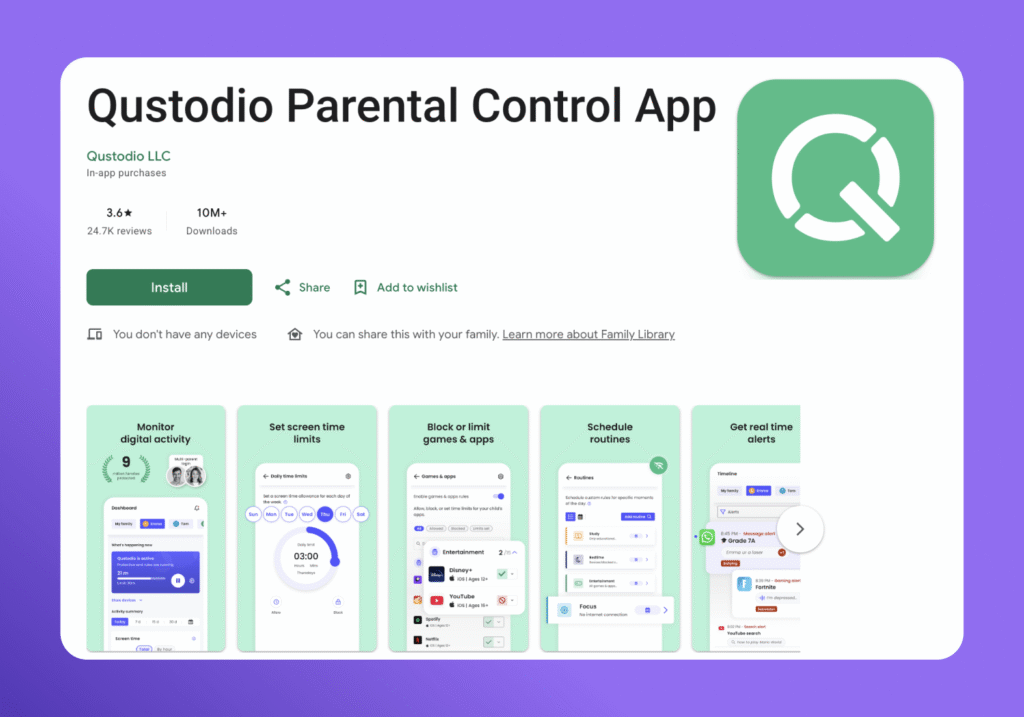
Qustodio offers a free parental control plan for one child’s device. It includes web filtering, Safe Search, and seven-day activity reports, giving parents a way to check their child’s online activity and filter inappropriate websites without paying for a subscription.
The free version has important limits, though. App blocking, daily screen time limits, location tracking, and protection for multiple devices require a paid plan. Families who want to manage several devices or set more detailed rules will need to upgrade.
Pros:
- Free web filtering and Safe Search
- Seven-day activity reports
- Works across several operating systems
Cons:
- Free plan covers only one child’s device
- No app blocking or daily screen time limits in the free plan
- Location tracking and more detailed controls require a subscription
Kaspersky Safe Kids
Kaspersky Safe Kids combines online content filtering with tools for managing children’s device use. Its free version includes website blocking, internet activity monitoring, and app management. Parents can use these features to filter inappropriate websites and manage which apps their child can access.
The Premium version adds GPS location tracking, social network monitoring, and real-time alerts. One important caveat for U.S. families: the U.S. Department of Commerce prohibited Kaspersky from providing covered cybersecurity software and updates to U.S. customers. Sales stopped in July 2024, and software updates were prohibited from September 29, 2024, so it is no longer a practical option for families in the United States.
Pros:
- Free website blocking and online content monitoring
- App management and device-use monitoring
- Premium version includes location tracking and additional alerts
Cons:
- GPS tracking and some advanced features require Premium
- Not a practical choice for U.S. families because of federal restrictions
If, after reviewing the different apps and comparing their features, you’ve decided that Kids360 is the right fit for your family, getting started is simple. You just need to install an app on each phone and link the devices.
Here’s how to set up parental controls on your child’s Android phone.
How to Set Up Parental Controls on an Android Phone with Kids360
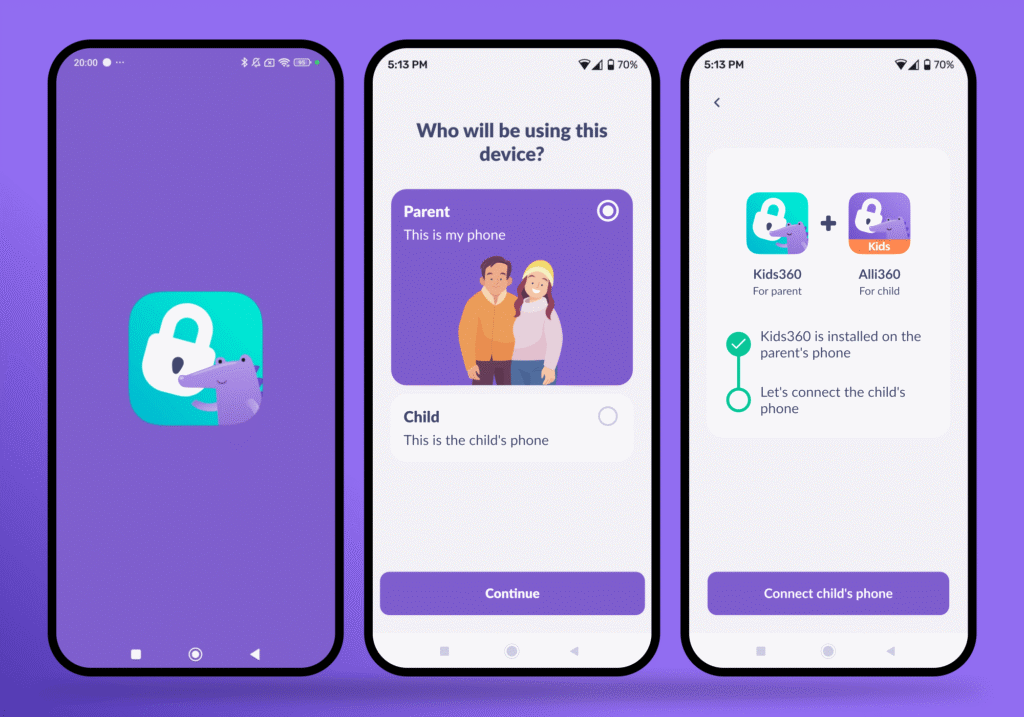
Kids360 is a parental control app that connects the parent’s own phone to the child’s Android phone in a few steps:
- Install Kids360 on the parent’s phone and create an account.
- Install Alli360 on the child’s Android phone.
- Enter the code shown in Kids360 to link the two phones.
- Grant the app permissions Alli360 requests, such as autorun and device administrator access, which protect it from being deleted.
- Review the child’s device usage, then set the first parental controls, such as screen time limits and tasks, together with the child.
After setup, managing screen time happens from the parent’s phone, and parents can change parental controls at any time. It helps to set screen time limits with the child watching, so they know what to expect when time runs out.
Are Free Parental Control Apps Safe to Use?
Free parental control apps from known developers are generally safe, but a few checks help. Any parental control software needs broad access to the child’s device, so app permissions and privacy policies deserve a careful look.
These steps keep the setup safe:
- Install Android apps for parental controls only from official stores, never from unknown websites.
- Choose apps that are visible to the child. Kids360, for example, cannot be installed secretly and is used with the child’s consent.
- Be wary of any monitoring app that promises to read social media messages in secret.
- Check the app settings and time limits after every phone update.
- Make sure parental control tools are explained to the child, not hidden from them.
Online safety also depends on conversation. Parental controls work best when the child understands why a limit exists and knows they can ask for help if something online worries them.
Keep Kids Safe Online Without Paying for Every Feature
Free parental controls and free tools give families a real starting point. Google Family Link covers a range of controls for Android, while Kids360 brings together screen time limits, usage statistics, location tracking, and tools that help children take an active role in managing their phone use.
For families who want to keep kids safe online and make screen time feel fair, Kids360 is the best parental control app to try first. Download it and set the first daily limit before the next school week.
Sources & References
- What is Kids360? What parents need to know, Internet Matters
- Family Link FAQ, Google
- Free, Basic, and Complete plans, Qustodio
- Types of Kaspersky Safe Kids subscriptions, Kaspersky
- Commerce Department bans Kaspersky software in US, The National Law Review
- Findmykids subscription plans, Findmykids