How to Limit a Child’s iPhone Screen Time With Kids360


A child finishes a game, opens a video, then asks for another ten minutes. For many families, moments like this can quickly add up to hours of screen time. In the U.S., 50.4% of teens ages 12 to 17 spend four or more hours a day on screens during a typical weekday, not counting time spent on schoolwork.
If you want to set healthier screen-time boundaries for your child, the first step is knowing how to configure the right controls. In this guide, we’ll show you how to limit screen time on a child’s iPhone with Kids360, what happens when a time limit runs out, and how Apple’s built-in Screen Time compares with Kids360.
Key Takeaways
- Kids360 lets parents set an overall daily screen time limit on a child’s iPhone, with blocking applied when the limit is reached.
- Schedules can restrict distracting apps during homework, school hours, or the evening routine, with different schedules for different days.
- Parents should test the restrictions and check that essential communication remains available before relying on automatic blocking.
- Kids360 also offers in-app purchase restrictions, website protection, location tracking, and tasks that award extra time.
Table of Contents
How to Limit iPhone Screen Time With Kids360
To manage screen time, start by deciding what needs to change. Does the child spend too long on their phone overall, or is the problem using it at the wrong time? Kids360’s parental controls offer two different ways to help: a screen time limit for daily use and schedules for periods when distracting apps should be unavailable.
Why Use Kids360 to Manage Screen Time?
Kids360 brings screen time controls, location tracking, and a task-and-reward system together in one app. Parents can manage a child’s smartphone from their own phone. Many features work whether the parent uses Android or an iPhone, making Kids360 a convenient option for families with different types of devices. A single account can include a second parent, multiple children, and all of their devices.
The two main Kids360 screen time controls on iPhone are:
- An overall daily limit: Parents decide how much screen time is available each day. System apps such as calls, SMS, and the alarm remain available.
- Scheduled restrictions: Parents can block selected apps during homework, school hours, bedtime, or other parts of the day. Schedules can be adjusted to suit different days of the week.
A daily limit answers “How long?” A schedule answers “When?” Using both can help prevent a child from using the entire allowance when they should be studying or getting ready for bed. Kids360 screen time limits help families follow their rules without repeatedly checking the clock.
How to Set Up Screen Time Limits With Kids360
Have both phones nearby before beginning. It also helps to agree on the daily allowance beforehand, so the child understands the rule before it appears on the phone.
Follow these steps to connect the devices and set the limit:
- Download Kids360 on the parent’s phone through Google Play, the App Store, or another supported platform.
- Install the companion app on the child’s iPhone: Follow the instructions to install Alli360 and connect it to the parent’s account.
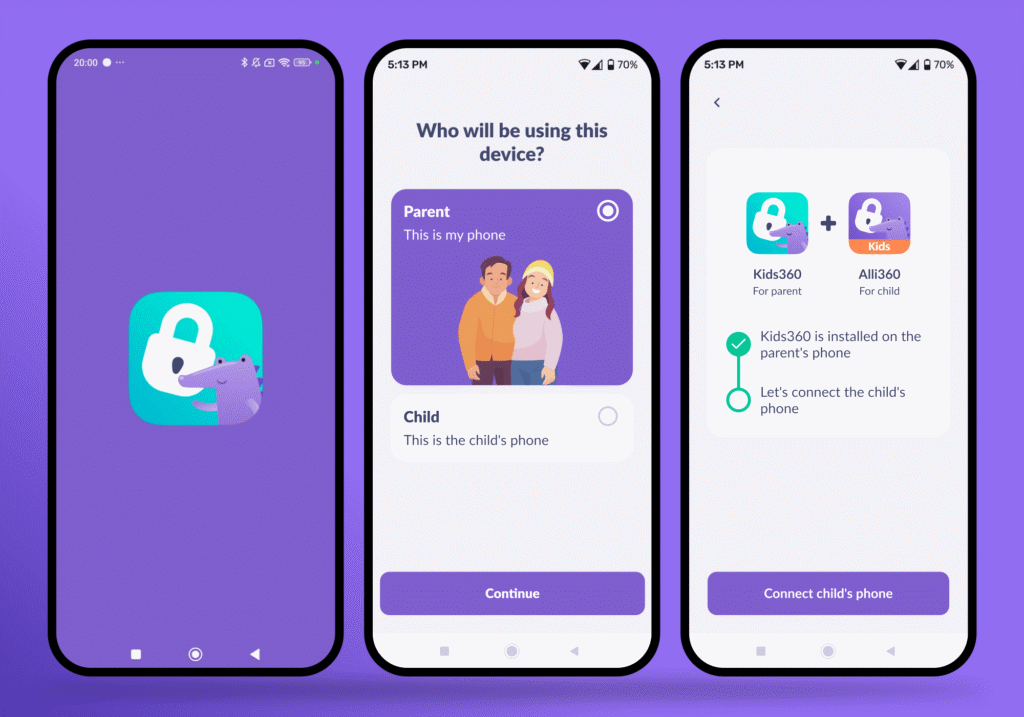
- Complete the required permissions: Follow every authorization prompt on the child’s iPhone. Resolve any missing-permission warnings before relying on the parental controls.
- Open the child’s profile: On the main screen, find the Daily screen time limit section.
- Tap Change limit: Kids360 will open the Limits by day of the week screen.
- Choose the days that need limits: Each day can be turned on or off separately. Tap the pencil icon beside a day to change its allowance.
- Set the hours and minutes: Choose the time limit for that day. Turn on Apply to all days of the week if the same allowance should apply every day.
- Tap Save: Return to the child’s profile and check that the correct daily limit appears.
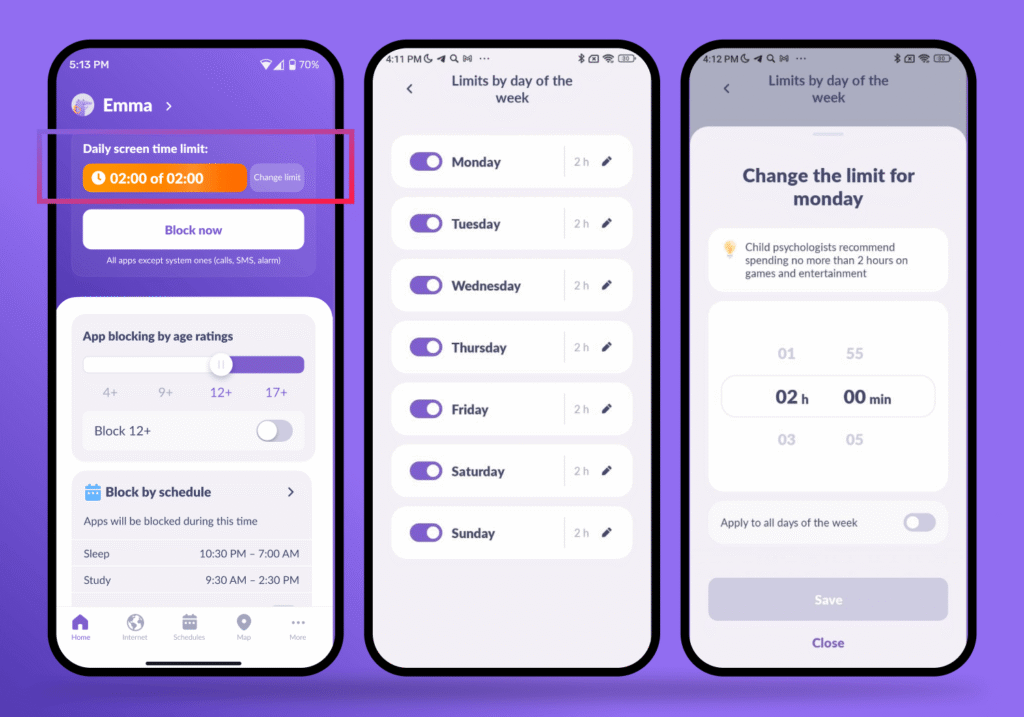
- Test the restriction: Temporarily set a short limit and check what happens when it expires. Restore the normal allowance once the test is complete.
The main screen also includes a Block now button. Parents can use it when apps need to be restricted immediately instead of waiting for the daily allowance to run out.
Testing the controls helps the child understand what will happen before a limit interrupts a game or video. It also confirms that calls, SMS, the alarm, and any essential tools remain available.
How to Create Screen-Time Schedules for Your Child
A daily allowance controls how long a child can use apps. A schedule controls when those apps are available. This can keep games and social media out of homework time without reducing the child’s full allowance.
To create or manage Kids360’s scheduling feature:
- Open the child’s profile: Find the Block by schedule section on the main screen. You can also open Schedules from the navigation menu.
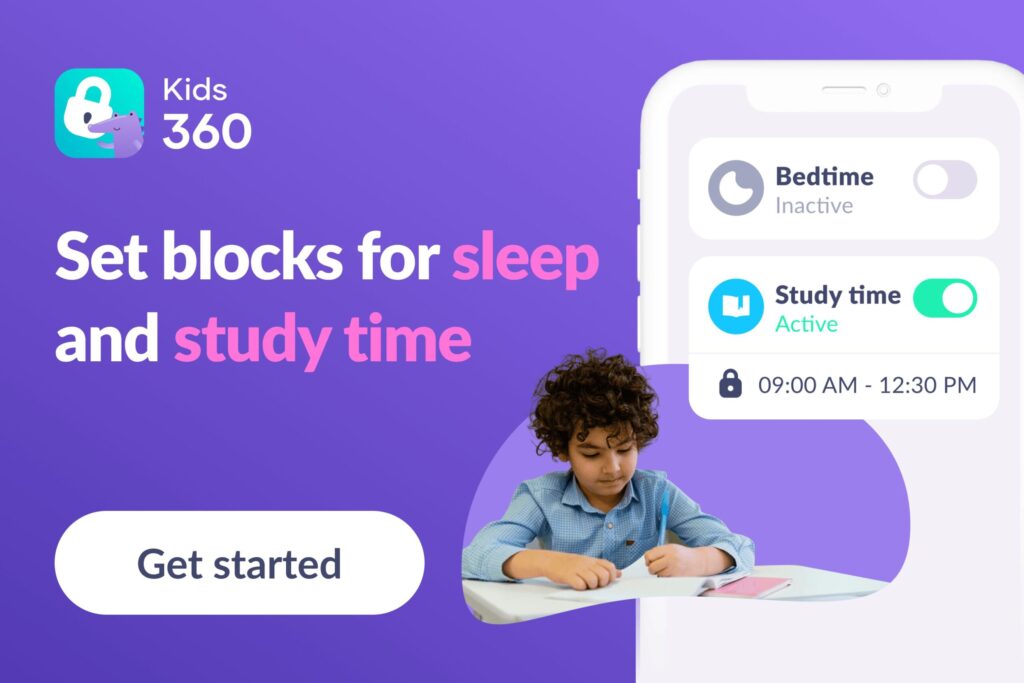
- Review the existing schedules: The app may show schedules such as Sleep and Study. Each schedule has its own on-and-off switch.
- Tap Add schedule: Create another schedule when the existing options do not fit the family’s routine.
- Choose the days and times: Set when the restriction should begin and end. Schedules can be different on different days of the week.
- Save the schedule and switch it on: Check that the correct days and times appear before leaving the screen.
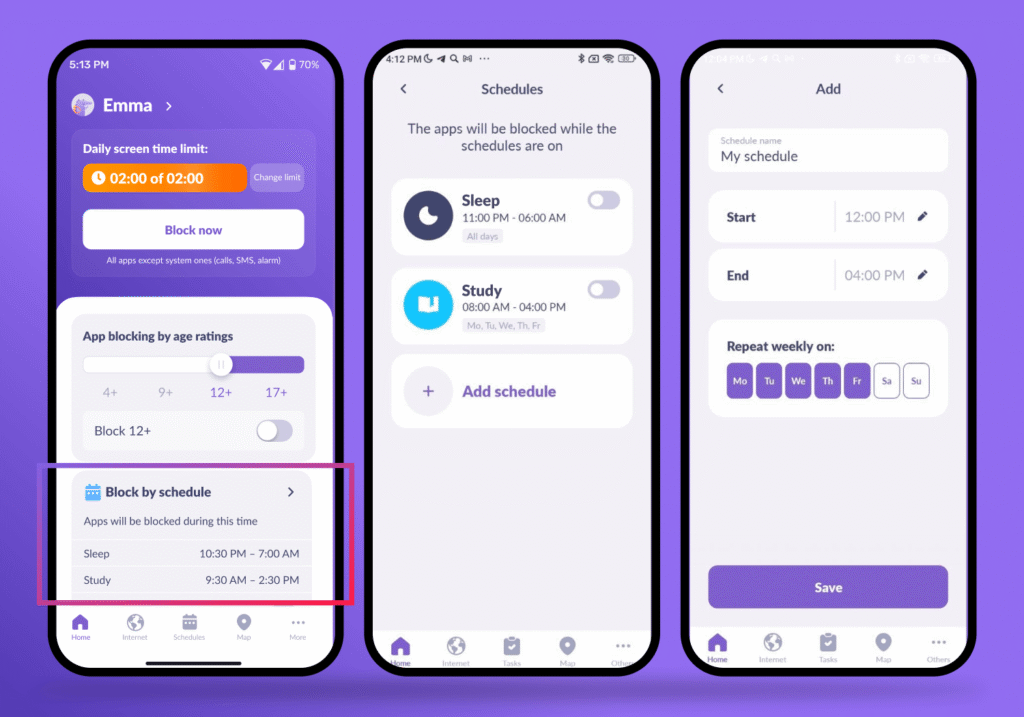
- Test it on the child’s phone: Check the restriction while the schedule is active and again after it ends.
For example, a Study schedule could block apps from 4 p.m. to 5 p.m. on Monday, while Tuesday’s schedule could begin later because of sports practice. A separate Sleep schedule could block distracting apps throughout the bedtime routine.
This flexibility allows parents to build the schedule around the child’s routine. If homework requires an app that has been blocked, the schedule can be adjusted.
What Happens When the Time Limit Runs Out?
When automatic blocking is enabled and the daily allowance is used up, Kids360 blocks the apps covered by the restriction. The iPhone does not become completely unusable. System apps such as calls, SMS, and the alarm remain available.
Kids360 can notify parents when the limit has been reached. Children can also see how much time remains, making the cutoff less of a surprise.
A warning before the limit expires is still helpful, especially if the child is playing a game or working on something that needs to be saved. Automatic blocking stops access, but it cannot finish a game round or explain what should happen next.
If the restriction does not work as expected, check the saved limit, subscription, permissions, and settings on the child’s device. Parents can also use Block now when apps need to be restricted immediately.
What Else Can Kids360 Do on a Child’s iPhone?
Alongside screen time features, Kids360 offers parental controls for purchases and browsing, plus location tracking and tasks.
Prevent Purchases Inside Apps
Kids360’s purchase controls can restrict in-app purchases on a child’s iPhone. Parents can manage this feature from iOS or Android.
Turn Off Internet Access in Apps
Kids360 can disable internet access for apps in the supported iOS setup. This feature requires both the parent and child to use iOS.
Removing an internet connection is different from closing an app: downloaded material or offline functions may still work. These parental controls are useful when parents want to restrict online activity without disconnecting the entire phone.
Block Adult Websites
Kids360 internet safety tools include blocking adult websites on an iPhone child device. Either parent platform can manage the feature.
Website restrictions are separate from screen time limits, and neither should be presented as a guarantee against all explicit content inside messages, videos, or other apps.
Check Location
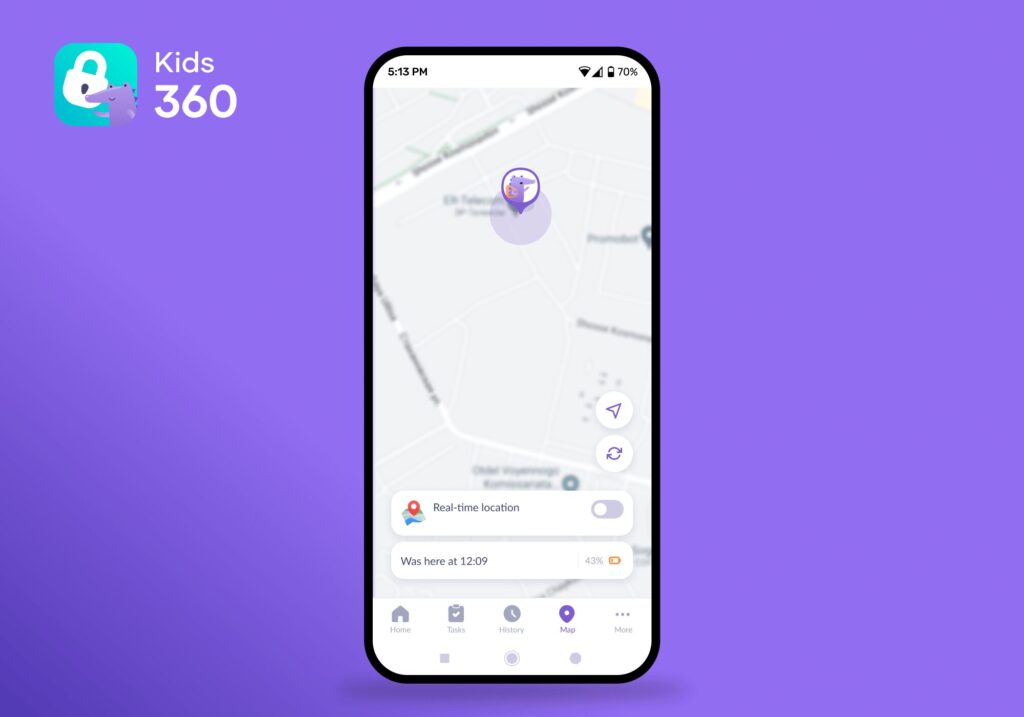
Kids360 location tracking lets parents see the connected device’s location. Parents can view the child’s movement history, set up safe zones, and receive notifications when the child enters or leaves saved places. The app can also show frequently visited places, helping parents understand the child’s usual routes and daily movements.
Let Children Earn Extra Time Through Tasks
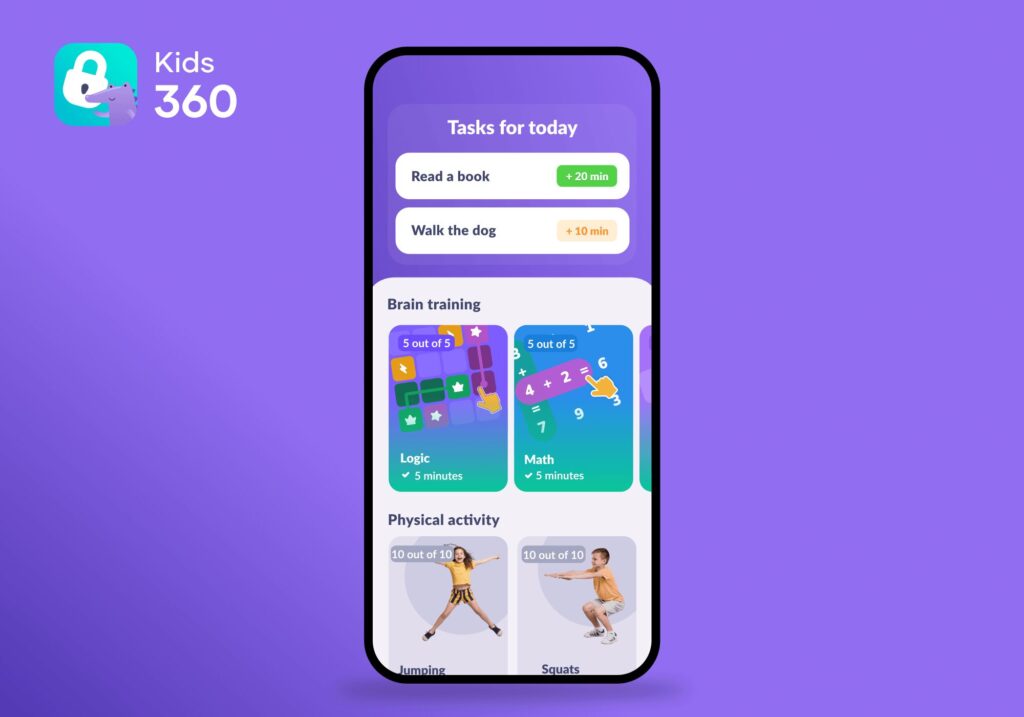
Kids360 includes a task-and-reward feature that lets parents create activities for their child and offer additional screen time as a reward for completing them. For example, a parent might set a reading task and agree in advance how much extra screen time the child will earn after completing it. This turns screen time into a flexible reward and encourages children to take responsibility for everyday tasks.
Kids360 can help families combine screen time limits with other parental controls in one app. Download it for free right now!
Can Parents Limit iPhone Screen Time Without Another App?
Apple provides built-in parental controls for a child’s iPhone or iPad, so parents do not need a separate app to set basic screen time limits. With Family Sharing, parents can manage a child’s Screen Time settings from their own Apple device. The exact setup and available features depend on the child’s age, account, device, software version, and region.
Apple lets parents set time limits for individual apps or entire categories, such as Games or Social Networking. Downtime can be used to schedule periods when most apps are unavailable, while App Limits control how much time a child can spend in specific apps or categories.
Other key features on an Apple device serve different purposes:
- Communication Limits let parents control who a child can communicate with through Phone, FaceTime, Messages, iCloud Contacts, and other supported apps. They do not automatically restrict communication in every third-party messaging app.
- Communication Safety helps protect children from potentially nude photos and videos by warning them and, in some cases, blurring the content.
- Content & Privacy Restrictions let parents control age-rated content, apps, websites, purchases, downloads, and certain device settings.
Apple’s built-in parental controls cover many common needs, but parents still need to configure the relevant settings. Remote management is closely tied to Apple’s Family Sharing ecosystem. Apple also does not offer a built-in task-and-reward system that gives children extra screen time for completing tasks.
For families who want features such as tasks and location tracking alongside screen time controls, Kids360 is one alternative to consider.
Kids360 vs. Apple Screen Time: Which Is Better for Parents?
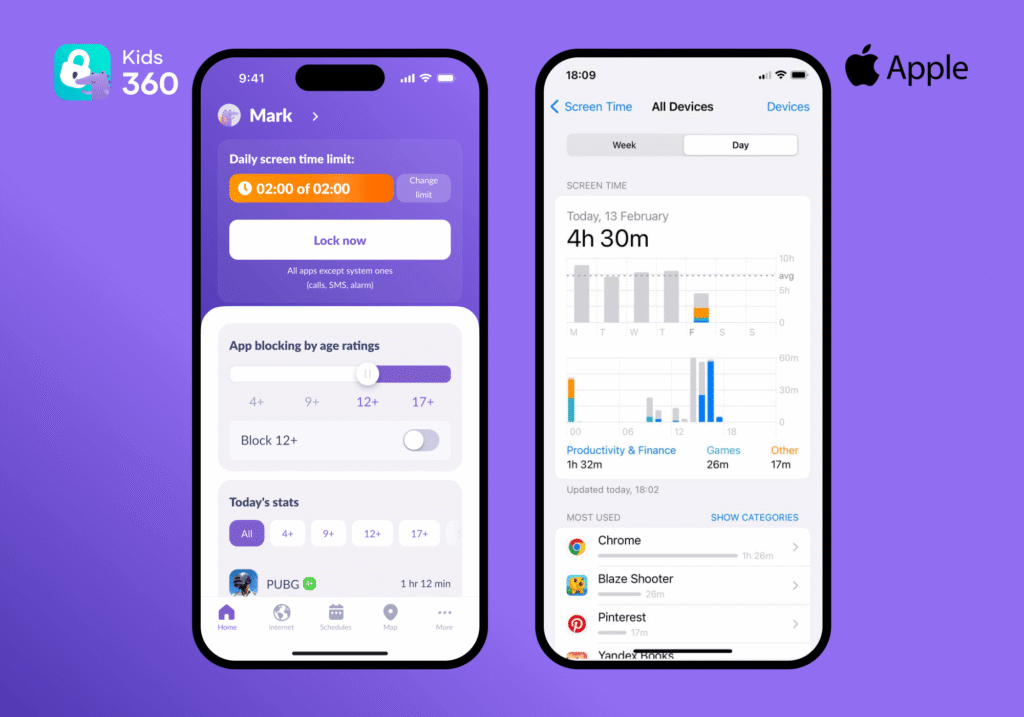
The best choice depends on which parental controls the family actually needs. This comparison focuses on an iPhone child device; Android features should not be assumed to work identically on iOS.
| Feature | Kids360 | Apple Screen Time |
|---|---|---|
| Daily time controls | ✅ Yes | ✅ Yes |
| Schedules | ✅ Yes | ✅ Through Downtime |
| Individual app limits | ⚠️ Only on Android devices | ✅ Yes |
| Instant remote blocking | ✅ Yes, with Block Now | ❌ No |
| Usage reports | ✅ Yes | ✅ Yes |
| In-App Purchase Restrictions | ✅ Yes | ✅ Yes |
| Location Tracking | ✅ Yes, built-in | ⚠️ Only through Find My |
| Adult Website Blocking | ✅ Yes | ✅ Yes |
| In-App Internet Blocking | ✅ Yes | ❌ No |
| Tasks and Extra Time Rewards | ✅ Parent-created tasks; learning activities | ❌ No equivalent built-in task system |
Apple Screen Time is a solid built-in option for families who mainly need basic screen time limits, schedules, app restrictions, and content controls. However, Apple’s parental controls are designed around the Apple ecosystem and work best when parents and children use Apple devices.
Kids360 offers a more flexible approach for families with mixed devices, as it works across iOS and Android and combines screen time controls with features such as one-tap remote blocking, location tracking, and a task-and-reward system that lets children earn extra screen time by completing useful activities.
Signs Your Child May Be Spending Too Much Time on Their iPhone
When reviewing kids’ daily screen time, consider what the child spends less time doing because of the phone. These patterns are worth discussing:
- Bedtime is repeatedly delayed by games or videos.
- Homework and ordinary responsibilities are left unfinished.
- The child regularly skips activities they previously enjoyed.
- Arguments about stopping frequently disrupt family life.
These signs do not by themselves indicate problematic media use or a clinical disorder. The AAP’s media guidance encourages looking at content, the child’s needs, and what screen use crowds out.
Make the Daily Routine Easier With Kids360
Limiting a child’s iPhone screen time is not just about setting a daily timer. The most effective approach combines reasonable limits with schedules, app restrictions, clear expectations, and enough time for sleep, schoolwork, physical activity, and family life.
Apple’s built-in Screen Time can cover many basic needs, especially for families already using Apple devices. Kids360 can be a more flexible option for parents who want additional controls, including app limits, schedules, instant blocking, location tracking, and tasks that can earn children extra screen time. It also works across iPhone and Android, which can be useful for families with different types of devices.
Whichever option you choose, start with the controls your family actually needs and adjust them as your child’s routine changes. The goal is not to eliminate screen time, but to help children develop a healthier balance between time online and everything else they need to do.
Sources and References
- Daily Screen Time Among Teenagers, National Center for Health Statistics, 2024
- Manage a child’s Screen Time, Apple Support
- Reset a Screen Time passcode, Apple Support
- Kids & Screen Time: How to Use the 5 C's of Media Guidance, American Academy of Pediatrics, 2026