Parental Controls on iPhone: How Kids360 Supports Digital Safety


The rapid shift into an era where children are always connected has completely transformed the modern home, turning personal devices into the primary playground for children. Managing family digital habits has evolved into a round-the-clock negotiation over boundaries. Recent studies highlight the scale of this shift, showing that young tweens now absorb an average of 5.5 hours of digital screen entertainment daily, excluding essential schoolwork. This massive exposure has triggered a deep wave of parental anxiety, with more than 54% of parents openly fearing that their children have developed an unhealthy, compulsive psychological addiction to mobile devices.
Because of this constant connectivity, establishing reliable parental controls on iPhones is no longer optional for tech-savvy homes but a critical, fundamental element of childhood safety.
Key Takeaways
- Built-in iPhone tools spread features across multiple menus, while specialized apps like Kids360 bring screen time, app blocking, and location tracking into one unified space.
- Shifting from strict restrictions to habit-building tools transforms screen rules from an invisible wall into a transparent reward system.
- Modern software bridges the gap between Apple and Android environments, enabling parents to manage an iPhone from any personal mobile device seamlessly.
Contents
What Are Parental Controls on iPhone?
Parental controls represent the software boundaries parents use to guide their child’s digital exploration. These configurations allow adults to manage how much time a minor spends online, filter inappropriate content, and secure personal information from exposure. When parents set up parental controls, they create a protective layer around a child’s phone to prevent digital overexposure.
Apple provides basic integrated tools within every iOS software version. These default features are designed to help adults manage a child’s device directly from the native settings app. Understanding how these tools work is the first step toward building a healthy digital environment for younger children.
What iPhone Parental Controls Help Parents Manage
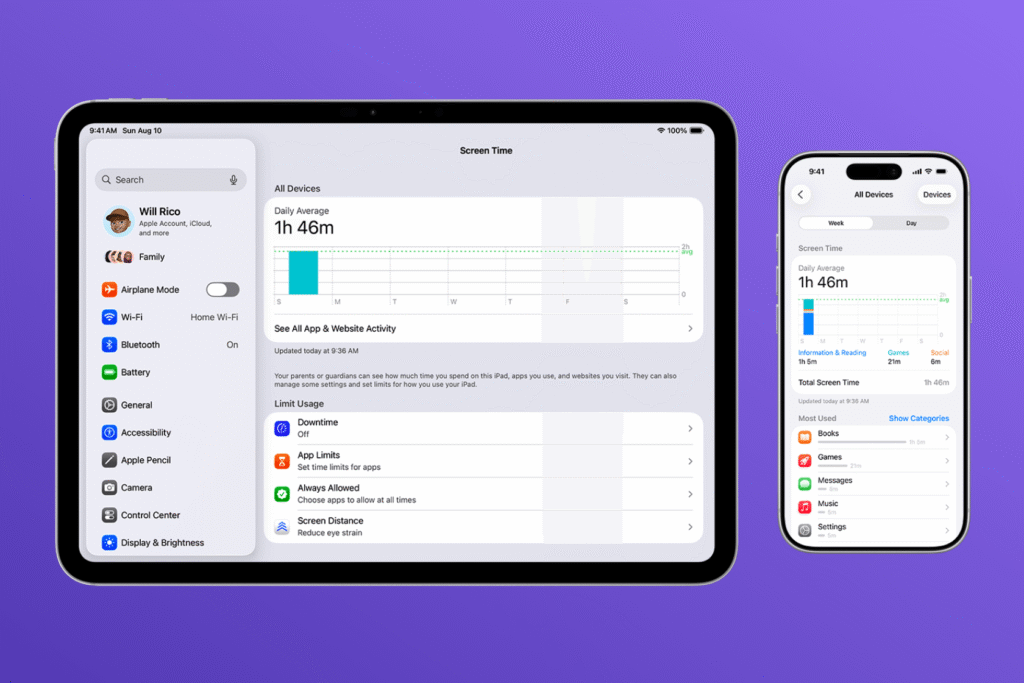
Integrated parental control settings are built to address several core areas of device security and usage management. Parents can apply these rules directly to a child’s iOS device or a specific Apple device to establish everyday digital boundaries.
By opening the device interface, an adult can access features that regulate daily interactions:
- Screen Time: Parents can track overall device use and establish app limits to manage how long a minor stays engaged online.
- Content and App Safety: Adults can restrict access to specific apps, limit adult websites, and enforce content ratings for media downloads.
- Purchase Protection: Integrated settings manage app store purchases, require approval for app downloads, and disable in-app purchases.
- Privacy Controls: System preferences allow parents to activate strict privacy restrictions to safeguard personal data, block location sharing, and manage Game Center profiles.
Using these internal parental control settings helps maintain basic boundaries, though the execution can feel rigid.
Limitations of Built-In iPhone Parental Control Tools
While Apple’s parental controls provide a reliable baseline for family safety, they also have several practical limitations in everyday use.
Key limitations include:
- Fragmented system structure: parental control features are spread across multiple areas of iOS, including Screen Time, Content & Privacy Restrictions, Family Sharing, and Find My. This makes setup and ongoing management less convenient for parents.
- No cross-platform flexibility: Apple’s parental control ecosystem works only within the iOS environment, meaning it is not designed for families using a mix of iPhone and Android devices.
- Password-dependent protection: Screen Time settings are protected by a passcode. If a child learns or guesses this code, restrictions can be changed or disabled, which reduces the reliability of control in some real-life situations.
- Basic visibility of activity: Screen Time provides useful time-based reports, but insights remain focused mainly on usage duration rather than broader behavioral context.
Because of these factors, built-in tools are effective for basic control, but may be less convenient and flexible for families looking for a more unified and continuously manageable system.
Kids360: The Simplest and Most Complete iPhone Parental Control Solution
Apple’s built-in parental controls provide useful tools for managing a child’s iPhone, but—as we have seen above—they also come with limitations in flexibility, visibility, and real-world family management. Because of this, many parents look for a more complete solution that brings all essential controls together in one place—and this is where Kids360 comes in.
What is the Kids360 App and Why Do Parents Choose It
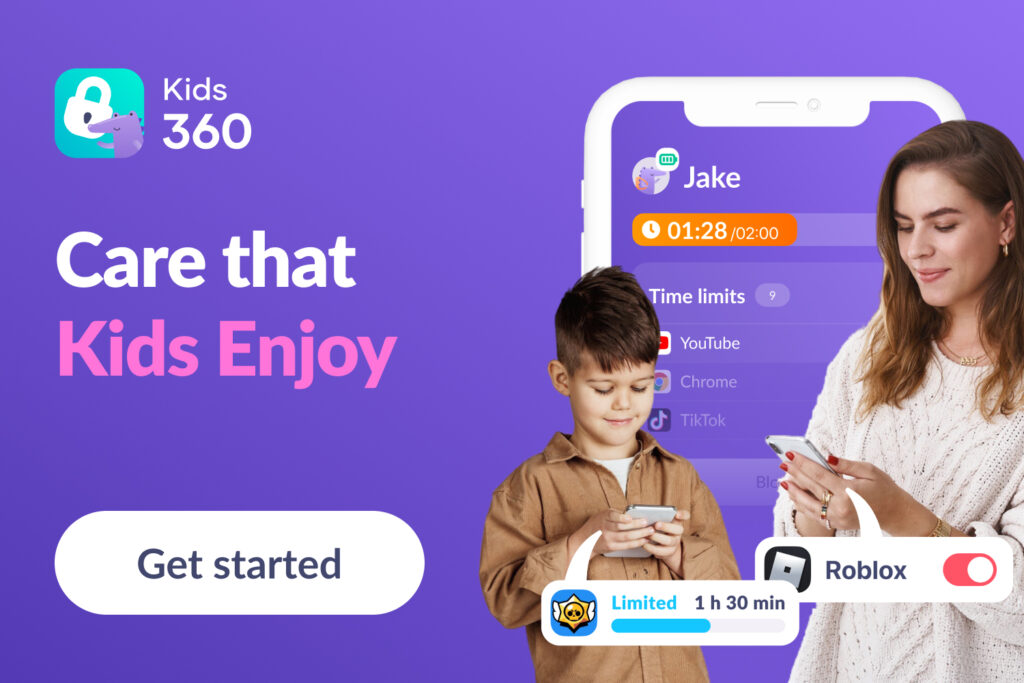
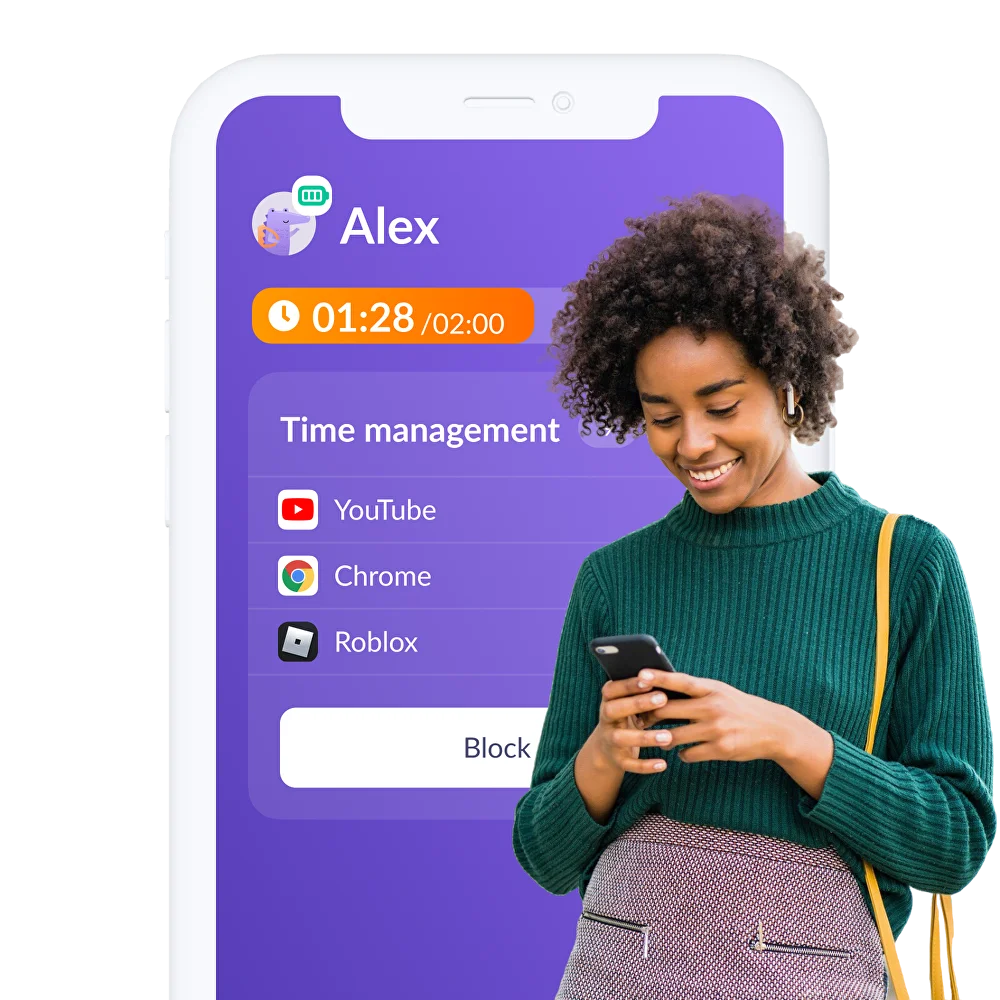
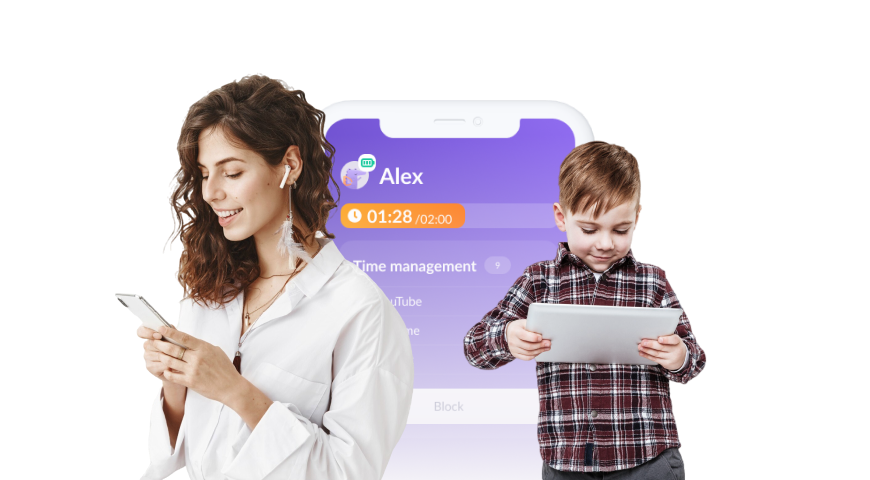
The Kids360 application is a dedicated digital wellbeing platform designed to make family device management transparent, simple, and stress-free. Unlike standard solutions, it works as a fully cross-platform system, allowing parents to manage a child’s phone from any device—whether it runs on iOS or Android—with all key functions centralized in one parental dashboard.
True peace of mind does not come from locking a device completely; it comes from having a reliable, unified system that works seamlessly across the entire household. That is exactly why parents choose Kids360: everything is controlled from the parent’s phone, without switching between settings, apps, or devices.
One of the key advantages of Kids360 is its ease of use. The installation process takes just around five minutes, and does not require any technical knowledge. The interface is clear and intuitive, so parents can start managing settings immediately without complicated setup or long configuration steps.
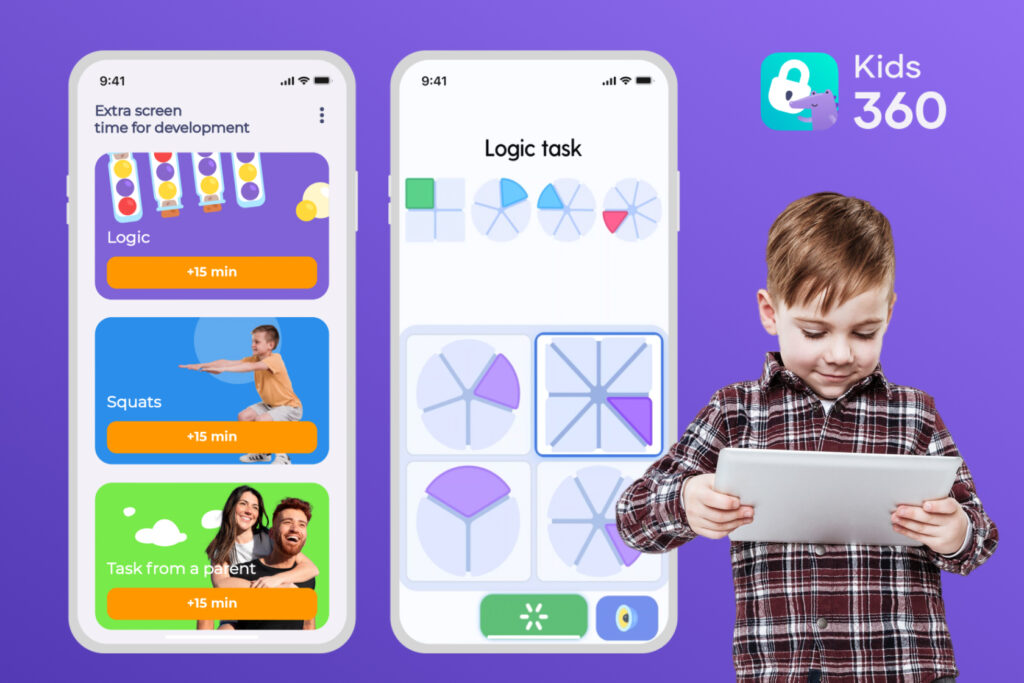
From the child’s perspective, Kids360 is not only about restrictions. The app includes a task-based system designed to build healthy habits in a positive way. Parents can assign different types of tasks—for example, simple household chores, learning activities, logical exercises, or physical challenges. Once the task is completed, children can receive rewards such as additional screen time. This approach helps turn digital limits into motivation rather than conflict, encouraging responsibility and balance in everyday routines.
All Kids360 Features Explained
Kids360 includes a wide range of tools designed to support healthy and balanced device use for children on an iPhone. Below is an overview of the key features available to parents inside the app:
- Real-Time Statistics: Provides immediate visibility into exactly which software categories occupy your child’s day.
- Daily Screen Time Limits: Allows setting clear daily boundaries for device usage, helping children develop healthy digital habits without constant manual control.
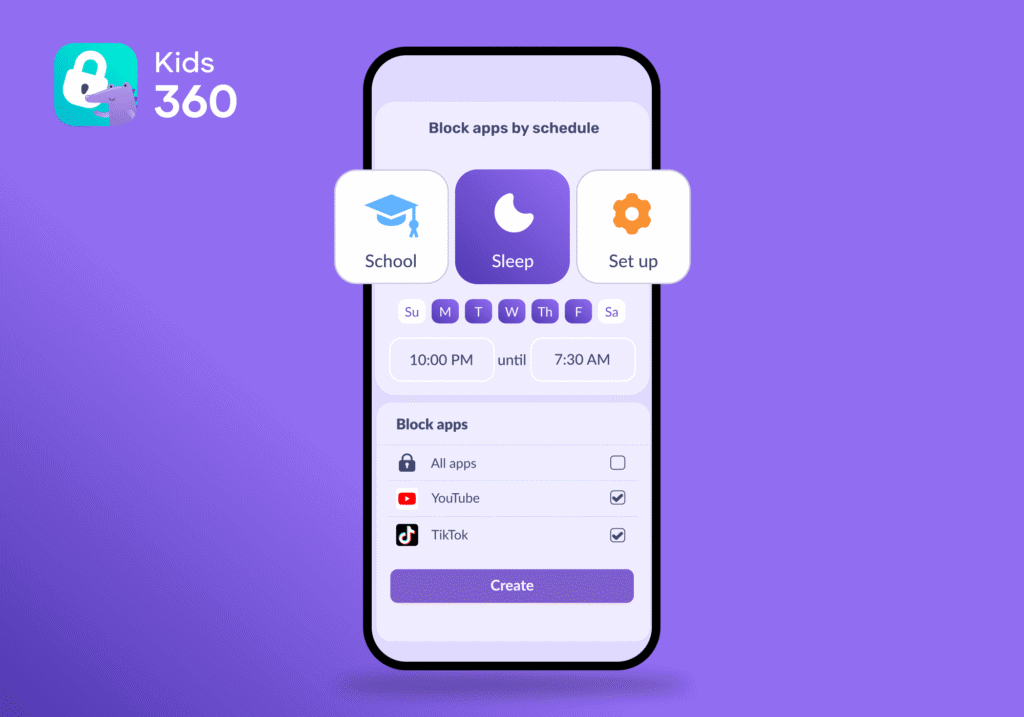
- Intelligent Schedules: Automatically manages device access based on daily routines—for example, blocking entertainment apps during school hours, homework time, or nighttime rest.
- Remote App Blocking: Enables instant pause access to entertainment or social media apps with a single tap.
- Block In-App Purchases: Prevents accidental or unauthorized purchases inside apps and games, helping families avoid unexpected charges.
- Turn Off Internet Access: Allows turning off or restricting internet access when needed, creating focused offline periods for study or rest.
- Block Adult Websites: Blocks access to inappropriate or age-restricted websites, helping protect children from unsafe online content.
- Integrated Geolocation: Displays the child’s live GPS position on a secure map without needing separate tracking tools like location sharing or Find My.
- Task-Based Rewards: Includes a motivation-based system where children can complete assigned tasks—such as household chores, learning activities, logical exercises, or physical challenges—and earn extra screen time as a reward. This turns digital limits into a positive reinforcement system that builds responsibility and balance.
Try Kids360 right now—explore all features in action and set up screen time limits, app controls, and safety tools in just a few minutes from your parent’s device.
Head-to-Head Comparison: Kids360 vs. Built-In Screen Time
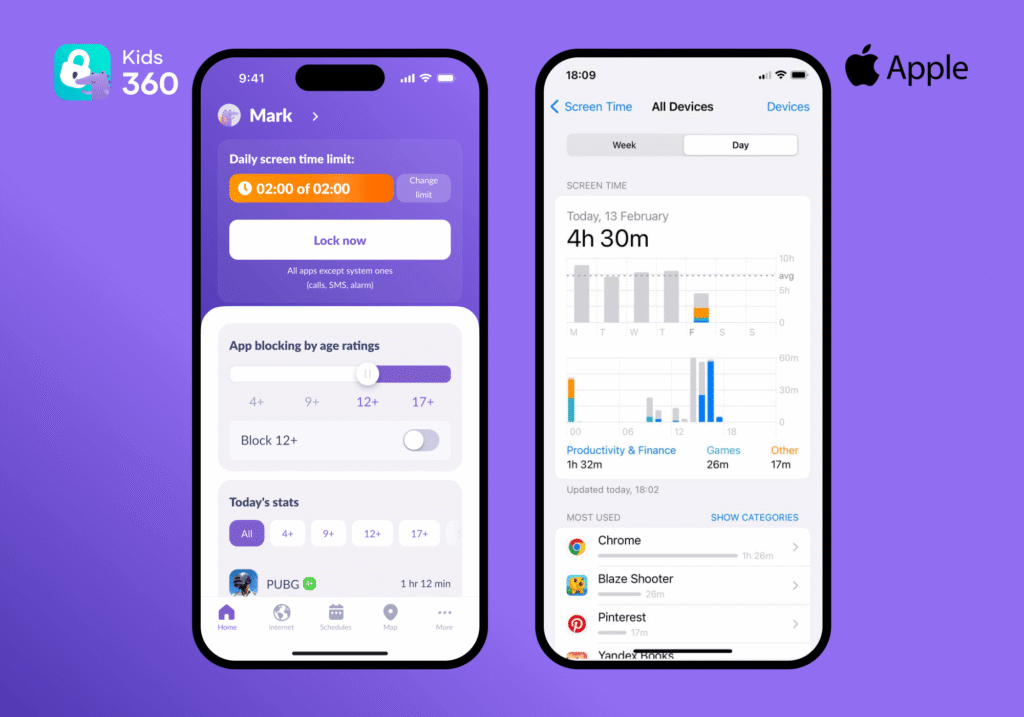
The following comparison table highlights how a specialized family dashboard delivers greater utility than standard iOS options.
| Feature | iOS Built-in Parental Controls | Kids360 |
|---|---|---|
| Screen time monitoring | ✅ Available through Screen Time | ✅ Real-time screen time statistics in a dedicated parent app |
| Daily app usage insights | ✅ Available, but only within Screen Time menus | ✅ Clear app usage reports and activity summaries in one place |
| App blocking | ✅ Parents can block apps or set limits | ✅ Parents can block apps remotely |
| Internet access restrictions at night | ✅ Available through Screen Time schedules and Downtime settings | ✅ Parents can set schedules to block internet access and limit device use during nighttime hours |
| In-app purchase restrictions | ✅ Available through Content & Privacy Restrictions | ✅ Parents can restrict in-app purchases as part of a broader parental control setup |
| Website filtering & content restrictions | ✅ Available through Content & Privacy Restrictions | ✅ Website filtering and safe browsing features on supported devices |
| Real-time location | ⚠️ Available separately through Find My | ✅ Available in the same app |
| Tasks and rewards for children | ❌ Not available | ✅ Parents can assign tasks and motivate children to develop healthy habits, stay active, and earn rewards |
| Cross-platform support | ❌ Apple ecosystem only | ✅ Works in families using both Android and iPhone devices |
| Multiple children management | ⚠️ Family Sharing settings required | ✅ Multiple child profiles managed from one parent account |
| Ease of use | ⚠️ Features are spread across Screen Time, Family Sharing, Find My, and Settings | ✅ All features are accessible from a single parent-friendly dashboard |
| Designed primarily for | General device and content management | Digital wellbeing and parental control designed specifically for families |
Both solutions cover the basics of digital safety, but they are built with different levels of depth in mind. Apple’s built-in Screen Time works well for simple device limits inside the iOS ecosystem, but its tools are spread across different settings and can feel fragmented in everyday use.
Kids360, on the other hand, brings everything together in one place—from screen time control and app blocking to location tracking and motivational task-based rewards. It is designed specifically for families who want a more complete, centralized and flexible approach to digital parenting, without switching between multiple Apple menus and tools.
What Parents Can See and Manage with Kids360
Kids360 is built to help parents handle everyday situations where digital habits become difficult to control in real life. Instead of switching between different apps, settings, or guessing what a child is doing on their device, parents get a clear, practical overview of screen time, activity, and safety in one place.
Preventing Excessive Screen Time and Social Media Overuse
Recent studies reveal that over 54% of parents worry their children have developed an unhealthy addiction to digital media. At the same time, children today spend an average of over five hours a day on digital screens, which naturally leads to growing concerns about digital habits and long-term effects.
Excessive engagement with short-form videos on platforms like TikTok or YouTube often reduces attention spans and can also disrupt healthy sleep cycles, especially when usage is unregulated or happens before bedtime.
Kids360 addresses this issue directly by allowing parents to set app limits for categories of apps or the entire device. When a child reaches their allocated screen time, the selected applications are automatically paused, preventing endless scrolling and helping children step away from the screen more naturally and without conflict.
Managing After-School Screen Time
The transition period between the end of school hours and evening routines is frequently a source of friction. Left unmonitored, children may instantly spend hours playing multiplayer games rather than resting or engaging in physical activities.
Using the centralized app dashboard, parents can implement a custom downtime schedule that temporarily restricts access to gaming platforms during these afternoon hours. Rather than constantly checking the child’s device, parents can monitor screen time habits remotely.
Encouraging Homework Routines
Maintaining concentration during study periods is difficult when notifications are constantly flashing on a child’s device. Parents can use Kids360 to limit access to entertainment apps while still allowing essential or pre-approved learning and school-related applications to remain available. This setup helps younger children remain focused on their school assignments without the temptation of digital distractions.
Balancing Online and Offline Activities
One of the most powerful elements of Kids360 is the motivational task engine. Instead of acting as a rigid block, the application allows parents to assign customized tasks, such as reading, room cleaning, or household chores. Children can complete these tasks to earn a set number of additional screen minutes. This process teaches children that device availability is a resource to be managed responsibly, changing screen time from an invisible wall into a balanced reward.
Protecting a Child from Inappropriate Online Content
The internet contains vast amounts of explicit content that is entirely unsuited for developing minds. Kids360 provides robust web content filtering that allows parents to permanently block adult websites across mobile browsers like the Safari browser. Additionally, parents can restrict internet access at night to ensure that midnight web browsing does not interfere with essential sleep.
Protecting a Child During Daily Movement
In everyday life, parents often need reassurance not only about screen time, but also about where their child is during school commutes, after-school activities, or time spent outdoors. Kids360 helps address this need by providing real-time location visibility in a simple map view, making it easier to stay informed without constant messaging or check-ins.
If you want to make everyday digital parenting more structured and less stressful, Kids360 brings all key tools—from screen time control to location visibility—into one simple app designed for real family routines!
How to Set Up Parental Controls on iPhone Using Kids360
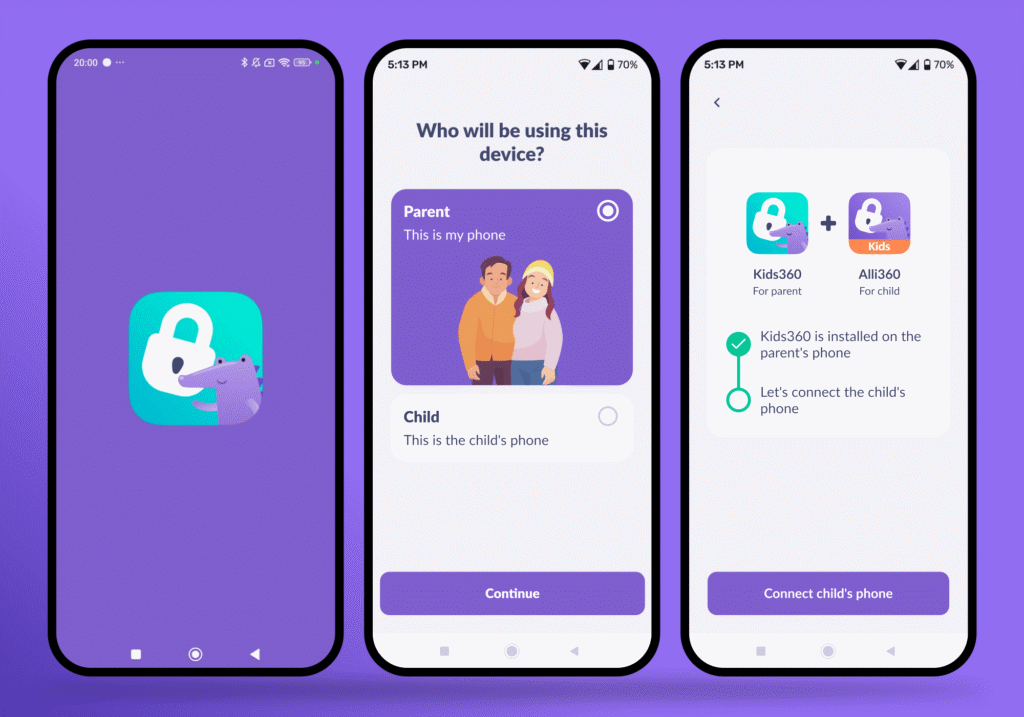
Establishing this digital protective layer is simple and requires only a few minutes across both family devices:
- Download Kids360 on the parent device: Open the app marketplace on your personal phone, whether it is an Android or Apple device, and install the primary Kids360 manager app to create your master admin profile. This ensures cross-platform tracking even if you do not use an iOS device yourself.
- Install Alli360 on the child’s iPhone: Take your child’s phone, open the iOS App Store, and install the companion utility named Alli360 to configure the child’s iOS device.
- Connect the devices: Open the parent dashboard to view the unique pairing code, then enter this security code directly into the Alli360 app on the child’s screen to link the systems securely.
- Set screen time rules: Define general daily screen boundaries, customize content restrictions, and configure standard app time limits.
- Configure app limits and tasks: Select specific application categories to restrict access, set app limits, establish your custom downtime schedule, and build your first set of rewarding developmental tasks.
You can also connect a second parent for free and add an unlimited number of children and their devices.
How to Use iPhone Parental Controls Without Losing Your Child’s Trust
Establishing parental control on an iPhone using the Kids360 app is an important but not the only part of ensuring a child’s safety. To fully protect a child, it is essential to introduce basic rules and make sure they understand why parental control is needed and how it will be used within your family.
Talk About the Rules Before Turning Controls On
Deploying monitoring software in complete secrecy can severely damage family relationships if discovered. It is far more effective to have an open conversation about why these boundaries are being introduced. Parents should explain that the primary goal is not surveillance but rather ensuring overall digital well-being, healthy development, and communication safety.
Adjust Controls by Age
A child’s privacy expectations and developmental requirements evolve significantly over time. Restrictions that are appropriate for younger children will feel unnecessarily stifling to teenagers. Gradually relaxing specific content restrictions, opening access to certain multiplayer games, and increasing app time limits as a child grows teach them that digital independence is earned through responsible behavior.
Always tailor the strictness of your content privacy restrictions and privacy restrictions to the child’s age.
Review the Settings Regularly
Digital habits change rapidly as children discover new platforms, games, or social groups. Parents should schedule a brief monthly review to look over the app usage statistics together. This collaborative approach allows the family to adjust app boundaries organically, ensuring that the rules remain fair, transparent, and relevant to the child’s lifestyle.
Overall, Apple’s Screen Time is a useful starting point for managing a child’s iPhone, especially for basic limits and content control. However, as children’s digital lives become more complex, many parents find that having everything spread across different tools can feel less convenient in everyday use.
This is why some families look for a more unified approach like Kids360, where screen time control, app management, geolocation, and daily routines are brought together in one place and are easier to manage consistently.
Sources & References
- Screen Time Statistics Reveal How Parents Use Screens as Babysitters, Educators, and Entertainment Tools, Lurie Children's Hospital, 2025
- Average Screen Time by Age Statistics, SQ Magazine, 2024
- Short-Form Videos Degrade Our Capacity to Retain Intentions: Effect of Context Switching on Prospective Memory, arXiv, 2023
- The Associations of Electronic Media Use With Sleep and Circadian Problems, Social, Emotional and Behavioral Difficulties in Adolescents, Frontiers in Psychiatry, 2022