
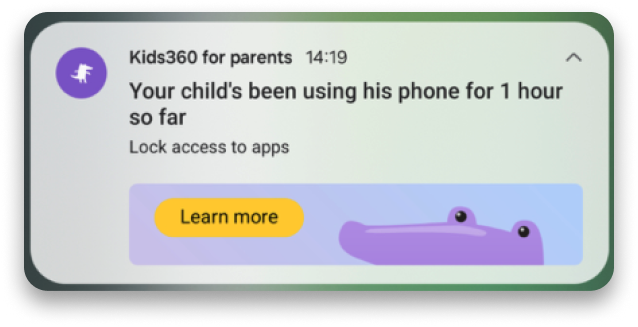
If your child uses their phone for a long time, you’ll get a notification about it.
If you want your child to use apps less, you can move them to the Entertainment Limit category.
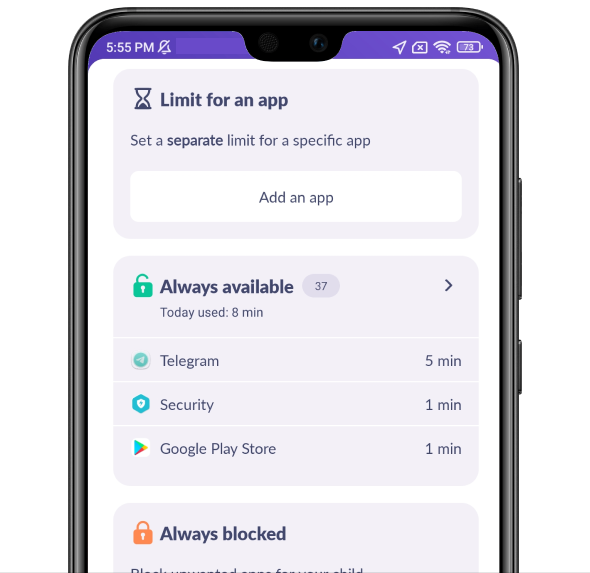
Tap the tab to see the list of apps. You can check how much time your child uses every app and change their category to Always Available or Always Blocked.
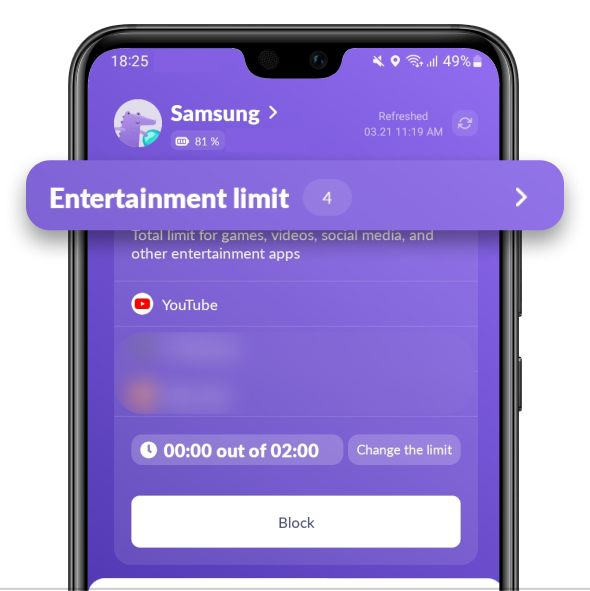
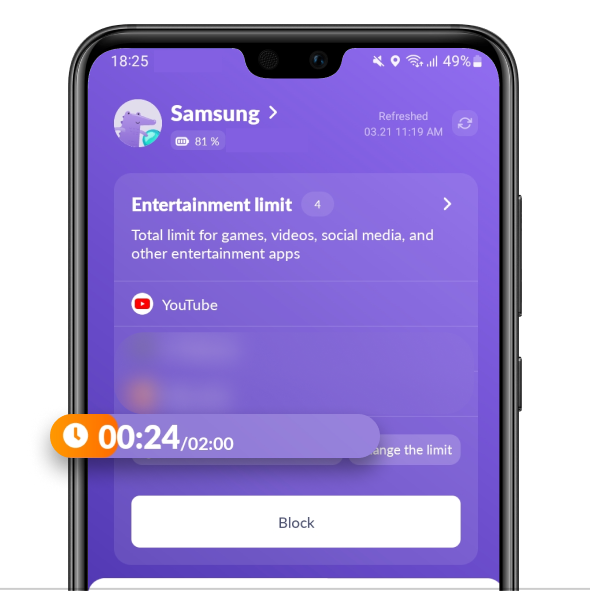
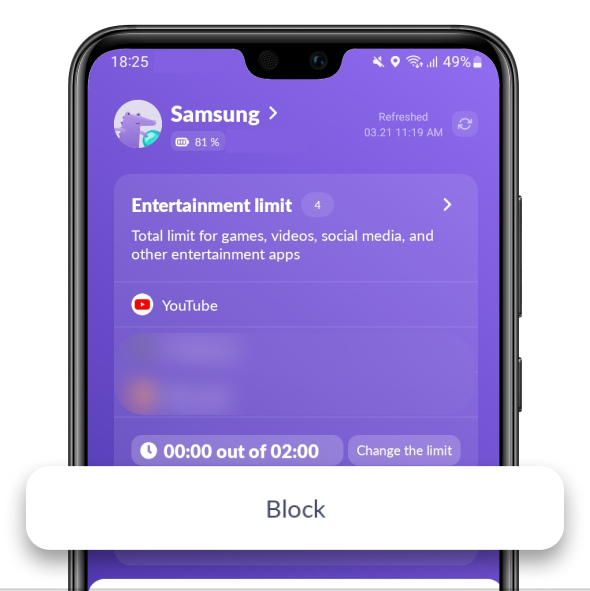
You can check how much your child uses their phone and the current limit.
The scale only counts the time of apps in the Entertainment Limit category.
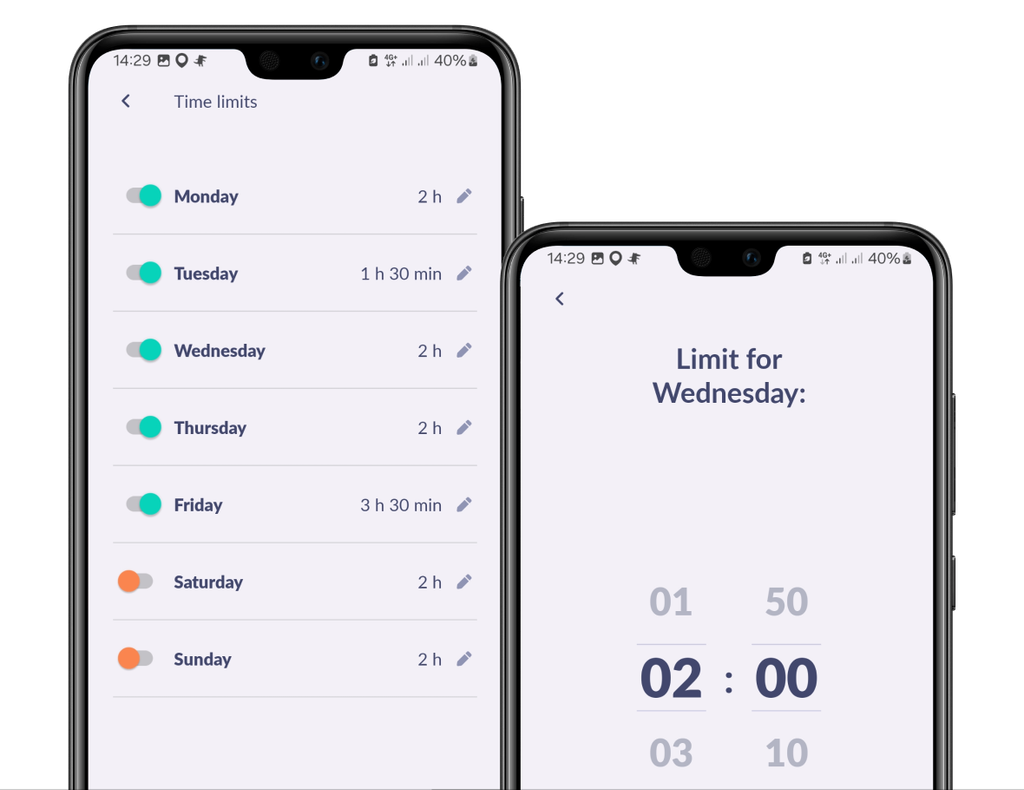
Tap Change the Limit to turn on or off time limits for specific days.
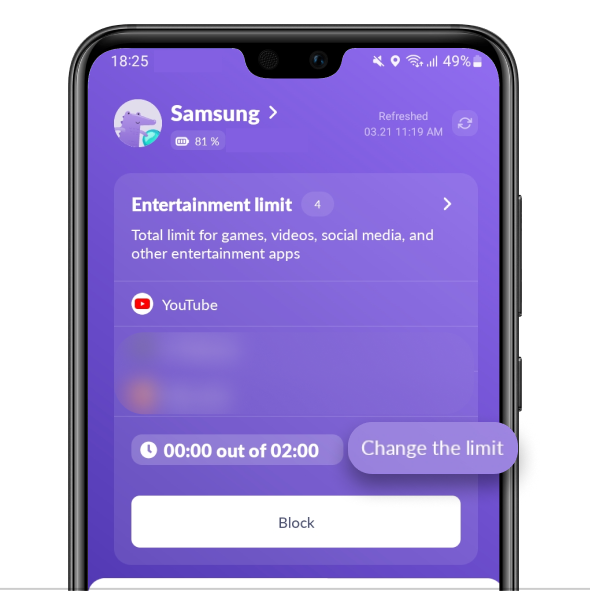
Here you can also change the number of hours your child can use.
Tap the Block icon to forbid opening apps from the Entertainment Limit category.
The feature works in both free and paid versions.
📌 Apps from Limit for an App won’t be blocked by schedules.
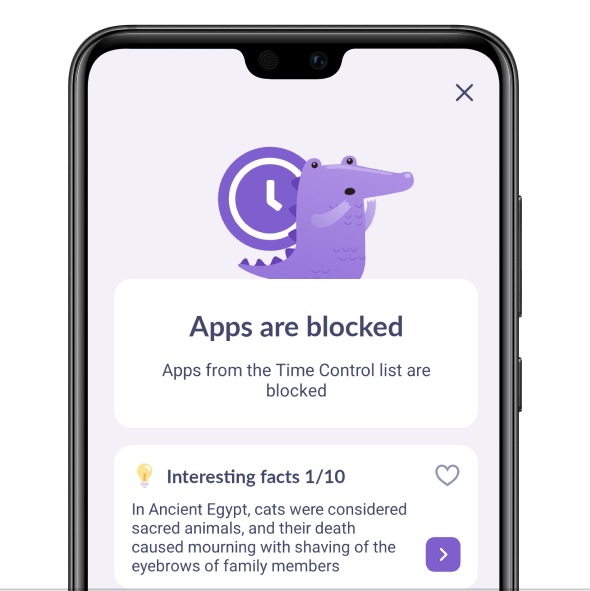
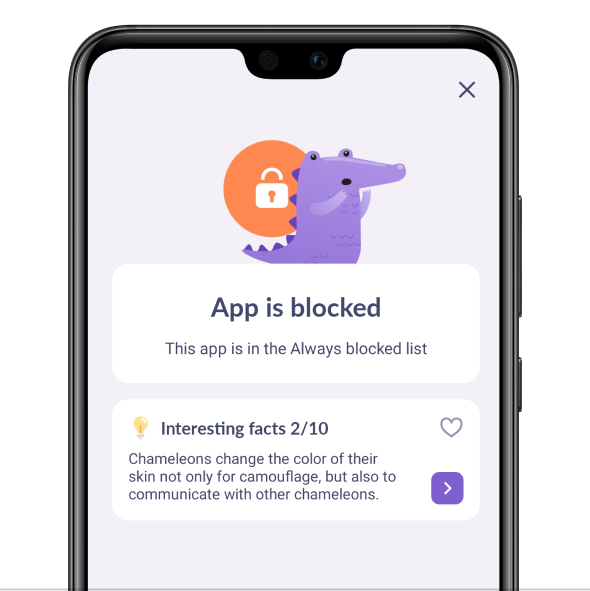
Your child will see the app lock screen if you have:
• a free version of the app and you pressed the Block button
• a paid version of the app and your child has used up the time till the end of the limit
You can block apps completely. That is a paid feature.
Your child won’t be able to use apps in the Always Blocked group, no matter how much free time they have. Two sections are responsible for blocking:
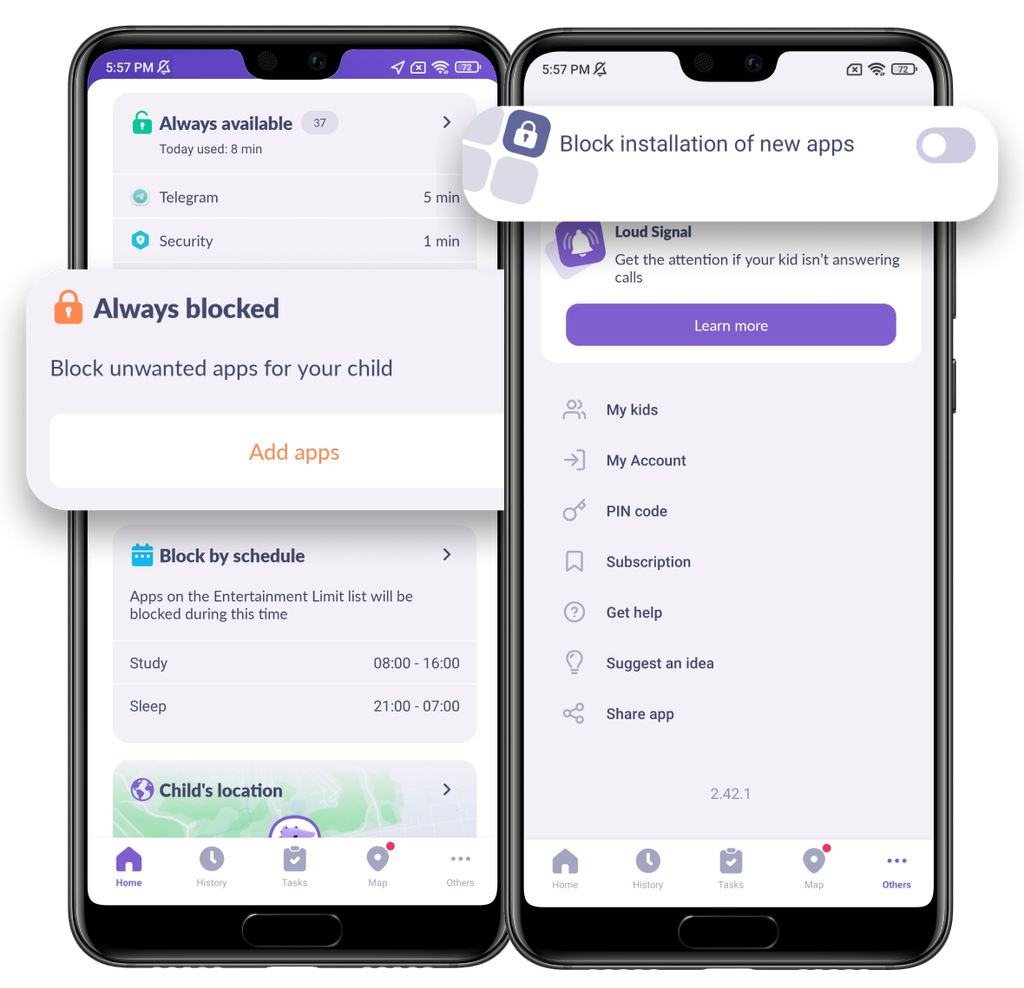
If your child opens an app from the Always Blocked category, they will see a lock screen.
You will only be able to add apps to this category with a subscription.
With a subscription, you can turn on the Block Installation of New Apps feature.
This will add all app stores on your child’s device to the Always Blocked category.
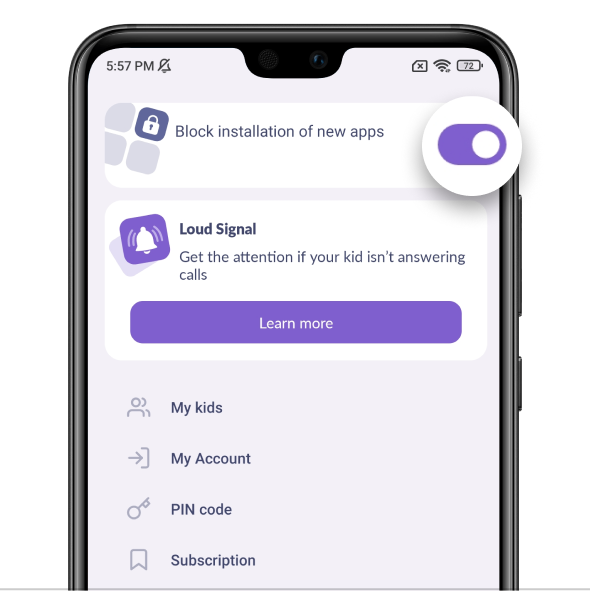
📌 The feature won’t work if your child installs apps from a browser.
Was it helpful?
Chat is unavailable right now. Please try again later.




