
A child’s phone may be on silent at the exact moment a parent needs to reach them. Knowing how to make someone’s phone ring despite their sound settings can make it much easier to get their attention when you need it most. Kids360 Loud Signal offers a quick and easy solution for families.
Key Takeaways
- Kids360 Loud Signal helps parents reach a child by playing a loud sound on the connected phone, even when silent mode is on.
- Apple Find My and Google Find Hub can play sound on a lost phone linked to the user’s account.
- Emergency Bypass and Do Not Disturb exceptions allow calls from certain contacts, but they must be configured in advance.
- A phone that is switched off, out of power, or disconnected cannot receive new alerts immediately.
- Loud alarms are useful for waking a child who may miss an important call, but they should not replace everyday messages.
Table of Contents
Can You Make Someone’s Phone Ring When It’s on Silent?
Yes, there are several methods, but no universal button can make any person’s phone ring. The right option depends on whether a parent needs to reach a child, find a lost device, or let urgent calls from certain contacts through at night.
| Situation | Best Option |
|---|---|
| A parent needs to get a child’s attention | Kids360 Loud Signal |
| The child is not answering | Kids360 Loud Signal, Kids360 Location Tracking, or a regular call |
| The child’s phone is on silent | Kids360 Loud Signal |
| A nearby phone has been misplaced | Kids360 Loud Signal |
| Someone has lost their own phone | Apple Find My or Google Find Hub |
| A person simply needs to contact a friend | A normal call, text, or chat message |
The key difference is who needs to be reached and why. Kids360 is designed for connected family members, so parents can use Loud Signal to get a child’s attention remotely. Apple Find My and Google Find Hub are primarily intended for locating a person’s own lost or misplaced device. Features such as Emergency Bypass and Do Not Disturb exceptions work differently: they need to be set up in advance and do not provide a way to make a missed call ring after the fact.
The Easiest Way to Make a Child’s Phone Ring: Kids360 Loud Signal
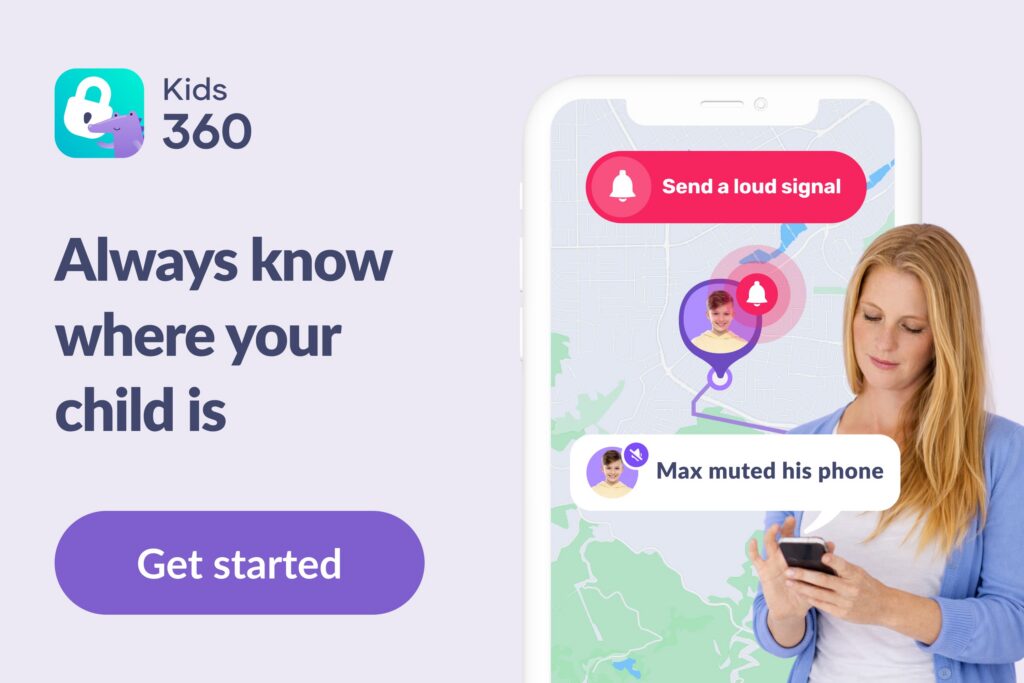
When a child does not answer, repeated calls may not help if the ringtone is muted. Kids360 Loud Signal is harder to miss.
Send a Loud Signal to the Child’s Phone
Loud Signal plays on a connected child’s phone, even in silent mode. It gradually increases to maximum volume, making it easier to hear from another room. This is especially helpful when a child cannot hear ordinary calls and repeated calls would only add frustration.
The feature helps when children miss calls, when a parent needs to wake them, or when the phone is nearby. It works when the child uses supported Android devices.
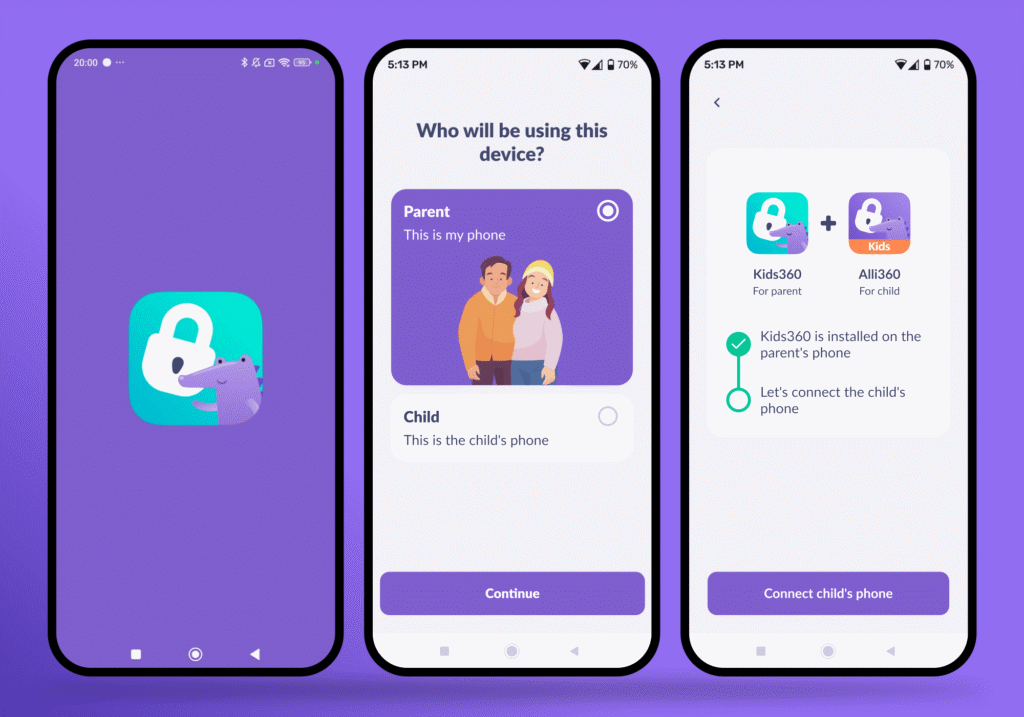
Here is how to make the connected phone ring:
- Download Kids360 on the parent’s phone.
- Install the companion app—Alli360—on the child’s device and connect both phones.
- Complete the setup prompts and allow the requested access.
- Open the child’s profile in the parent app.
- Tap More (the three dots) in the right corner of the bottom navigation bar.
- Tap Loud Signal (Super Signal) to play the alert.
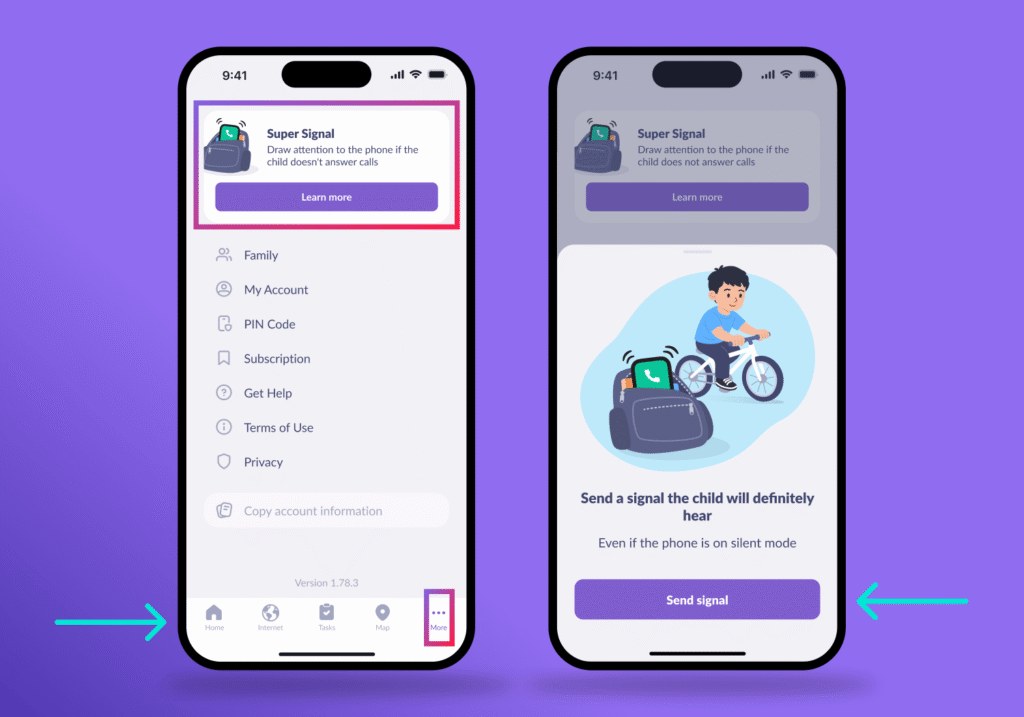
- Follow up with a call or message once the child responds.
Test the feature together first so the child recognizes the alarm and the parent can confirm that both phones connect properly.
Kids360 Is More Than a Way to Make the Phone Ring

Loud Signal is just one of the tools Kids360 offers for everyday family safety and parental control. With Kids360, parents can:
- Stay connected: see a child’s real-time location, check location history, and receive notifications when the child arrives at or leaves a saved place.
- Manage screen time: set daily limits and schedules, including separate rules for school time, bedtime, and other parts of the day.
- Control apps and websites: block individual apps or set restrictions on websites and online content that are not appropriate for the child.
- Understand online activity: check screen-time reports, browser history, and YouTube viewing history to get a clearer picture of how a child uses their device.
- Encourage offline activities: assign tasks and learning activities that let children earn extra screen time by completing them.
Download Kids360 and use Loud Signal to reach your child even when their phone is on silent. Explore location tracking, screen-time controls, app and website restrictions, and other tools for everyday family safety.
Other Ways to Make Someone’s Phone Ring
Built-in tools can locate a personal phone or let chosen contacts through Focus or Do Not Disturb mode.
How to Make Someone Else’s iPhone Ring
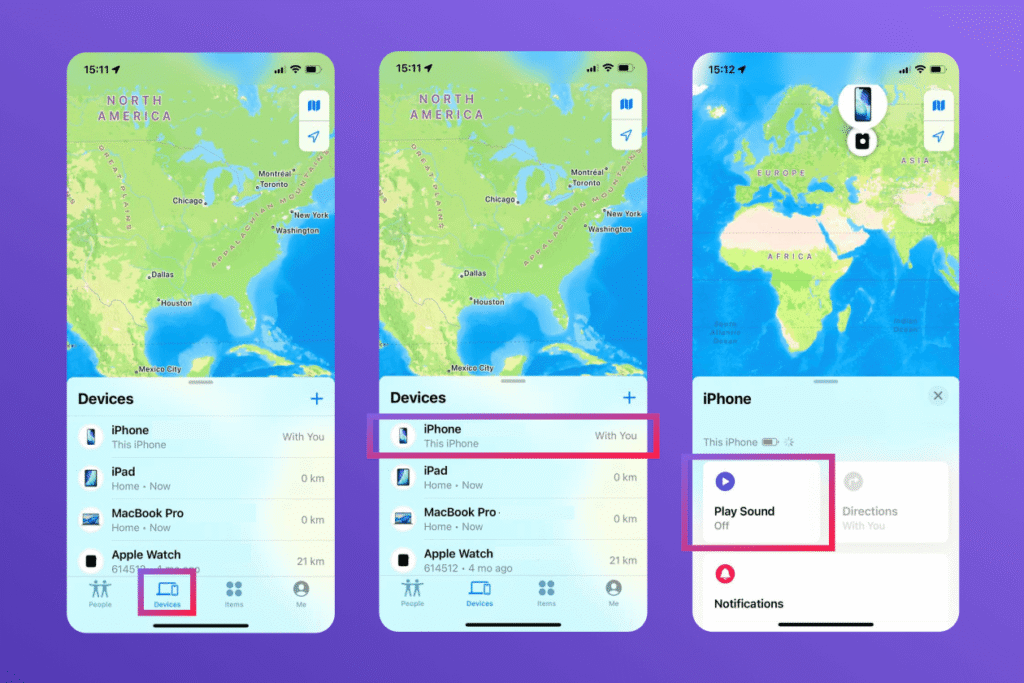
Apple’s Find My app and Find Devices on iCloud.com can play a sound on a family member’s iPhone when Family Sharing is set up. The sound plays even when the iPhone is in silent mode or the volume is muted.
- Open Find My or iCloud Find Devices.
- Select Devices, and choose the iPhone.
- Tap Play Sound.
For future calls and messages, you can set up Emergency Bypass for specific contacts:
- Open Contacts.
- Choose the person, tap Edit.
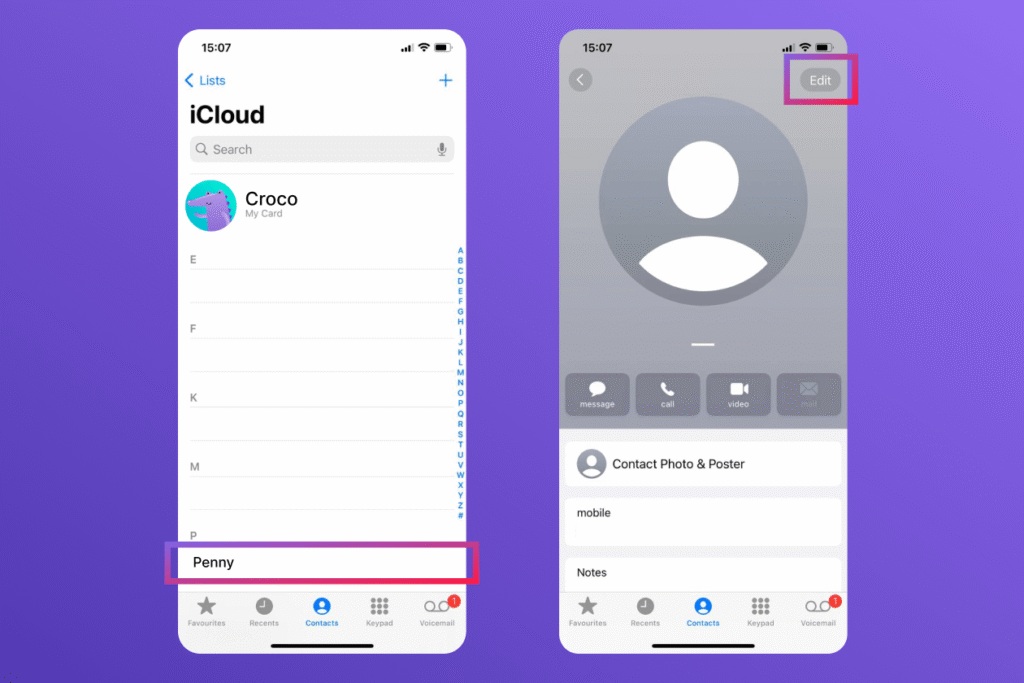
- Tap Ringtone or Text Tone, then turn on Emergency Bypass.
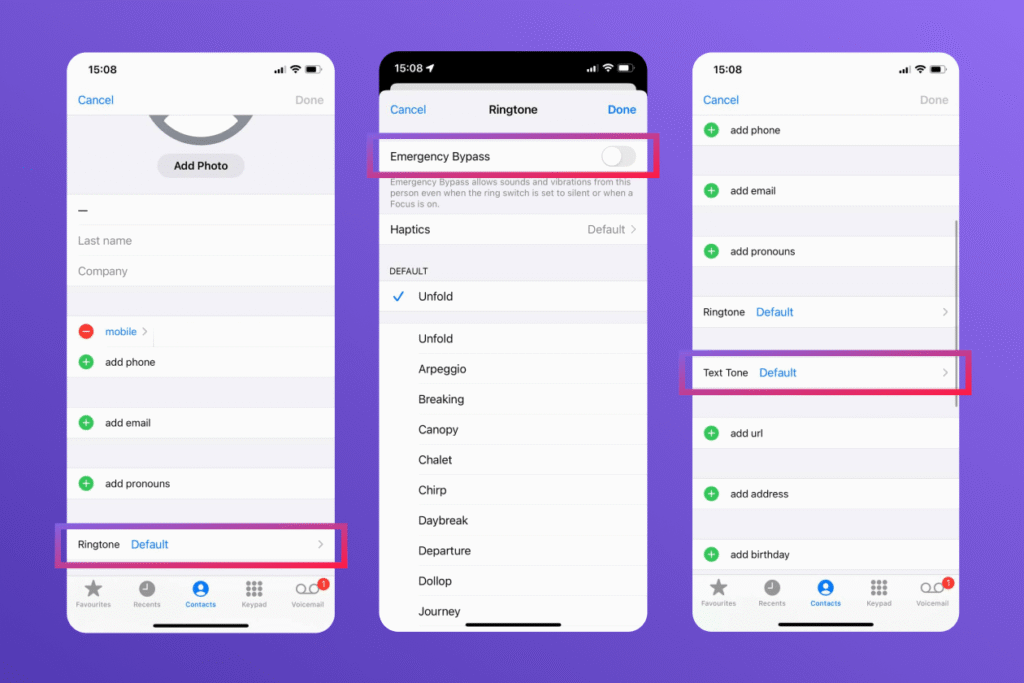
This setting allows sounds and vibrations from that contact even when the iPhone or notifications are silenced.
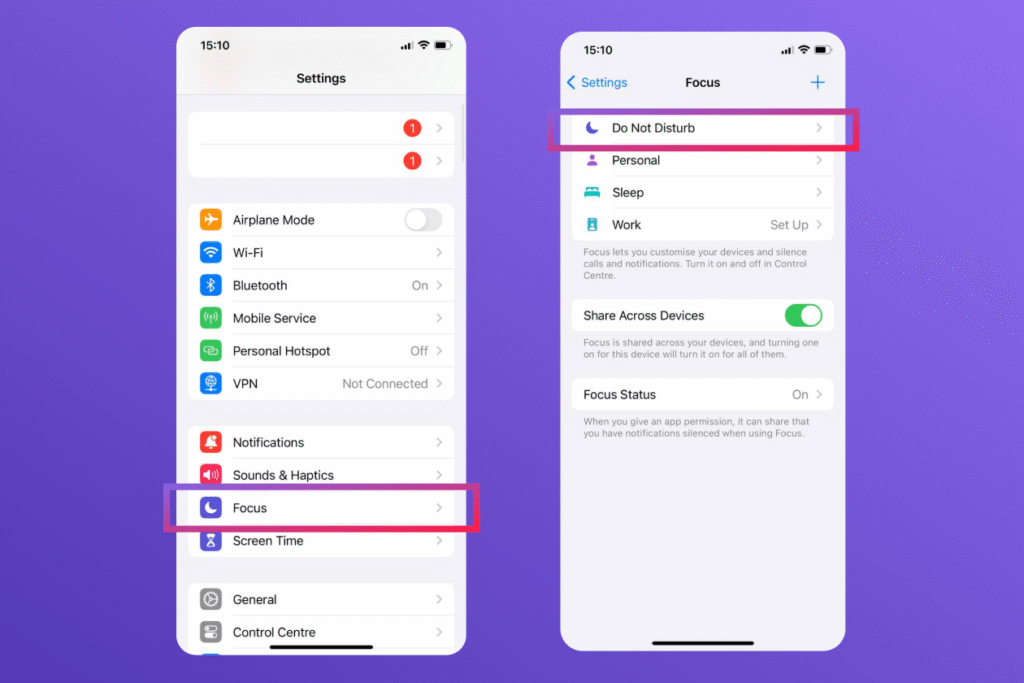
You can also allow selected contacts to reach you during a Focus:
- Open Settings → Focus.
- Select the relevant Focus mode.
- Tap People under Allowed Notifications.
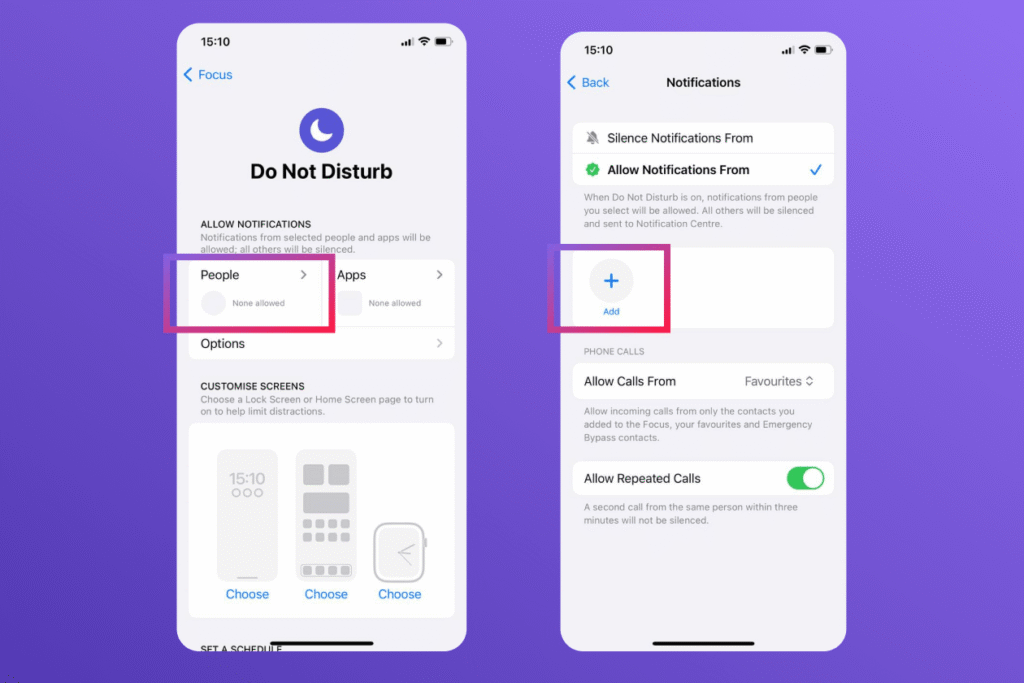
- Select Allow Calls From and add the contacts whose calls or notifications should come through.
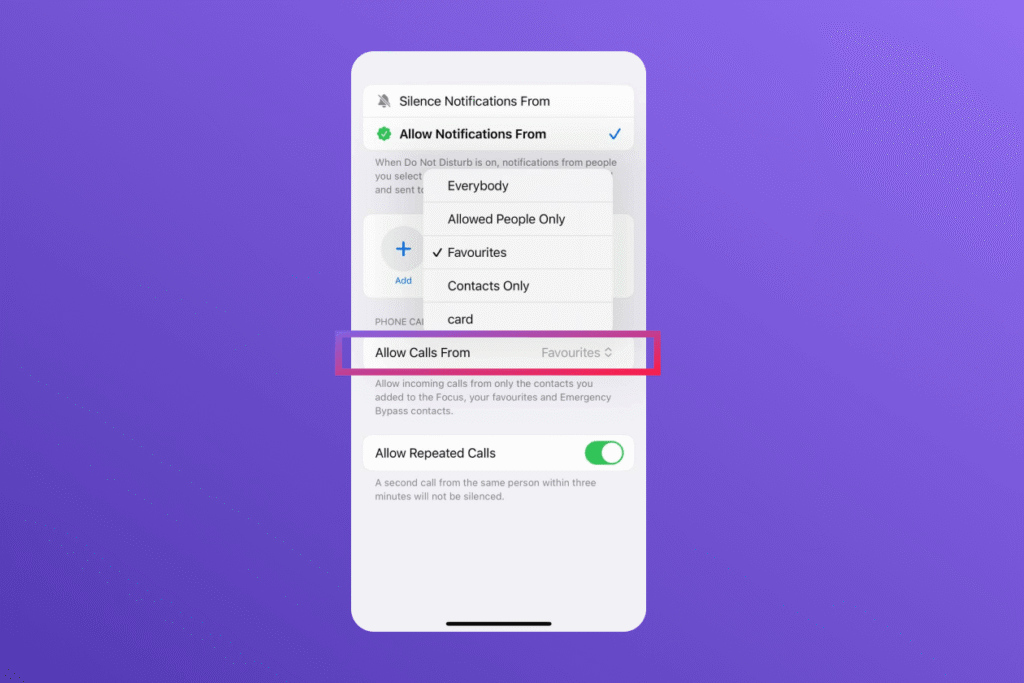
Set this up in advance, since these settings apply to future calls and notifications rather than a missed call.
How to Ring an Android Device
Google Find Hub can ring a lost phone at full volume for five minutes, even when the device is set to silent or vibrate. Some users may still remember the service by its former name, Find My Device.
To make a phone ring:
- Open the Find Hub app on another Android device or go to Find Hub in a web browser.
- Sign in with the Google Account linked to the device.
- Select the phone and tap Play Sound.
This feature is intended for locating a device linked to your account, rather than remotely ringing an unrelated person’s phone.
For future calls, Android users can configure Do Not Disturb to allow calls from selected contacts (the exact menu names may vary by device):
- Open Settings → Modes → Do Not Disturb.
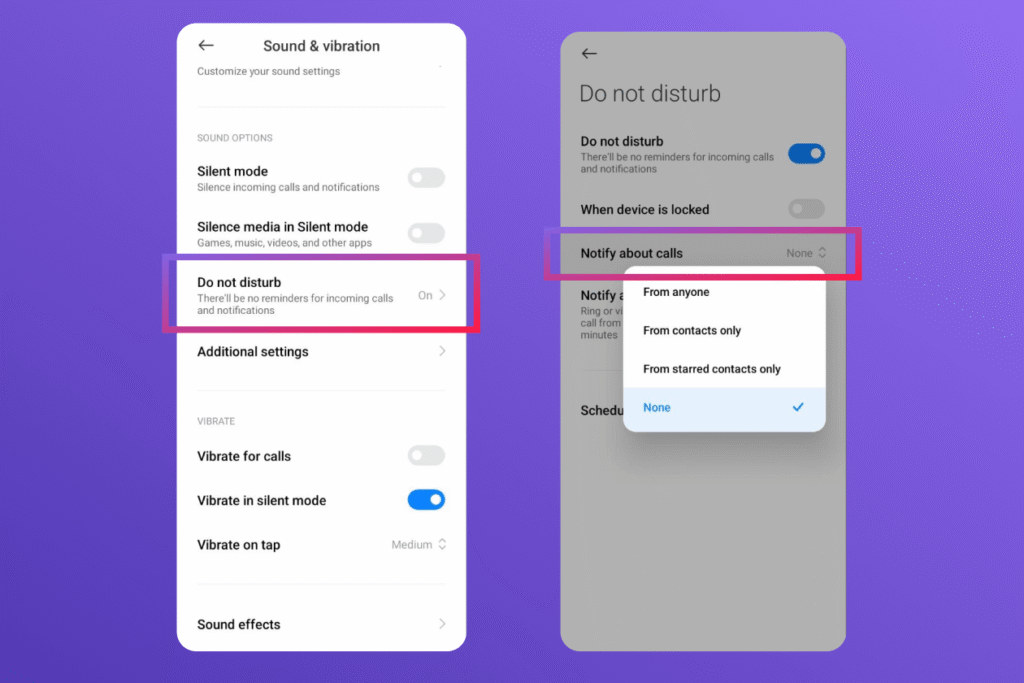
- Tap People under Notification filters.
- Select Calls and choose who can call through, such as starred contacts or selected people.
Android also offers an option to allow a second call from the same person within 15 minutes, which can be useful when someone is trying to reach them in an emergency.
On iOS and Android, calls, alarms, and notifications behave differently in silent mode. iOS users should test these settings with family, and Android users can do the same. Try phone calls from contacts, then check whether the iPhone rings while silent; because contacts and iPhone calls can follow different rules, test other contacts too.
Kids360 vs. Built-In Ways
Each option can play a sound, but they serve different needs.
| Feature | Kids360 Loud Signal | Apple Find My | Google Find Hub | Contact Exceptions |
|---|---|---|---|---|
| Main purpose | Get a child’s attention | Find an Apple device | Find an Android device | Let selected calls through |
| Can sound in silent mode | Yes | Yes | Yes | Yes, when set up correctly |
| Can be triggered remotely | Yes | With account or Family Sharing permission | With account permission | No remote activation |
| Works across iPhone and Android | Yes | No | No | Yes |
| Includes location tools | Yes | Yes | Yes | No |
| Broader parental controls | Yes | No | No | No |
Kids360 combines a loud alert with location and parental controls. Apple and Google suit people searching for a lost device. Emergency Bypass and Do Not Disturb help important contacts reach someone, but require advance setup.
How to Reach Someone When Their Phone Is on Silent
Making a phone ring while it’s on silent is possible, but the right method depends on whose phone you’re trying to reach and why. For a child’s phone, Kids360 Loud Signal plays a loud sound on the connected device even when silent mode is on, making it useful when a child misses calls or needs to be woken up. For a lost personal device, Apple Find My and Google Find Hub offer remote sound playback to help locate a misplaced phone. iPhone Emergency Bypass and Focus settings, as well as Android Do Not Disturb exceptions, can also let selected contacts get through when the phone is silenced, but these options need to be configured in advance.
If you regularly need to get your child’s attention when their phone is on silent, Kids360 combines Loud Signal with location tracking, screen-time controls, and other parental-control tools in one app.
Sources & References
- Play a sound using Find Devices, Apple Support
- Allow or silence notifications for a Focus, Apple Support
- Find, secure, or erase a lost Android device, Google Help
- Limit interruptions with Modes and Do Not Disturb, Google Help



