How to Track an iPhone From Android With Kids360

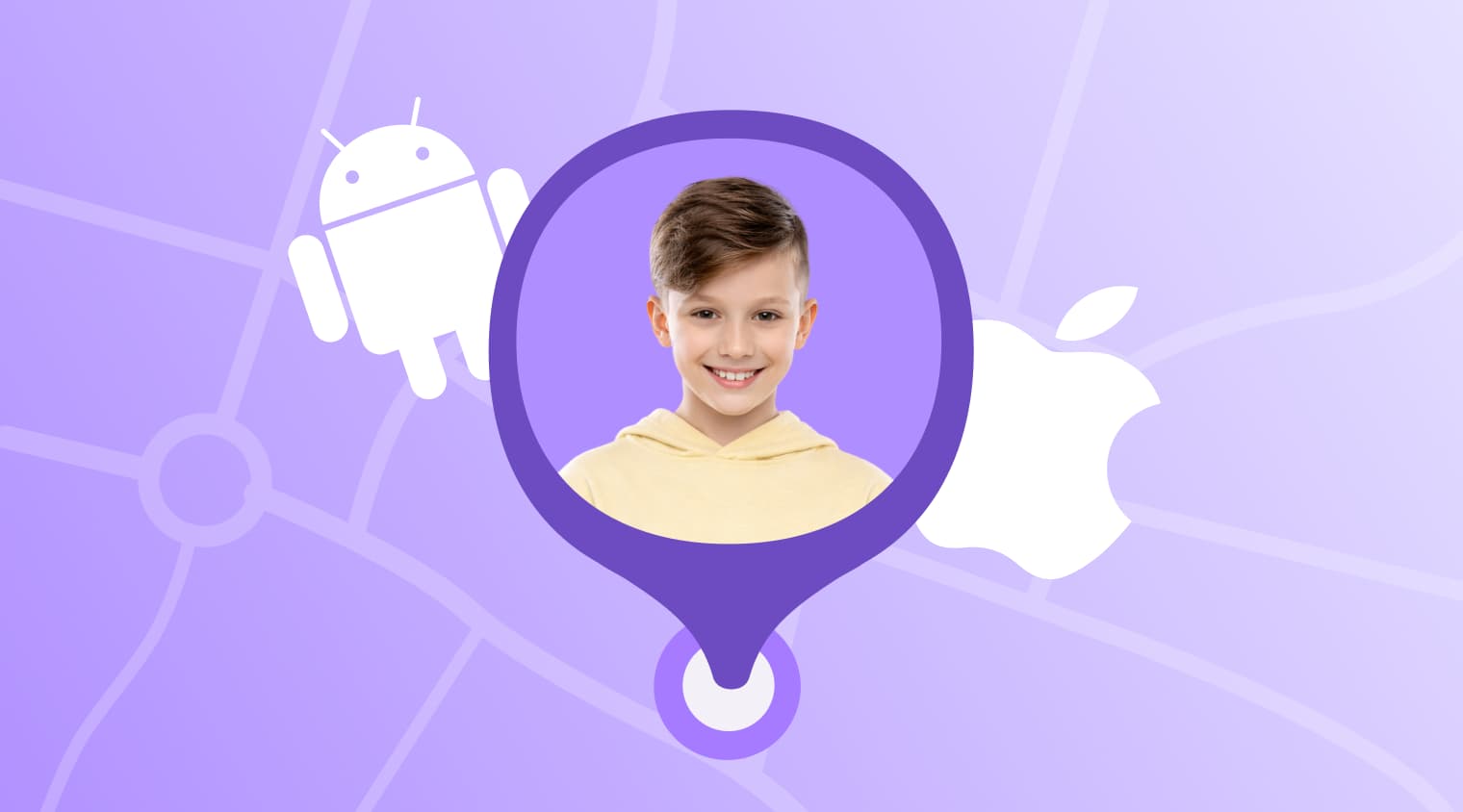
A child heads out with an iPhone in their pocket, but the parent trying to keep an eye on them uses Android. Does that mean the two phones cannot work together? Not at all. It is possible to track an iPhone using an Android device, whether a family needs reliable day-to-day location sharing or a quick way to find a phone that has gone missing.
Key Takeaways
- Kids360 provides cross-platform location tracking, allowing a parent to check a child’s iPhone from an Android device.
- Apple’s Find My service can help locate a lost iPhone through the iCloud website, provided Find My was enabled before the phone went missing.
- Google Maps Location Sharing works across iPhone and Android, but the iPhone user must intentionally share their location.
- A phone number, serial number, or IMEI cannot give an ordinary user access to a live tracking map.
- Any family location app should be installed and tested before it is needed in an emergency.
Table of Contents
Can You Track an iPhone From an Android?
Yes, an Android user can track an iPhone from an Android phone when the correct app or location-sharing service is set up. The two phones do not need to use the same operating system.
What matters is how the devices are connected. A parent may use a cross-platform app such as Kids360, access iCloud through a browser, or view a location that has been shared through Google Maps.
An Android device cannot automatically locate an unknown iPhone. The child’s iPhone must first be connected to a family app, linked through the appropriate account or service, or set to share location information with the parent.
Three Reliable Ways to Track an iPhone
There are three practical options for parents wondering how to track an iPhone with an Android. The table below shows where each one works best:
| Method | Best for | Requires prior setup? | Live location | Location history |
|---|---|---|---|---|
| Kids360 | Ongoing family location tracking | ✅ Yes | ✅ Yes | ✅ Yes |
| Find My via iCloud | Recovering a lost device | ✅ Yes | ⚠️ When available | ❌Current or last known location; no route history |
| Google Maps | Voluntary location sharing | ⚠️ No, if the user starts sharing when needed | ⚠️ Yes, while sharing is active | ❌ No route history |
For regular family use, a dedicated cross-platform app usually provides the most convenient long-term option. iCloud is better suited to recovering an Apple device, while Google Maps works well for simple person-to-person sharing.
Method 1: Use a Cross-Platform Family Location App
Families do not always use the same type of phone. A parent may prefer an Android device while their child uses iOS. A cross-platform app solves this problem by connecting both devices through one family account.
Kids360 is a parental control and family safety app that works across Android and iPhone. It combines location tools with screen time statistics, daily limits, schedules, and tasks for children.
Why a Dedicated App Is the Better Choice
A dedicated family app is designed for everyday family use, not just for finding a lost phone or sharing a location for a few hours. Once the devices are connected, parents can check their child’s location, review phone activity, and adjust screen time rules from one dashboard.
That makes Kids360 especially useful for families who want location tracking to be part of a broader safety routine. Instead of switching between Google Maps, built-in device settings, and separate screen time tools, parents can manage several parts of their child’s digital life in one place.
Kids360 also takes a more collaborative approach to parental controls. Children can complete agreed tasks—such as homework, reading, or household responsibilities—and earn additional screen time for completing them. This gives children an active role in managing their own screen time rather than making every limit feel like a restriction imposed by a parent.
For families, the biggest advantage is that location tracking does not have to stand alone. Parents can combine real-time location, movement history, safe-place notifications, screen time limits, app rules, reports, and task-based rewards in one system. That makes Kids360 a more complete option for ongoing parental supervision than a location-sharing feature alone.
How to Track a Child’s iPhone With Kids360
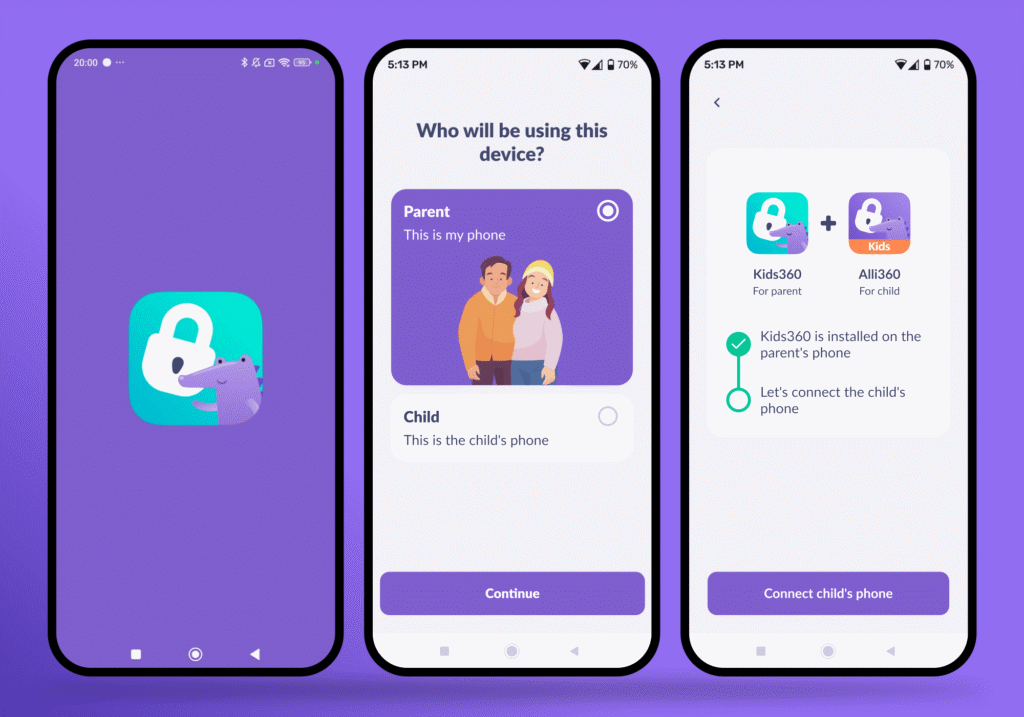
The app needs to be installed and connected before the parent can view the child’s location. The exact screens may change slightly as the Android app and iPhone features are updated.
Parents can follow these basic steps:
- Install Kids360 on your Android phone. Download the app and create your parent account.
- Install the Alli360 companion app on your child’s iPhone. Use the appropriate app store on the child’s device.
- Connect the two devices. Follow the pairing instructions in Kids360 and use the pairing code to link your child’s iPhone to your parent account.
- Complete the setup on the child’s iPhone. Grant the location and other permissions requested by the app so location tracking can work correctly.
- Keep both phones online. Make sure the Android parent phone and the child’s iPhone have an active Wi-Fi or mobile data connection while the devices complete their first sync.
- Open the Map section in Kids360. Select your child’s profile and check that their current location appears on the map.
Once setup is complete, test the app while both phones are nearby. This quick post-setup check can reveal a missed permission before the family starts relying on it.
What Parents Can See in the Map Section
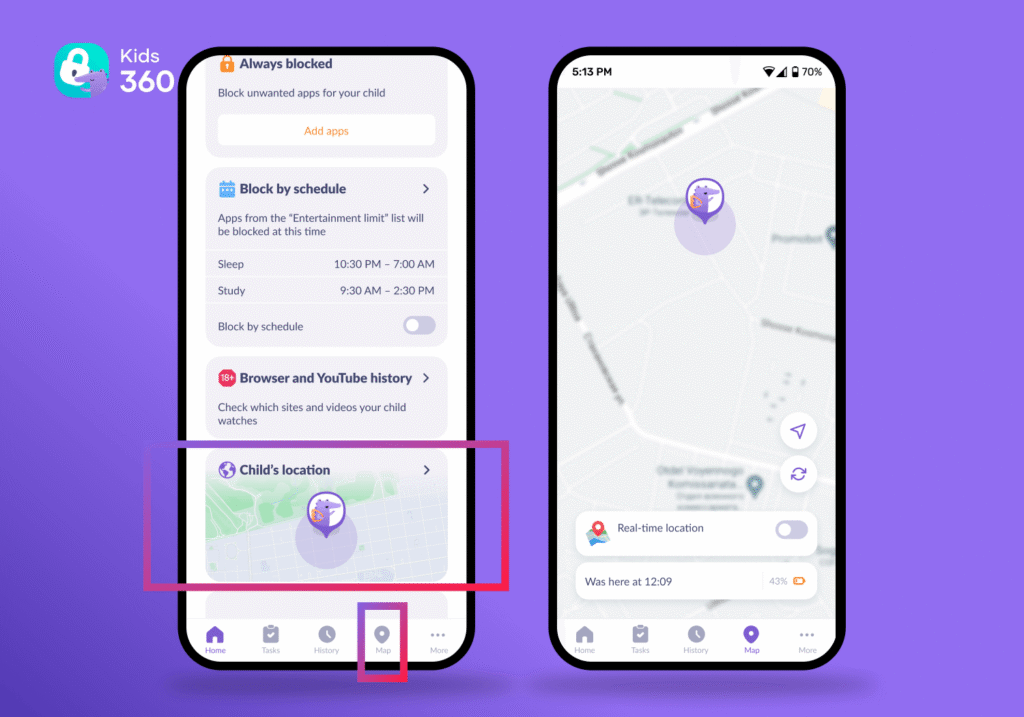
Kids360 gives parents more than a single location pin. The Map section combines real-time tracking, movement history, route details, and place-based notifications, so parents can see both where their child is now and how they have been moving throughout the day.
- Real-Time Location shows the child’s current position and includes a live mode that lets parents follow their movement as it happens.
- Movement History lets parents review the child’s entire route for a selected day. Instead of checking isolated location points, you can see the full picture of where your child has been.
- Routes provide a more detailed view of individual trips in the event feed. Each route card includes a map, start and end times, trip duration, distance traveled, maximum speed, and number of stops. This can make it easier to understand a child’s journey at a glance.
- Places and Notifications let parents save important locations, such as home, or school, as safe zones. Kids360 can then notify parents when the child enters or leaves a saved place.
Like any phone-based location service, Kids360 relies on signals and settings on the child’s device. Poor GPS reception, limited internet access, low battery, or disabled permissions may delay location updates or reduce accuracy.
Other Useful Kids360 Features

Location is only one part of the app. Kids360 also offers tools that can help parents manage the child’s wider phone use.
Depending on the child’s device and plan, parents can use Kids360 to:
- Review screen time and app usage statistics
- Set daily screen time limits
- Create schedules for sleep, study, or other routines
- Manage access to supported apps
- Add another parent and multiple children or children’s devices
- Give children tasks that can earn additional screen time
The tasks for children give families an alternative to simply saying no when the daily phone allowance runs out. A child may earn extra time by completing an agreed activity, such as reading, doing homework or helping around the house.
Kids360 is therefore the most complete option of the three for a family that wants regular tracking and parental controls in one place. Try it for free and connect the devices before you urgently need to locate your child!
Method 2: Access Find My iPhone Through a Browser
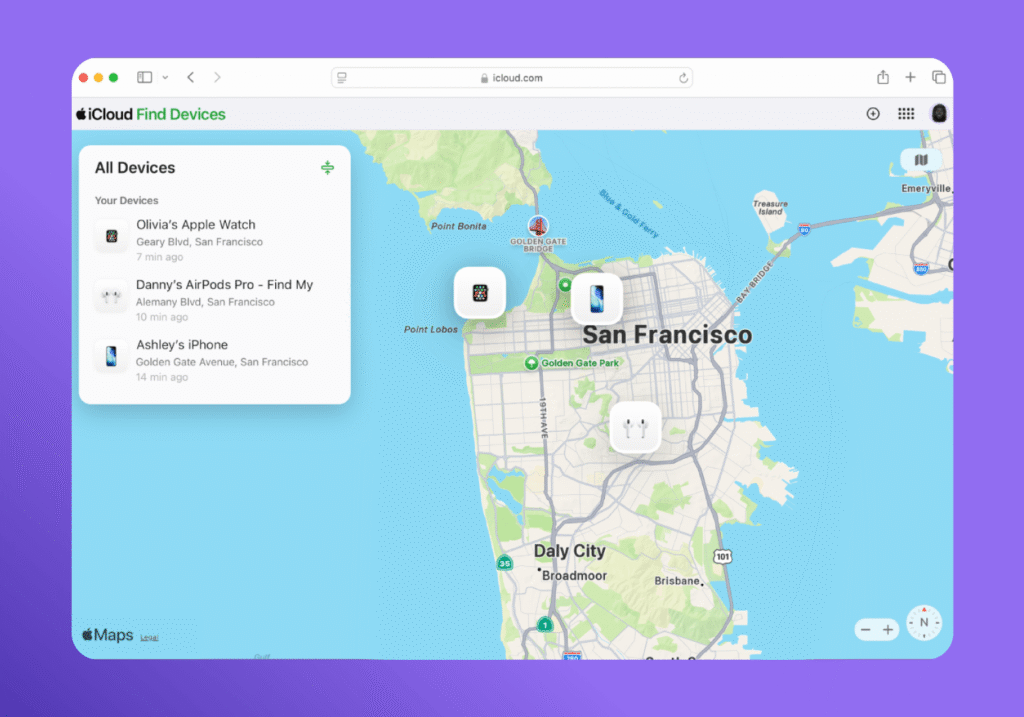
If you’re using an Android phone, you can still use Apple’s Find My service to locate a child’s iPhone through a web browser on an Android phone or computer.
Although many people still search for “Find My iPhone,” Apple now refers to the wider service as Find My. It covers an iPhone, iPad, Mac, Apple Watch, and certain other Apple devices.
To find an iPhone from an Android device, follow these steps:
- Open a secure browser and go to iCloud.com/find.
- Sign in with the Apple Account associated with the child’s iPhone, or with your own Apple Account if the device is available through Family Sharing.
- Select the missing iPhone from the list of devices.
- Check the position shown on the map.
- Use an available option such as Play Sound, Mark as Lost, or Erase This Device if appropriate.
There are a few important limitations to keep in mind. This method works only if Find My was already turned on for the child’s iPhone. The person trying to access iCloud must also have the correct Apple Account login details.
According to Apple’s guidance for locating a device through iCloud, the map shows an approximate location. If the device cannot be located, the iCloud website may display its last known location for up to 24 hours.
If the Find My network was enabled, supported devices may still be located in certain offline situations. A supported iPhone may also remain findable for a period after it is turned off. Results depend on the phone model, settings, available signals, and battery status.
The biggest limitation is what Find My is designed to do. Find My iPhone is primarily a device-recovery tool. It is useful for a lost iPhone, but it does not provide the same ongoing route history as a family location app.
Method 3: Use Google Maps Location Sharing
Google Maps Location Sharing is another way to view an iPhone’s location from an Android phone. It works best when the child and parent already use Google services and only need straightforward location sharing.
The iPhone user must intentionally share the location. It cannot be silently activated from the parent’s Android device.
The setup is fairly short:
- Open Google Maps on the child’s iPhone.
- Sign in to the child’s Google Account.
- Tap the profile picture and choose Location sharing.
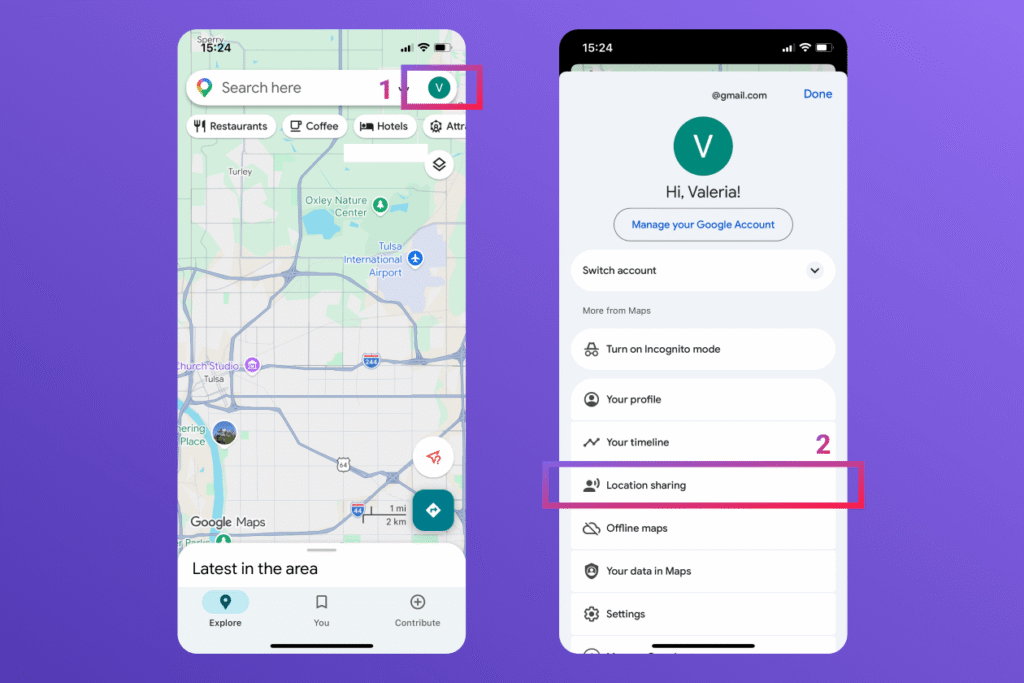
- Select Share location and choose how long the location should be shared.
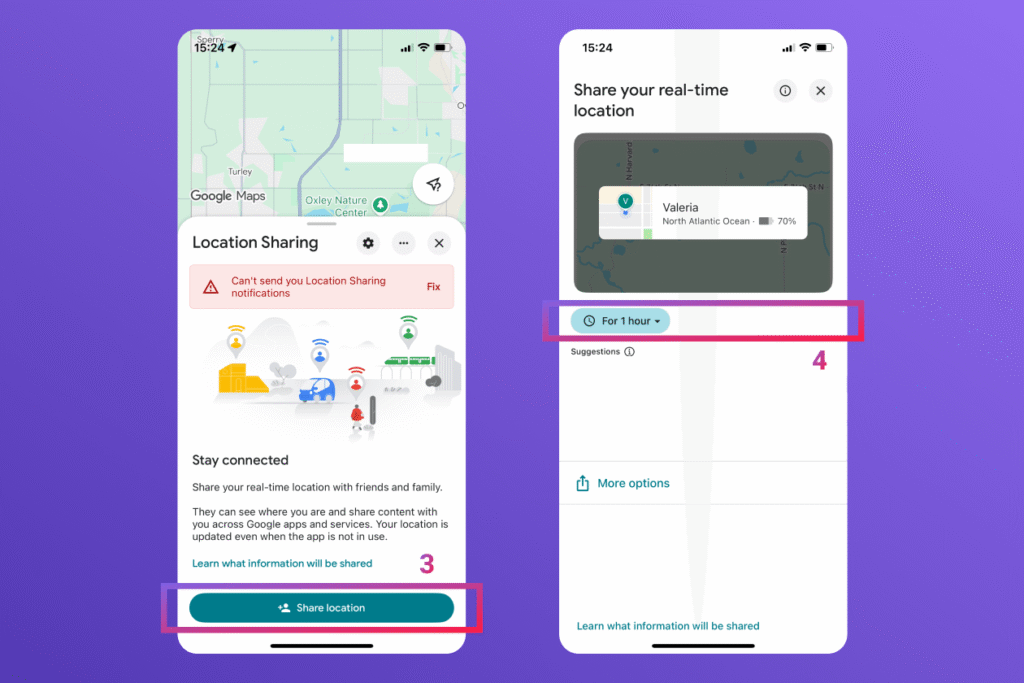
- Choose the parent’s Google profile or send a sharing link.
- Open Google Maps on the parent’s Android phone and select the child’s profile.
Google explains that people with access to a shared location may also see the device’s recent position, and battery status. Depending on how the location is shared, arrival and departure information may also be available.
There are a few limitations to remember. The iPhone user can stop sharing at any time. A link sent to someone without a Google Account can share a real-time location for up to 24 hours, so it should not be treated as a permanent family setup.
Background permissions, mobile data, Wi-Fi, GPS reception, and low battery can all affect updates. Google Maps also cannot lock or erase a lost device. It is a location-sharing tool, not a replacement for Find My or a dedicated parental control app.
Tracking Methods That Do Not Work Reliably
Parents searching for a missing phone may come across websites promising instant results with almost no setup. These offers should be treated carefully, especially if they ask for payment, an Apple ID, or a password.
The following methods cannot provide an ordinary user with reliable live tracking.
Tracking an iPhone by Phone Number Alone
A legitimate public website cannot locate an iPhone simply because someone enters its phone number. Mobile carriers and emergency services may have access to information that the public does not, but that does not make phone-number tracking available through an online map.
Websites claiming otherwise may be collecting personal data, displaying a made-up result or trying to persuade the visitor to pay.
Tracking by IMEI or Serial Number
An IMEI is an identification number assigned to a mobile device. It can help a carrier, insurer or police service identify a particular phone after it has been reported lost or stolen.
An IMEI or serial number does not give a parent access to the phone’s GPS location. Neither one will produce a live map or allow the parent to watch the device move.
Using Google’s Find Hub Network
Google’s device-finding network is designed to help locate supported Android phones, tablets, and compatible accessories. It is not a way to add an iPhone to Google’s device-finding system or remotely manage an iPhone from an Android device.
Families that want cross-platform person sharing through Google should use Google Maps Location Sharing. Those who want ongoing parental tools can use an app designed to connect iPhone and Android devices.
Installing an App After the iPhone Has Gone Missing
A family tracking app generally cannot be installed and configured remotely after an iPhone has disappeared. Location access and other permissions must be approved on the phone itself.
This is why the setup should be completed and tested beforehand. Waiting until a phone is missing creates the same problem many parents are trying to avoid: the right tools are no longer available when they matter most.
Secret Tracking Without Permission
Location tools should not be used to obtain someone’s password, bypass account security, or hide tracking software. Tracking an adult without their knowledge may also breach privacy laws.
Parents should explain location rules to their children in age-appropriate language. The goal is safety and support, not catching a child doing something wrong.
Choosing the Best Method for Your Family
Parents wondering how to track an iPhone with an Android should choose the method that matches the situation.
| Feature | Kids360 | Find My via browser | Google Maps |
|---|---|---|---|
| Track a child’s iPhone from an Android | ✅ | ✅ | ✅ |
| Real-time location | ✅ | ✅ When available | ✅ With location sharing |
| Location history & routes | ✅ | ⚠️ Limited location history | ⚠️ Limited |
| Safe-place notifications | ✅ | ⚠️ Limited | ✅ Arrival/departure alerts |
| Screen time limits | ✅ | ❌ | ❌ |
| App limits & blocking | ✅ | ❌ | ❌ |
| Schedules | ✅ | ❌ | ❌ |
| Usage reports | ✅ | ❌ | ❌ |
| Child tasks & extra screen time | ✅ | ❌ | ❌ |
| Family-focused safety tools | ✅ | ❌ | ⚠️ Location sharing only |
| Lost-device recovery | ⚠️ Not the main purpose | ✅ | ❌ |
| Best for | Ongoing parental supervision | Finding a lost iPhone | Simple location sharing |
Kids360 is the most practical option for long-term family tracking, especially when the parent and child use different devices. It combines location information with screen time controls, schedules, and tasks.
Find My through iCloud is better when an Apple device has already gone missing. Google Maps is useful when friends or family members want to share location information voluntarily without a full parental control setup.
Whichever option the family chooses, do not forget to set it up in advance. Test the connection, check the permissions, and make sure the child understands how the location feature will be used.
Sources & References
- Locate a Device in Find Devices on iCloud.com, Apple Support
- How to Turn On Find My, Apple Support
- Find a Lost iPhone or iPad, Apple Support
- Help: Share Your Real-Time Location, Google Support
- Google Android Help: Find Your Friends and Family With Find Hub, Google Support