How to Share Live Location With Family on Any Phone

Soccer practice ends 20 minutes early, and a parent stuck in traffic has no idea whether their 10-year-old is waiting at the gate or has walked to a friend’s house. It can also simplify everyday routines, from coordinating school pickups to letting grandparents know when a child is on the way.
Here’s how it works on iPhone and Android, and which setup suits kids aged 7 to 14.
Key Takeaways
- Find My only shares location between Apple devices, so it won’t help a house with an Android phone in it.
- Google Maps works on both iPhone and Android, and a share can last 15 minutes or stay on until someone turns it off.
- Google’s Family Link shows where a child is only if they use Android or a compatible watch.
- When a location stops updating, the cause is usually Location Services, a battery saver mode, or a weak signal.
- Kids360 puts a child’s location on one map, on iPhone or Android, alongside screen-time controls.
Table of Contents
What Is Live Location Sharing and How Does It Work?
Every phone knows roughly where it is, thanks to GPS and nearby Wi-Fi. Location sharing passes that spot along to chosen family or friends, who then see it as a dot on a map.
There are two ways to do it. A one-time share sends a single pin of someone’s current location, which works well for a quick “I’m at the side entrance.” Live location is different because the dot moves along with the person and shows their real-time position on the map.
Parents can choose how long live sharing lasts, from an hour to the end of the day. There’s also permanent location sharing, which stays on until someone turns it off. Most apps use precise location too, so the pin lands on the exact spot instead of a rough area.
How to Share Location Safely With Family Using Kids360
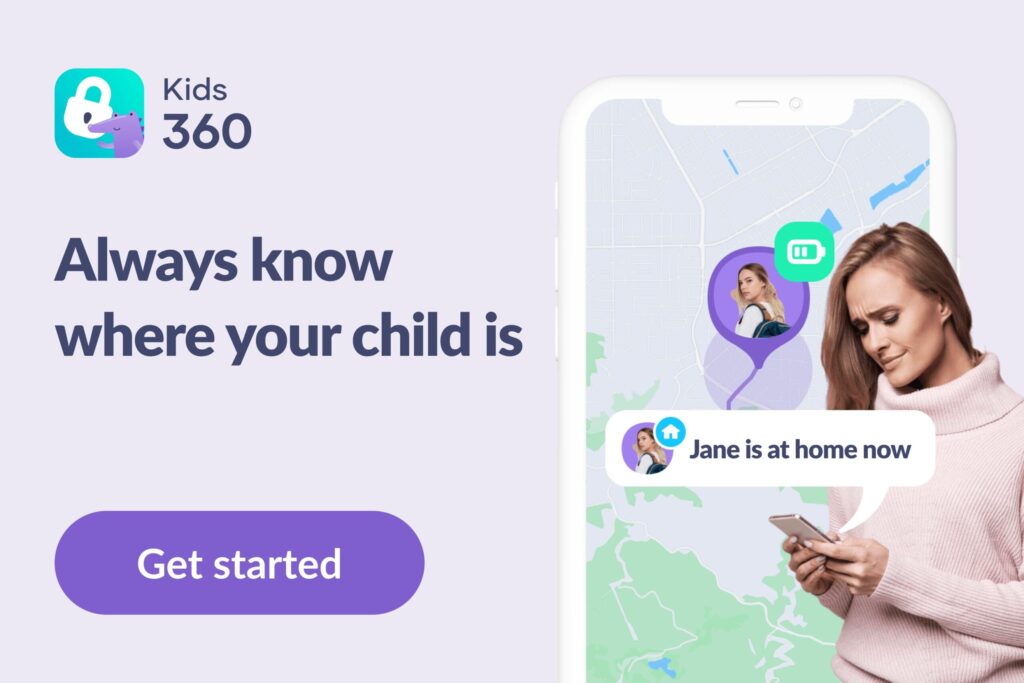
Apple and Google’s own apps work well when everyone in the family has the same kind of phone. It gets tricky when Mom has an iPhone and her son has an Android, because Find My won’t show his location at all. Google Maps works on both phones, but a child can switch it off in a few seconds. Kids360 solves this, since it works no matter which phone the parent or child uses.
Kids360 is a free, easy-to-set-up parental control app that combines child location tracking with screen-time limits and online safety tools. It takes just a few minutes to get started, and parents can connect an unlimited number of children’s devices.
What Kids360 Shows Parents on the Map
School finishes at 3 p.m., and the walk home takes about 15 minutes. With Kids360, a parent can open the app and see their child’s real-time location on the map, moving along the route as they walk. If they’re running late, parents can check the location history to see the route their child took and whether they stopped somewhere along the way.
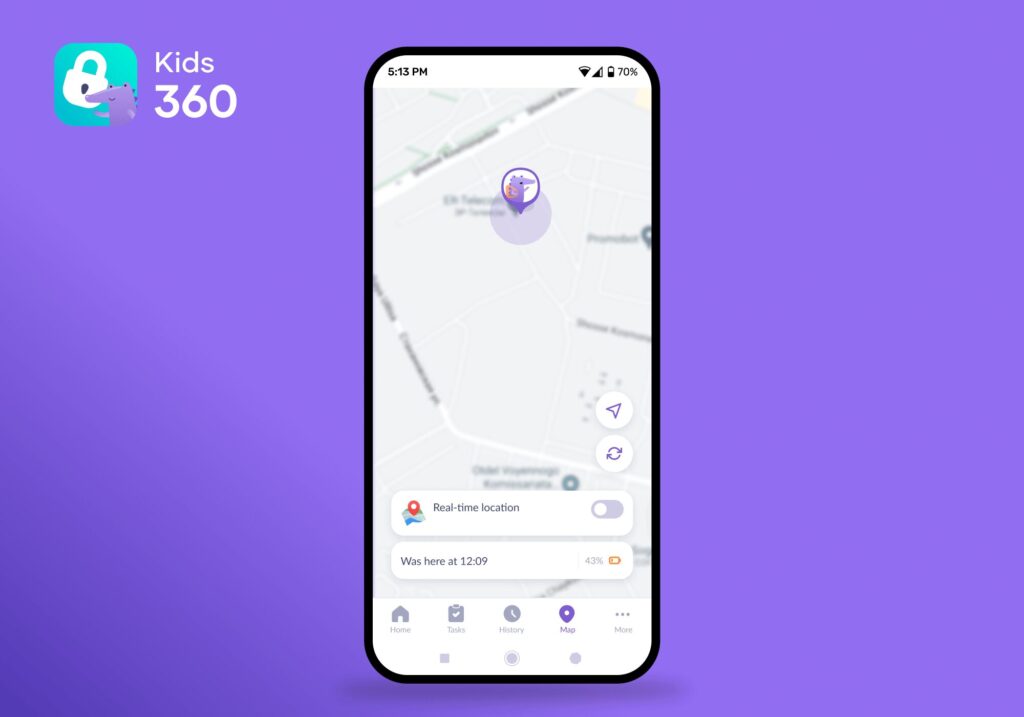
Instead of checking the map manually, parents can use the Safe Zones feature. They mark places like home and school, and Kids360 sends a notification when their child arrives or leaves. On an Android device, the app also shows the phone’s battery level, so parents can remind their child to charge it before it dies.
Other Kids360 Features Parents Use Every Day
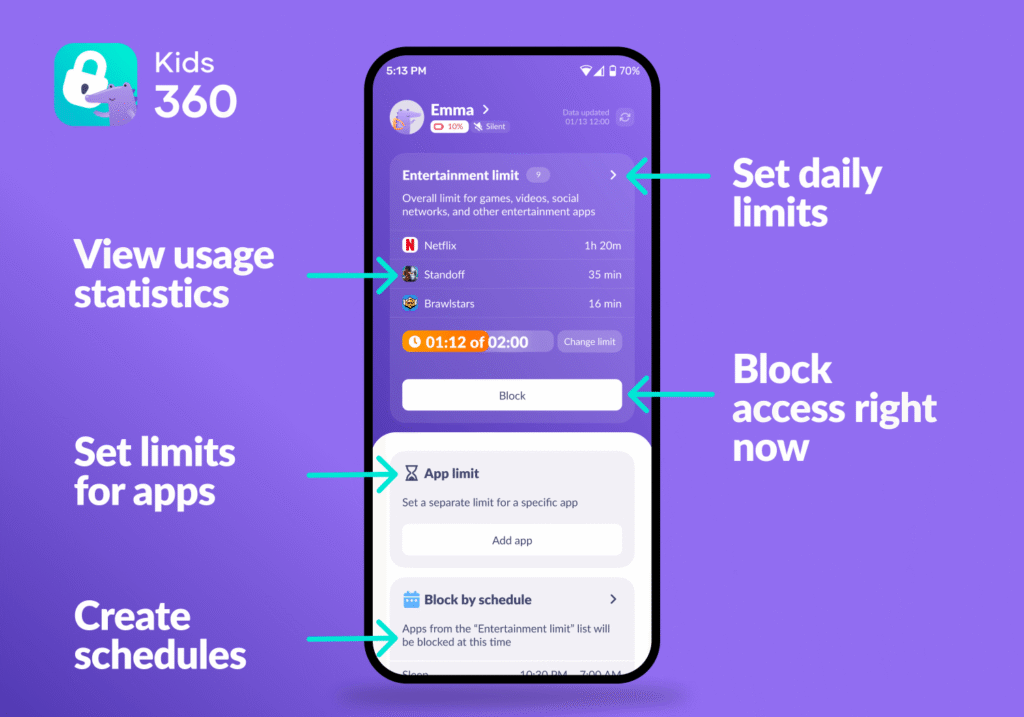
From the same app, a parent can also manage:
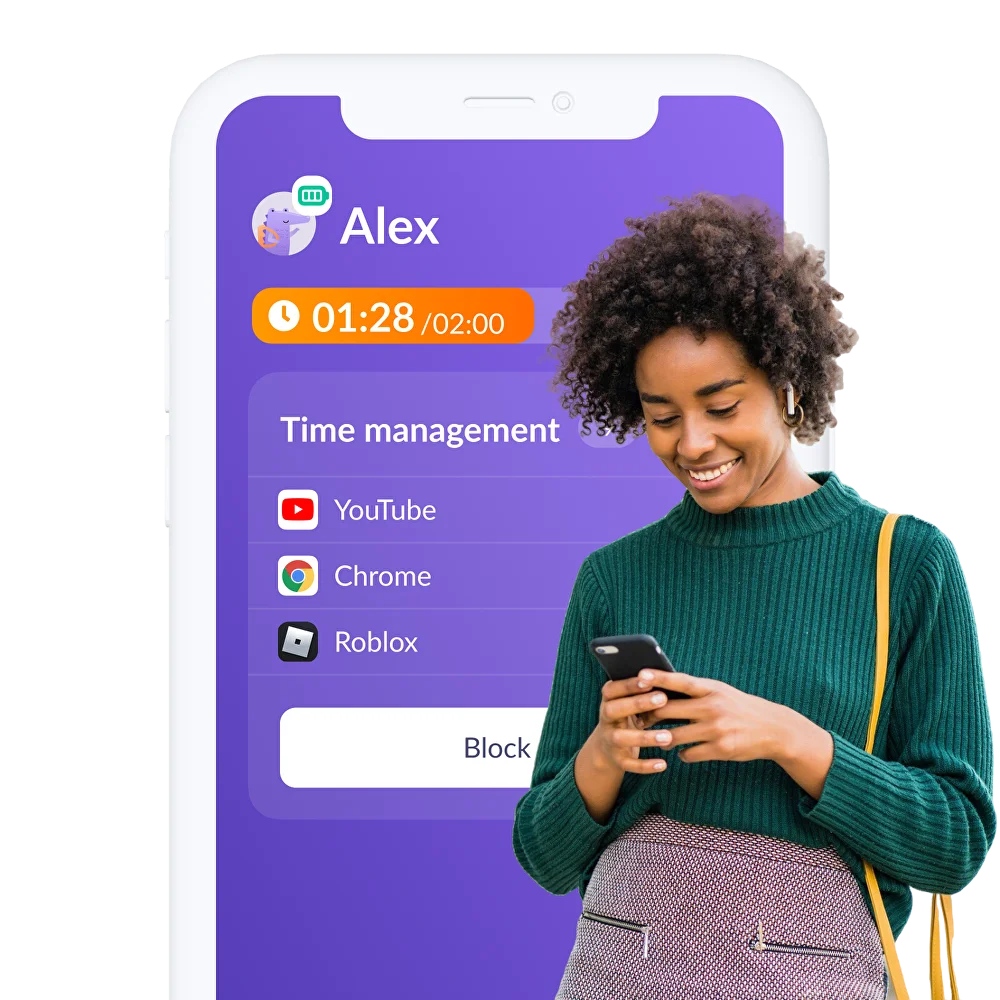
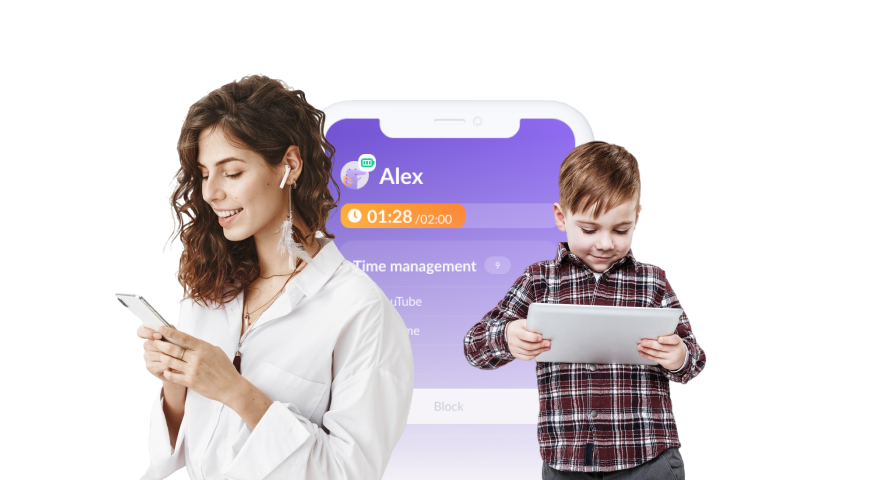
- Daily screen-time limits to block games when the allotted time runs out, while keeping calls, maps, and other essential apps available
- App blocking schedules to keep games and social media closed during homework, school hours, or before bedtime
- Access to individual apps or categories by blocking specific apps or entire groups of apps
- Safe Internet to block adult websites on a child’s iPhone and review search and YouTube history on Android
- Loud Signal to make a child’s Android phone ring at full volume, even when it’s on silent
- Reward tasks to give children extra screen time when they complete assigned activities
Kids360 doesn’t read a child’s messages or social media chats. The Alli360 app is visible on the child’s phone and designed to be used with their knowledge. Children can also see the screen-time limits, making it easier to discuss the rules and agree on them together.
How to Set Up Kids360 and Check a Child’s Location
Setup takes about five minutes:
- Download Kids360 on the parent’s phone and create an account.
- Install Alli360 on the child’s phone.
- On the child’s phone, enter the code shown in Kids360 to connect the two.
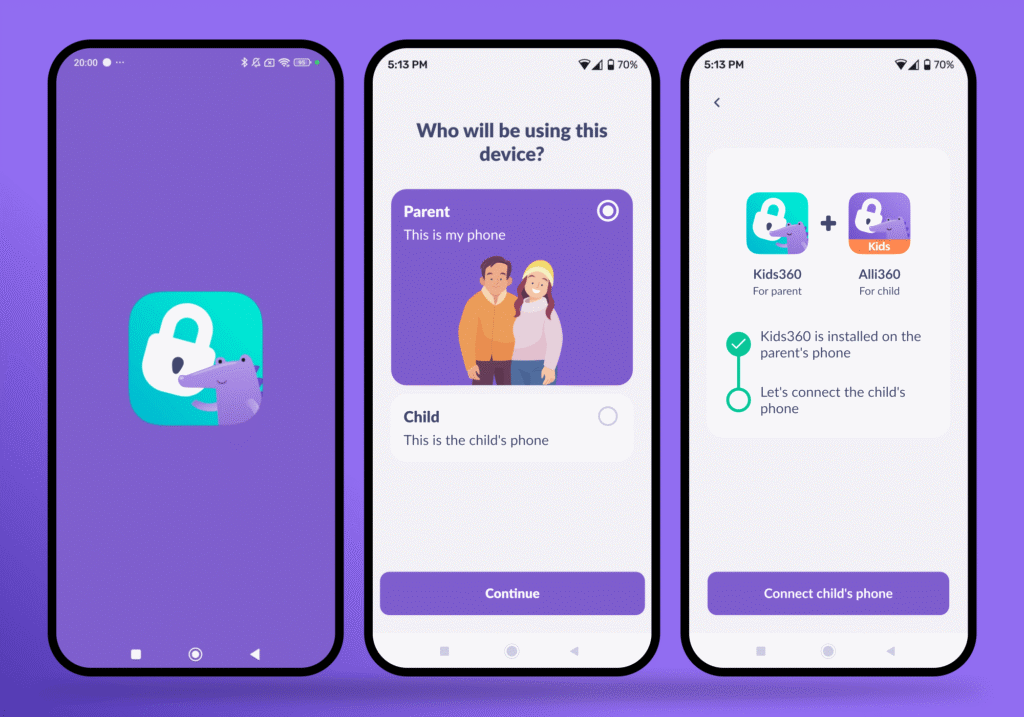
- Finish the setup in Kids360 and allow location access on the child’s phone when Alli360 asks.
- Open Kids360 and select the child to see where they are on the map.
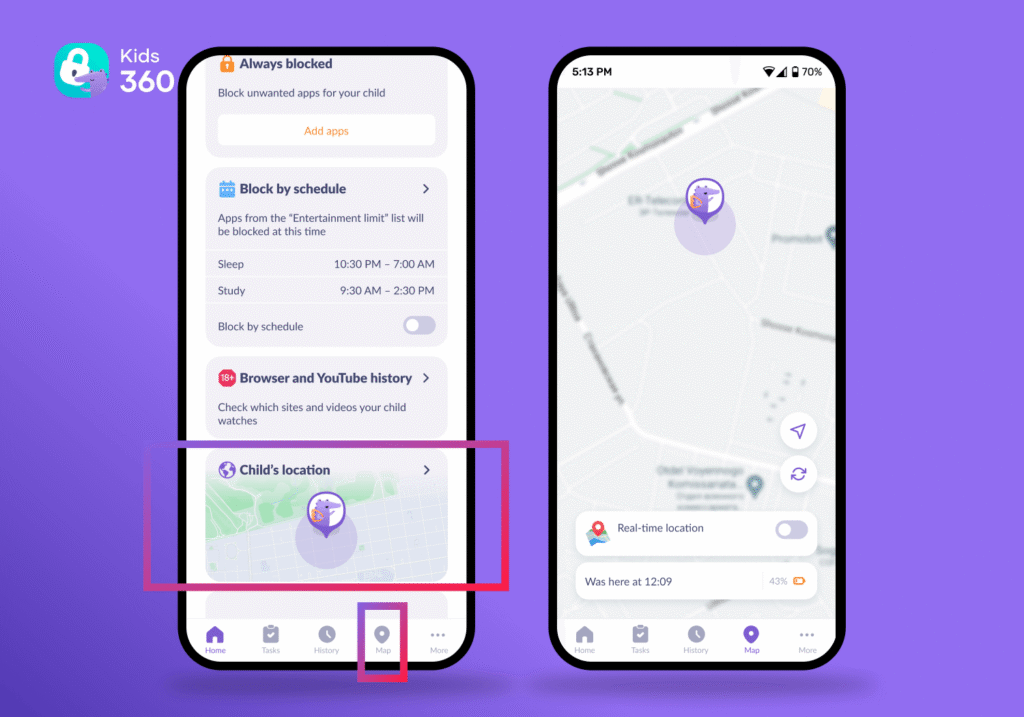
A second parent can join too, so both adults can check their child’s location from their own phones. Download Kids360 for free and connect a child’s phone before the next school week starts.
How to Share Live Location on iPhone Using Find My
Find My comes preinstalled on iPhone, so there’s usually nothing to download. If you’re part of an Apple Family Sharing group, family members who have chosen to share their location will appear in the People tab. Grandparents and other loved ones can be added too, just like friends.
There’s one requirement. To share Live Location with each other, both people need an iPhone with iOS 15 or later, and each person must choose to share their own location.
Share From the Find My App
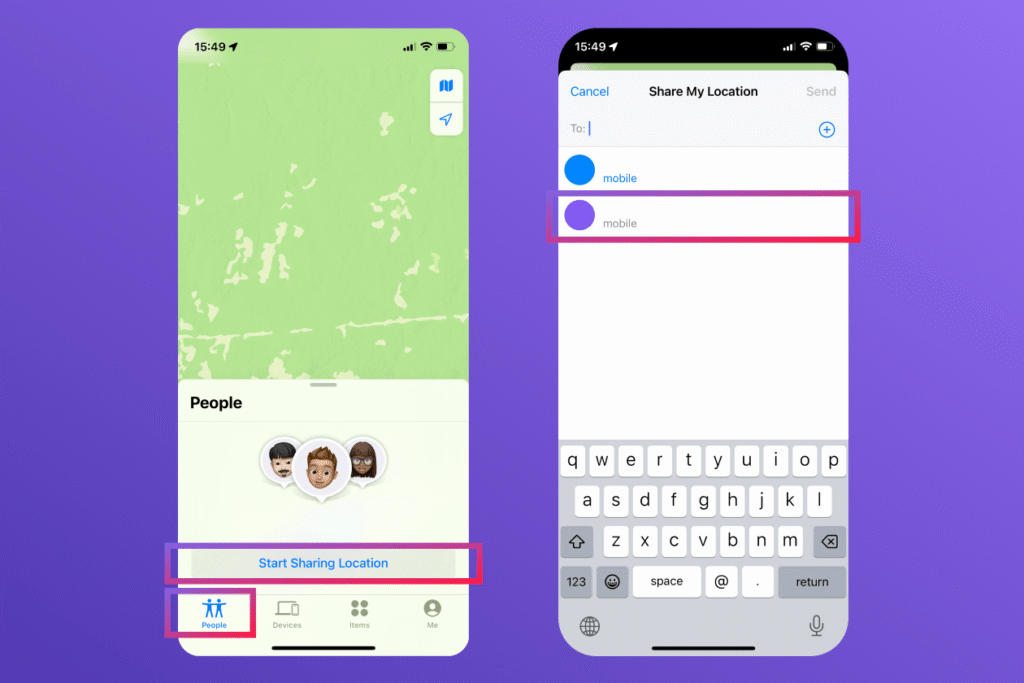
Apple’s steps are easy to follow:
- Open the Find My app, tap the Me tab, and turn on Share My Location.
- Tap the People tab, then tap the plus button.
- Tap Share My Location and choose a person from contacts.
- Choose how long to share your location: one hour, until the end of the day, or indefinitely.
The person gets a notification once sharing starts.
Share From the Messages App
The Messages app is a faster way to share your location when you’re on your way somewhere. Open an existing conversation or start a new one, tap the plus button, scroll down, and select Location. Tap Share, choose how long to share your location, then tap Send. The other person can tap the location message to see where you are on a map and get directions to you.
How to Stop Sharing Your Location on iPhone
To stop sharing your location with one person, open the People tab and tap their name. Tap More, scroll down, and select Stop Sharing My Location. To pause sharing with everyone, go to the Me tab and turn off Share My Location.
One detail is easy to miss: deleting the Find My app doesn’t stop sharing, so the setting has to be turned off. If someone’s safety is at risk, Safety Check can help stop sharing personal information, including location, with other people and apps. It’s available on iPhones running iOS 16 or later.
How to Share Live Location on Android Using Google Maps or Family Link
Android has no single sharing app like Find My. Most households choose to use the Google Maps app, which shows a person’s real-time location on their phone. Younger kids can also be supervised with Google’s parental app, which you can learn more about below.
Share Your Location in Google Maps
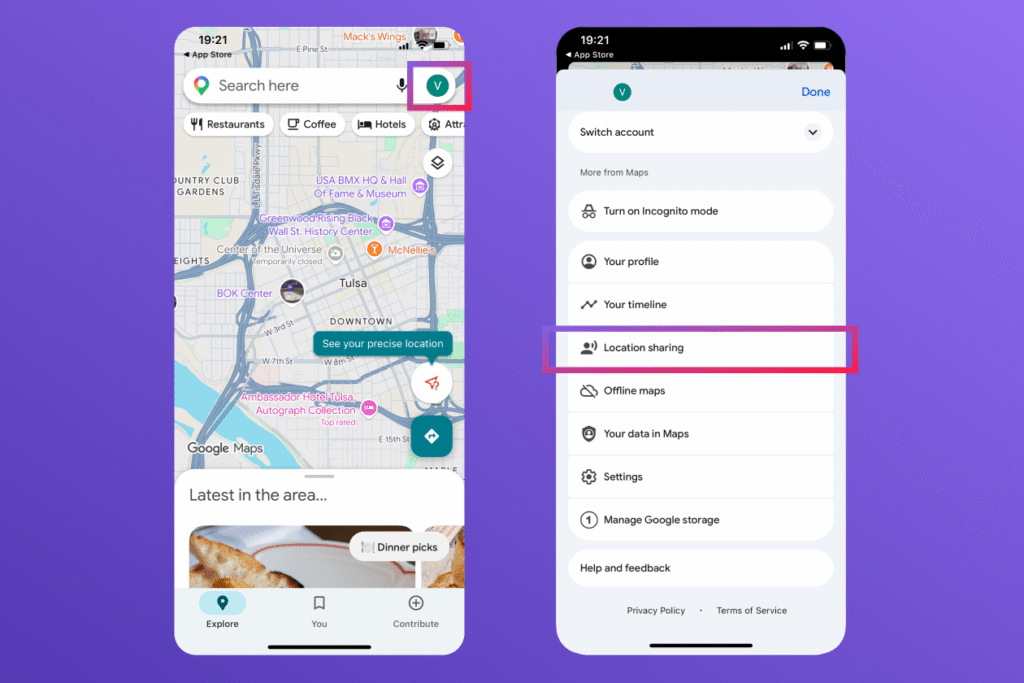
The person sharing their location needs to be signed in to a Google Account, and the recipient’s Gmail address should be saved in their Google Contacts:
- Open the Google Maps app.
- Tap the profile picture in the top right corner.
- Tap Location sharing, then New share.
- Choose how long to share your location, from 15 minutes up to “Until you turn this off.”
- Pick someone from the suggestions, or tap More and type their name in the search bar.
- Tap Share.
Google Maps can also generate a link to share through text or email. Anyone with the link can see the person’s location for up to 24 hours, so it’s best to send it only to trusted people. During navigation, users can also share their trip progress, including their destination, current location, and estimated arrival time. Sharing stops automatically when they reach their destination or end navigation.
How to Stop Sharing Your Location in Google Maps
Tap the profile picture, then Location sharing, choose the person, and tap Stop.
See a Child’s Location With Family Link
Family Link is Google’s free parental control app. Parents can install it on their own Android phone or iPhone and use it to check their child’s location on a map. To set it up:
- Open the Family Link app and tap Location.
- Tap Set up location. If you have multiple children, select the child whose location you want to see.
- Tap Next, then Turn on.
- Once location sharing is enabled, select your child under Location to see their device on the map.
Parents can also set up notifications for when their child arrives at or leaves a place, such as school. To do this, open the child’s profile, tap Location, then Family places, and choose the place and notifications you want to receive.
One thing to know: Family Link only works with a child’s Android device or a compatible watch, so a child with an iPhone won’t show up.
How to Share iPhone Location With an Android Phone (and Vice Versa)
Picture a mom with an iPhone and a 12-year-old using his cousin’s old Samsung. Find My is out, because it only works between Apple devices. Cross-platform location sharing works when both phones run the same app, and these are the options that do:
- Google Maps: it works on both phones and can stay on indefinitely, but the child can end the share whenever they like.
- WhatsApp: families who already use WhatsApp can share live location in any chat or group for 15 minutes, one hour, or eight hours. It then switches off by itself.
- Messages: an iPhone can send a one-time pin to Android, but the pin doesn’t move.
- Family Link: it can’t locate a child’s iPhone at all.
Each option relies on a different app, and none gives a parent a steady view of their child. Kids360 is the simpler route for a mixed phone household, since one app on the parent’s phone works with either kind of phone.
Why Isn’t My Family Member’s Location Updating?
A child’s location still shows them at school two hours after pickup. Before panicking, it helps to know that the cause is usually a simple phone setting. Check the child’s phone for these first:
- Location Services is off: On iPhone, check Settings → Privacy & Security → Location Services, with Find My switched on. On Android, it’s under Settings → Location. Also check that the app you’re using has permission to access location.
- A battery saver is on: Low Power Mode on iPhone and Battery saver on Android cut back background activity, so the map stops refreshing. Try turning them off temporarily to see if the location starts refreshing.
- The app can’t access location in the background: Check the app’s location permissions in the phone’s settings. On Android, select Allow all the time if available. On iPhone, select Always if the app offers that option. Make sure Precise Location is enabled where available.
- The share ran out: A one-hour share ends by itself, so the parent may just need to send a new request.
- The phone is off or offline: Airplane mode, a dead battery, or a basement with no signal stops the phone from sending location data until it reconnects.
If everything looks right, try restarting the child’s phone and checking the location again.
Which Location-Sharing Method Is Best for Families?
The best option depends on the phones your family uses and how much you want to know beyond a child’s current location.
Here’s how Kids360 compares with Apple’s and Google’s built-in tools in terms of device compatibility, location features, and parental controls:
| Feature | Kids360 | Apple Find My | Google Maps | Family Link |
|---|---|---|---|---|
| Cross-platform compatibility | ✅ Parent and child: iPhone or Android | ❌ iPhone only | ✅ Parent and child: iPhone or Android | ⚠️ Parent: iPhone or Android; child: Android |
| Live location on a map | ✅ | ✅ | ✅ | ✅ |
| Arrival and departure alerts | ✅ | ✅ | ⚠️ | ✅ |
| Saved places / safe zones | ✅ | ✅ | ⚠️ | ✅ |
| Location history | ✅ | ❌ | ❌ | ❌ |
| Screen-time controls in the same app | ✅ | ❌ | ❌ | ✅ |
| Loud signal | ✅ | ⚠️ | ❌ | ✅ |
Apple’s Find My makes sense when every phone in the house is an iPhone. Google Maps is helpful for sharing location with friends and relatives on any phone, and Google’s parental app fits a young child’s first Android. For mixed households, Kids360 covers both phone types and adds routes, safe zones, and screen-time rules.
Set Up Location Sharing Before the Next School Run
The best setup is the one everyone at home actually checks. Pick the method that fits the phones in the house, then try it once in the kitchen: share for an hour, look at the map, and practice stopping it, so the child knows how it works too.
For families who want more than occasional location sharing, Kids360 brings a child’s live location, route history, and safe-zone alerts together in one app, alongside screen-time limits and other parental controls. Parents can check in when they need to, without switching between apps to manage different parts of family safety. Download Kids360 and set it up together.
Sources & References
- Share your location with iPhone, Apple Support
- Share your location with iPhone (Find My, Messages and Maps), Apple Support
- Share your location in Find My on iPhone, Apple Support
- Safety Check, Apple Support, n.d.
- Share your real-time location with others, Google Maps Help
- Share your trips and real-time location from Google Maps, Google
- Find and manage your child's location, Google For Families Help
- Family Link, Google
- Share your live location, WhatsApp
- How to share your live location in WhatsApp, Tom's Guide
- How to share your location on an iPhone, Popular Science
- How to fix Google Maps location sharing not updating, Guiding Tech
- How to share your real-time location via Google Maps, Nextpit
- Longitudinal associations among perceived intrusive parental monitoring, adolescent internalization of values, and adolescent information management, Journal of Child and Family Studies