How to Block Adult Websites Before Your Child Finds Them


A child can land on the wrong page in seconds, often without searching for it. Research found that 74% of children encountered potentially harmful online content, while 69% said their most recent exposure happened accidentally. These figures help explain why many parents want to know how to block inappropriate websites before an innocent search, shared link, or mistyped address leads somewhere it should not.
Key Takeaways
- Kids360 can block 18+ websites on a supported child’s device while bringing screen time, app controls, insights, and location into one parental control system.
- Apple Screen Time can limit adult websites and block specific websites on an iPhone without another app.
- Google Family Link can manage Chrome access on a supervised Android device, but Google says its content filters are not perfect.
- SafeSearch changes Google Search results; it does not block adult content across the rest of the internet.
- Filters work best alongside regular, calm conversations about online safety and what a child should do after seeing upsetting material.
Table of Contents
Why Parents May Want to Filter Unsuitable Sites
Accidental exposure is common enough to deserve a plan. Australia’s eSafety Commissioner found that 74% of children aged 10–17 had encountered content associated with harm, while 63% had seen or heard it in the previous year. Among children describing their latest encounter, 69% said it happened by accident.
Adult content can appear earlier than many families expect. Separate eSafety research on access to online pornography reports that around 10% of children had accidentally encountered pornography by age 10, rising to almost 30% by age 13. Two in five said their first exposure happened while they were looking for something else.
The pattern is not limited to one specific country. Ofcom reported that 8% of UK children aged 8–14 visited a pornography service during one measured month. That included 3% of children aged eight or nine.
This does not mean every unexpected page will cause lasting harm. The findings do show why a child should not have to handle potentially harmful content alone. Sensible content filtering can reduce exposure to porn websites and explicit images, while an open conversation gives the child somewhere safe to turn. Together, those steps help block inappropriate content without making normal curiosity feel shameful.
The Easiest Website-Blocking Option: Kids360
Built-in settings are useful, but families often end up switching between menus, accounts, and device ecosystems. Kids360 puts several parental control features in one place, so a parent can manage digital routines without repeatedly handling the child’s phone.
How Kids360 Helps Block Adult Websites
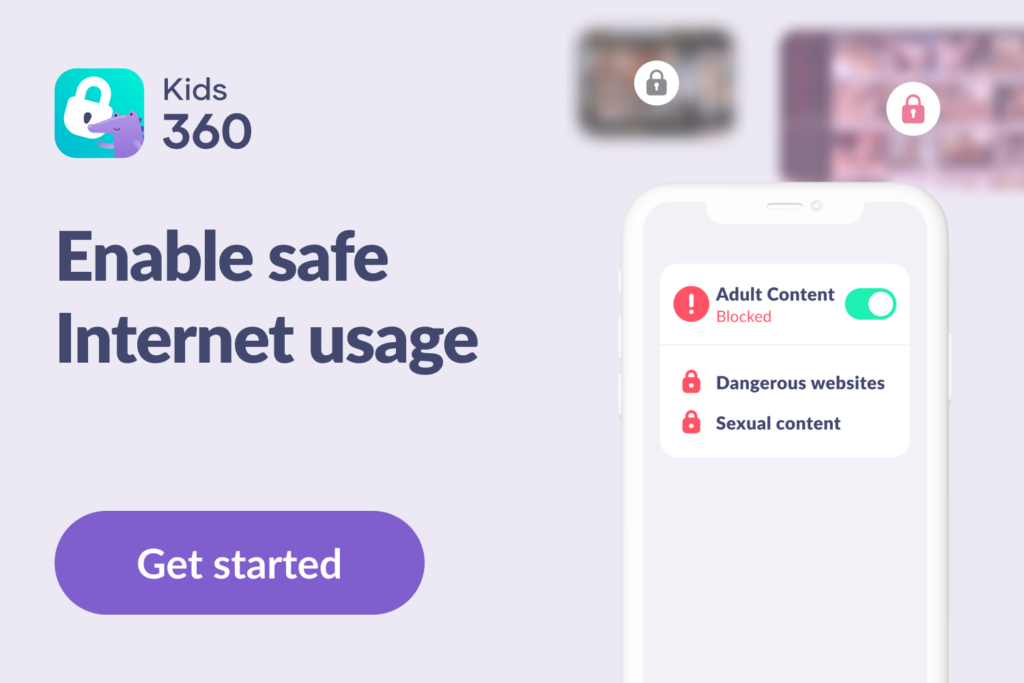
The Kids360 Safe Internet feature is designed to block adult websites and add protection while a child browses. This can prevent accidental visits to 18+ pages and help limit adult websites before an unsuitable page loads.
Website blocking also sits inside a broader parental control app. Inappropriate websites are only one part of a child’s online activity; families may also need to manage screen time, restrict access to distracting apps, or discuss a new online interest.
How to Set Up Website Blocking With Kids360
Setting up website blocking in Kids360 is designed to be quick and straightforward. In most cases, the entire setup takes no more than five minutes, so you can enable protection without spending a lot of time going through complicated settings:
- Download Kids360 on the parent’s phone from the Google Play Store or App Store.
- Install the companion Alli360 app on the child’s device and follow the prompts to connect both phones.
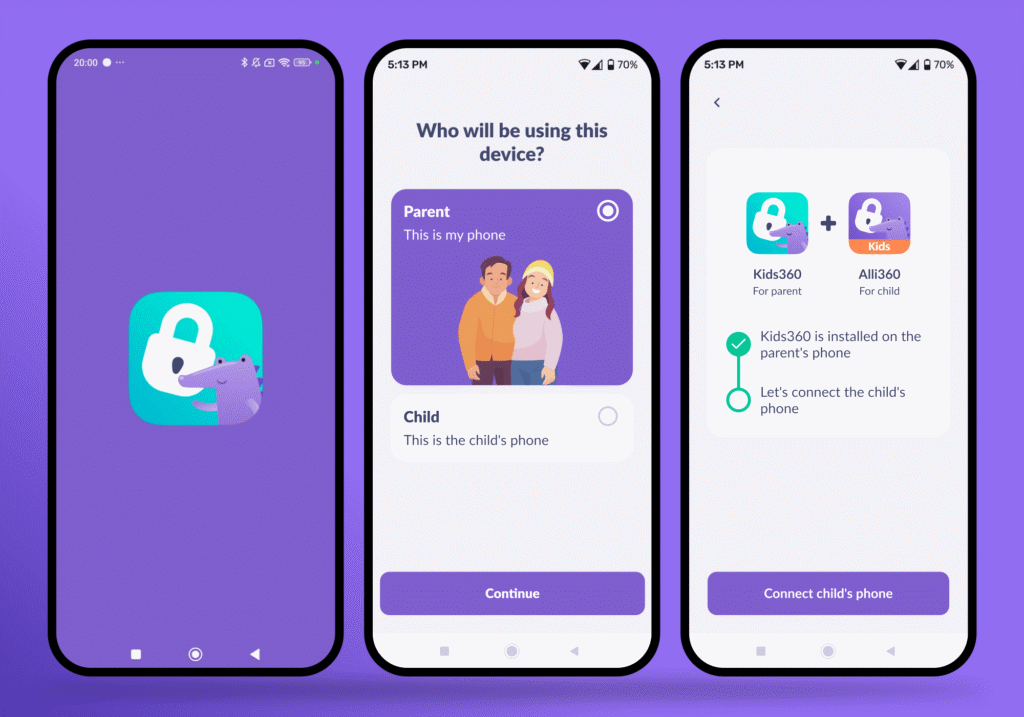
- Open the Internet area in the parent app.
- Turn on the setting to block adult websites.
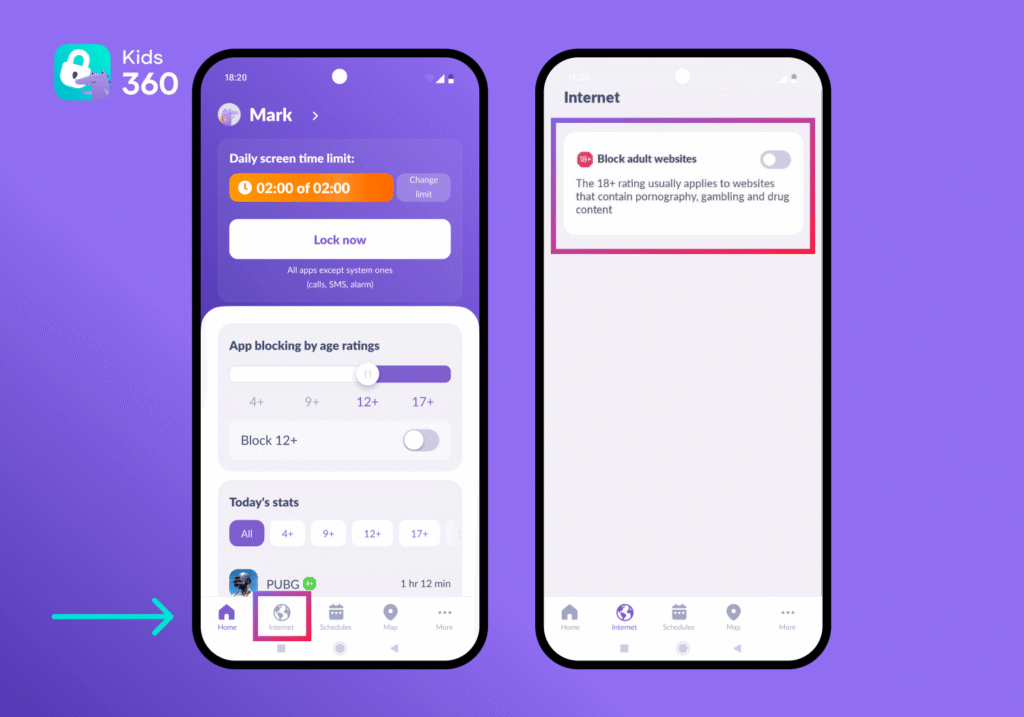
- Test the filter with the child present, and explain what the blocked-page message means.
Once connected, the parent can manage the setting from their own phone. Check it after major operating-system updates, as privacy restrictions can change.
What Else Can Kids360 Do to Protect Children Online?
Website filters solve one problem, not the whole puzzle. Kids360 includes other tools that can help parents understand internet usage and set clearer boundaries:

- Check search history: On a supported child’s Android device, a parent can review searches and spot questions that may need a gentle discussion.
- Review YouTube history: Parents can see what a child has watched on YouTube.
- Turn off internet access in selected apps: On the supported iOS setup, internet access can be disabled for chosen apps without disconnecting the whole phone.
- Receive usage statistics: App usage reports show where screen time goes. Detail varies by platform.
- Manage screen time and apps: Parents can set an overall screen time limit and use app controls to handle distracting or unwanted apps where supported.
- Create schedules: Games and social media platforms can be unavailable during homework, school, or bedtime while essential communication remains accessible.
- See a child’s location: The location feature provides real-time updates on supported devices.
- Motivate with tasks: Through developmental tasks, children can earn extra screen time by completing parent-set jobs, learning activities, or supported exercise challenges.
Some advanced features depend on platform and subscription, so parents should review the setup details.
Why Kids360 Is More Than a Website Blocker
Instead of using separate tools for blocking websites, screen time, and location, Kids360 brings several everyday controls into one dashboard.
It also leaves room for encouragement. A child can earn extra screen time through useful tasks, so parental control does not have to feel like a list of punishments.
Families ready to try it can download Kids360 from the Google Play Store, the App Store, and other supported platforms right now for free!
How to Use Built-In Website Controls
Not every family needs third-party apps. Both Apple and Google offer free parental control tools, although their settings and limitations are different.
How to Restrict Websites on iPhone
Apple includes web content restrictions in Screen Time. Parents can use them to limit adult websites automatically or allow only approved websites.
To set it up on a child’s iPhone:
- Open Settings, choose Screen Time, and select the child under Family if Family Sharing is in use.
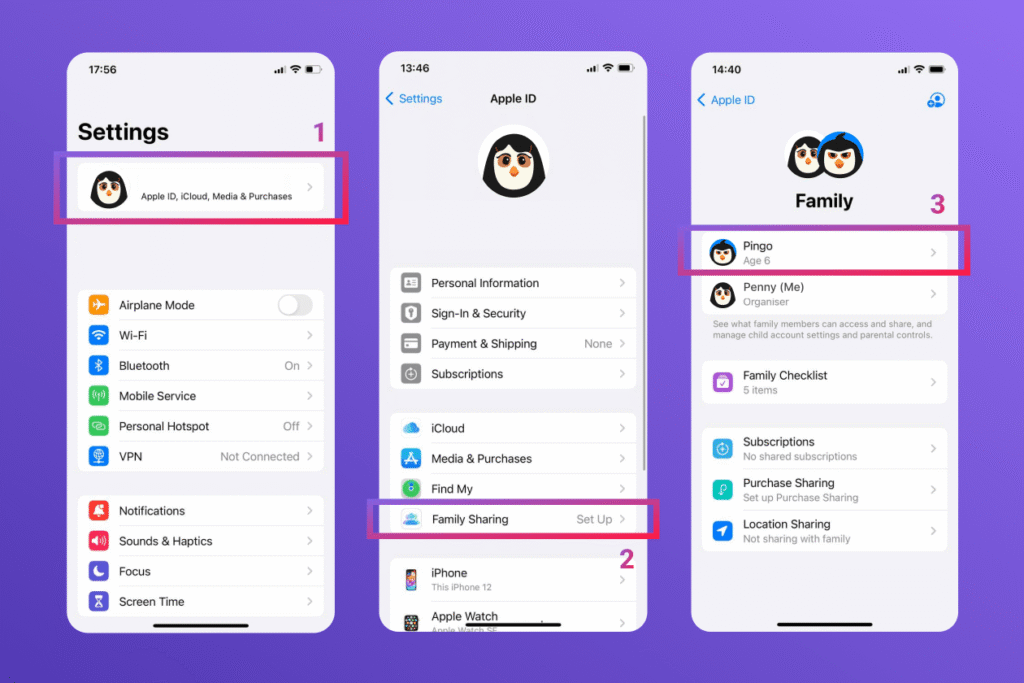
- Tap Content & Privacy Restrictions and turn it on.
- Choose App Store, Media, Web & Games, then Web Content.
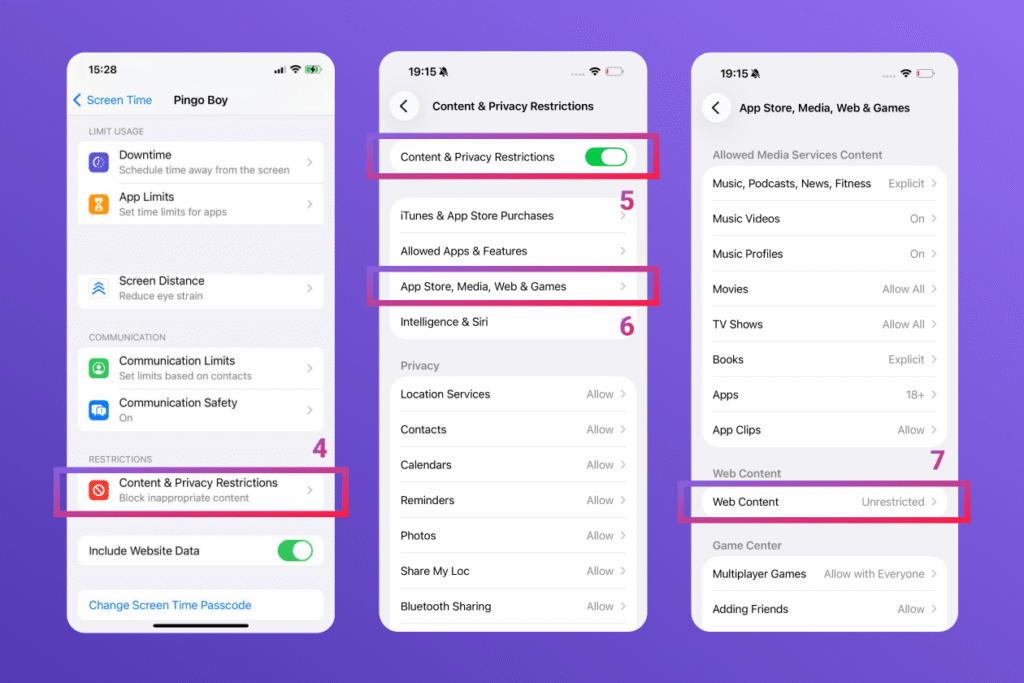
- Select Limit Adult Websites to block adult content automatically.
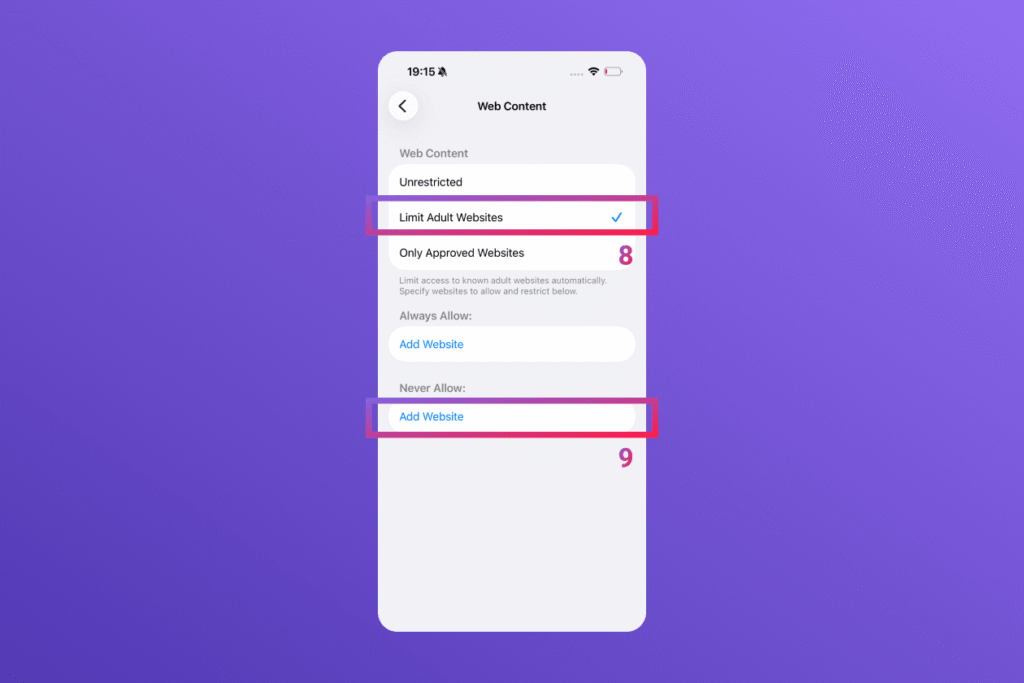
- Under Never Allow, add specific website addresses you want to block. For stricter content restrictions, choose Only Approved Websites instead.
These content restrictions are convenient, but no automatic list is complete. Enter each address needed to block specific sites, and use a Screen Time passcode that differs from the device passcode.
How to Restrict Websites on Android
On a child’s Android phone, the main built-in route is Google Family Link. Family Link lets a parent supervise Google Chrome, manage specific websites, and control whether the browser attempts to block explicit sites.
The usual setup is:
- Install or open the Family Link app on the parent’s Android phone or iPhone, then connect the child’s Google account.
- In Family Link, select the child and open Controls.
- Choose Google Chrome and Web, or the equivalent web content menu shown in the current version.
- Select the option Try to block explicit sites, or Only allow approved sites for tighter control.
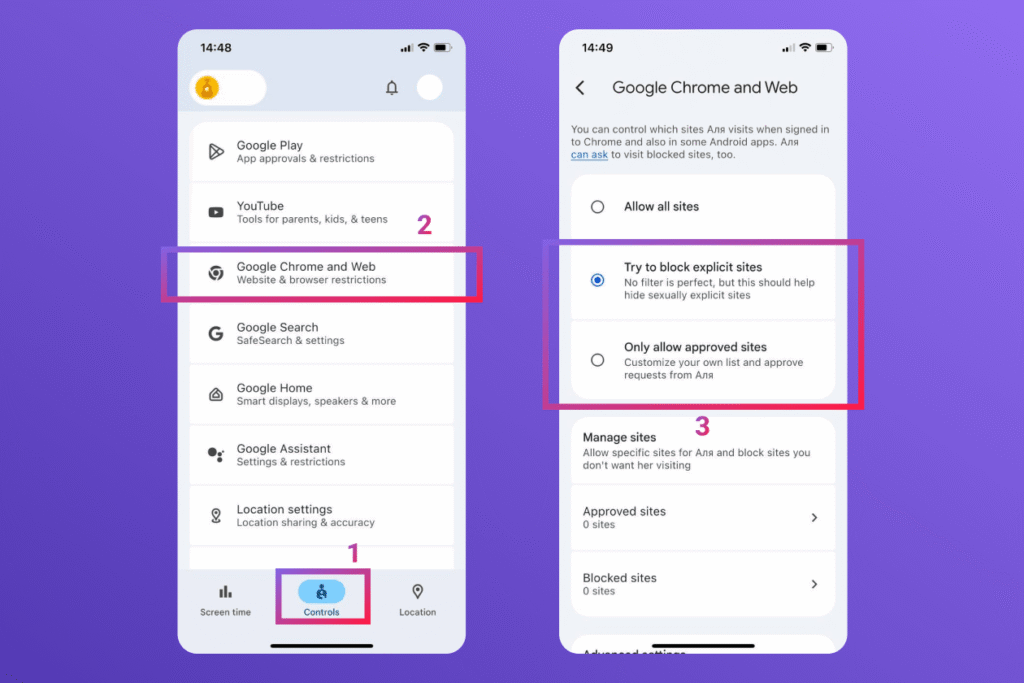
- Add addresses under the approved or blocked websites list to block specific websites or permit certain websites.
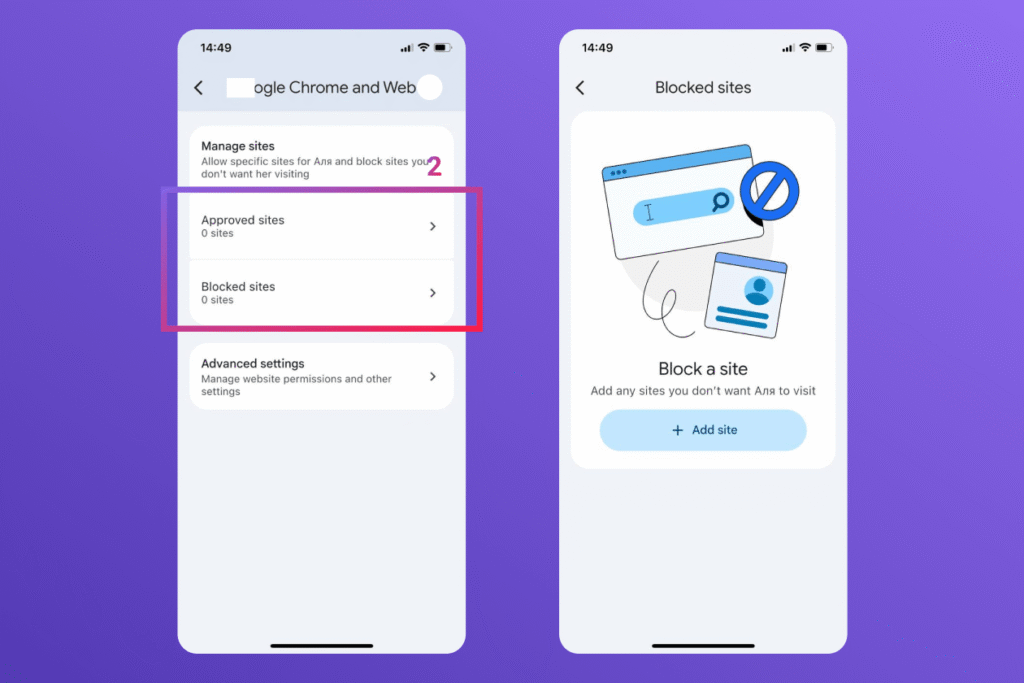
However, Family Link has some important limitations. Google notes that its filters are not perfect and may not block all inappropriate or explicit content. The exact controls also depend on the child’s device, account, age, and the version of the app.
Other Ways to Filter Websites
When built-in parental controls are not enough, families can add another layer of protection. Each method works differently, so the right option depends on what you want to block and where your child uses the internet.
SafeSearch
Google SafeSearch filters explicit content from Google Search results. It can help remove explicit images and other inappropriate content from search results, but it does not block websites or content outside Google Search. This means a child can still open an adult website directly or find content through another search engine.
SafeSearch is useful as an additional layer of protection, but it should not replace website and content controls on the child’s device.
Browser Extensions and Family Browsers
Some browser extensions can block websites, keywords, or entire categories. They are usually more practical on computers because mobile browsers support fewer extensions.
A family-friendly browser may provide additional content filtering, but it does not necessarily prevent a child from switching to another browser. If needed, parents can also restrict access to other browsers through the device’s parental controls.
DNS Filtering
DNS helps a device find the address of a website. A DNS filtering service can check website requests and block access to domains that fall into categories such as adult content or malware.
DNS filtering can provide broad protection for devices connected to a particular network, but it does not automatically protect the child when they switch to mobile data or another Wi-Fi network. It can also block a whole domain rather than individual pages, so some legitimate content may be affected.
Router-Level Parental Controls
Many routers include parental controls that filter internet traffic at home. They may block porn, schedule internet access, or restrict access to specific websites.
This option offers broad network-level coverage, but it requires some technical knowledge and does not usually follow the child beyond the home Wi-Fi network. The router maker’s current instructions should be used, since advanced settings differ by model.
Microsoft Family Safety
Microsoft Family Safety can filter websites and searches for children using Microsoft Edge while they are signed in to their Microsoft account. Parents can block specific websites, allow only approved sites, and filter inappropriate websites and searches.
The main limitation is browser support. Microsoft’s web and search filters work only with Microsoft Edge, so they do not provide the same protection if a child switches to another browser. Microsoft also notes that web activity reporting is limited to Edge and does not include activity in other browsers.
Kids360 vs. Built-In Parental Controls: Which Is Better?
The right choice depends on the family’s phones and how much oversight is useful. The table below compares the broad capabilities; exact availability can vary by device, operating system, region, and subscription.
| Feature | Kids360 | iPhone Screen Time | Google Family Link |
|---|---|---|---|
| Block 18+ websites | ✅ Yes | ✅ Yes, with limitations | ✅ Yes |
| App restrictions | ✅ Yes | ✅ Yes | ✅ Yes |
| Screen time limits | ✅ Yes | ✅ Yes | ✅ Yes |
| Usage insights | ✅ Yes | ✅ Yes | ✅ Yes |
| Search activity | ✅ Yes | ❌No dedicated history view | ⚠️ Limited; depends on the Google setup |
| YouTube activity | ✅ Yes | ❌No dedicated history view | ❌No dedicated parent view in the basic controls |
| Cross-platform parent support | ✅ Yes | ❌Only the Apple ecosystem | ⚠️Primarily the Google ecosystem |
| Location features | ✅ Yes | ⚠️Through separate Apple services | ⚠️Through Google services |
| Reward-based tasks | ✅ Yes | ❌No | ❌No |
Apple’s tools are a sensible free choice for an all-iPhone household. Google Family Link is convenient for a supervised Android device that mainly uses Chrome. Both can block inappropriate content, set screen time rules, and control apps without another subscription.
Kids360 is the more unified option for parents who want website protection alongside activity insights, schedules, location, and tasks. Its value is not simply blocking porn or restricting adult content; it brings those controls into the same routine as screen time and positive rewards.
How Children Can Bypass Website Blocks, and How to Reduce Gaps
No filter is impossible to get around. A child may try another browser, use a VPN, switch connections, open links inside social media platforms, or guess a parental control passcode. Some streaming services also display web content beyond the usual browser filter.
Parents can reduce those gaps without turning the phone into a battleground:
- Use a passcode the child does not know, and keep account recovery details private.
- Remove unused browsers and restrict new downloads where appropriate.
- Check that content filters still work on both Wi-Fi and mobile data.
- Review the site list and permissions after operating-system or app updates.
- Keep the child involved in age-appropriate rules and explain why adult content is restricted.
- Agree on a simple response if unsuitable content appears: close it, do not share it, and tell a trusted adult.
If a child bypasses a rule, ask what happened before changing every setting. Curiosity, peer pressure, and a filter error call for different responses. Parental control works best when the technical boundary and family conversation support each other.
Blocking inappropriate websites reduces one route to potentially harmful content, but inappropriate content may also appear in chats, videos, and games. Review app permissions and router settings as part of the same safety check.
Safer Browsing Starts With a Plan, Not a Perfect Filter
Learning how to block inappropriate websites on phone devices is useful, but it cannot replace trust. A well-chosen filter reduces accidental exposure; regular conversations help a child respond when inappropriate content slips through.
For families wanting one place to block adult websites, reduce exposure to inappropriate content, and manage screen time and location, Kids360 offers a practical starting point. Parents can try Kids360 and adjust the controls as their child grows, rather than waiting for an upsetting page to start the discussion.
Sources & References
- Children’s exposure to content associated with harm, Australian eSafety Commissioner
- Access to online pornography and other adult content, Australian eSafety Commissioner
- Children’s use of online pornography services, Ofcom
- Prevent explicit content and web access on iPhone, Apple Support
- Family Link parental supervision, Google Families
- Family Link FAQ and filtering limitations, Google Families
- SafeSearch, Google Support
- Filter websites and searches with Family Safety, Microsoft Support