
Follow the steps below:
Check the internet connection on your child’s phone
Open the Alli360 app on your child’s phone
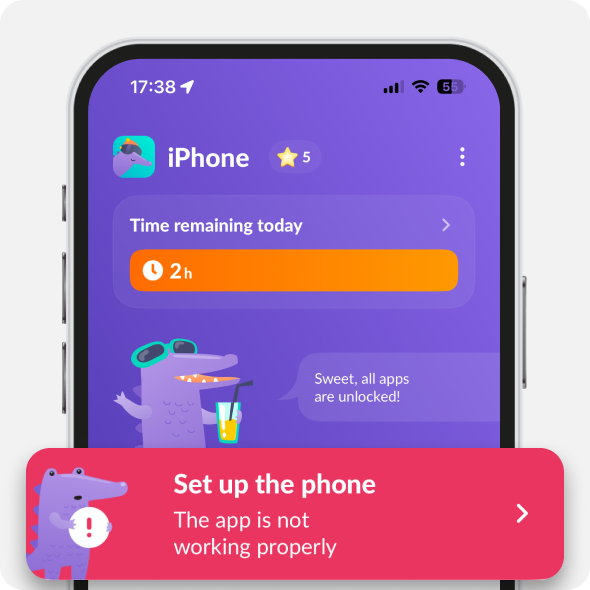
Make sure that there’s no red Set up the Child’s Phone button in Alli360.
If you can see the button, tap it and follow the app’s tips
Check updates on app stores on your phone and your child’s phone
Restart your child’s phone
📌 Currently, it’s not possible to block standard phone apps. These are phone, messages and others.
If that didn’t help, check if MDM is installed on your child’s device.
It’s necessary to have an installed MDM profile on your child’s device for Alli360 to work:
Open Settings on your child’s iPhone or iPad

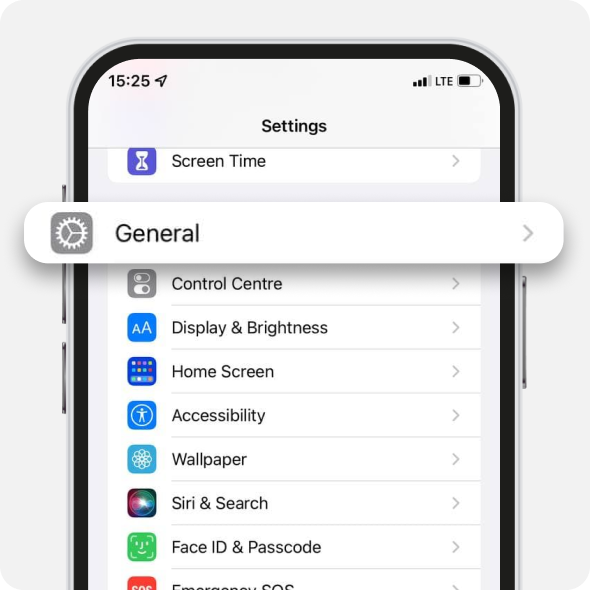
Choose General
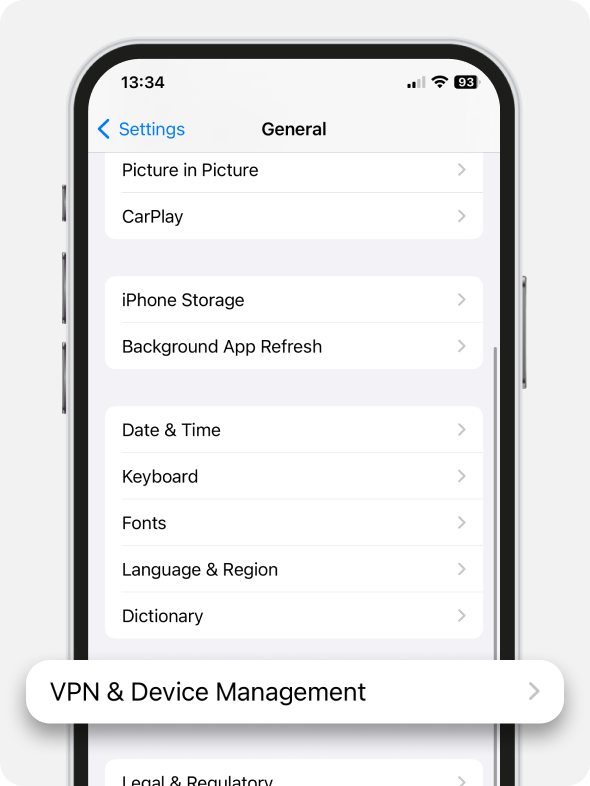
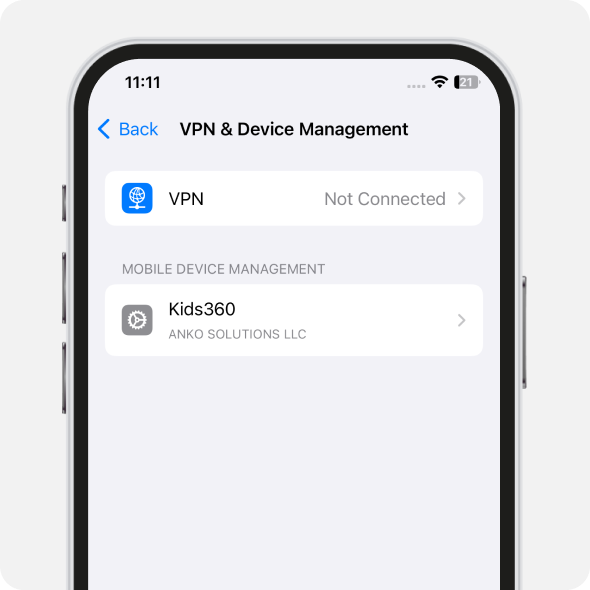
Open VPN & Device Management
Check the Mobile Device Management tab.
The Kids360 MDM profile should be installed here
Go back to phone settings. Choose VPN
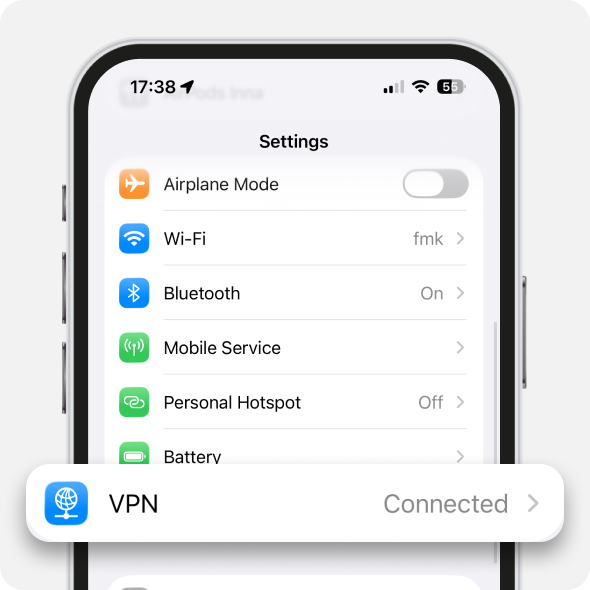
Check if VPN is on.
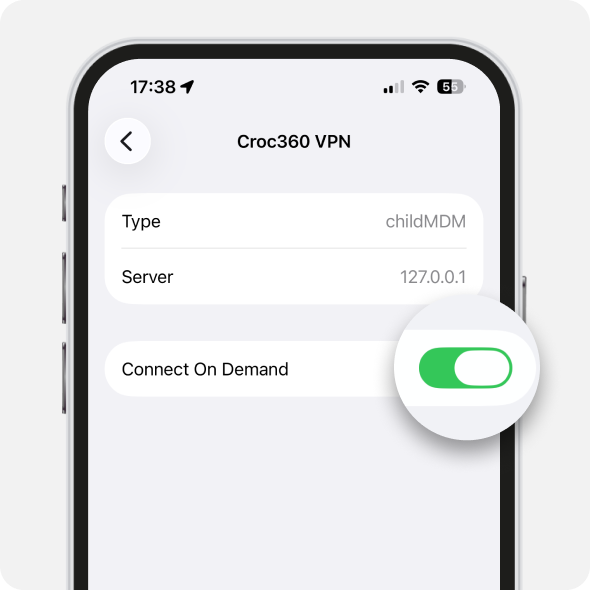
Then tap Croc360 VPN
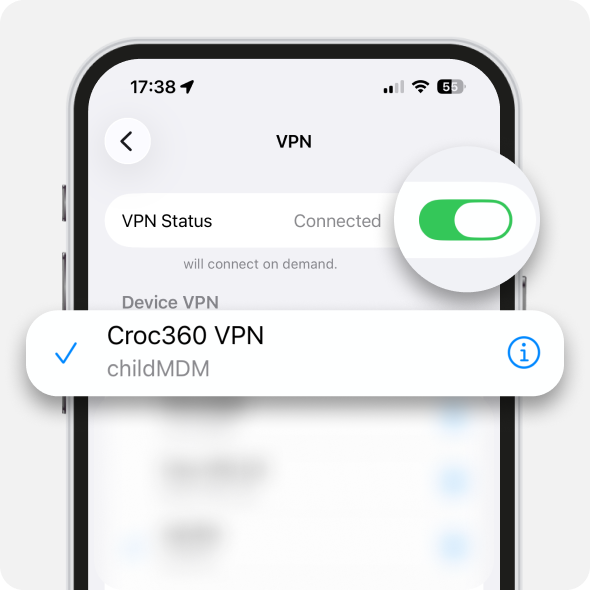
Turn on Connect on Demand
If you can’t see the MDM profile, remove the Alli360 app
Install Alli360 on your child’s phone again and add it to Kids360 one more time.
You can find the code like this:
1. Open Kids360 on the parent’s phone
2. Select Other
3. Tap Family
4. Tap Add Child. You will see the code that you need to enter in Alli360
Set a new name for your child’s new account so it’s different from the old one.
For example, if your child’s name was “Daughter”, set the new name as “My daughter”.
After that, grant all the permission for Alli360. The app blocking will work again.
Was it helpful?
Chat is unavailable right now. Please try again later.




