How to Make Safari Safer for Kids on iPhone and iPad

The web can give children access to useful information, entertainment, and school resources — but it can also expose them to content they are not ready to see. In the latest EU Kids Online study, 40% of children across 19 European countries said they had encountered violent or gory images online, while 37% had seen content about self-harm. Only 48% said they felt safe online.
That is one reason parents may want more control over what their child can access through a browser. If you want to block Safari on an iPhone or iPad, Apple offers built-in parental controls. You can also restrict websites, set time limits, or use Kids360 to manage browsing as part of broader device rules.
Key Takeaways
- Parents can either block Safari completely or restrict the websites their child can access.
- Apple’s built-in controls support website filtering, approved websites, time allowances, and schedules.
- Kids360 adds broader parental-control tools, including 18+ website blocking, screen-time limits, schedules, and selected-app internet restrictions.
- The best approach depends on whether you want to remove browsing altogether or set boundaries around how and when your child uses their device.
Table of Contents
Can Safari Be Blocked on an iPhone or iPad?
Yes. Parents can either disable Safari entirely or limit which websites their child can access. The right option depends on why you want to restrict browsing. The main choices include:
- Disabling the Safari app
- Blocking adult and other inappropriate content
- Allowing only approved websites
- Adding specific websites to a blocked list
- Using screen-time schedules to limit device or app access at specific times
- Using Kids360 to combine website filtering with broader device controls
Can Safari Be Deleted?
Yes, but whether you can delete Safari depends on where you live. In the European Union and Japan, Safari can be deleted from an iPhone under certain conditions. In other regions, Safari cannot be removed completely, but parents can disable it through the iPhone’s Screen Time settings.
When Does Blocking Safari Make Sense?
Disabling Safari can make sense when your child does not need unrestricted web access, browsing regularly interrupts homework, or the browser provides another way to reach restricted content, such as YouTube, games, or social media.
If your child needs access to school websites, you may not need to block the browser entirely. A smaller list of approved websites can provide access to the resources they need while keeping the rest of the web off-limits.
How to Block Safari on a Child’s iPhone or iPad With Kids360
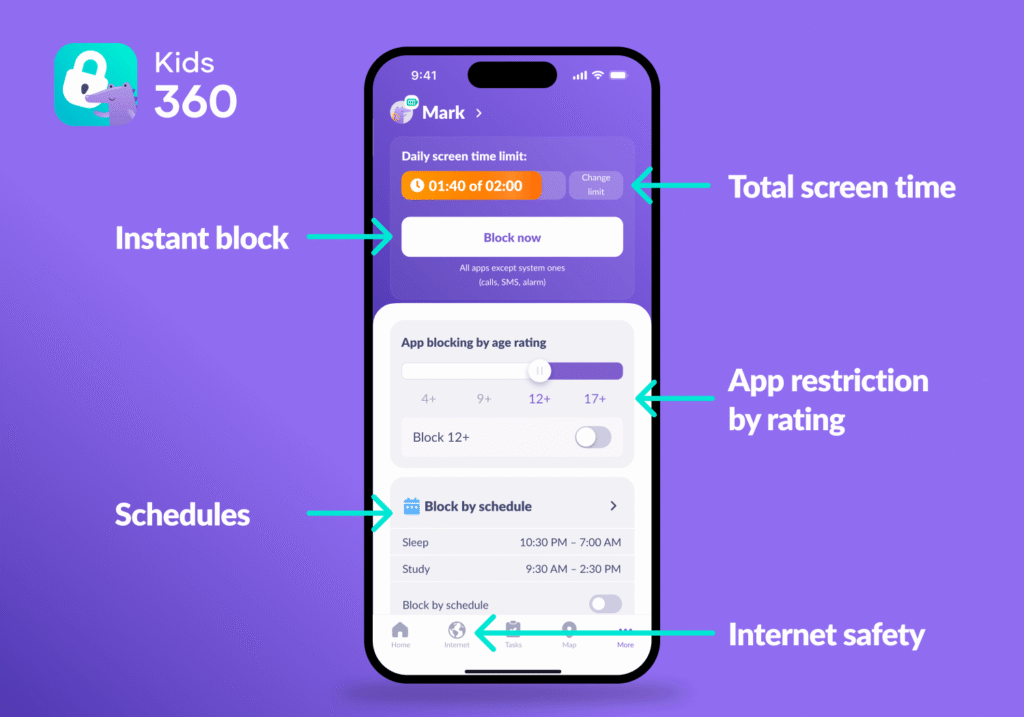
If you want to limit your child’s Safari use rather than simply switch the browser off, Kids360 offers several tools that can help. You can block 18+ websites, set screen-time limits, create schedules, and restrict internet access in selected apps—all as part of the same parental-control system.
This can be useful when Safari itself is not the problem. Instead of removing the browser completely, you can keep it available for schoolwork and other useful browsing while setting limits around when and how your child uses the device.
Enable Blocking of 18+ Websites
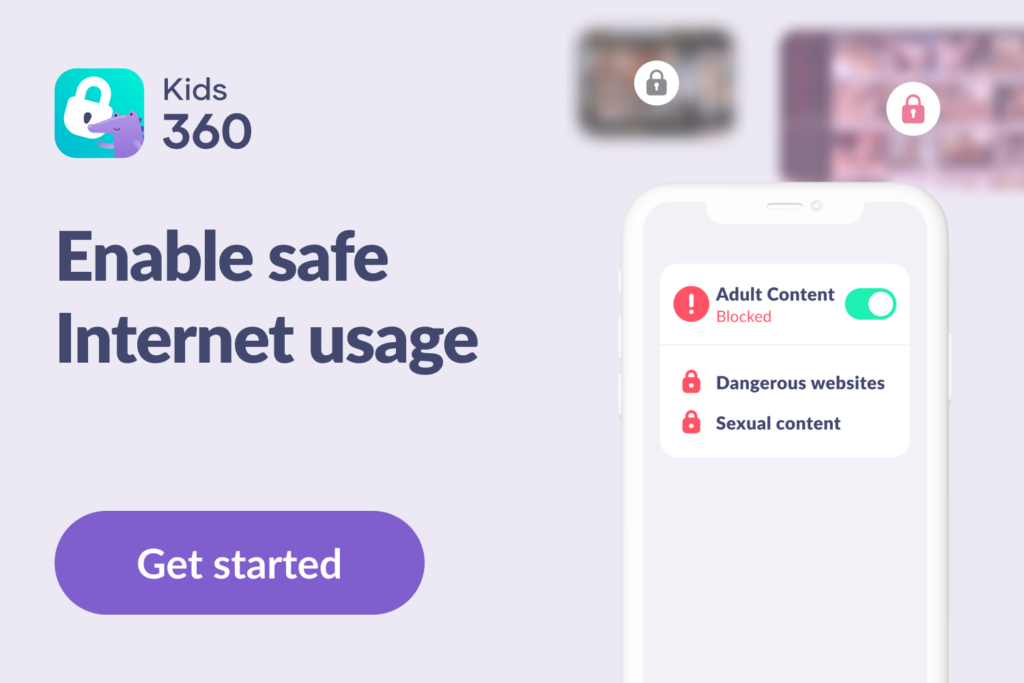
Kids360’s Safe Internet feature can block 18+ websites on a connected child’s iPhone or iPad. This is useful when you want to keep Safari available but prevent access to inappropriate content.
Before you start setting up the controls, download Kids360 on your phone and Alli360 on your child’s phone. Connect the devices using the code, grant the required permissions, and you’re all set! You can now configure parental controls and monitor your child’s phone use.
To enable the 18+ website blocking feature:
- Open the Kids360 app on the parent’s device.
- Select your child’s profile.
- Open the Internet section in the bottom menu.
- Turn on the option to block adult websites.
- Check that the restriction is active on the child’s device.
The feature can block adult websites on supported devices and browsers, so parents do not have to add individual unsafe URLs one by one.
Limit Overall Screen Time
If you do not want to block Safari completely, you can limit how long your child can use their device each day with Kids360 screen-time limits.
To set a limit:
- Open Kids360 and select your child.
- Tap Change limit.
- Set the daily amount of screen time.
- Save the limit.
When the allowed time runs out, restricted apps can be blocked while essential communication remains available. The child can also see how much time they have left and receive a warning before the limit runs out, so the restriction does not come as a surprise.
Make Schedules
Kids360 can also help you create rules for different parts of the day. For example, you can restrict Safari and other distracting apps during school, homework, or bedtime while keeping communication and other important apps available.
To create a schedule:
- Open your child’s profile in Kids360.
- Go to Schedules.
- Set the start and end times.
- Select the days of the week when you want the schedule to be active.
- Save the schedule.
This approach can be useful when you do not want to ban browsing altogether but want less screen use during times when your child should be studying, sleeping, or spending time with family.
Turn Off Internet Access in Selected Apps
When both the parent and child use iPhones, Kids360 can turn off internet access for selected apps. This lets parents restrict online games or social media without disconnecting the child’s entire device from the internet.
To use this feature:
- Open Kids360 on the parent’s iPhone.
- Select your child’s profile.
- Open the Internet section in the bottom menu.
- Select Block Internet for Apps.
The restriction applies to the selected app rather than the whole device, so other apps can remain available.
Other Useful Kids360 Features
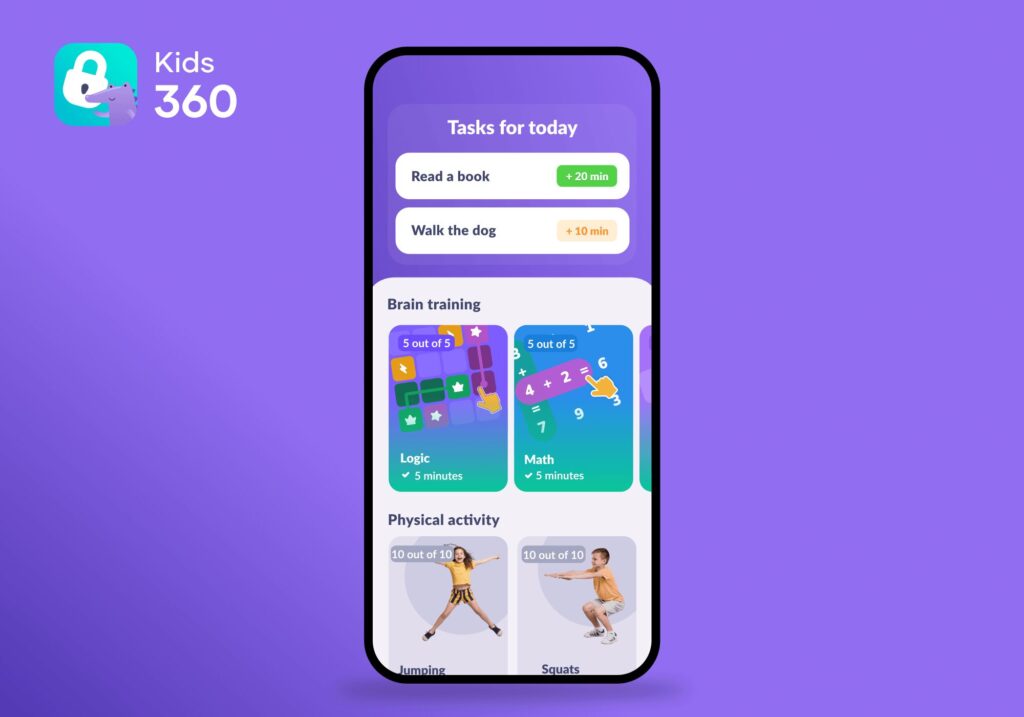
Kids360 goes beyond Safari and screen-time controls to help parents manage other aspects of their child’s device use. Usage reports show how the child spends time on the phone, while location tracking helps parents stay aware of where they are. Parents can also prevent unwanted changes to the device by blocking in-app purchases and new app installations, keeping more control over the content and services their child can access.
When the goal is to reduce screen time without making it feel like a punishment, Tasks and developmental activities offer a more positive approach. Parents can assign everyday chores or educational exercises, and children can earn extra screen time for completing them. Kids360 includes 4,600+ developmental exercises focused on logic, math, and memory, giving children something useful to do in exchange for additional time on their devices.
Want to manage more than Safari? Download Kids360 right now for free and set up screen-time, app, and web controls for your child’s device.
Can Parents Use Built-in Apple Parental Controls?
Yes. Apple’s built-in parental controls let parents block Safari, limit access to websites, or control when their child can use apps and websites. On iOS 27 and iPadOS 27, these settings are managed through the child’s profile in Family. Older versions use the previous Screen Time menus, so the exact path depends on the device’s software version.
Block Safari Completely
On an iPhone or iPad running iOS 27 or iPadOS 27:
- Open the Settings app and tap Family.
- Select the child, then tap Apps & Websites.
- Choose Safari and tap Block App.
- Confirm the choice and enter the Screen Time passcode if requested.
Safari stays locked until the parent changes the settings.
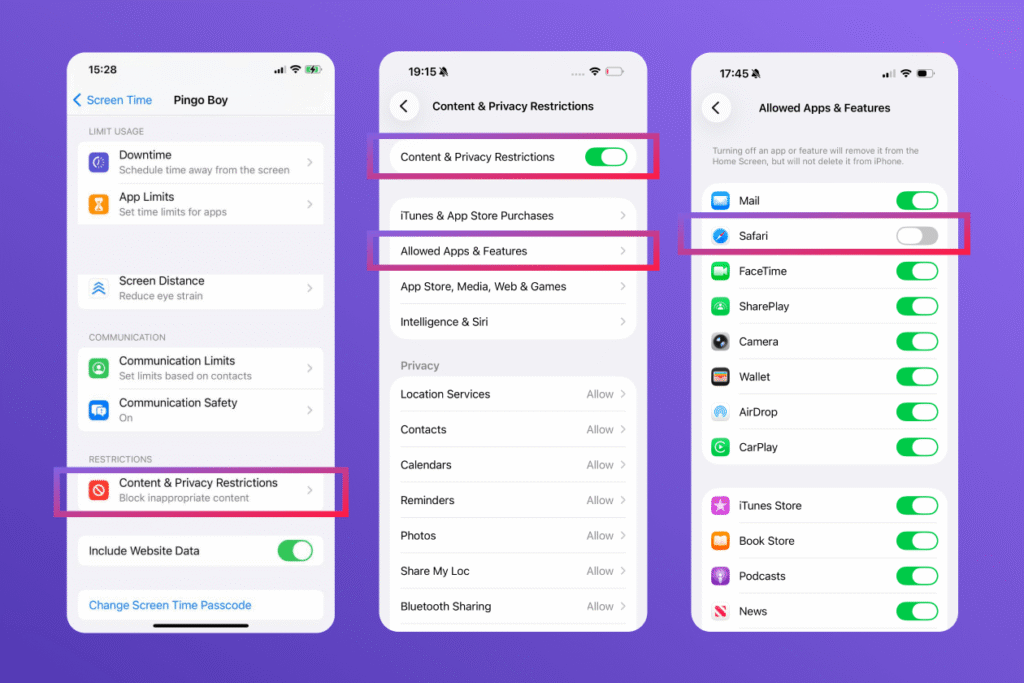
On older versions of iOS or iPadOS, go to Settings → Screen Time → your child’s profile → Content & Privacy Restrictions → Allowed Apps & Features, then turn Safari off. Turn the setting back on to restore access.
Set a Time Allowance for Safari
If you want your child to have some browsing time rather than blocking Safari completely, Apple’s newer Time Allowances can limit how long they use apps in selected categories. However, Apple does not provide a simple “30 minutes of Safari per day” setting as a dedicated Safari limit. Instead, Time Allowances let parents limit time spent in app categories, and the allowance can also apply to an app’s associated website.
On iOS 27 or iPadOS 27:
- Open Settings and tap Family.
- Select your child’s name.
- Tap Time Allowances.
- Tap Add and set a daily time allowance for the device or specific app categories.
- Set the amount of time your child can use the device or that category each day.
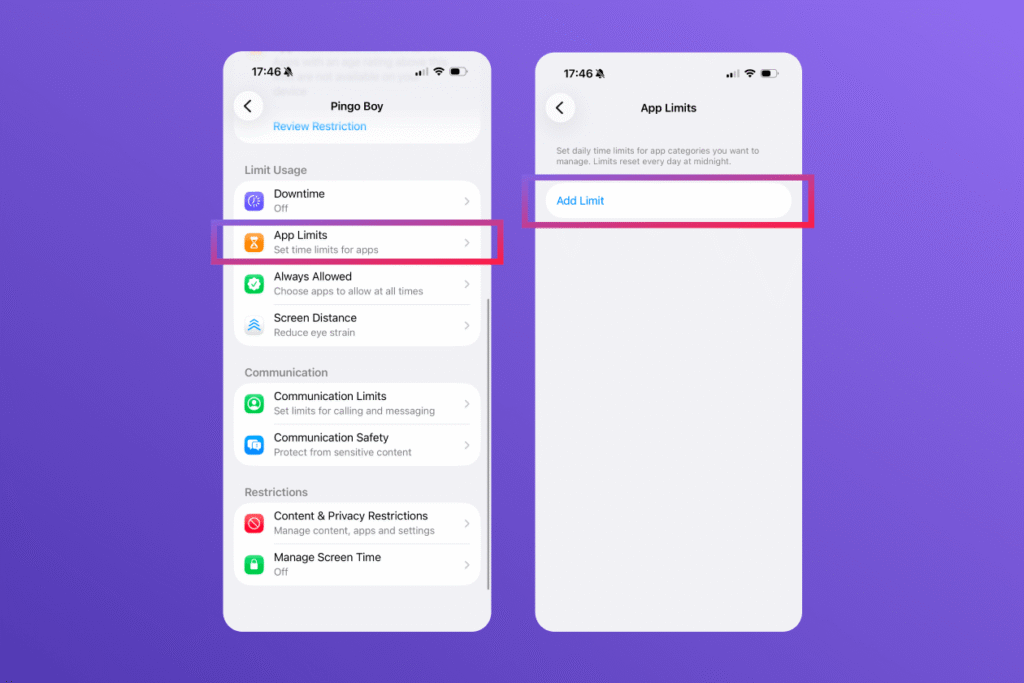
On older versions of iOS and iPadOS, the equivalent feature is called App Limits and is found under Settings → Screen Time → your child’s profile → App Limits.
Limit Adult Websites or Approve Sites Individually
For current Apple devices:
- Open the Settings app, tap Family, and select the child.
- Tap Apps & Websites, followed by Restrictions.
- Under Websites, tap Filtering.
- Choose Limit Adult Websites or Approved Websites Only.
- Add or block websites, then save the settings.
With Approved Websites Only enabled, a child can request a website through Ask to Browse. A parent can respond from an iPhone, iPad, or Mac.
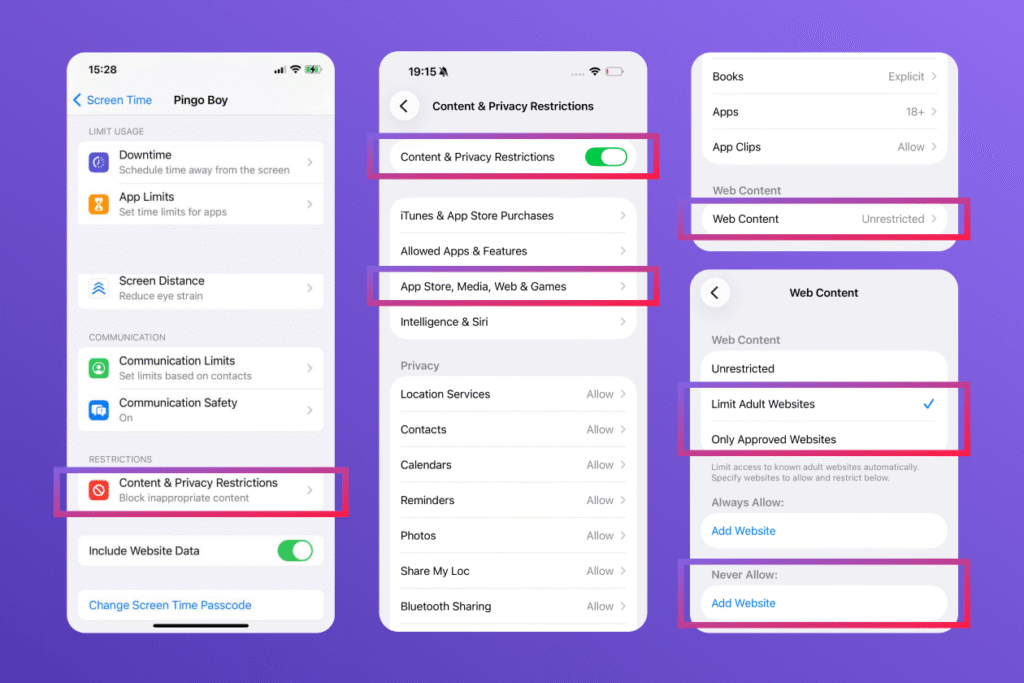
On earlier versions, tap Screen Time → select your child’s profile → Content & Privacy Restrictions → App Store, Media, Web & Games → Web Content → Limit Adult Websites. Add the URL to the allowed or blocked list. The App Store, Media, Web & Games menu applies web content rules to Safari and other supported browsers.
Apple Screen Time vs. Kids360 for a Child’s iPhone
Apple’s built-in controls are enough if your main goal is to block Safari or restrict the websites your child can access. Kids360 takes a broader approach, combining screen-time limits, schedules, app and website restrictions, and other parental-control tools in one app.
| Feature | Apple Screen Time | Kids360 |
|---|---|---|
| Block Safari | Yes | Manages browser access through broader device controls |
| Block adult websites | Yes | Yes |
| Block individual URLs | Yes | Focuses on filtering adult sites |
| Set screen-time limits | Yes | Yes |
| Create schedules | Yes | Yes |
| Restrict internet access for selected apps | Limited | Yes, when both devices are iPhones |
| Location tracking | Separate Apple feature | Included |
| Usage reports | Yes | Yes |
| Reward tasks with extra screen time | No | Yes |
If you only need to turn off Safari or limit web content, Apple Screen Time is the simplest option because it is already built into the iPhone or iPad. If you want to manage Safari as part of a wider screen-time routine, Kids360 adds tools such as schedules, screen-time limits, app and website restrictions, usage reports, location tracking, and tasks that can earn extra screen time.
The two options can also be used together: Apple’s built-in settings can handle Safari and web-content restrictions, while Kids360 can provide additional tools for managing your child’s overall device use.
Download the Kids360 app to connect safer browsing with healthy routines.
Sources and References
- The EU Kids Online 2026 comparative study. Children’s views, experiences, opportunities and risks in a digital world, London School of Economics and Political Science, 2026
- Use Ask to Browse, Apple Support
- Manage a Child’s iPhone or iPad, Apple Support