Parental Control Guides
A Guide to Parental Controls on Roblox

Set a daily limit, switch it off during school and bedtime, and see exactly how long your child played







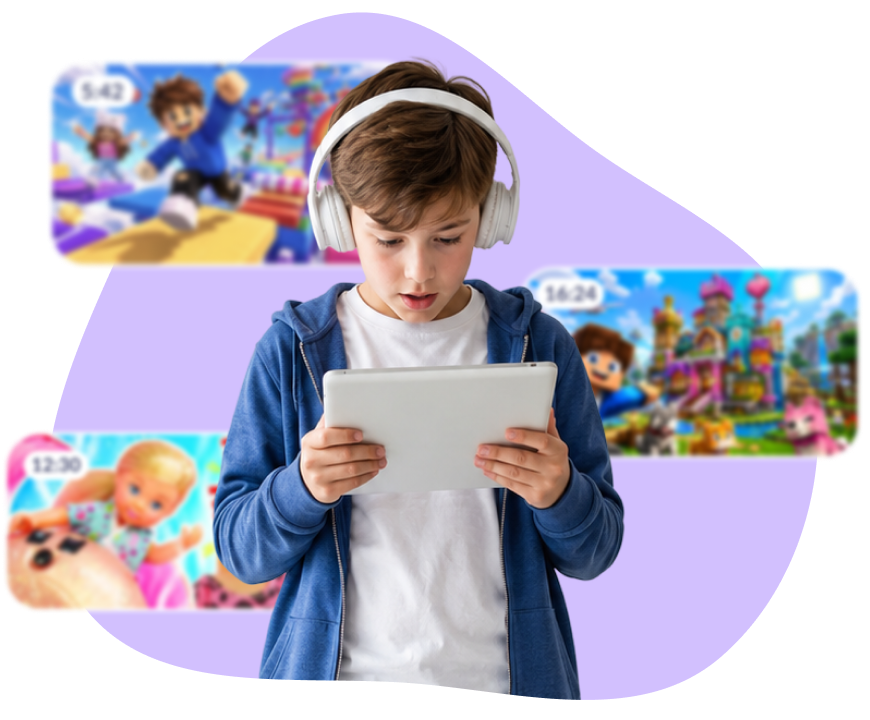
One world loads into the next, and nobody says stop
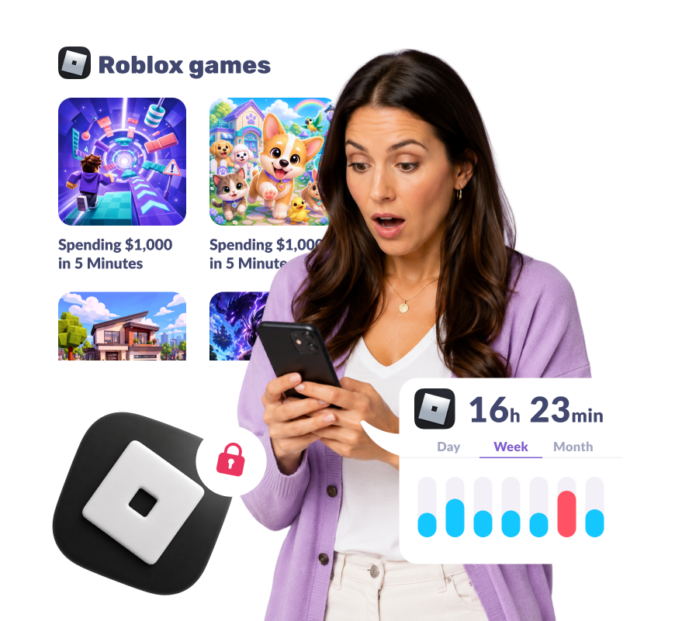
Real money leaves your card without approval
School tomorrow, and the game doesn't care
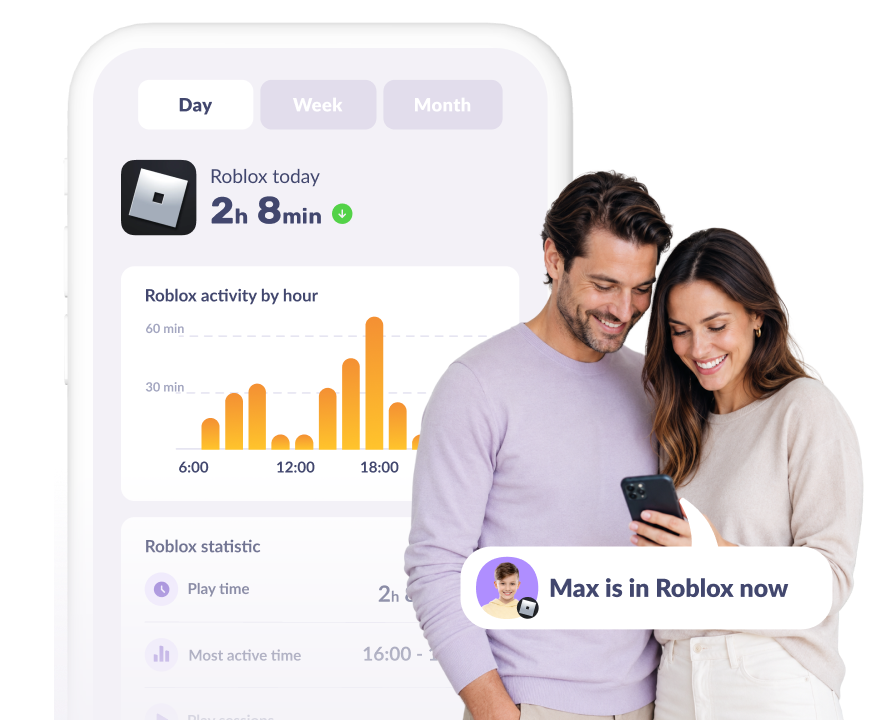
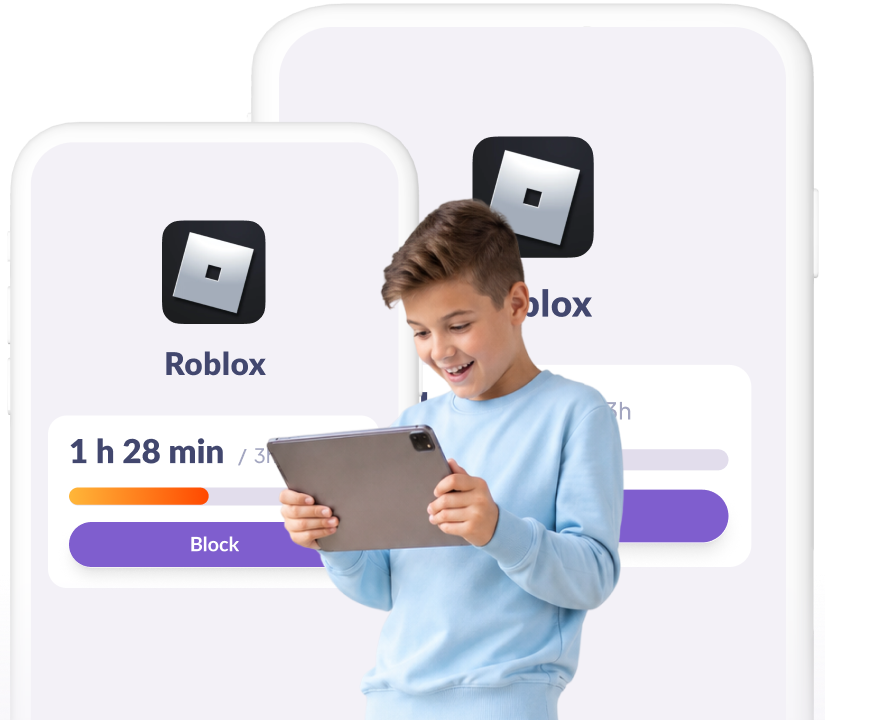
Open Kids360 and check the hours spent on Roblox — today, yesterday, and any other day
No more “five more minutes”; Roblox closes itself when time’s up
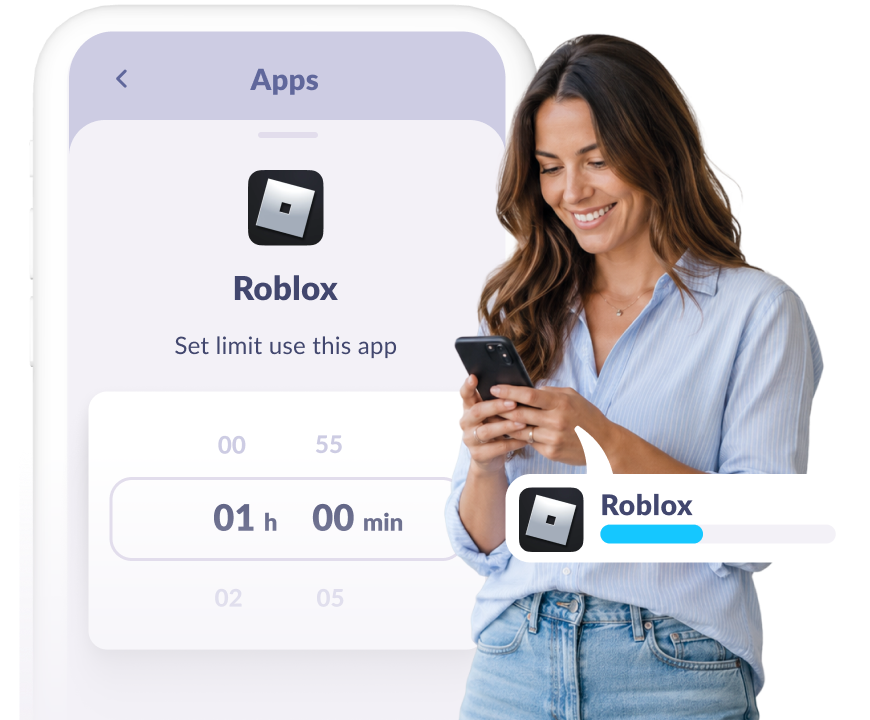
Homework, dinner, and sleep — set autoblock once; it repeats every day
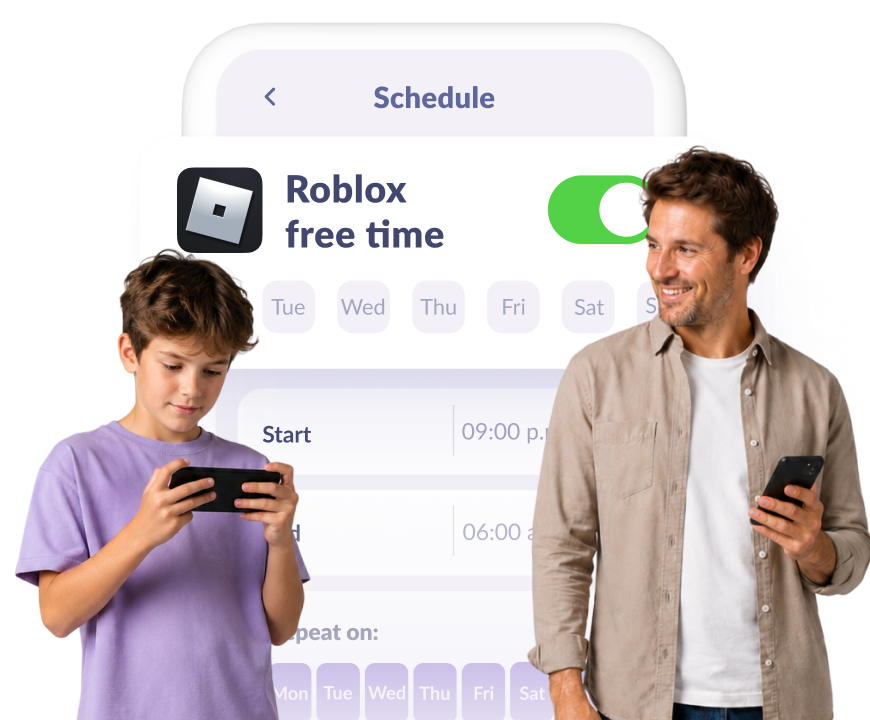
Switch Roblox off for a while, and turn it back on with a single tap
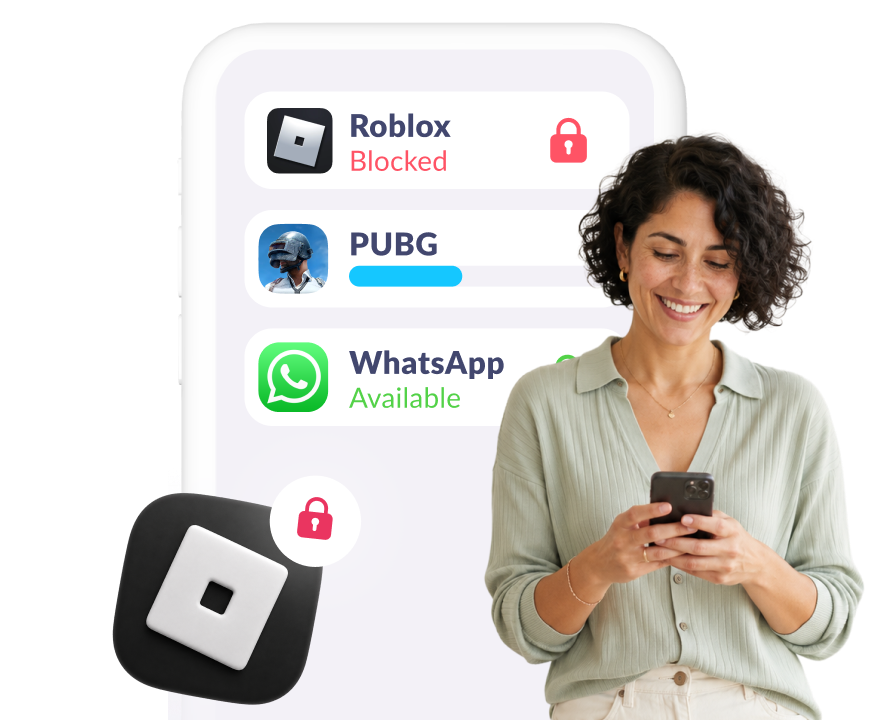
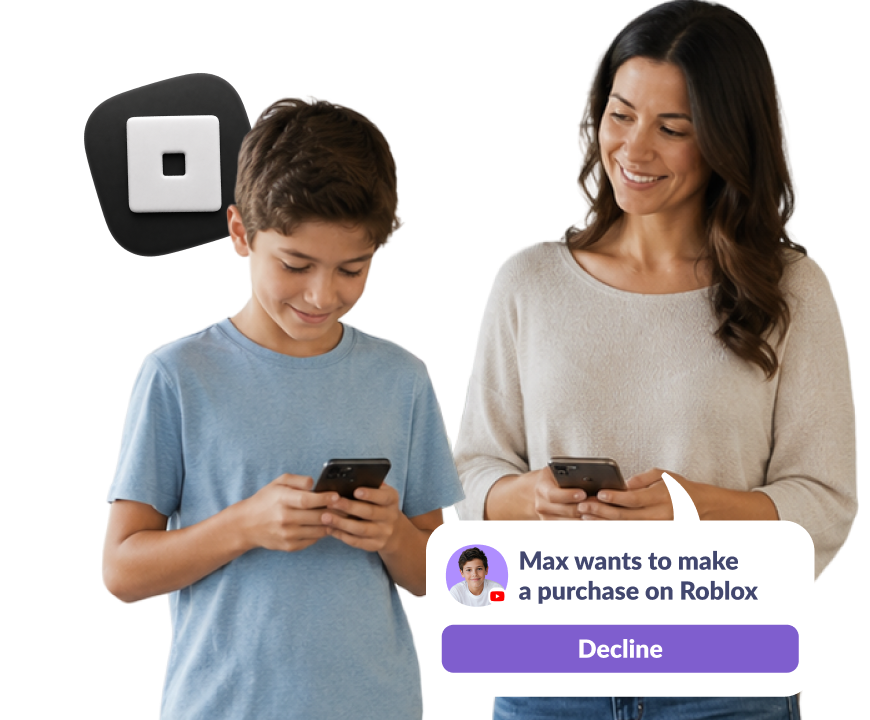
Approve every purchase in Roblox, no surprise charges
The same limits apply to your kid’s phone and tablet, and adding a second device is free
Set limits, schedules, blocks, and track time for TikTok, YouTube, Instagram, and more
Try now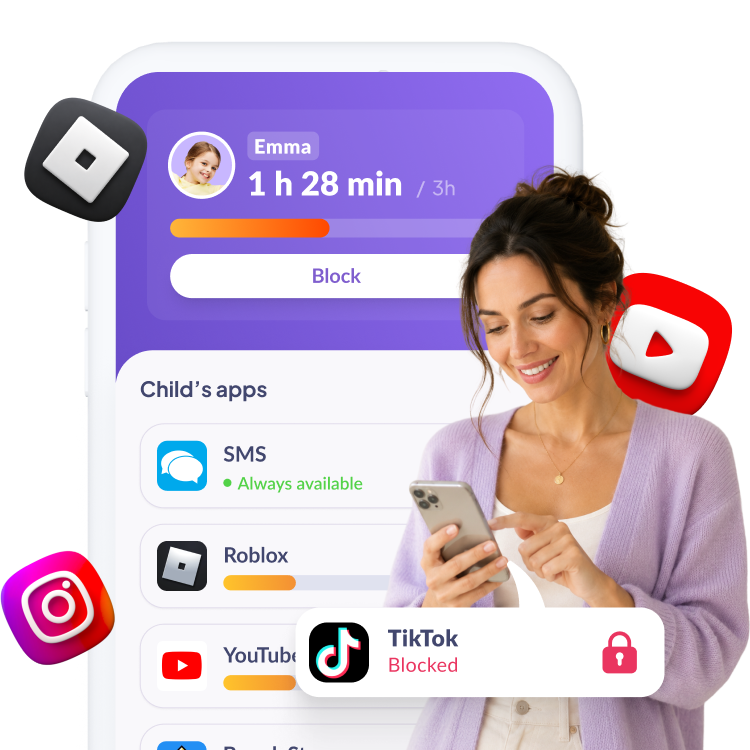
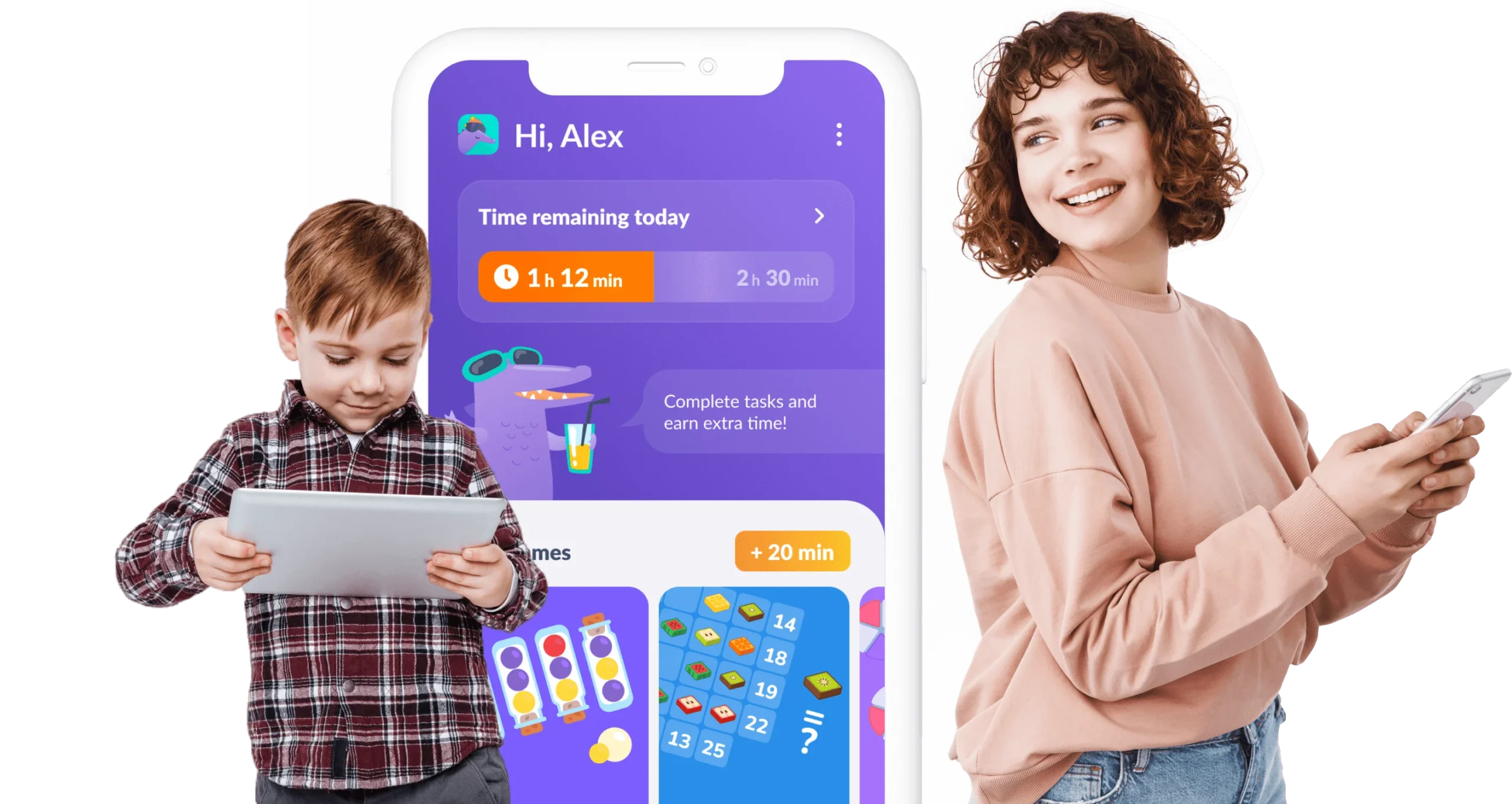
They complete useful tasks to earn time back, so control feels like a deal, not a punishment, and they don’t try to delete the app
Your child earns phone time by completing our learning exercises
Set a task — homework, chores around the house. Done, and extra time is earned
Try now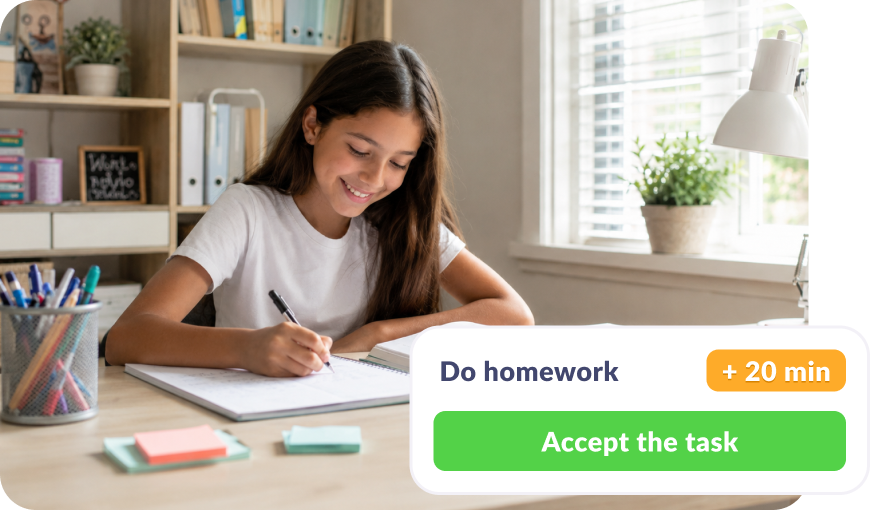
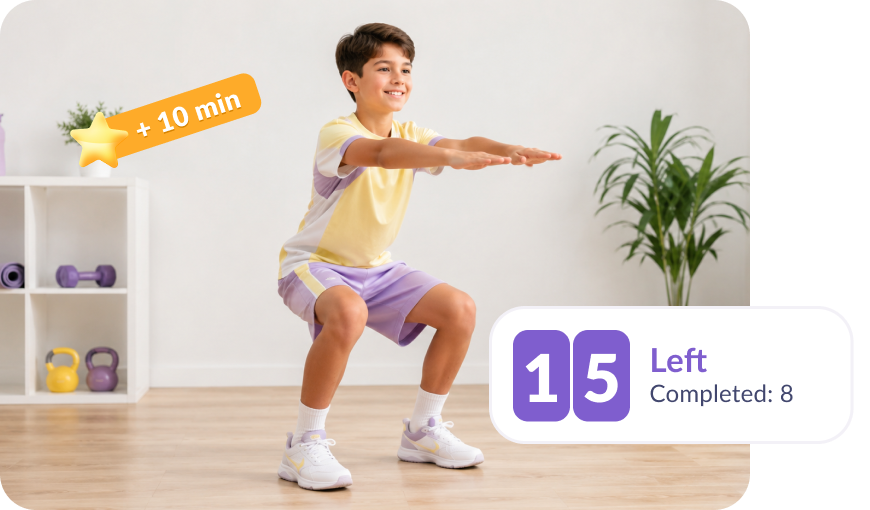
Did a workout or hit a step goal and earned time

Download the Kids360 app on your phone


Install the Alli360 app on your child’s phone
Surround your child with care
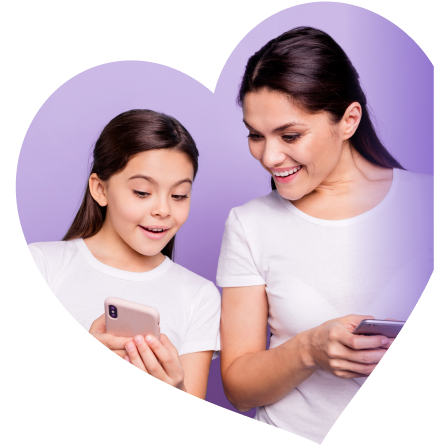
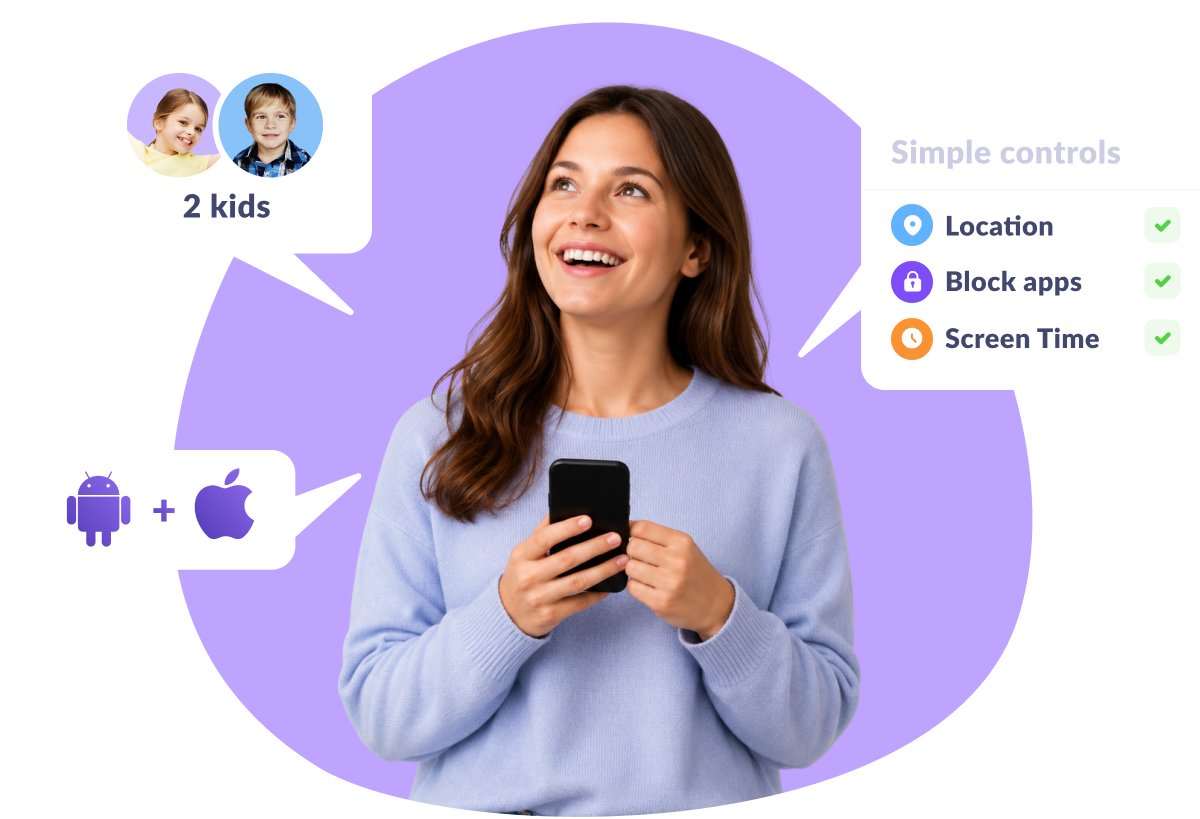
iPhone or Android, phone or tablet. Kids360 works either way
Add every child, parent and other family members for free
Simple to understand. No complicated technical setup





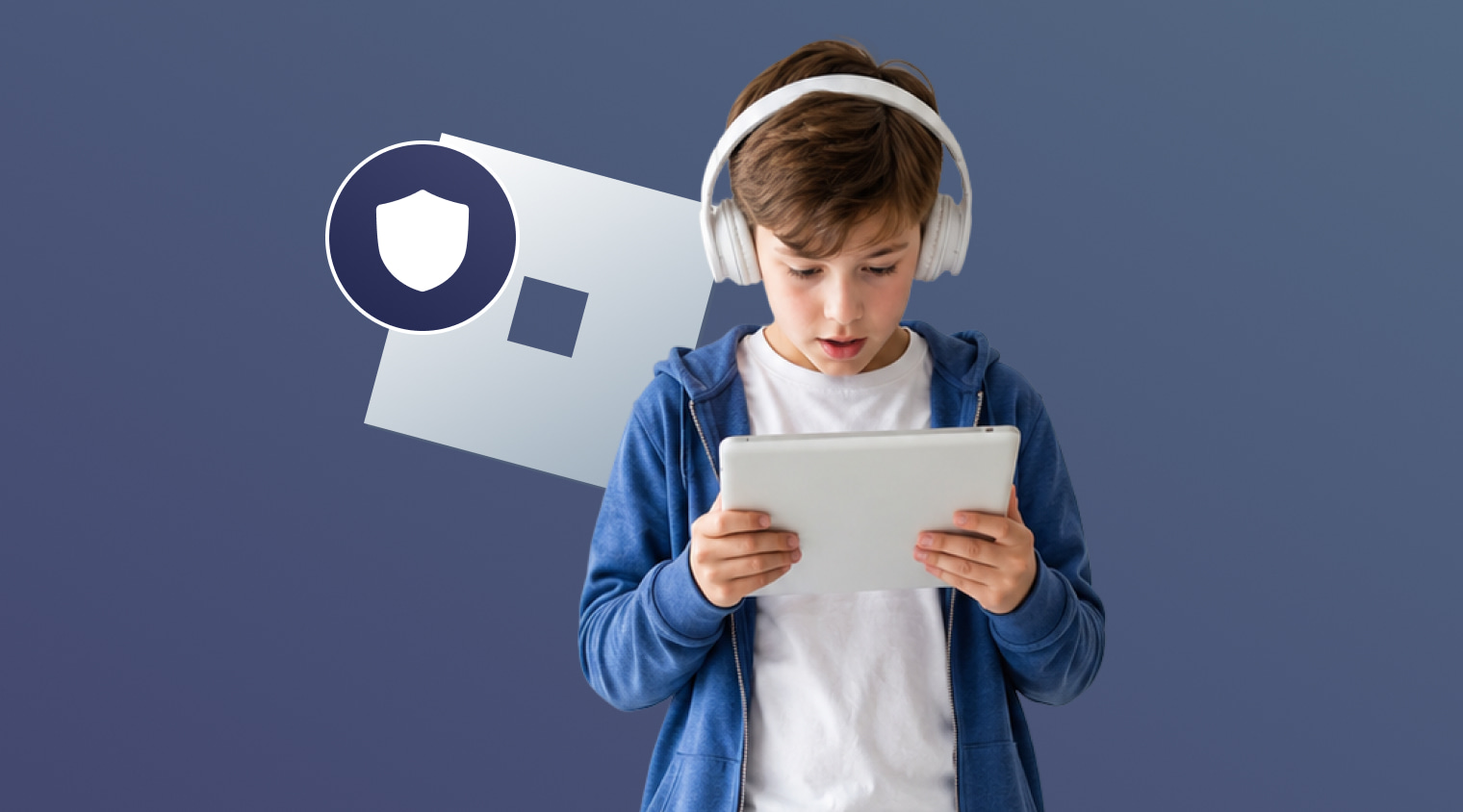


Roblox has its own settings: a Parent PIN, content maturity levels, and chat controls, all inside your child’s account. They cover what happens in the game. Kids360 covers the part they don’t: how long Roblox is open, when your child can access it, and how long your child can spend on it. Install Kids360 on your phone and Alli360 on your child’s device; the limits will apply in about 5 minutes.
There are two ways to make sure Roblox is safe for kids: Roblox’s built-in parental controls and the Kids360 app. In the game, use Roblox’s built-in settings: set the Parent PIN, restrict content by maturity level, and limit or disable chat. Outside it, Kids360 handles the time: a daily limit, downtime for school and bedtime, and a full block when you need one.
Install the Kids360 app on your phone and the Alli360 app on your child’s phone, then pair the two apps using a unique code. Then, in Kids360, block access to Roblox. It stops opening immediately, and one more tap brings it back. You can also block it only during certain hours, rather than all day.