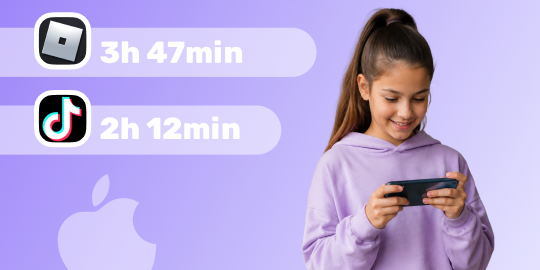
Kids spend 5–6 hours a day on a screen
Teenagers report spending an average of 4.5 hours a day online on school days and 6.1 hours on weekends. Parents tend to underestimate this time, reporting lower estimates for their children

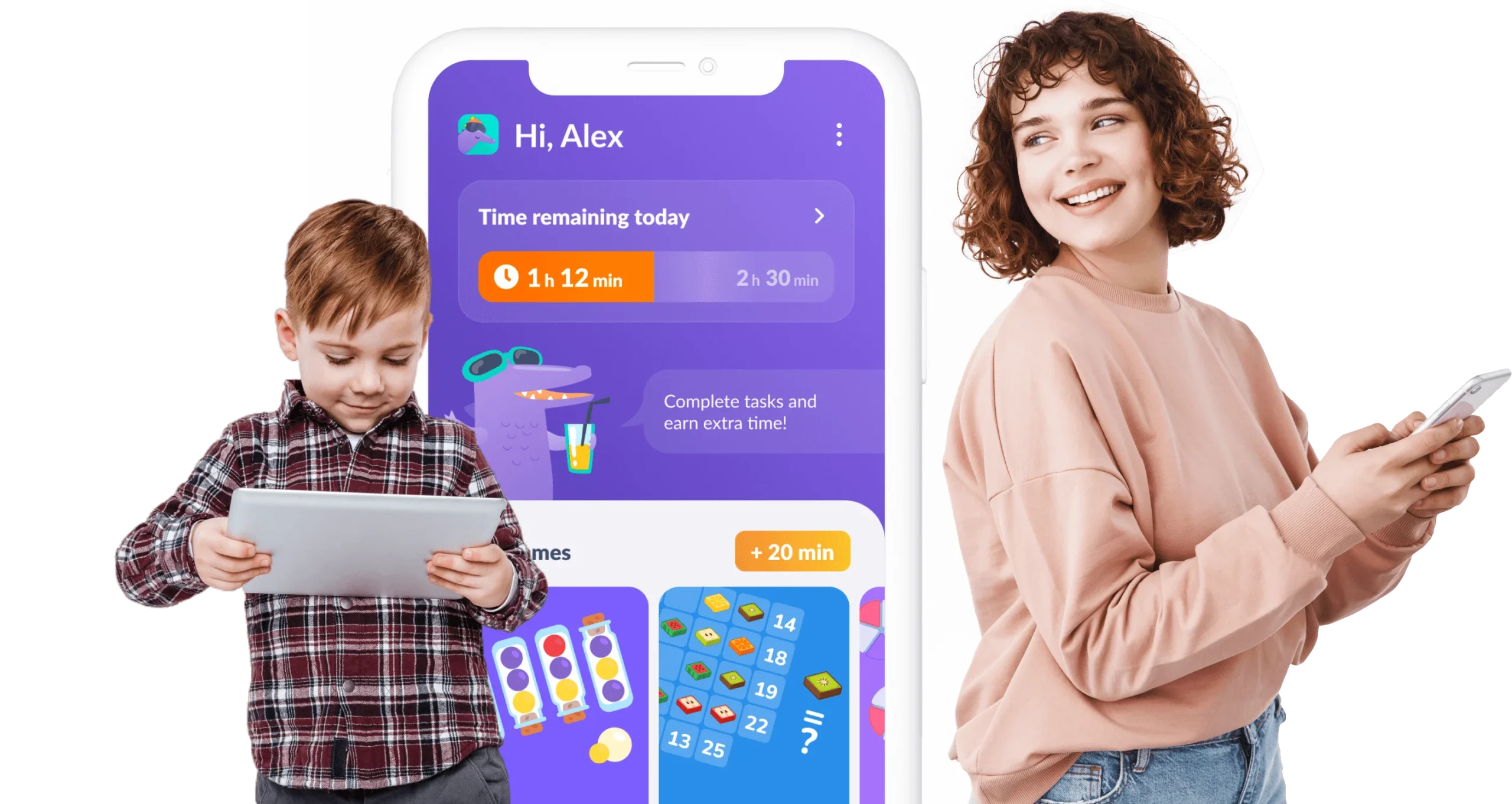
Kids360 is an iPhone parental control app that lets parents set screen time limits, block apps and adult websites, and see where their child is







Teenagers report spending an average of 4.5 hours a day online on school days and 6.1 hours on weekends. Parents tend to underestimate this time, reporting lower estimates for their children
U.S. teens who spend more than four hours a day on screens are more than twice as likely to report feeling anxious (27% vs. 12%)

Kids ages 10–17 spend 89 minutes a day gaming and 108 minutes watching online videos, with both figures rising on weekends
Research suggests that frequent short-form video use is associated with difficulties with attention and cognitive control
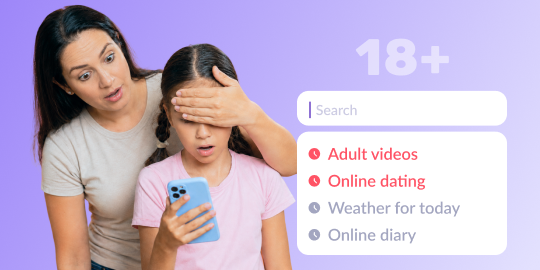
Children between ages 9 and 12 report having had a sexual interaction online, with nearly half of minors saying they used a website or app before they were old enough for it
Over the past decade, cyberbullying climbed 25% in the United States
The challenges below come directly from Kids360 users, who shared how the app helped their families address them
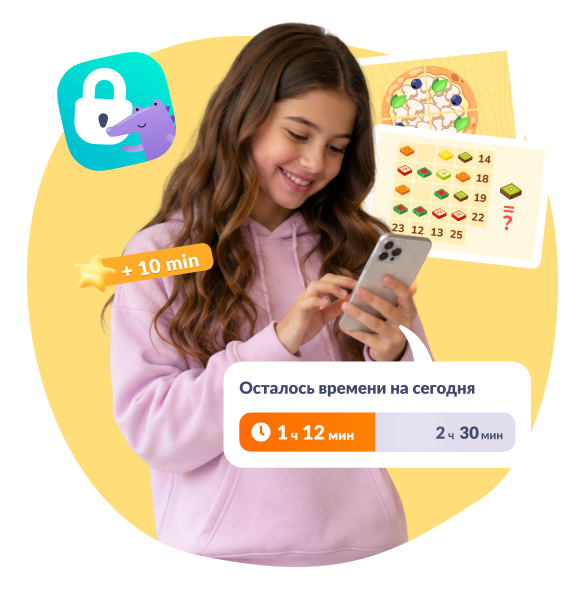
Long periods of screen use can make it harder for children to stop using a device and may contribute to frustration and emotional outbursts. Kids360 helps manage overall screen time and set clear daily limits, making it easier to keep device use within healthy boundaries.
Suddenly taking away a phone can lead to arguments, so-called “tech tantrums,” and aggressive reactions. Kids360 makes the end of screen time more predictable: children can see their screen time limits and overall usage themselves and receive notifications when their time is running out, so the device lock doesn’t come as a surprise.
When games and social media compete with schoolwork for a child’s attention, it can be harder for them to focus on studying, which may affect academic performance. Kids360 lets parents schedule study time, or block the device with one tap, helping children stay focused on homework and during class.
Children can come across violent, sexual, or otherwise harmful content on social media, video platforms, and websites, sometimes without actively searching for it. Kids360 helps reduce this risk by blocking adult websites and preventing new apps from being installed without parental approval.
Excessive gaming and video watching can interfere with sleep, schoolwork, physical activity, and other everyday activities. Kids360 allows parents to set daily limits and automatically block games and apps when the allowed time runs out.
Late-night gaming and social media can push bedtime later and make it harder for children to wind down. The AAP recommends turning off screens at least one hour before bedtime to support healthy sleep habits and a consistent bedtime routine. Kids360 lets parents create downtime schedules that block distracting apps before and during bedtime hours.
Children may encounter scammers, predators, or other unsafe online situations without recognizing the risks. Kids360 helps manage online safety by blocking adult websites, restricting internet access in selected apps, and preventing new app installations.
When a child is out without a parent, it can be important to know where they are and whether they have arrived safely. Kids360 provides real-time location, route history, and notifications when a child arrives at or leaves a saved place.
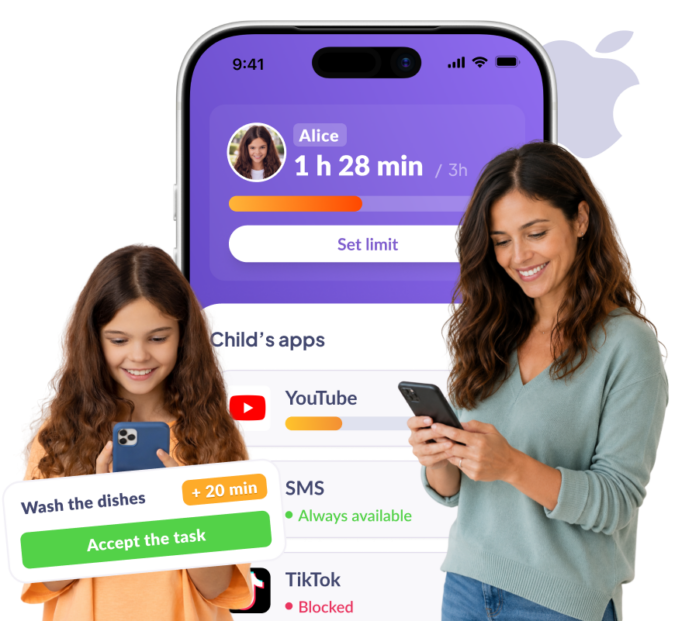
Children may struggle to stick to everyday routines or remember household rules without regular reminders. Kids360 lets parents create tasks for things like homework, chores, and other responsibilities, with extra screen time as a reward for completing them.
Long periods of screen use can cause eye strain, dry eyes, and blurred vision in children. Kids360 helps limit prolonged screen use with daily screen-time limits and reminders to take regular breaks.
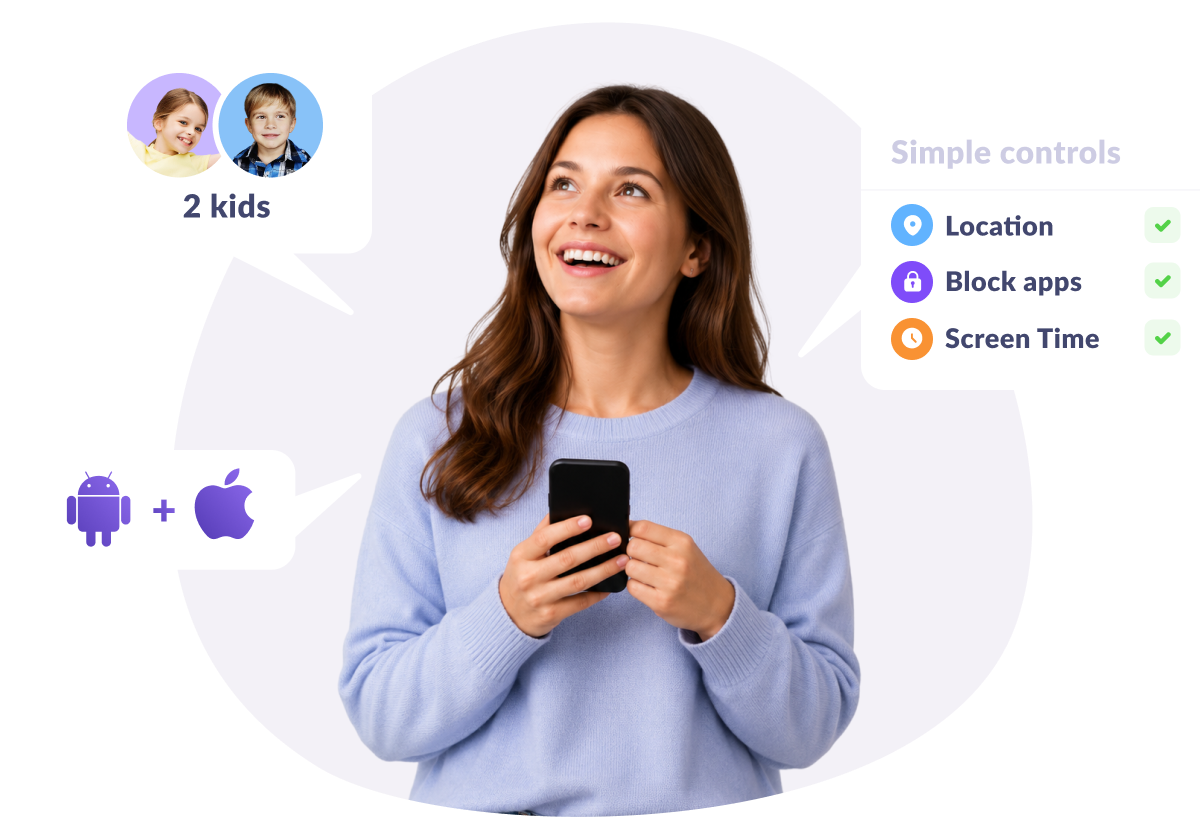
iPhone or Android, phone or tablet; Kids360 is compatible
Add another child or a second parent for free, all in one place
Simple to understand. No complicated technical setup
Review weekly screen time statistics to see how much time your child spends on different types of content, such as social media, games, or videos.
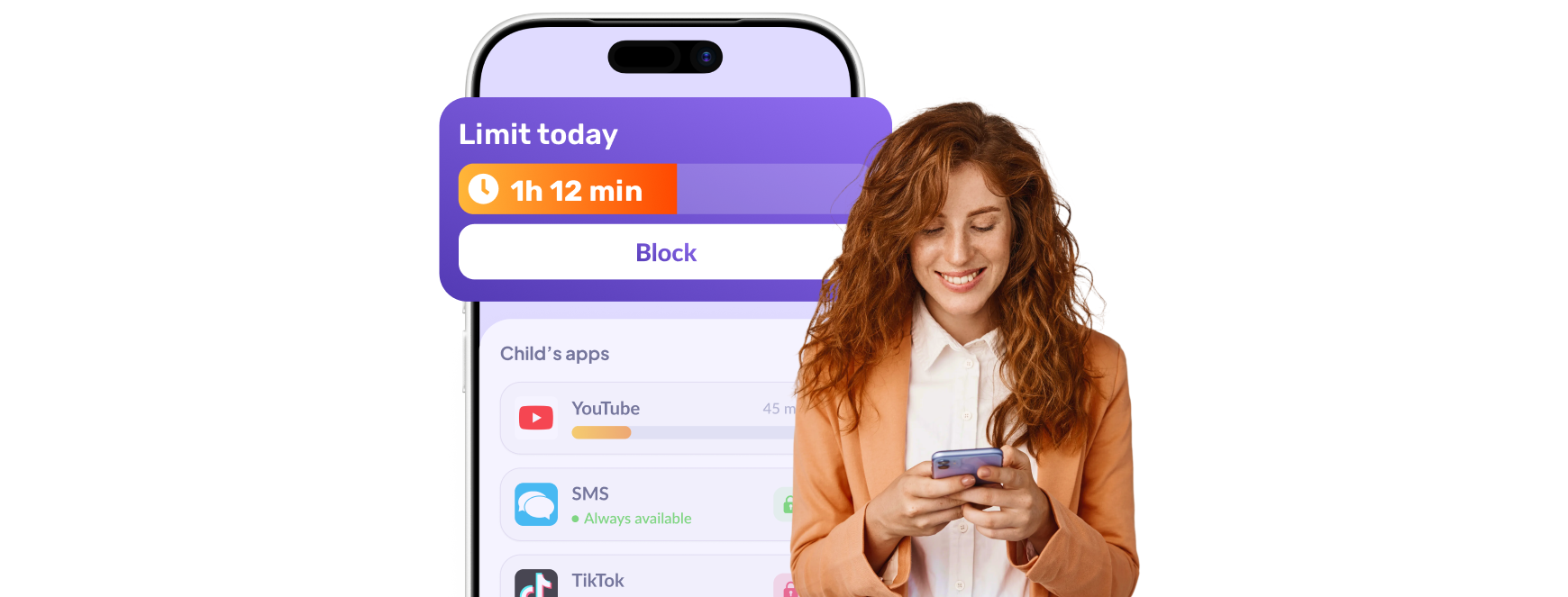
Learn moreSet a daily screen time limit. When it’s reached, the iPhone locks while essential communication apps stay available; game and entertainment apps can also be blocked when their limits are reached.
Learn moreFor moments when a child needs to stop using the phone right away, use the one-tap block feature to lock distracting apps in seconds.
Learn moreSchedules limit access to games, social media, and other unnecessary apps at specific times. Set different schedules for weekdays and weekends, for example, blocking distracting apps during sleep, school, or study hours.
Learn morePrevent unexpected spending on your child’s device by blocking in-app purchases, including game purchases, subscriptions, and paid bonuses.
Learn moreSome apps offer features that require an internet connection. Turn off internet access for selected apps when you want to limit online content, chats, or other connected features.
Learn moreBlock adult websites on your child’s device to reduce exposure to harmful content and online risks.
Learn morePrevent new apps from being installed on your child’s device without your approval, helping you keep track of what is added to the phone.
Learn moreKids360 shows your child’s real-time location and history, with notifications for arrivals and departures from saved places like home or school. It also identifies frequently visited places and provides location predictions, such as estimated school arrival times.
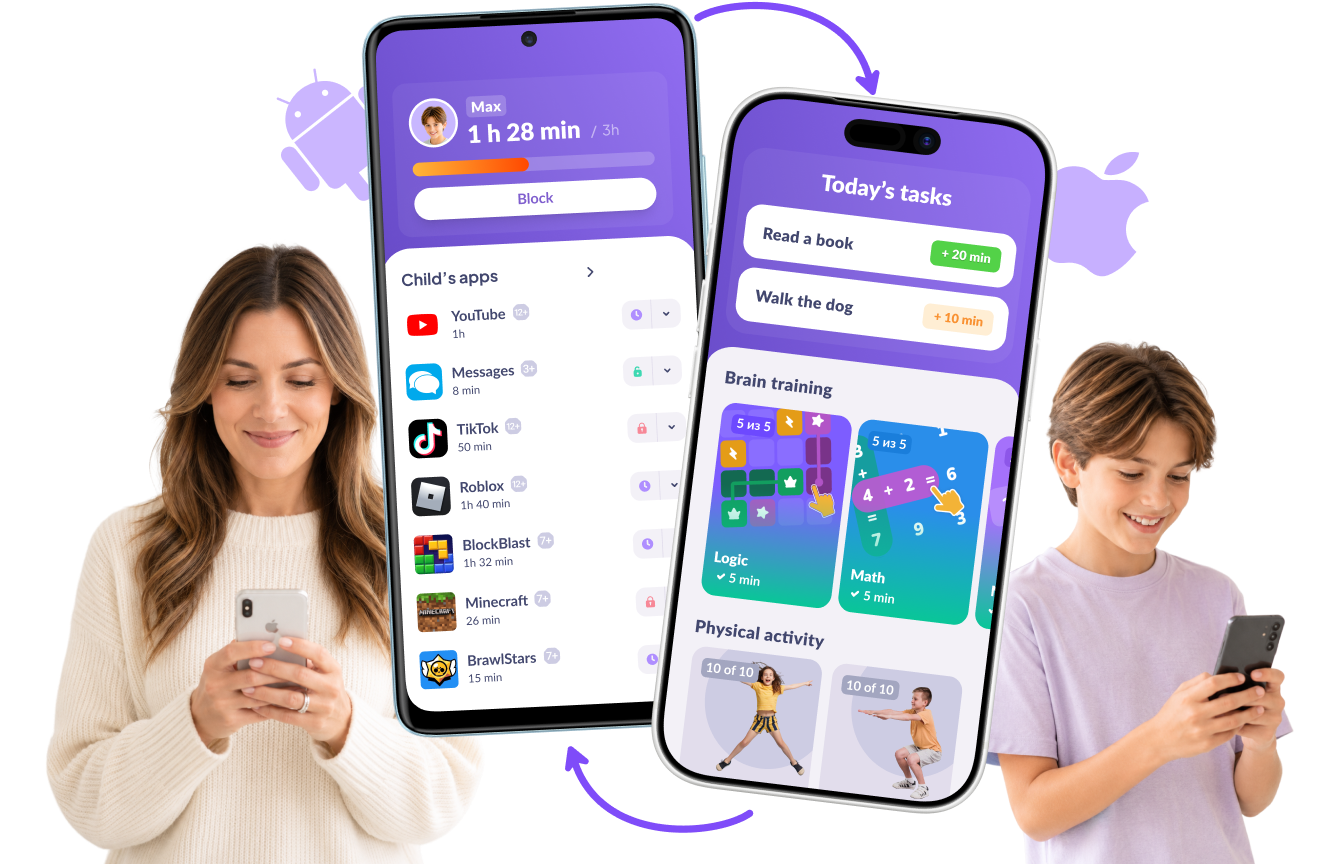
Learn moreAssign tasks for your child to complete, such as doing their homework, walking the dog, or reading a book. Kids360 also includes 4,600+ logic and thinking exercises. When your child completes tasks, they can earn additional minutes of screen time.
Learn more
Download the Kids360 app on your phone


Install the Alli360 app on your child’s phone
Surround your child with care

The parental controls on iPhone that Apple delivers are a reasonable starting point for parents who want to keep their child safe online. However, they work only within the Apple ecosystem and may offer less flexibility and remote management than dedicated parental control apps.
Most parental controls focus on limiting what children can do with their phones
Kids360 takes a different approach: children can actively participate in managing their screen time by earning extra minutes through tasks. This turns screen-time management into a shared process built around clear expectations and responsibility
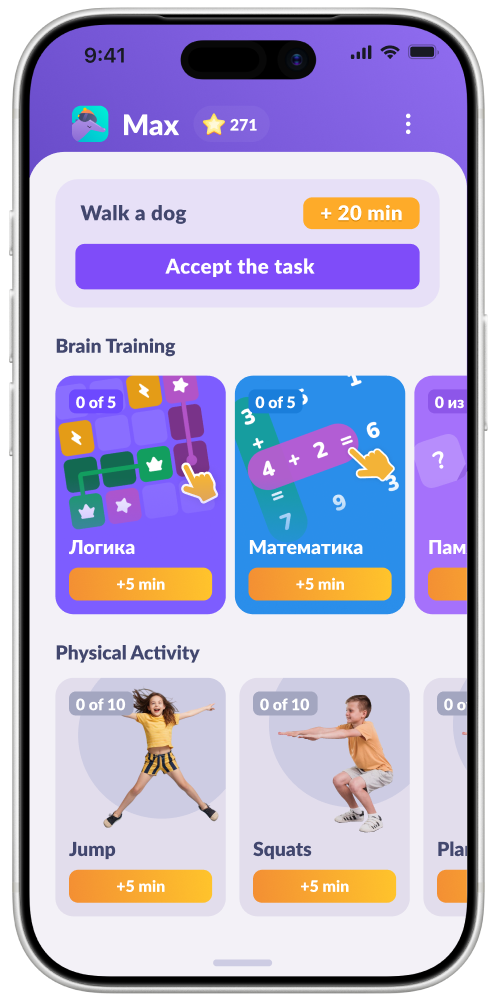
“Children are more likely to engage with a goal when they understand what they need to do and what they’ll get in return,” says [Expert Name], [credentials]. “Using extra screen time as a reward for everyday tasks can turn screen-time rules into a more positive, predictable routine rather than a constant source of conflict.”
All features work even if you and your child have different devices




With Kids360, you can block any app on your child’s iPhone in one tap instantly, or schedule app blocking during school hours and bedtime.
Kids360 filters adult and unsafe websites intended for 18+ audiences across Safari and other browsers, so your child cannot access explicit content.
Set a daily time limit for any app on your child’s phone in Kids360: TikTok, YouTube, games. When time’s up, the app closes on its own
Kids360 blocks new app installs, so your child can’t download anything without your approval.
Install Kids360 on your phone and Alli360 on your child’s iPhone to set time limits, block apps, filter content, and see their location in 5 minutes.
Kids360 works across platforms. Simply install it on your iPhone and Alli360 on your child’s Android phone to see their location and activity in one app.
Kids360 works across platforms. Download it on Android and connect to Alli360 on your child’s iPhone for real-time location and screen time tracking.