
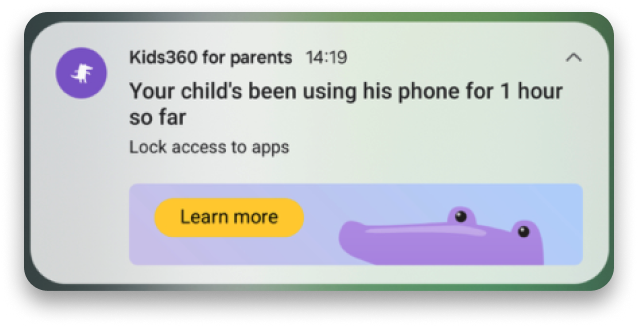
If your child uses their phone for a long time, you’ll get a notification about it.
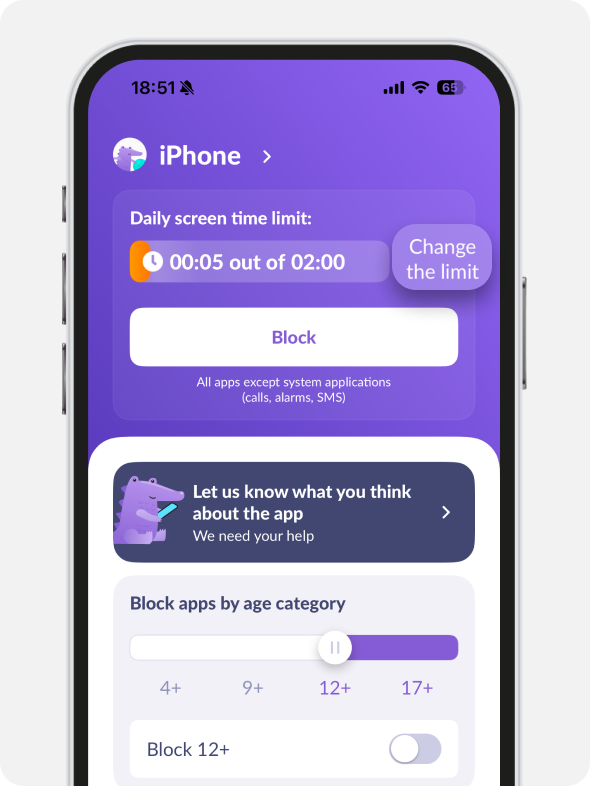
You can restrict apps with the Block button:
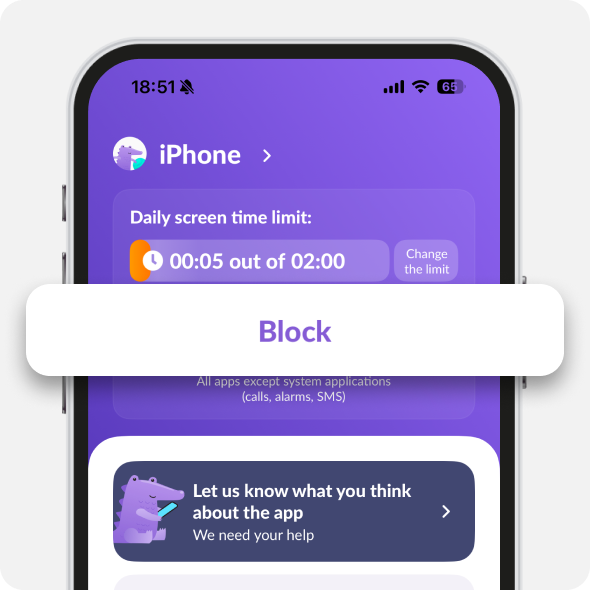
💡 The app icons will disappear from your kid’s device for the blocking time. Once unlocked, they will reappear in alphabetical order.
📌 Since iOS 26.3, app icons become darker but do not disappear from your kid’s device.
Currently, it’s not possible to block standard phone apps. These are Safari browser, phone, messages and others.
📌 Since iOS 26.3 Safari will also be blocked.
You can update iOS on your kid’s phone via Settings → General → Software Update.
You can check how much your child uses their phone and the current limit.
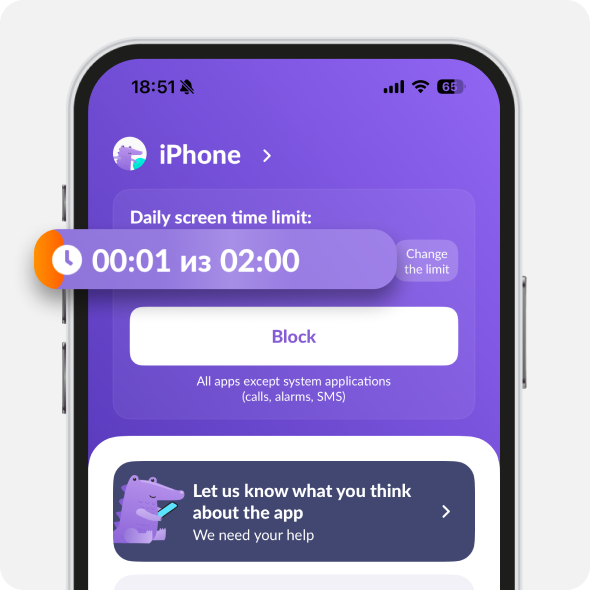
📌 Time in Limits and Screen Time on your child’s phone may differ because Apple does not provide apps with accurate data about a child’s phone usage.
That’s why we use internal counting algorithms. They may differ slightly from the screen time of your child’s phone, but we work to make it as accurate as possible.
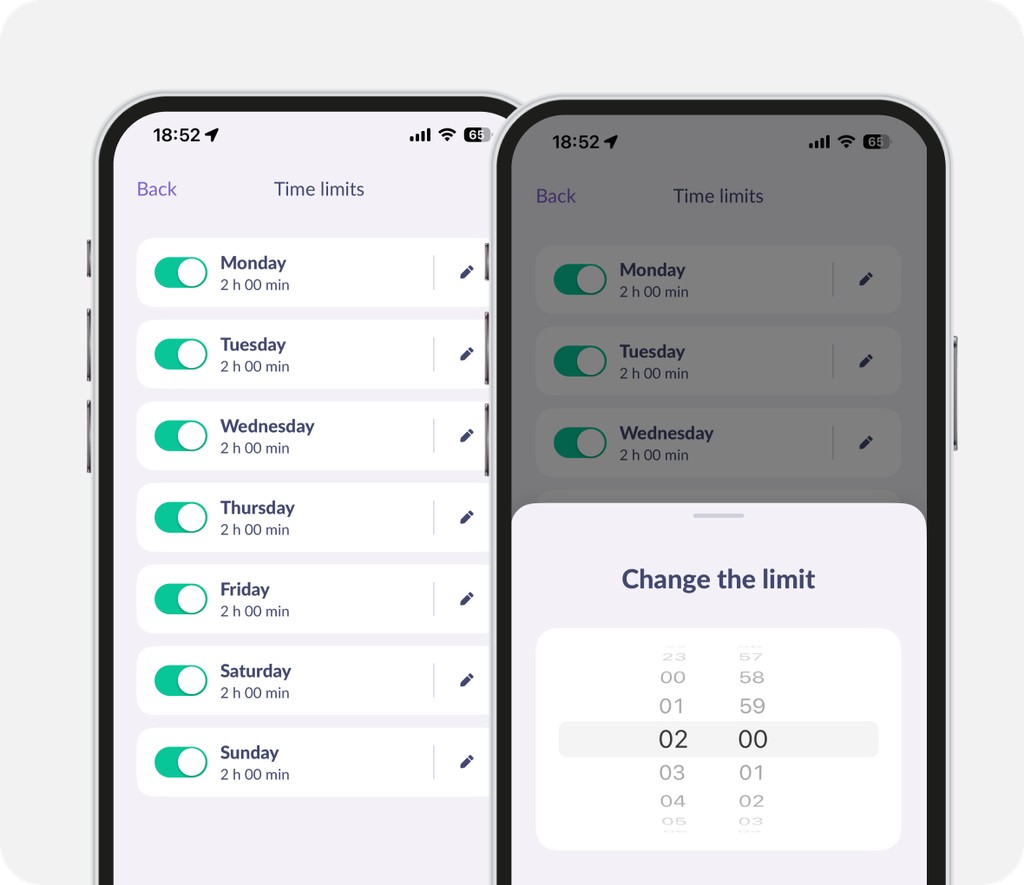
Tap Change the Limit to turn on or off time limits for specific days.
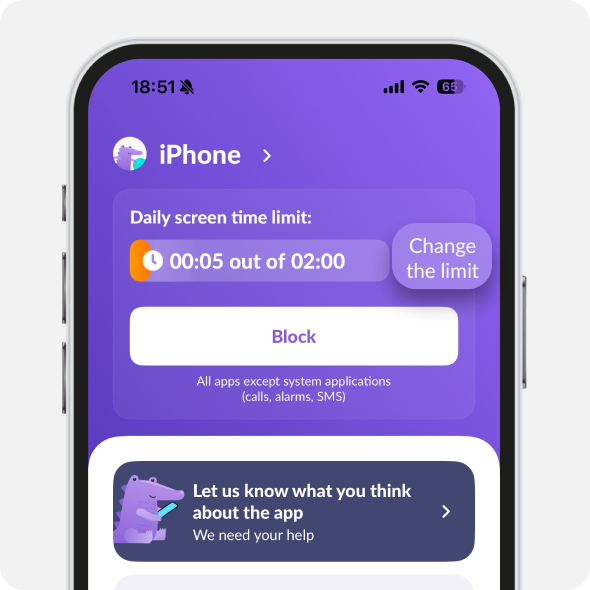
Here you can also change the number of hours your child can use.
You can block apps by age category. For example, if you choose 12+, your child will only be able to use apps in categories 4+ and 9+.
📌 If there is no age category for an app, it will not be blocked. These are usually standard system apps.
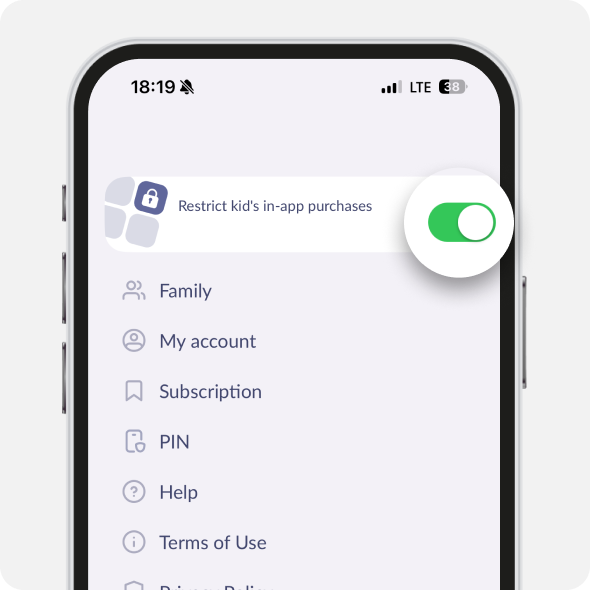
You can block the installation of new apps from the App Store in the Others tab:
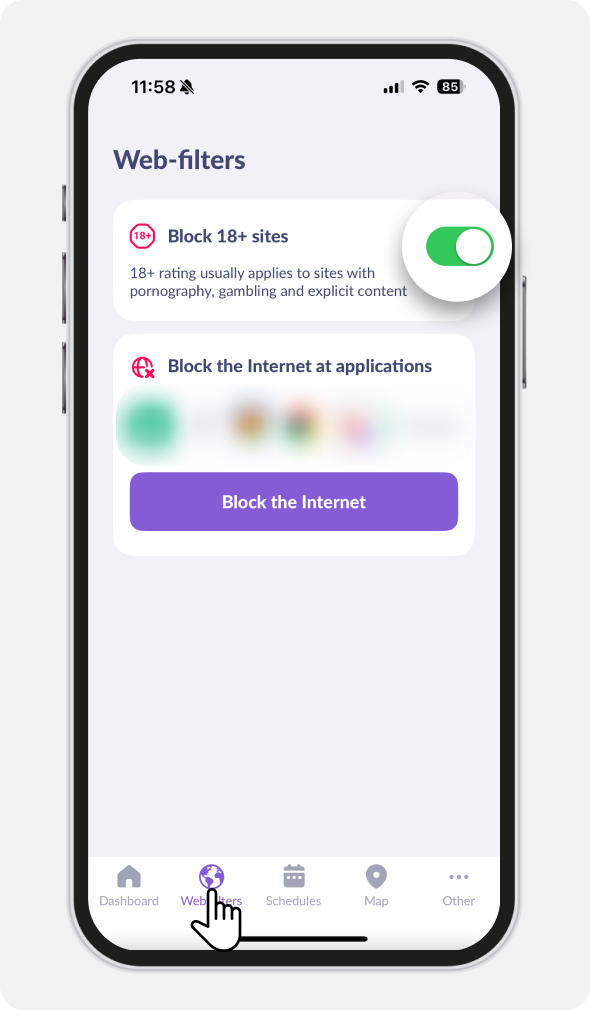
And you can also block adult sites in the Web-Filters tab:
Was it helpful?
Chat is unavailable right now. Please try again later.




