How to Lock Apps on Android with the Kids360 App

Hand a child an Android phone to play one game, and it may not be long before they have opened three other apps. And this isn’t just a feeling: the average teen spends 7 hours and 22 minutes looking at screens each day. That makes it understandable why parents look for practical ways to manage which apps their children can access and for how long.
This guide explains how to lock apps on Android using built-in options on different devices and shows how Kids360 makes app rules easier to manage remotely.
Key Takeaways
- Android does not have one universal built-in app-lock feature, so the available method depends on the phone’s brand and software version.
- Some Android phones include a built-in App Lock that protects selected apps with a PIN, password, pattern, fingerprint, or face recognition.
- Digital Wellbeing offers app timers, but limiting an app’s daily use is not the same as locking it.
- Kids360 allows parents to block or limit apps remotely on a connected Android device and create schedules for certain times.
- App restrictions work best when children understand why the rules exist and when they will be reviewed.
Table of Contents
Why Should You Block Apps on Your Kids’ Phone?
While it’s important for kids to have freedom and independence, unrestricted access to every app is not always appropriate. Some apps may expose children to unsuitable content, contribute to excessive screen time, or make it easier for them to interact with people they don’t know.
Learning how to lock apps on Android gives parents another practical way to set sensible boundaries while helping children develop healthier digital habits. Common reasons for restricting certain apps include:
- Protect children from inappropriate content.
- Encourage healthier screen time habits.
- Reduce digital overload and overstimulation.
- Help children develop responsible digital habits.
There are several ways to block apps on a child’s phone, from built-in parental controls to dedicated third-party apps. Let’s take a closer look at each option and see which one works best for your family.
A Universal Way to Block Apps: Parental Controls with Kids360
The first thing a concerned parent may think of is checking the child’s device settings. However, built-in parental controls are often limited in terms of flexibility and features. For greater convenience and more reliable control, a dedicated parental control app may be a better option.
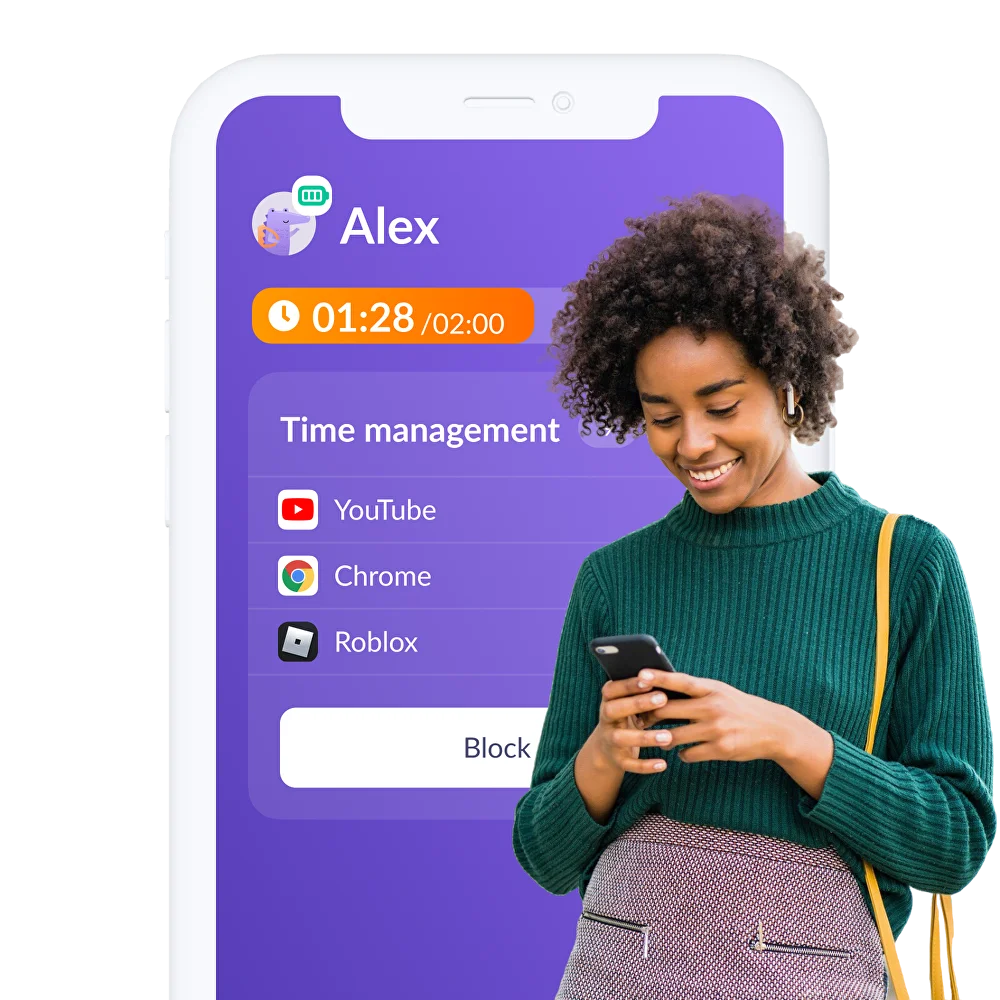
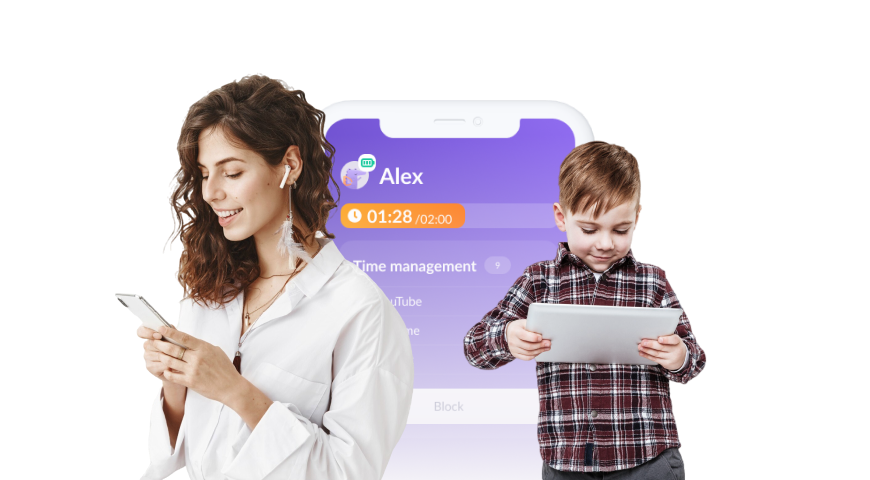
Kids360 is a parental control app that allows parents to manage a child’s connected Android device from their own phone. Instead of taking the child’s phone every time a rule needs to change, parents can review app activity and adjust content restrictions remotely.
The app is particularly useful when a family needs more than a basic app lock. Its Android parental controls can help parents block individual apps, restrict an app category, set app limits, create schedules, and prevent unwanted app installations.
Why Parents Choose Kids360
Built-in app locking methods usually protect one phone and must be changed directly through that device’s settings. Kids360 brings several controls together in one place.
On supported Android child devices, parents can:
- Block selected apps that the child should not use
- Set separate time limits for individual apps
- Restrict an app category, such as games or social networking
- Create schedules that block distracting apps during school, homework, or bedtime
- Prevent the child from installing new apps without the parent’s knowledge
- Review app usage statistics to understand where screen time is going
- View browser search history and YouTube activity
- Check the child’s location and location history
- Use developmental tasks that allow the child to earn additional screen time
- Use uninstall protection to help prevent the child app from being removed
Kids360 also includes an overall screen time limit. This is useful when the concern is the total amount of time spent on the phone rather than one particular app. Some controls are free, while automatic app blocking, schedules, category restrictions, and other advanced features may require a subscription.
How to Restrict App Access With Kids360
The setup should begin by preventing new apps from being installed. Parents can then review the apps already on the child’s device and decide which ones need to be blocked or limited.
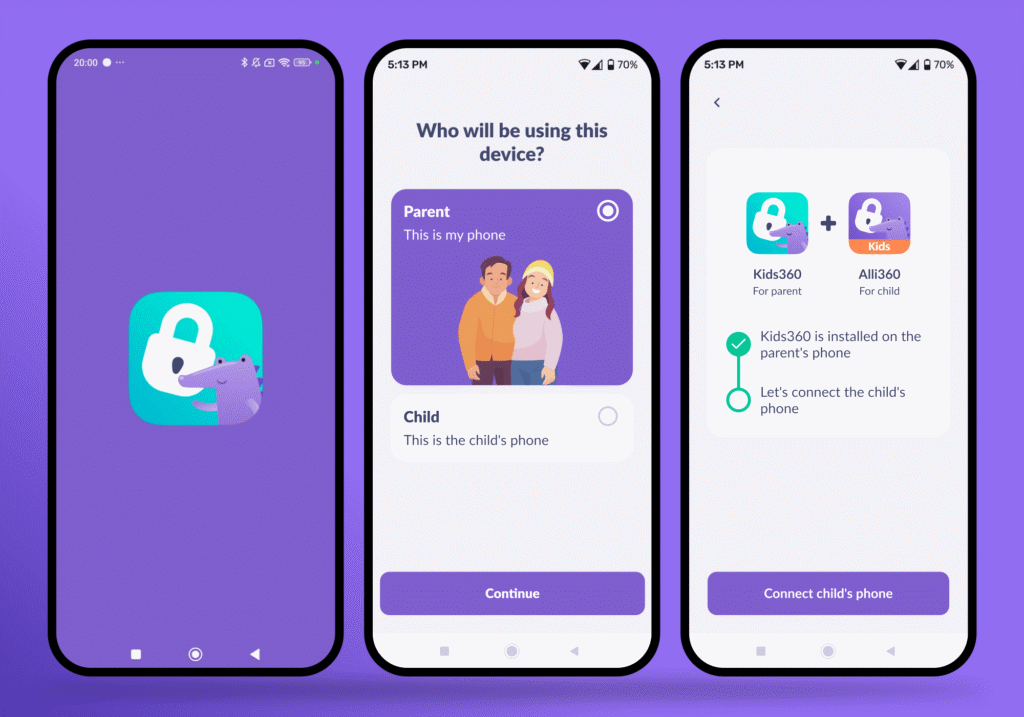
- Download Kids360 on the parent’s phone.
- Follow the instructions in Kids360 to install the Alli360 companion app on the child’s Android phone.
- Connect the two apps using the code or pairing instructions shown during setup.
- Grant the required permissions on the child’s device. App blocking may not work properly if an important permission is skipped.
- Open the child’s profile in Kids360 and enable the option that prevents new app downloads, where available.
- Review the list of apps currently installed on the child’s phone.
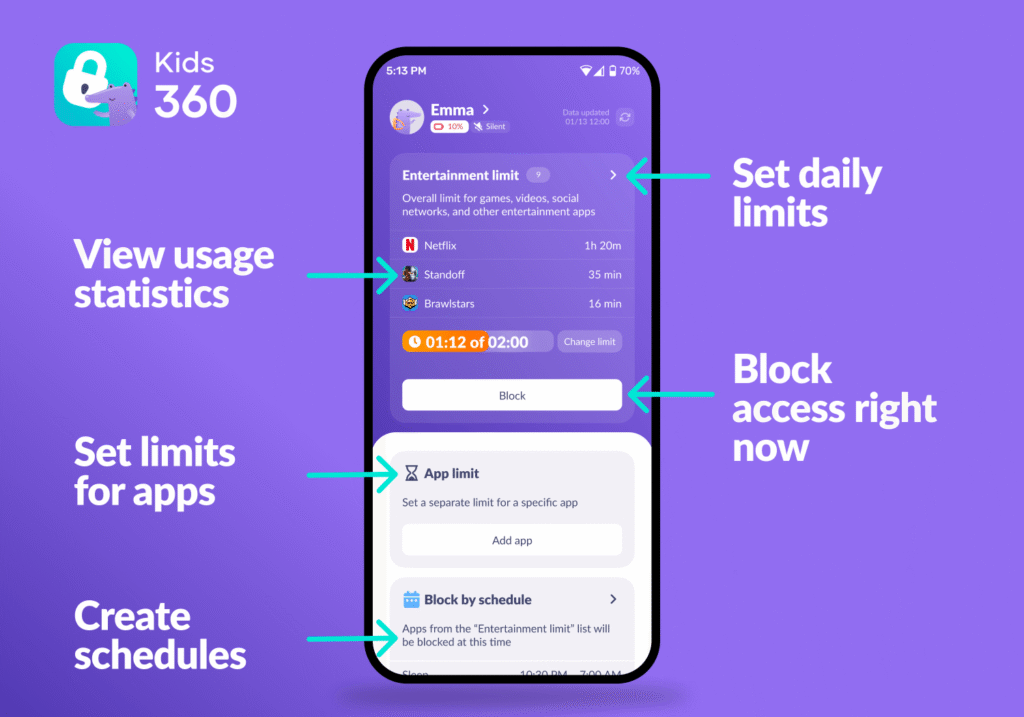
- Choose whether to block a specific app, restrict an app category, or set a time limit.
- Create schedules if certain apps should remain unavailable during school hours, homework, meals, or bedtime.
- Test the restriction on the child’s phone and confirm that essential apps and communication features remain available.
Parents should explain the new controls before turning them on. A child should know which apps are affected, when access will return, and how to ask for a reasonable exception. The Kids360 app blocker can enforce the agreed rule, but the family still needs to decide what that rule should be.
Kids360 gives parents more control than a standard App Lock because it combines app access, screen time, schedules, activity information, location, and tasks in one service. This makes it a convenient option for families that want ongoing parental controls rather than a password on one or two apps. Try it yourself for free today!
How to Lock an App on Android Using Built-In Controls
Android does not offer one universal way to lock apps. Some manufacturers include a dedicated App Lock feature, while others provide app timers, protected folders, or parental controls instead.
Parents searching “how to lock app on Android phone” should therefore begin by checking the device brand and software version. The steps below explain how to lock apps in Settings on several popular Android mobile devices and clarify what each built-in option actually does.
Samsung

Option 1: Google Family Link
- Navigate to Settings on the Samsung phone.
- Select Digital Wellbeing and parental controls.
- Tap Parental controls, then follow the prompts to set up Google Family Link for the child’s account.
- To block an individual app remotely, open Google Family Link on the parent’s phone. Select the child, then tap Screen time → Time limits → App limits.
- Choose the relevant app and change its status to Blocked. Parents can also set a time limit instead of blocking the app completely.
Google notes that some system apps cannot be blocked because they are needed for the device or parental controls to work. Changes may also take a few minutes to appear on the child’s phone.
Option 2: Secure Folder
Samsung Secure Folder is a protected space for private apps and data. It can require a PIN, password, pattern, fingerprint, or other supported security method, but it is not a traditional parental app lock. Adding an app to Secure Folder creates a separate protected copy and does not automatically lock or remove the original app outside the folder.
To set it up on a supported Samsung device:
- Open Settings.
- Tap Security and privacy → More security settings → Secure Folder. On older Galaxy devices, Secure Folder may appear under Biometrics and security.
- Follow the prompts to sign in and choose a lock method.
- Open Secure Folder and tap Add apps.
- Select the apps that should be added to the protected folder.
- Use the chosen PIN, password, pattern, or biometric method to open Secure Folder.
Parents should use Google Family Link or another parental control service when the goal is to stop a child from opening the original app. Secure Folder is better suited to protecting private information or a separate app account.
Google Pixel

Although Google Pixel devices do not have a traditional built-in app locking mode, Digital Wellbeing can limit how long certain apps remain available each day. Here’s how:
- Go to Settings on the Pixel phone.
- Select Digital Wellbeing and parental controls.
- Tap App limits or App timers, depending on your device.
- Choose the app that needs a daily limit.
- Set the number of hours and minutes the app can be used.
- To prevent the limit from being changed easily, open the App limits menu and turn on App limits PIN. Create a separate four-digit PIN when prompted.
Once the daily allowance has been used, the app is paused, and its notifications are silenced until the timer resets. The parent can change or remove the limit earlier by entering the App limits PIN.
This is a time-management feature rather than a true app lock. It does not ask for a PIN every time the app opens, so it is better for limiting usage than protecting private information.
Xiaomi

Xiaomi devices come with a built-in App Lock feature in MIUI and HyperOS, although the exact options may vary by model and software version.
How to lock apps on Xiaomi:
- Navigate to Settings on the Xiaomi phone.
- Scroll down and tap Apps.
- Tap App lock.
- Select Turn on and create the password or pattern requested by the phone.
- After setting it up, review the list of apps installed on the device.
- Select the apps you want to lock.
- If the phone offers the option, enable fingerprint or face recognition after creating the main App Lock password.
Once App Lock is active, the selected apps will require the chosen password, pattern, fingerprint, or supported face-recognition method before they can be opened.
Realme

Realme devices also come with a built-in feature called App Lock to help protect specific apps from unauthorized access.
How to lock apps on Realme:
- Go to Settings and search for App Lock. Depending on your OxygenOS version, the feature may be located under Privacy or Security and privacy.
- Tap App Lock.
- Enter or create the phone’s privacy password.
- Review the list of installed apps.
- Select the apps you want to lock.
- If supported and already configured, fingerprint or face recognition can also be used to open locked apps.
Realme also offers a separate Hide Apps feature on supported devices. This removes selected icons from the usual app list and requires the privacy password or hidden-app access method to open them.
Huawei

To lock apps on supported Huawei devices, use the built-in App Lock feature included in EMUI. Here’s how:
- Open Settings on the Huawei device.
- Tap Security.
- Select App Lock.
- Tap Enable and follow the on-screen instructions to create an App Lock password.
- Review the list of apps installed on the device.
- Select the apps you want to lock.
- If fingerprint or face recognition is already enabled on the device, Huawei may offer the option to use it when opening locked apps.
Once App Lock is enabled, the selected apps will require the App Lock password or an approved biometric method before they can be opened.
Huawei’s available privacy features vary by device and EMUI version. Some models provide options such as PrivateSpace for separating private apps and files, but this is different from App Lock. Parents should check the Security section on the specific device rather than assuming that every Huawei phone can hide apps or assign a different lock method to each app.
OnePlus

How to lock apps using App Lock in OxygenOS:
- Go to Settings on the OnePlus device.
- Tap Privacy.
- Select Privacy again, then tap App Lock.
- Enter or create the privacy password when prompted.
- Turn on App Lock.
- Select the apps you want to lock.
Notes:
- Locked apps require the privacy password or an approved biometric method before they can be accessed. The phone may not request authentication again immediately if the app was only recently unlocked.
- A screen-lock password should be configured before App Lock is enabled because the device may use it when setting up or recovering the privacy password.
- On older OxygenOS versions, the feature may be called App Locker or appear under Utilities. If the menu differs, search for App Lock settings.
Android Built-In Controls vs. Kids360
Built-in Android controls can work well when a parent only needs to protect or limit a few apps on one phone. Their availability varies considerably, however. Some brands include a dedicated App Lock, while others rely on Digital Wellbeing, protected folders, or Google Family Link.
Kids360 offers a more consistent option for families that want to manage several parental controls remotely.
| Feature | Built-in Android Controls | Kids360 |
|---|---|---|
| Availability across Android brands | Varies by manufacturer and software version | Works on supported connected Android devices |
| PIN or biometric app protection | Available on certain brands | Restrictions are managed through the parent app |
| Remote management | Usually limited, although Family Link offers some remote controls | Yes |
| Individual app blocking | Varies by manufacturer | Yes, on supported Android child devices |
| App-category controls | Usually unavailable | Yes |
| App limits | Available through certain built-in tools | Yes |
| Schedules | Limited or dependent on the chosen tool | Yes |
| Prevent new app installations | Available through Family Link or Google Play settings | Yes |
| Usage information | Varies by device and tool | Available within the parent app |
| Location | Available through Family Link or other Google services | Included in Kids360 |
| Reward-based tasks | No | Yes |
A built-in App Lock is a sensible choice when the goal is simply to protect a few individual apps with a PIN, password, pattern, or fingerprint. Google Family Link adds useful parental controls for supervised Android devices, but its features remain tied to the child’s Google account and supported Google services.
Kids360 is the more convenient option when parents want app blocking, screen time limits, schedules, usage information, location, and reward-based tasks in one place.
Should You Block Apps or Set Time Limits?
Block an app completely when the app itself is unsuitable, exposes the child to a safety risk, or should not be used at their age. This may include an adult app, an unapproved social platform, or a service that allows contact with strangers.
Set a time limit when the app is appropriate, but the child spends too long using it. Games, videos, and social media may not need to be blocked entirely, but they should not regularly replace sleep, homework, movement, or family time.
Use a schedule when the problem is timing. A child may be allowed to use a gaming app after school, for example, but not during homework or before bed. Kids360 schedules can apply restrictions automatically during those agreed periods.
Families can combine all three approaches: block unsuitable apps, set daily limits for entertainment, and create schedules for times when distractions need to be unavailable.
Make App Rules Easier to Manage With Kids360
Locking selected apps can help protect private information, reduce distractions, and keep unsuitable content out of reach. A built-in App Lock may be enough for one or two apps, while broader parental controls are more useful when a family also needs remote management, schedules, and screen time limits.
Kids360 brings these controls together in one place, making it easier for parents to manage app access as their child’s needs change. Families can download Kids360, connect the child’s Android device, and choose restrictions that support their existing rules rather than relying on constant reminders.
Sources and References
- Average Screen Time for Teens (2026), Exploding Topics, 2026
- Manage a Child’s Apps With Family Link, Google Support
- Use Secure Folder on a Galaxy Phone or Tablet, Samsung
- Introduction to the App Lock Function, Xiaomi
- How to Lock Apps on a Realme Smartphone, Realme
- Use App Lock to Protect Your Privacy, Huawei
- OxygenOS 14 User Manual, OnePlus