Parental Controls on Minecraft
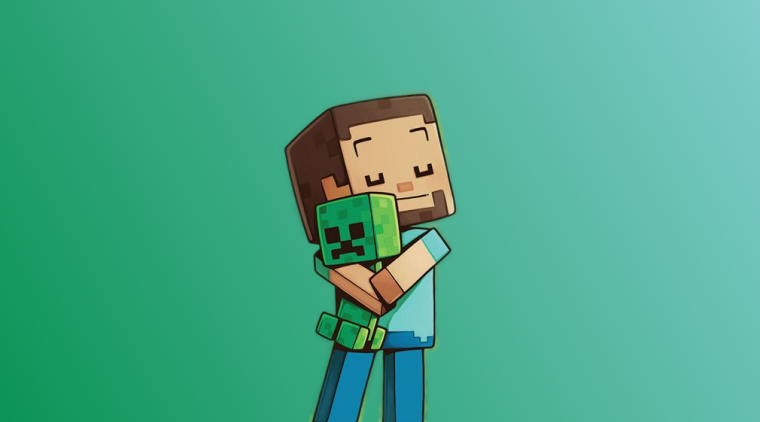
From Lincoln Logs to LEGO, kids love to build, so it comes as no surprise that they love Minecraft.
Minecraft is a sandbox video game that drops players into a world that exists entirely of blocks, inviting them to use the power of their imaginations to explore, craft, and build. Kids are drawn to it because it feels a bit like having endless digital LEGO, giving them the freedom to create houses, cities, machines, or whole fantasy worlds. As they wander through forests, oceans, and caves, they naturally solve problems, learn how to gather resources, craft tools, and even experiment with Redstone, the game’s version of simple engineering. It’s also a deeply social experience, letting friends team up to build or explore together, which turns the game into a shared adventure. With its gentle graphics, flexible playstyle, and focus on creativity, Minecraft feels both safe and endlessly engaging, and it even sneaks in educational elements like logic, planning, and basic coding along the way.
Like any digital experience, Minecraft comes with some risks when your kids are involved. But with the right parental controls, Minecraft can be a fun, engaging, and educational experience for your kids.
Table of Contents
What Is Minecraft and Is It Safe for Kids?
Minecraft is generally considered safe for kids, but how safe it is depends on which mode they play, who they play with, and what settings parents use. Here’s a clear breakdown:
Why Minecraft Is Usually Safe
1. No graphic violence: Enemies are blocky and cartoonish, and there’s no realistic gore or frightening imagery by default. Many younger kids play only in Creative Mode, which has no combat at all.
2. It encourages creativity and learning: Kids build structures, experiment with simple engineering (Redstone), explore, plan, and solve problems.
3. Strong parental controls on Minecraft (especially on consoles and Education Edition): Parents can limit chat, control multiplayer access, set playtime limits, and more.
Where Safety Concerns Can Come In
The game itself is safe, but certain features require supervision:
1. Online multiplayer: Real-time chat with strangers can expose kids to:
- inappropriate language
- bullying
- scams (e.g., “free diamonds” tricks)
2. User-generated content: Some downloadable skins, mods, or servers may include:
- inappropriate themes
- unsafe websites
- malware (if downloaded from unofficial sites)
3. Time management: Minecraft can be very absorbing; kids might play longer than intended.
Minecraft is safe for kids when played offline, in Creative Mode, or in supervised online settings. Most risks come not from the game itself, but from unsupervised online interactions or third-party content.
Minecraft Parental Controls
Minecraft parental controls help parents configure things like who their kids can play with, what content they can access and follow, and how long they can play. Most of these controls are handled through the Microsoft Family Safety system, since Minecraft (Bedrock Edition) uses Microsoft accounts across PC, Xbox, mobile, and Switch.
Main Parental Control Features
1. Multiplayer Restrictions
With this feature, parents can:
- Block multiplayer entirely (single-player only)
- Allow multiplayer only with approved friends
- Prevent joining public servers
- Block friend requests
This is one of the most important protections because most safety risks in Minecraft come from online interactions, not the game itself.
2. Chat and Communication Controls
Parents can fully turn off:
- Text chat
- Voice chat (on platforms that support it)
- Joining or creating game clubs or a group
By blocking communication, parents can prevent kids from running into inappropriate language or having conversations with strangers.
3. Content Restrictions
Content restrictions help manage what kind of content a child can access and parents can:
- Block user-generated content (like worlds, realms, or marketplace downloads)
- Limit access to community servers that may contain unmoderated content
- Restrict mods, skins, and add-ons to official sources only
This reduces the risk of kids seeing inappropriate content or installing unsafe files.
4. Screen-Time Limits
Through platform-level parental controls (Microsoft Family, Nintendo, PlayStation, or iOS/Android), parents can:
- Set daily time limits
- Set schedules (e.g., only playable from 3pm–6pm)
- Pause gameplay remotely
- Get reports on how much time a child played
This is especially helpful for ensuring your kids don’t waste the whole day playing Minecraft.
5. Spending Controls
Parents can:
- Block in-app purchases
- Set a monthly spending allowance
- Require approval for every purchase (skins, texture packs, coins)
This prevents accidental or surprise purchases on the Minecraft Marketplace.
6. Account-Level Protection
Minecraft encourages each child to have their own child account. That lets parents:
- Monitor individual activity
- Adjust settings at any time online
- Prevent kids from bypassing restrictions
Why These Controls Matter
Together, these tools help parents:
- Make the game safer (no strangers, no problematic content)
- Keep it age-appropriate
- Ensure reasonable screen-time boundaries
- Avoid accidental spending
With the right level of parental controls, Minecraft can definitely be kid-friendly, and these controls help tailor the experience to your comfort level.
Minecraft Parental Controls vs Kids360
Minecraft’s built-in parental controls focus mainly on safety within the game, but pairing them with a third-party app like Kids360 can strengthen that foundation, enabling parents to manage screentime and device access. While Minecraft lets you restrict multiplayer, block chat, and control who your child can interact with, Kids360 adds the ability to set daily or weekly time limits not only for Minecraft, but for every app your child uses. This provides a comprehensive approach, preventing long, unbroken gaming sessions and encouraging kids to divide their time more evenly between learning, hobbies, and play. Because Kids360 operates at the device level, it ensures children can’t simply switch to another app when Minecraft time runs out. Instead, parents can set clear boundaries for all apps in one place, helping create healthier overall digital habits while still letting children enjoy Minecraft safely through the game’s built-in restrictions.
While Minecraft settings let you change features like multiplayer and communication, they don’t give you a simple on/off switch for the game itself. Kids360 fills that gap by allowing parents to disable Minecraft, or any other app, with a single tap. This is especially helpful during homework time, family member activities, or bedtime, when you want to remove distractions without changing the game’s settings.
Kids360 also introduces a unique motivational element that Minecraft alone does not offer: the option for kids to earn screen time through positive actions. Children can complete educational tasks or physical activities—such as steps, squats, or short learning exercises—to earn back additional Minecraft minutes. This transforms screen time from something automatic into something earned, encouraging responsibility and reinforcing good habits. It helps kids understand that gaming is part of a balanced lifestyle rather than the default activity.
| Feature | Minecraft Parental Controls | Kids360 |
|---|---|---|
| Screentime Limits | No built-in time limit options to edit time spent in the game.. | Yes — Set daily or weekly time limits for Minecraft and any other app. |
| App Blocking | Cannot block Minecraft entirely through game settings. | Yes — Block or unblock Minecraft instantly with one tap. |
| Chat Blocking | Yes — You can fully disable chat and communication with other players | Not in-app chat control — Kids360 controls access to the app, not features inside the game. |
| Multiplayer Restrictions | Yes — You can block multiplayer, limit to friends only, or restrict joining public servers. | Not specific to Minecraft — focuses on app-level access instead of in-game features. |
How to Set Up Minecraft Parental Controls
Minecraft’s parental controls are easily managed through the platform your child plays on, whether that’s Microsoft, Nintendo, PlayStation, iPhone/iPad, or Android. But the steps for each are similar:
1. Create a child account
First, you should create an individual account for each child to customize restrictions and keep track of screen time/
- If your child plays on PC, Xbox, Switch, or mobile, create a Microsoft Family account.
- If they play on PlayStation, create a child account in Sony’s Family Management.
- If it’s an iPhone/iPad or Android, create a child profile in Screen Time or Family Link.
2. Turn off (or limit) multiplayer
This is the number one, most important safety setting as it prevents them from joining servers with strangers.
- Launch the game on your platform of choice
- Go to your family/parent
- Find your child’s account
- Look for “Multiplayer” or “Online play”
- Choose Block (or “Friends only” if you want limited multiplayer)
3. Disable chat
The chat function can be turned off so kids can’t send or receive messages.
Look for:
- “Communication with others”
- “Chat settings”
- “Communication and user-generated content”
Set it to Not Allowed.
4. Set screen-time limits
Most devices let you set:
- Daily time limits
- Bedtime shutoff
- Allowed hours or scheduled time
This part is done in Microsoft Family, Screen Time, Family Link, or PlayStation/Nintendo parental settings, depending on the device your child uses.
5. Restrict purchases
To avoid accidental purchases, navigate to your platform’s store, including the Microsoft Store, Nintendo eShop, PlayStation Store, App Store, or Google Play.
- Block in-app purchases
- Require approval before buying skins, coins, or add-ons
Pairing Parental Controls for Peace of Mind
Minecraft parental controls give parents the tools they need to make the game safer and more age-appropriate by managing chat, multiplayer access, and in-game content. While these built-in settings create a secure environment inside the game, device-level controls or apps like Kids360 can help balance overall screentime and manage access more effectively. Together, they offer a well-rounded approach that keeps gameplay fun while supporting healthy digital habits. With the right settings in place, kids can enjoy Minecraft confidently and safely.